First-run setup
Complete this sequence immediately after deployment. Configuration is capability-gated: the AI Providers route requires settings.read and its changes require settings.write; Azure connections require connections.manage; Access Control requires users.manage. Users without those permissions can consume only the features granted to their active role.
Application route: /dashboard
Screenshot scope: These local test-data examples show unsaved forms, not completed setup. No actual OAuth sign-in, AI-provider connectivity, or Azure connectivity was verified during capture.
1. Secure the bootstrap account
- Open the deployment’s HTTPS URL.
- Sign in with the bootstrap username and temporary password.
- Complete the forced password change. The default policy requires upper case, lower case, and a digit in addition to its minimum length.
- Store recovery information according to your organization’s credential policy.
Do not keep sharing the bootstrap account. Configure named users or SSO after the initial setup.
2. Configure an AI provider
Route: /admin/providers
- Open Settings → AI Providers.
- Select an API-key, OAuth, or local provider.
- Enter only the fields required by that provider. Secrets are masked after save.
- Save and run Test connection where available.
- Select a model and set the provider/model as the default.
A provider that has not been configured remains disabled. Local Ollama or LM Studio must be reachable from the deployed container, not merely from the configuration operator’s laptop.
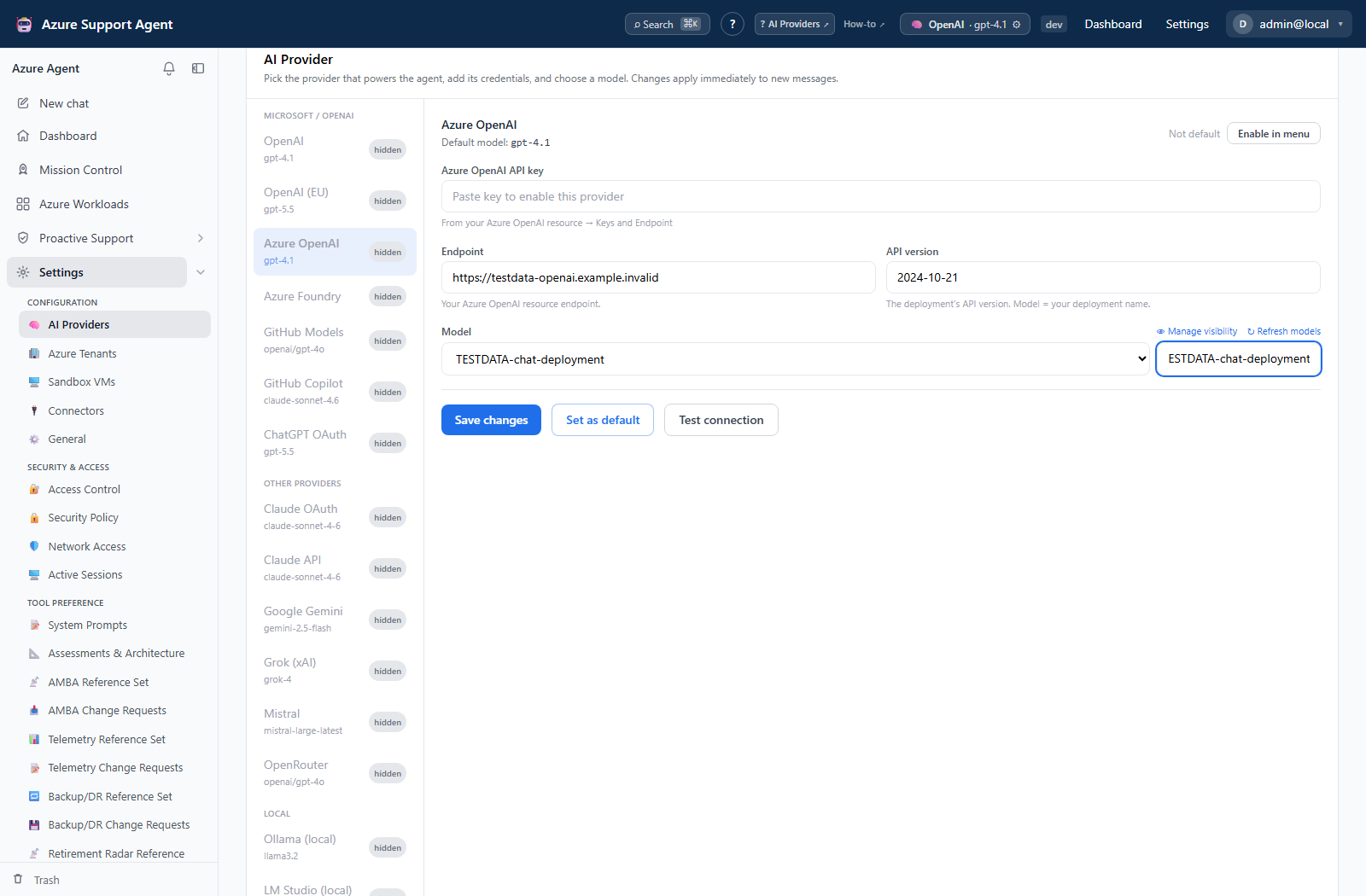
For provider-specific examples and verification, follow Configure AI providers.
3. Connect Azure
Route: /admin/tenants
- Open Settings → Azure tenants and create a connection.
- For the one-click deployment, choose the host managed identity. Service-principal secret/certificate and temporary CLI-token methods are alternatives.
- Keep the connection read-only initially.
- Grant Reader to the identity at the smallest useful scope.
- Test the connection and confirm the expected subscriptions are visible.
- Set the intended connection as default if more than one exists.
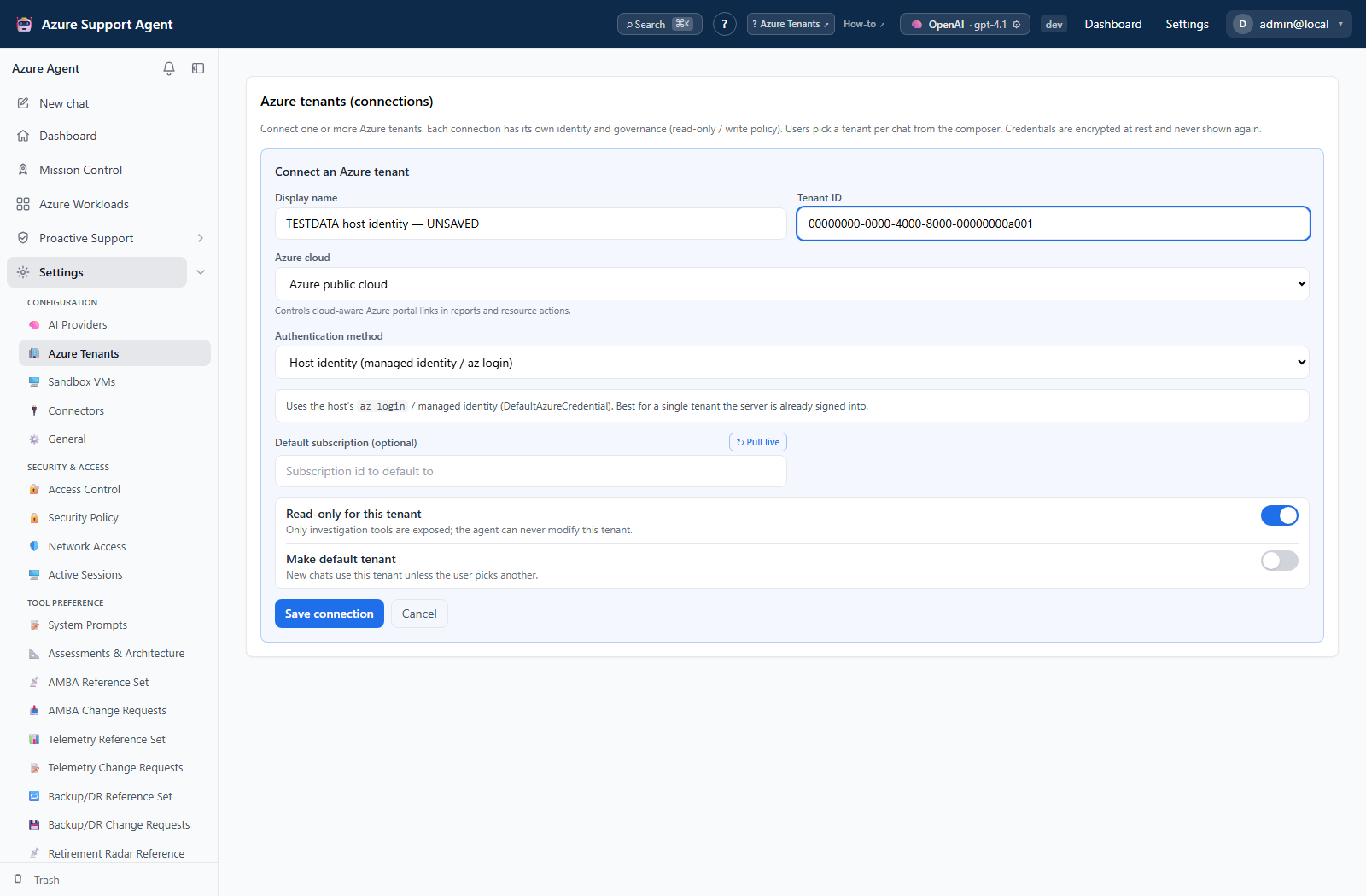
See Manage Azure tenant connections for verification and links to each authentication method’s detailed form guide.
4. Verify the Dashboard
Return to /dashboard. The setup guide should recognize the configured provider and Azure connection. Dashboard cards are capability-filtered or cache-backed; an empty coverage or posture card does not necessarily mean a zero score. It often means that no scan has run for the selected workload.
See Dashboard for the setup guide and card interpretation. The separate Proactive Support directory lists tools; it is not the Dashboard or evidence that setup succeeded.
5. Discover the first workload
Route: /workloads
- Open Workloads and start Autopilot.
- Select a management group or subscription that the connection can read.
- Run the free survey. Review estate facets, filters, and the estimated grouping cost.
- Choose a discovery preset and adjust filters or AI-call budget.
- Run discovery.
- Review every proposed workload’s members, evidence, reasoning, and confidence.
- Save only the candidates that represent real application boundaries.
Autopilot discovery is advisory until candidates are saved. See Workload discovery and Autopilot.
6. Run a smoke test
- Open
/chat, send a low-risk inventory question, and verify streaming completes. - Open the saved workload and run Analyze if you want current health signals.
- Confirm unconfigured feature cards display unavailable/unknown rather than being interpreted as healthy.
- Review application roles under Settings → Access Control before adding users.
Optional setup
- Enable Microsoft Graph-backed features with Microsoft Entra setup.
- Configure SSO and assign newly provisioned users a deliberate role. The no-access role is the safe default for unapproved users.
- Add ticketing or notification connectors only after testing them with non-sensitive data.
- Load synthetic demo data if you want to explore without querying Azure; remove it from Settings → Demo Data afterward.
Troubleshooting
| Symptom | Resolution |
|---|---|
| No models appear in Chat | Save, test, and activate a provider under /admin/providers |
| Local model works on a laptop but not in Azure | Use an endpoint reachable from the Container App network |
| Tenant test cannot list subscriptions | Check identity selection, Reader assignment, scope, and RBAC propagation |
| Dashboard cards are blank | Select a primary workload and run the corresponding scan; check your feature permissions |
| Workload health says Not analyzed | Run Analyze from workload detail; missing signals are not treated as zero |
| User sees access denied | Assign an application role containing the required capability |