Mission Control
Routes: /mission-control and mission detail/history within that view
Purpose
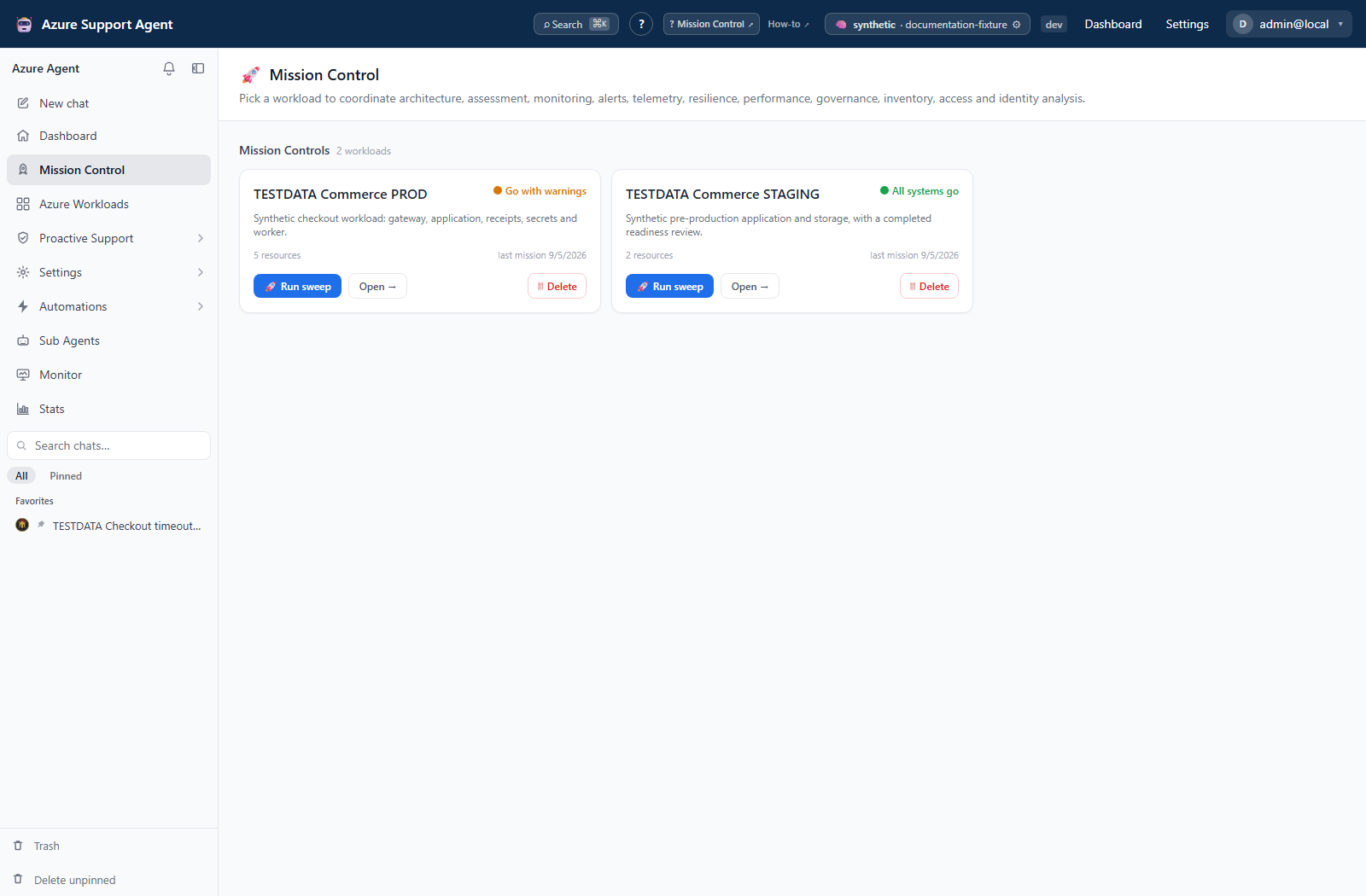
Mission Control runs a coordinated set of workload analyses and presents their latest states on one posture board. Use it for release readiness, operational reviews, incident handoff, or a repeatable check across several systems without opening every feature manually.
When to use it
- Before a production release or change window.
- During a service review when coverage, architecture, risk, ownership, and performance must be considered together.
- To refresh stale analyses in a controlled sweep.
- To compare current readiness with prior mission history.
- For fleet operations when several workloads need the same review.
Mission Control orchestrates existing product systems; it does not replace their detailed reports.
Prerequisites and data sources
Prerequisites and permissions
missions.readto view the board and mission history.missions.runto launch, cancel, rerun, or delete missions.workloads.readand at least one defined workload.- A valid Azure connection for systems that perform live scans.
- Feature and data access required by each selected system.
- An AI provider for systems that use model reasoning.
A user may be allowed to run missions while an individual system still lacks Azure, Graph, model, or application access. Such failures remain visible per system.
Tabs and actions
Freshness and scope behavior
Queue and execution behavior
Mission Control uses a central FIFO admission queue with per-tenant/connection lanes. By default, only one system runs at a time inside a mission, global mission concurrency is limited, and AI-heavy operations use an additional throttle. This prevents one fleet sweep from overwhelming Azure or the model provider.
If a mission remains queued, another mission for the same connection may be active. Check queue position rather than repeatedly submitting duplicates.
Large workloads
Mission Control automatically pages and batches workload inventory queries. It does not require an operator-selected “large” threshold. Architecture, Memory, Tag Intelligence, and Inventory reuse one light inventory collection during a mission, reducing repeated Azure Resource Graph calls.
For a large or highly repetitive estate, AI Architecture switches to a bounded summarized context. Topology-bearing resources are prioritized and repeated resources are represented as stable aggregates. The architecture records total, represented, aggregated, and property-enriched counts. Narrow the workload when a resource-by-resource diagram is required.
If a collector reaches a safe retained-row or context limit, the tile reports Partial with retained-versus-known counts. A partial result is never described as complete.
Workflow overview
Run a mission
- Open
/mission-control. - Select the target workload and verify its Azure connection.
- Review the cached board and freshness labels before choosing what to rerun.
- Select Run mission.
- Choose all systems or a focused subset. Available systems can include Architecture, Assessment, Monitoring Coverage, Telemetry Coverage, Backup/DR, Retirement Radar, Performance, Identity, Estate Graph, Ownership, Tag Intelligence, Change Explorer, and Mission Memory.
- Leave force refresh off when recent cached results are acceptable. Enable it only when current evidence justifies the extra Azure/model work.
- Start the mission. The central queue may hold it until capacity is available.
- Watch streamed progress, per-system status, and logs. Systems execute serially within a mission to reduce Azure throttling.
- Open any attention tile to inspect the owning feature’s findings and evidence.
- Re-run an individual system after addressing a transient error or stale result.
Fleet missions use the same principles but can queue multiple workloads. Keep the fleet small enough to remain operationally useful and provider-budget aware.
Interpretation of results
Interpret the board
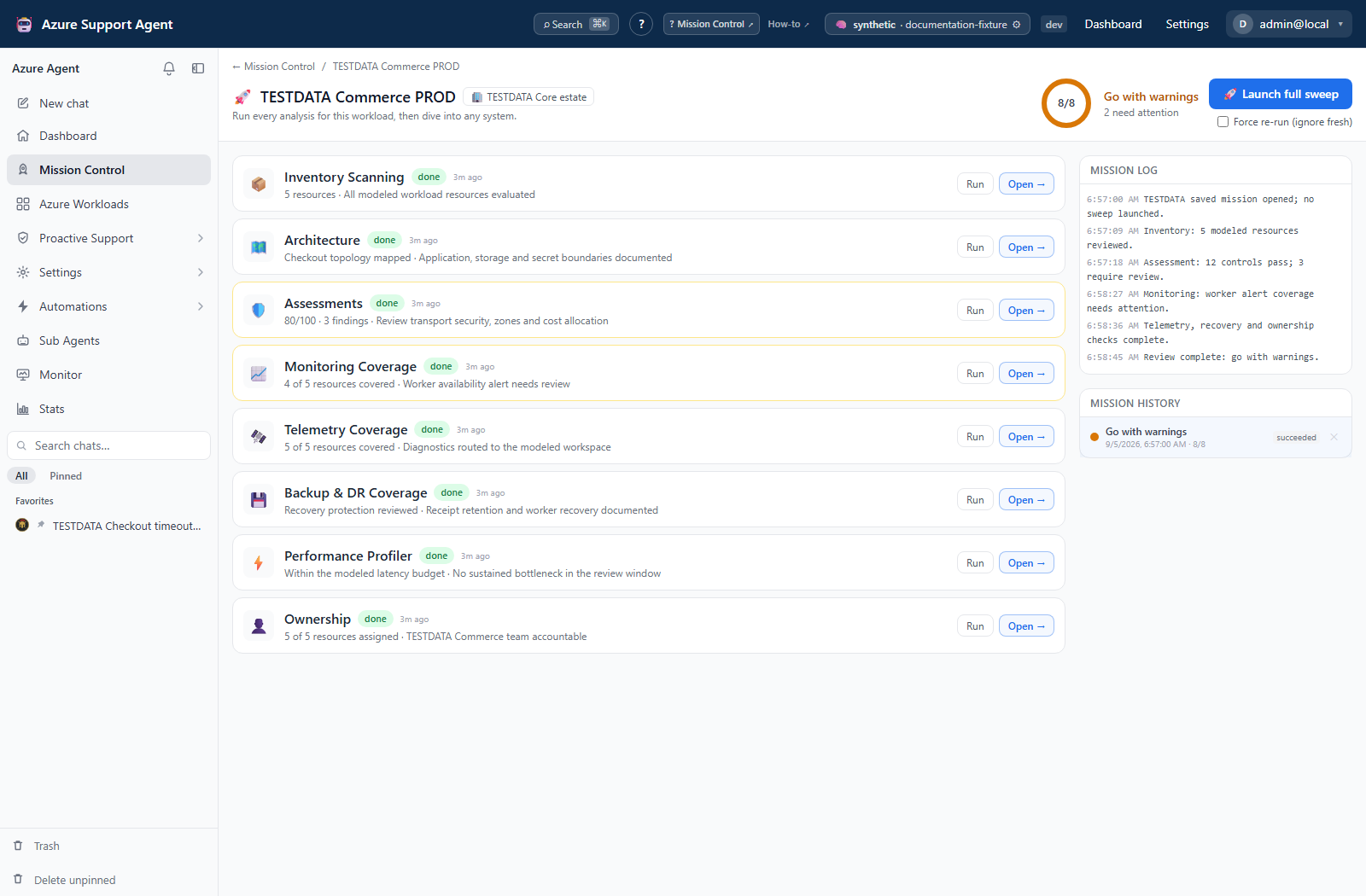
Mission readiness
| State | Meaning |
|---|---|
| Go | Completed contributing systems did not report attention conditions |
| Warning | The sweep completed with findings or partial concerns that require review |
| No-go | One or more hard failures or high-impact conditions prevent a clean readiness verdict |
| Unknown / not assessed | Insufficient systems have produced a usable state |
| Cancelled | Execution was stopped before a complete verdict |
System status
- Queued/running: execution has not produced a final state.
- Done: the system completed; inspect its headline and attention flag.
- Partial: the system produced a useful result with known omissions or an unavailable independent source. Review its coverage detail and warning before relying on it.
- Skipped: a sufficiently fresh result was reused, or a dependency/condition prevented execution. Read the detail.
- Fail/error: the system could not produce a normal result or found a hard failure. Open the system and logs.
- Freshness age: how old the underlying result is. A completed mission can still include reused data unless forced.
- Informational systems: displayed on the board but do not contribute to the needs-attention count.
A readiness ring measures completed systems, not an Azure SLA or probability of success. A green board is bounded by the selected systems, data access, scope, and collection time.
Exports, history, scheduling, and integrations
Mission history stores each run’s status, systems, and activity log. Opening a history entry loads its full saved record and restores the Mission Log; a queued or running entry also reattaches to live progress. Losing the browser stream does not cancel orchestration. The page makes bounded reconnect attempts and checks persisted status between attempts, so a completed mission can be recovered even when its terminal stream event was missed.
Safety and limitations
Safety
- The mission is primarily an orchestrated analysis, but selected systems may expose downstream remediation workflows. Mission Control does not authorize bypassing their approvals.
- Confirm workload membership before launch; every system inherits that boundary.
- Force refresh can increase Azure requests, model usage, runtime, and rate-limit exposure.
- Cancel stops remaining orchestration but cannot undo completed external reads or generated artifacts.
- A failed Architecture or Radar refresh does not replace a previous usable artifact/snapshot with an empty failure.
- Deleting mission history is permanent and does not delete source feature records.
- Keep mission evidence and logs free of secrets when sharing or exporting them.
Troubleshooting
| Symptom | Resolution |
|---|---|
| Mission stays queued | Check queue depth/position and active missions for the same connection; do not submit duplicates |
| One system fails while others succeed | Open that system’s detail and verify its feature permission, Azure/Graph access, provider, and dependency state |
| A tile is Partial | Review retained-versus-known counts or source warnings. The usable result remains openable; narrow the workload if detailed architecture is required. |
| Architecture says Summarized | The estate exceeded the bounded detailed context. The diagram represents repeated resources as aggregates; narrow workload membership for resource-level detail. |
| Radar reports a source warning | Advisor, Service Health, and model lifecycle are collected independently. Review the source status; a total refresh failure preserves the last-good snapshot. |
| Board shows old data | Review age labels and run a focused or forced refresh when justified |
| Readiness remains unknown | Select contributing systems and resolve skipped/error states that left no usable result |
| Streaming disconnects | The page retries the stream and checks saved mission status. If recovery still fails, reopen the workload board and select the same history entry; its saved status and activity log persist. Do not launch a duplicate merely because the stream ended. |
| Azure returns 429 | Let the queue/backoff complete, reduce fleet size, and avoid forced reruns |
| Mission Memory is skipped | Ensure Architecture completed and a linked architecture exists |
| Cancel appears slow | The current system must reach a cancellation point; already completed work remains recorded |