Configure messaging and ChatOps connectors
All four types support real Send test delivery. Follow connector lifecycle for enable, disable, edit, delete, and common troubleshooting.
The screenshots below show native unsaved, disabled forms. Credential secrets are empty, Azure connection selectors are unselected, and entered domains are non-resolving examples. No save, authentication, consent, test, or delivery is demonstrated; placeholder text is not a stored credential.
Prerequisites
connectors.manage.- Webhook mode: a Teams Workflows/incoming webhook URL.
- Graph mode: an Azure connection permitted to post to the target Team and channel, plus Team ID and Channel ID.
- Incoming Webhook URL, or an installed Slack app bot token with
chat:writeand an optional default channel. - An Azure connection whose Entra application has admin-consented Microsoft Graph
Mail.Send; additional read/reply operations need their corresponding mail permissions. - A licensed sender mailbox address.
- SMTP host/port, valid From address, and optional username/password.
Route
- Open
/automations/connectors.
How to configure Microsoft Teams
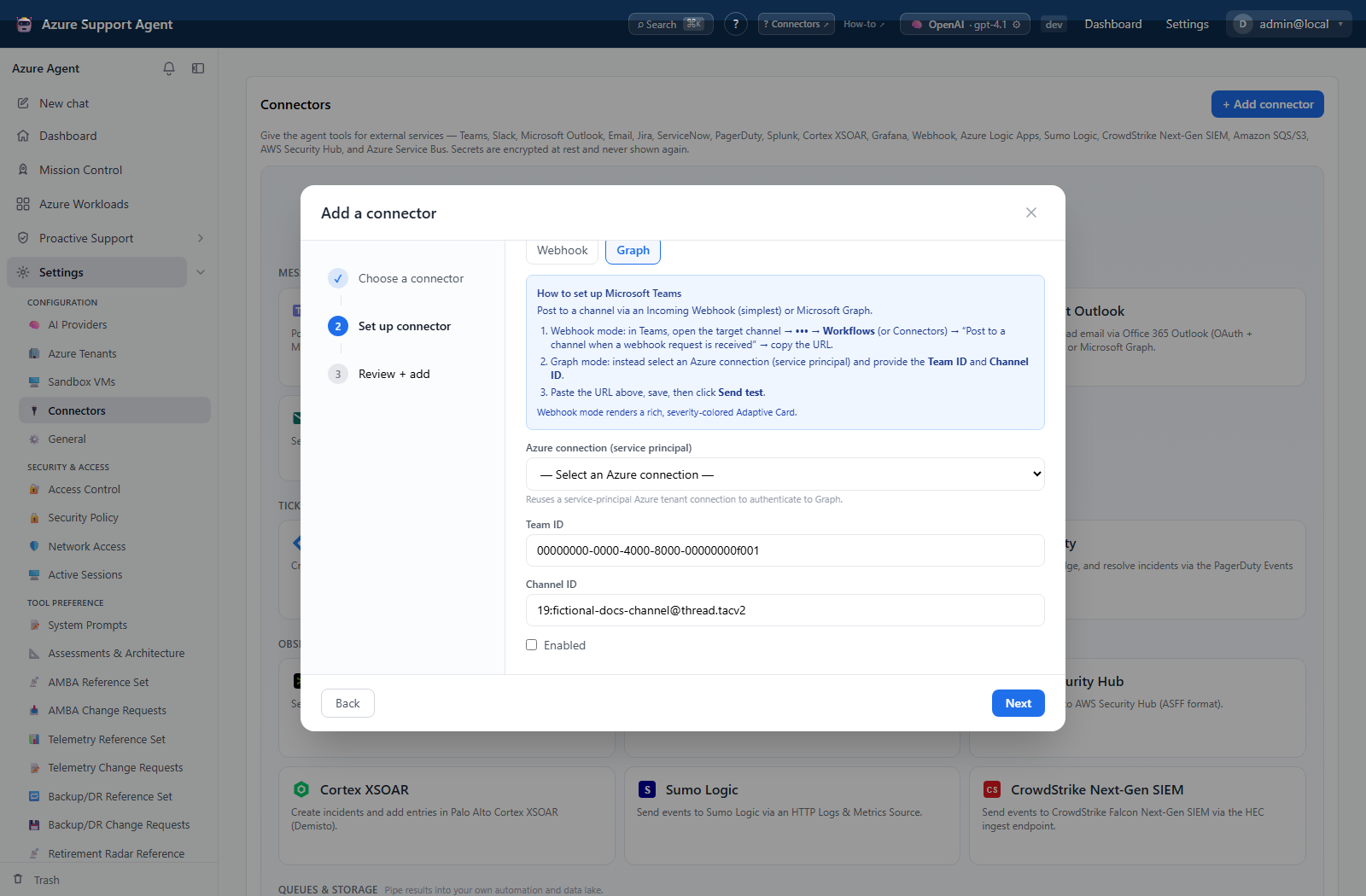
- Add Microsoft Teams and choose Webhook or Microsoft Graph.
- For Webhook, paste the secret webhook URL. For Graph, select the Azure connection and enter Team ID and Channel ID.
- Save disabled and select Test. Webhook mode only confirms a URL is stored; Graph mode requests a Graph token without posting.
- Enable the connector and select Send test; this posts a real card to the channel.
- Confirm the card in the intended Team/channel before selecting the connector in a task or notification rule.
Expected result: Test reports configured/token acquired; Send test creates a visible Teams message.
Verification: Check channel identity, card title/body, and test time in Teams.
How to configure Slack
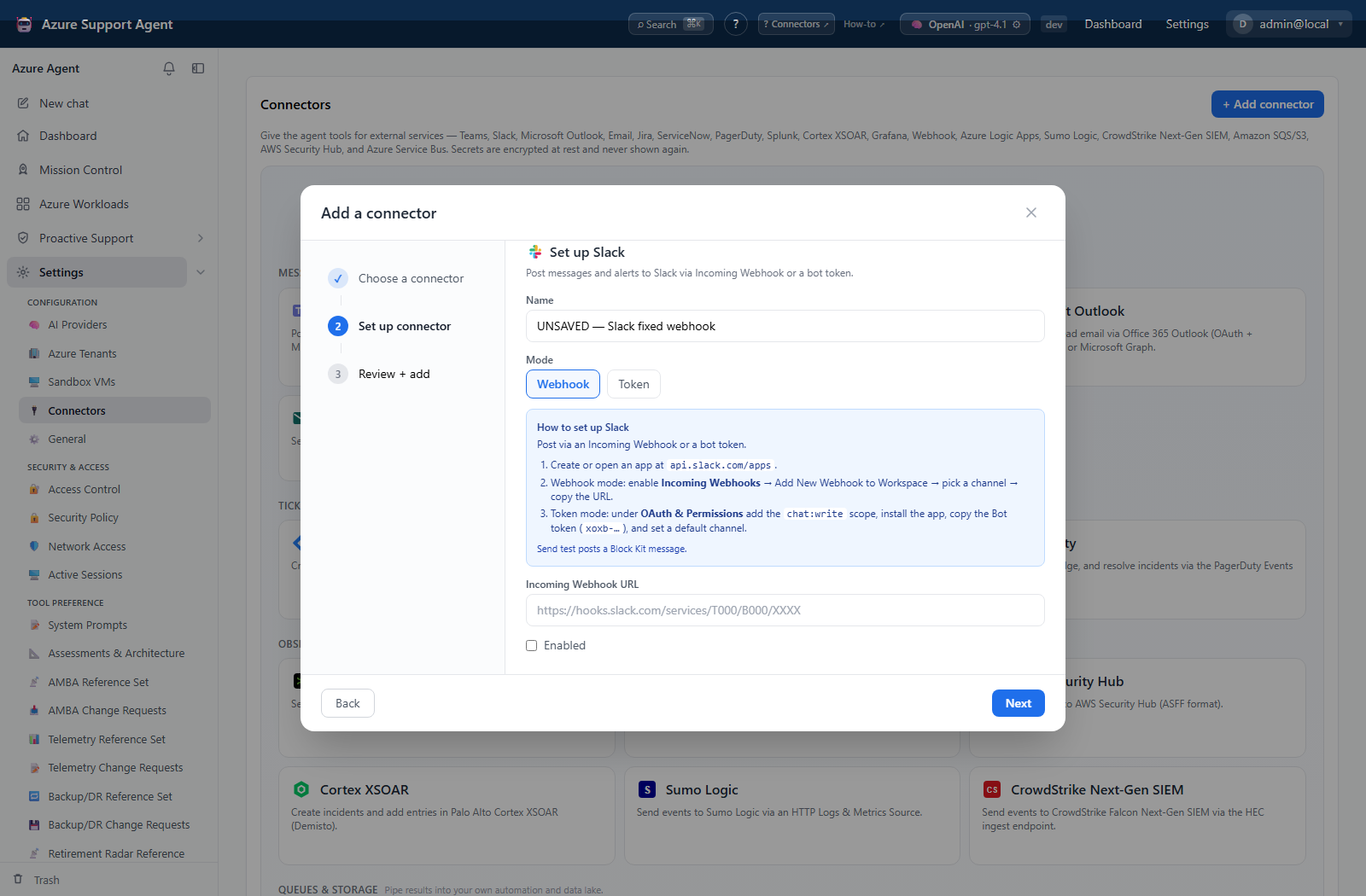
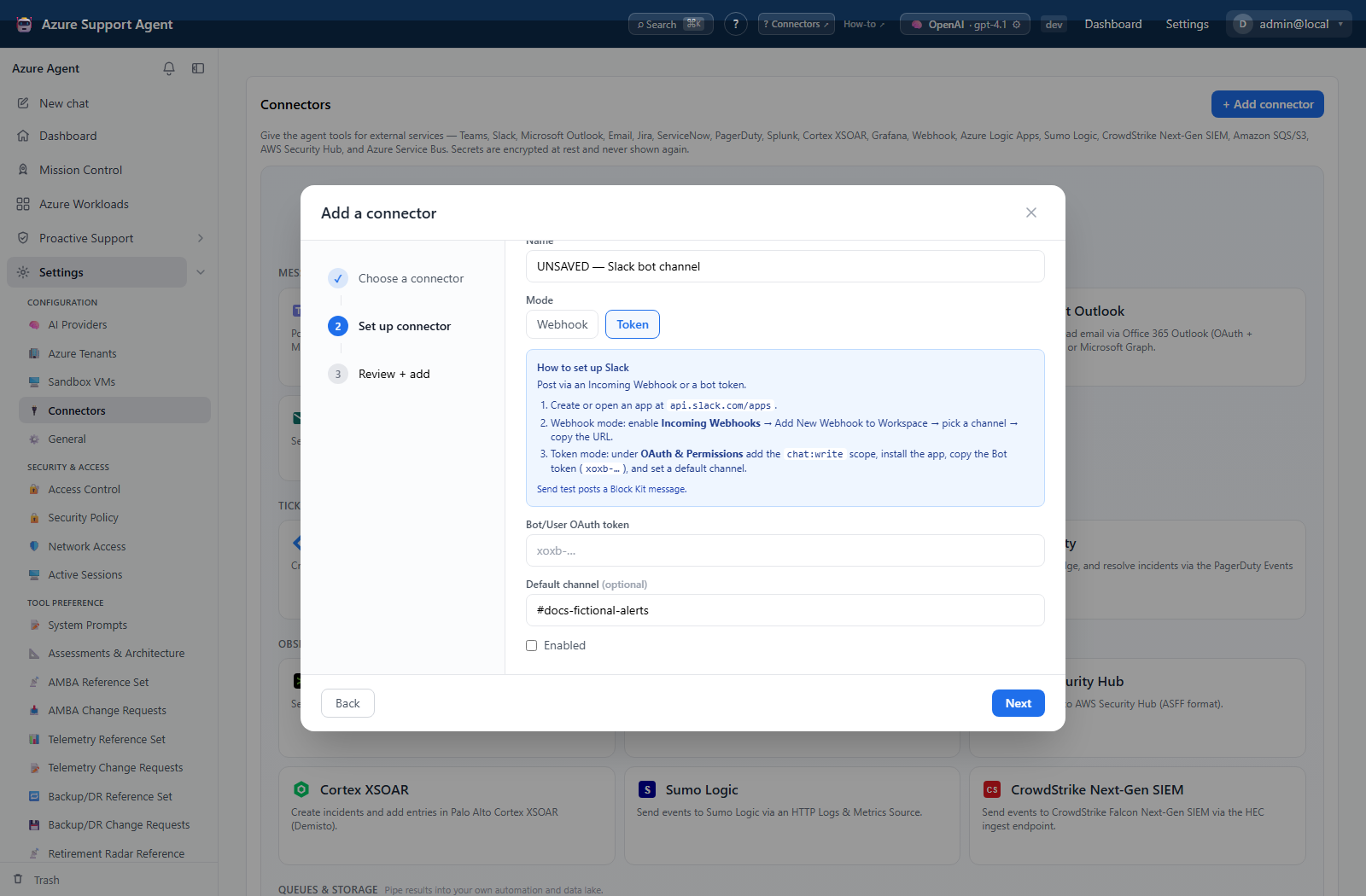
- Add Slack and choose Incoming Webhook or Bot token.
- Enter the secret webhook URL, or bot token and default channel.
- Save disabled and select Test. Webhook mode checks only that the URL is stored; token mode calls Slack
auth.test. - Enable and select Send test to post a real Block Kit message.
- Verify the workspace and channel, then use the connector in routing.
Expected result: Token Test identifies the authenticated Slack user; Send test posts a message.
Verification: Confirm the message in the intended channel and that the bot/app identity is expected.
How to configure Microsoft Outlook
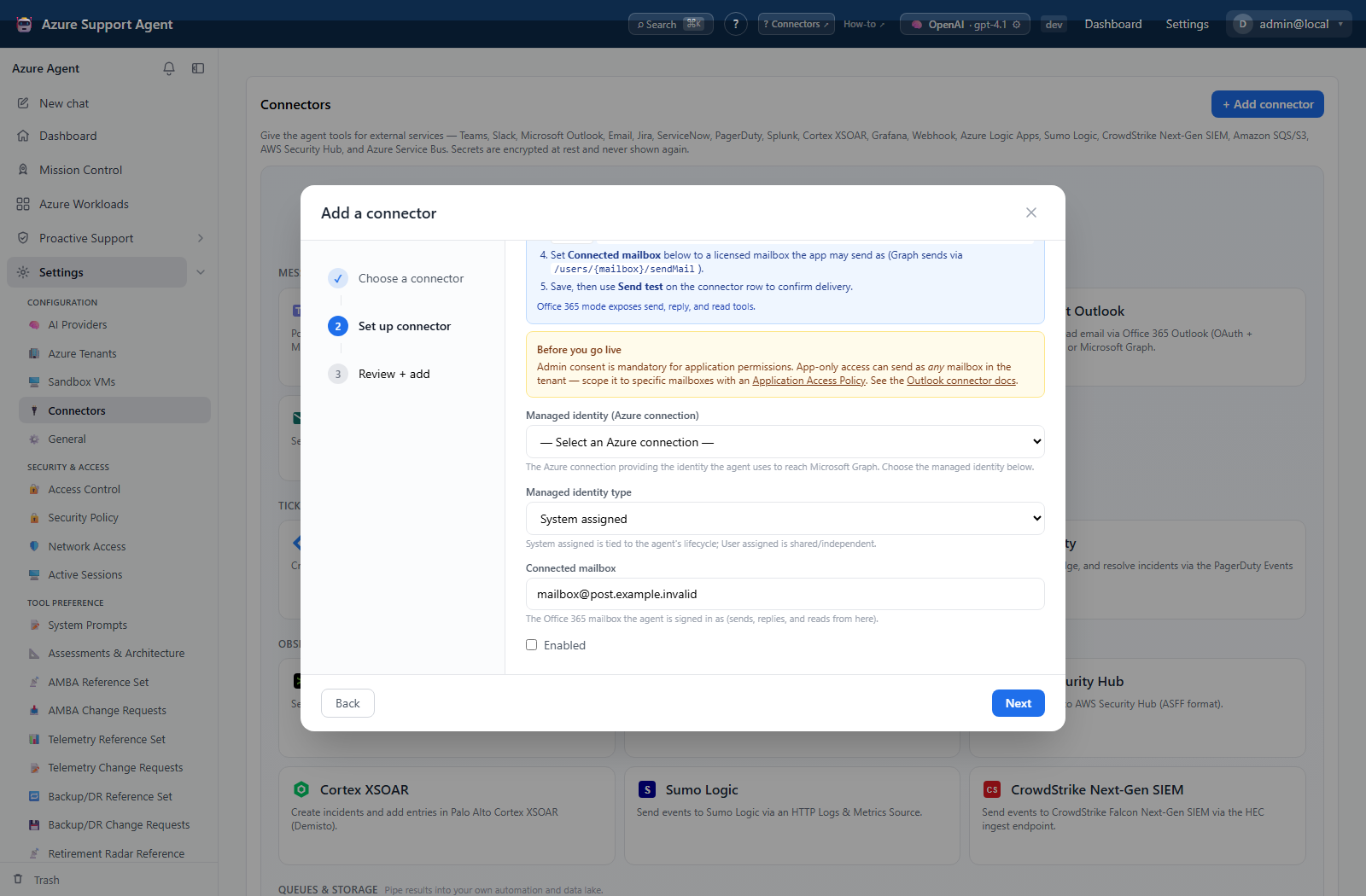
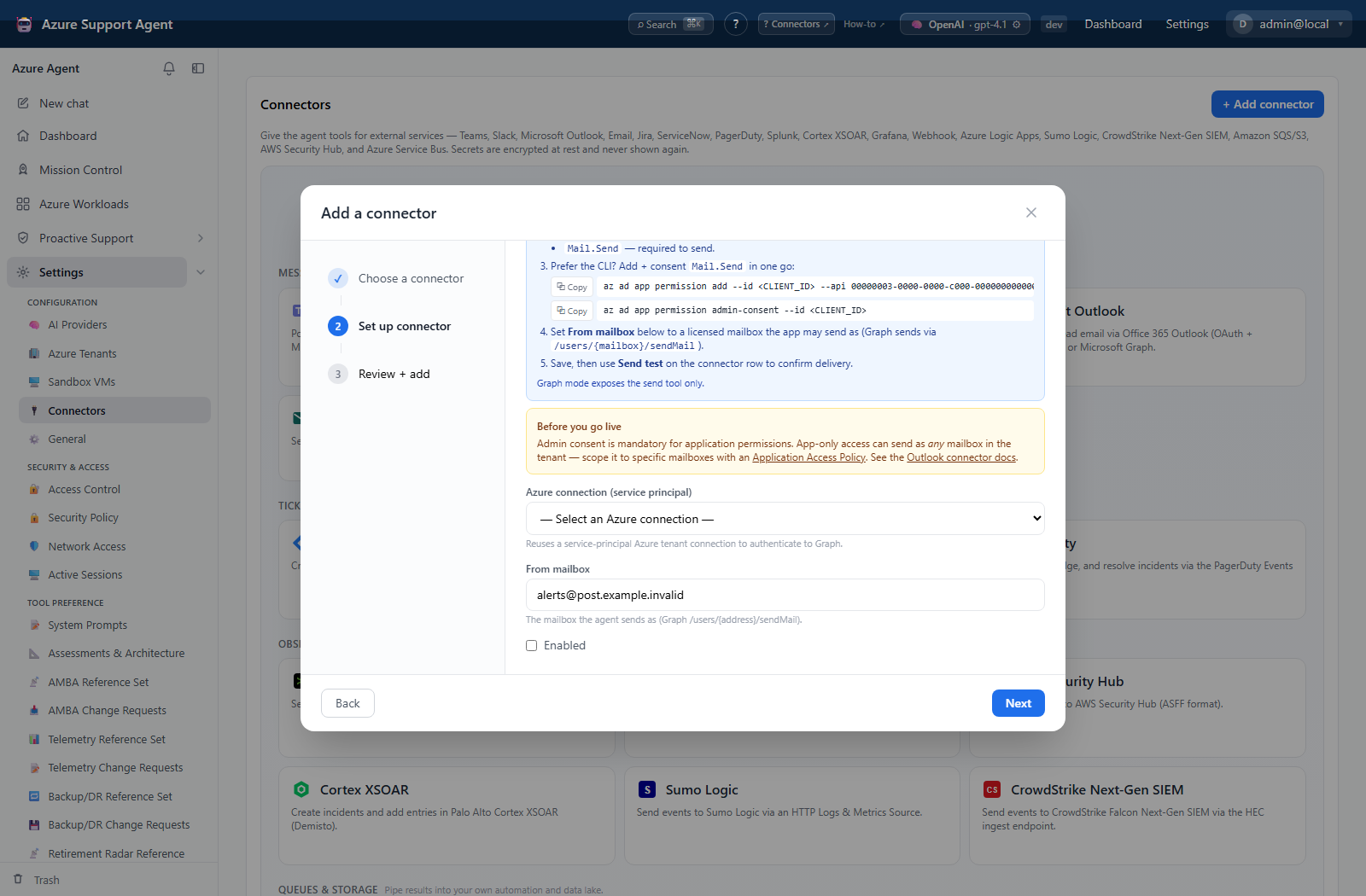
- Add Microsoft Outlook, choose Office 365 or Graph mode, select the Azure connection, and enter the sender mailbox.
- Scope app-only mailbox access according to organizational policy.
- Save disabled and select Test; it acquires a Graph token but sends no email.
- Enable and select Send test. The allowlisted action invokes the real send tool, but the connector form has no recipient field; if no recipient is supplied by the calling context, the status correctly reports that a recipient is required.
- Verify real delivery through an approved workflow that supplies a safe recipient before enabling automated routing.
Expected result: Test reports a Graph token. Send test attempts the real send path and reports success or the missing-recipient/provider error.
Verification: For an approved workflow with a recipient, check the recipient mailbox and mail trace/audit facilities available to the administrator.
How to configure Email (SMTP)
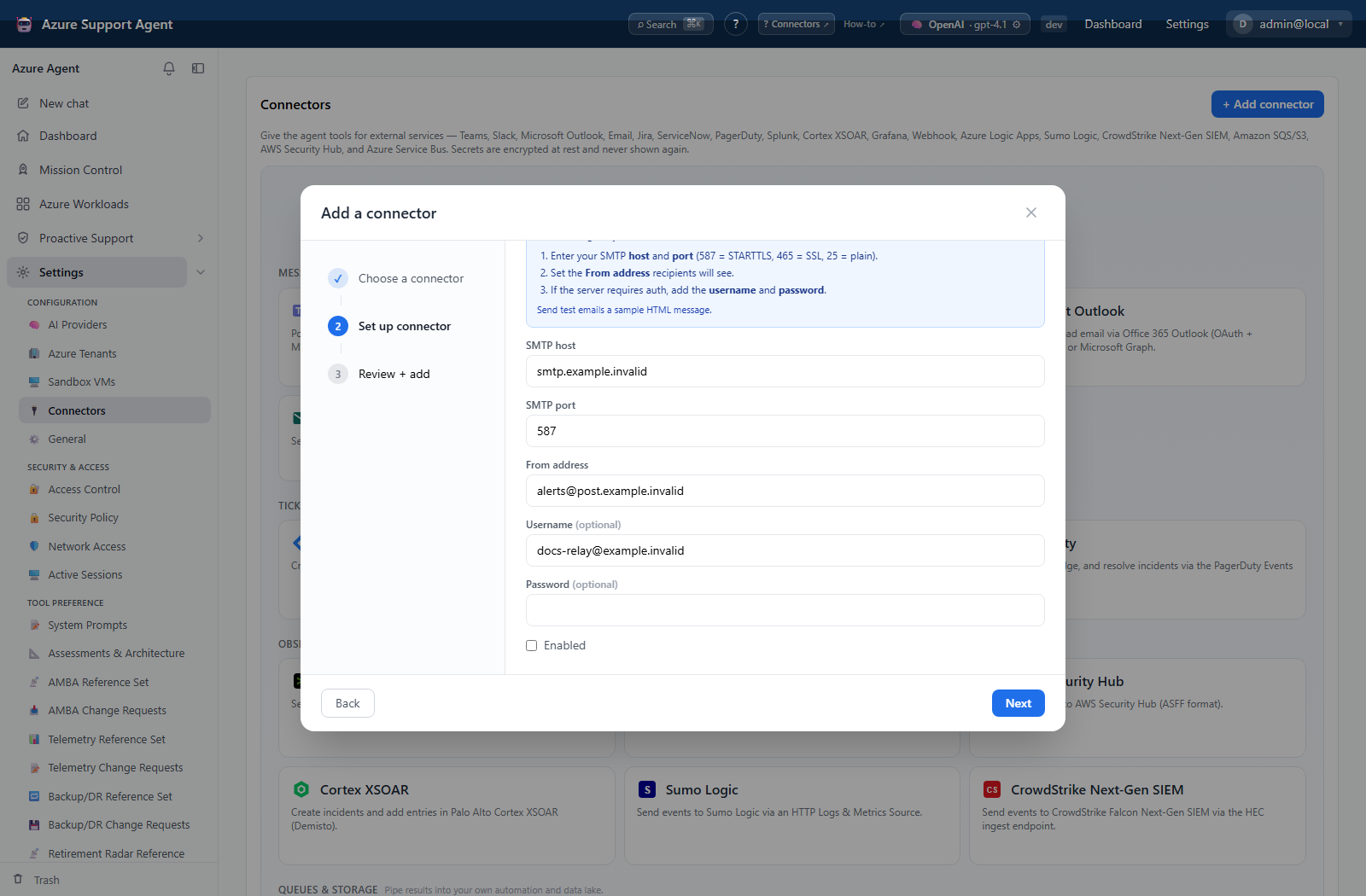
- Add Email (SMTP) and enter host, port, From address, and optional credentials.
- Match transport to the server: port 587 commonly uses STARTTLS; 465 uses SSL; only use unencrypted transport when explicitly approved.
- Save disabled and select Test; it only confirms that an SMTP host is stored.
- Enable and select Send test. The allowlisted action invokes the real SMTP tool, but the connector form has no recipient field; if no recipient is supplied by the calling context, the status correctly reports that a recipient is required.
- Verify real delivery through an approved workflow that supplies a safe recipient before selecting it for automation.
Expected result: Test reports SMTP host configured. Send test attempts the real SMTP path and reports success or the missing-recipient/provider error.
Verification: Check recipient inbox, spam/quarantine, sender, and server delivery logs.
Safety and rollback
Use a dedicated app and narrow channel access. Delete the test message if allowed, disable the connector, and revoke/rotate exposed tokens or webhooks.
App-only mail permission can be broad. Disable the connector, remove unwanted mail, and revoke or narrow application access when needed.
Prefer TLS and a least-privilege relay identity. Remove the test message, disable the connector, and rotate exposed credentials.
Treat the webhook URL as a secret. Delete the test post if policy requires, disable the connector, and rotate a disclosed webhook or Graph credential.
Troubleshooting
| Symptom | Resolution |
|---|---|
| A test message reaches the wrong channel or mailbox | Recheck the configured Team/channel, Slack channel, or recipient and use a dedicated non-production destination before sending again. |
| A webhook Test success does not check reachability | For Graph errors, verify the Azure connection, Team/channel IDs, and application permissions. For delivery errors, confirm the app/workflow may post to that channel. |
| Notifications | Review connector configuration and retry. |
| Connector lifecycle | Review connector configuration and retry. |