Build and run workbooks
Prerequisites
workbooks.readto list/export/history;workbooks.writeto author, import, use AI design, test, and run. The current UI disables the entire panel without write access, including History/Export.- An Azure connection appropriate for the intended scope.
- A reviewed Resource Graph query, Azure CLI command, or PowerShell operation.
- For CLI/PowerShell, administrator-enabled command execution, an installed allowlisted binary, and reviewed identity behavior. Resource Graph is a read-only query path, not Log Analytics.
- An active AI provider for drafting or AI output processing; raw execution can be reviewed with AI output disabled.
- A reviewed JSON workbook bundle from a trusted source.
Route
- Open
/automations/workbooks.
Screenshot note: These are browser-only catalog and history examples, not executed workbook operations. No Azure query, host command or AI request ran. The parameter dialog was opened without selecting Run workbook; its recent results were supplied separately as synthetic history.
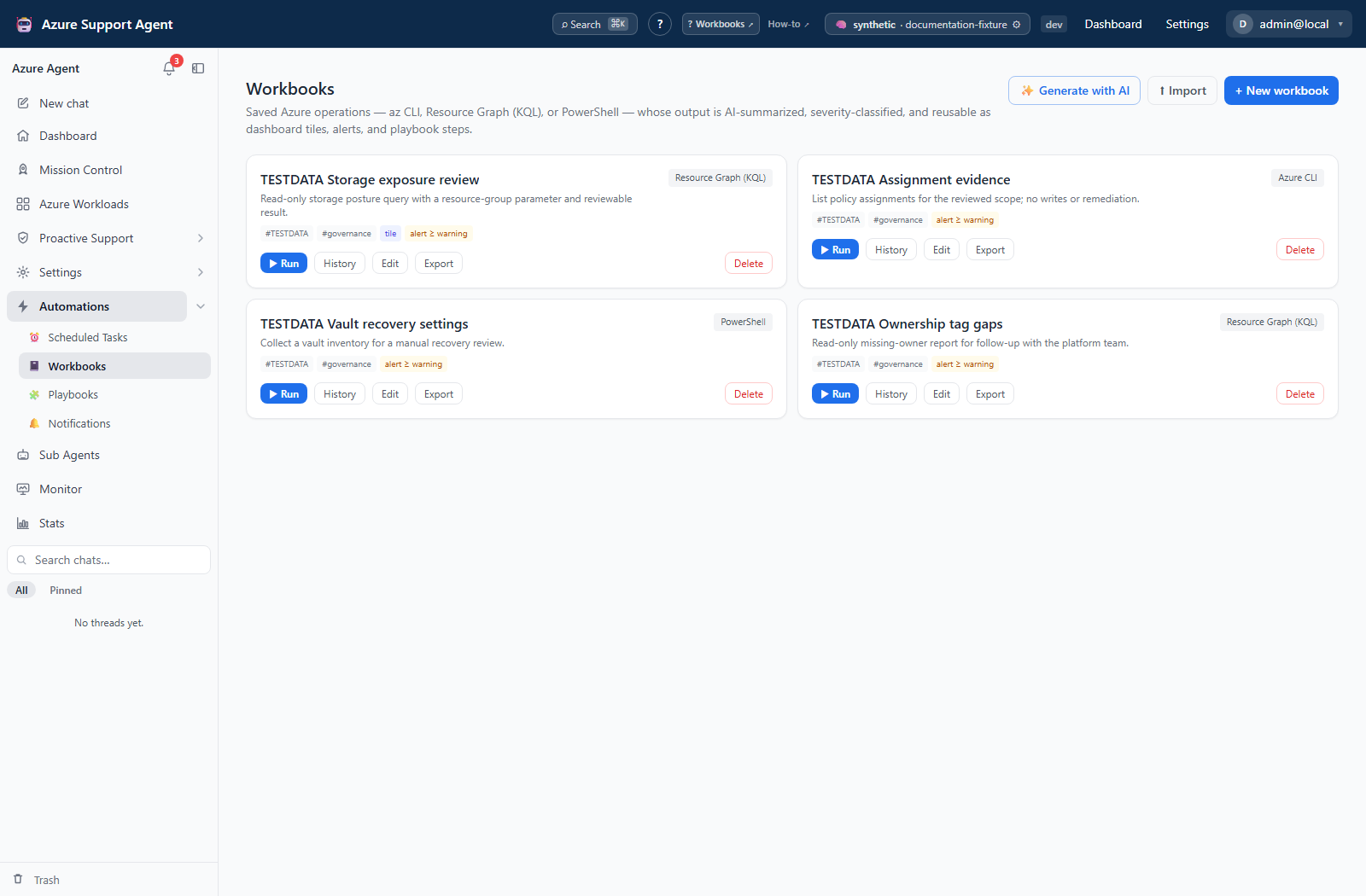
How to create and test a workbook
- Select New workbook, edit a reviewed starter, or use Generate with AI. Submit each interview step with Continue; Generate now skips remaining questions and does not include unsubmitted current-step answers. Treat the result as an untrusted draft.
- Name the workbook and choose Resource Graph (KQL), Azure CLI, or PowerShell.
- Enter the body and define each
{{parameter}}with a key, label, and safe default. Supply every required value yourself: required markers do not enforce validation, missing placeholders become empty strings, and values are not automatically escaped. - Select a default Azure connection and optional tags.
- Configure AI output modes: summary, severity, extraction schema, or diff.
- Optionally enable an alert event with a minimum severity or a dashboard tile.
- Enter test parameter values and select Test run only after reviewing execution effects. It executes the draft with confirmation enabled, does not persist a workbook run, and does not emit the workbook’s alert event.
- Inspect raw output, structured output, narrative, severity, duration, and errors; then save.
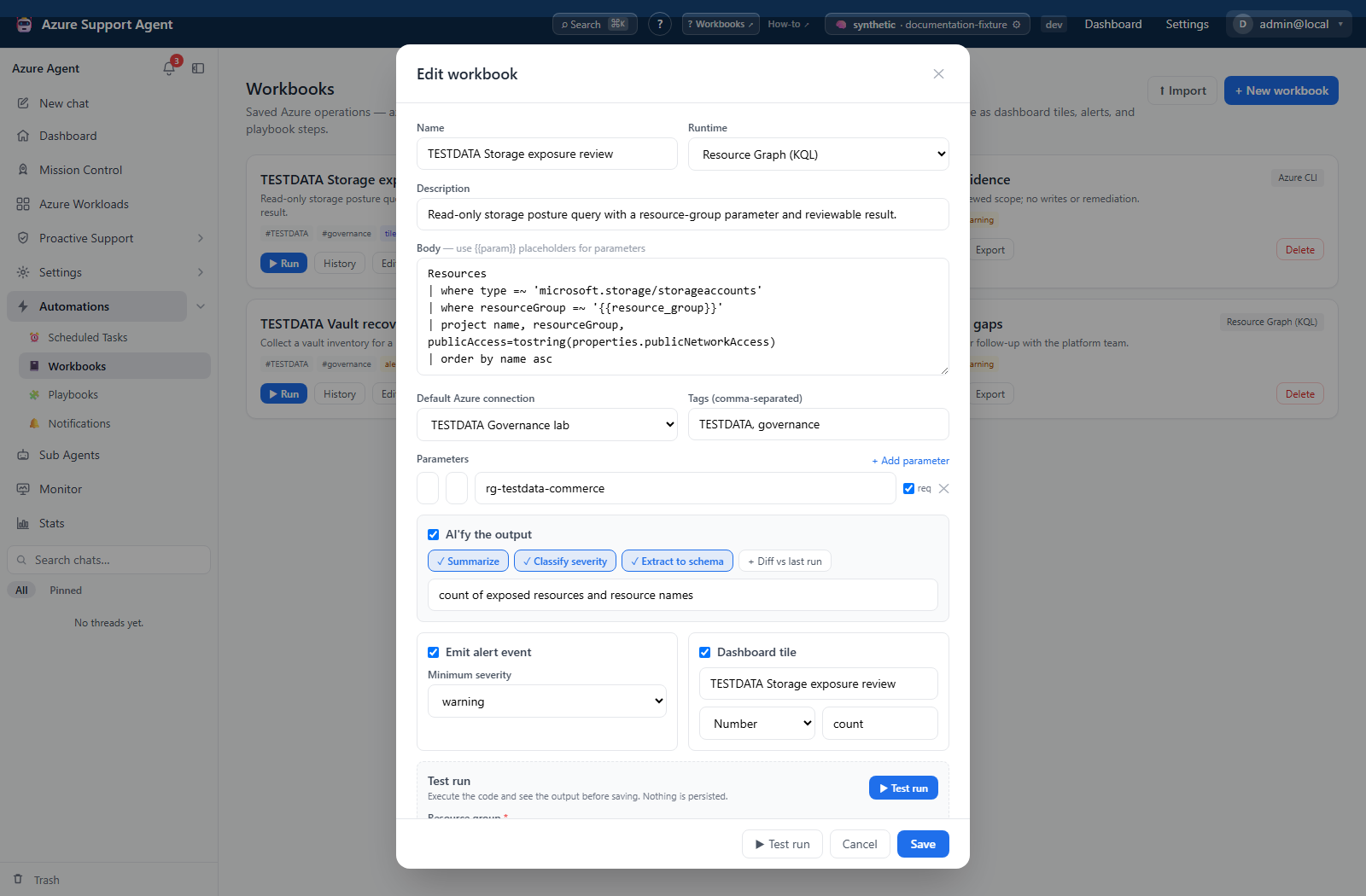
Expected result: A reusable workbook is saved, and its draft test returns an understandable result without adding to run history.
Verification: Select Run, enter parameter values, then Run workbook. Open History, expand the new record, and compare Command, raw output, structured result, severity, and error with the test. The saved Run action does not pass write confirmation, unlike Test run.
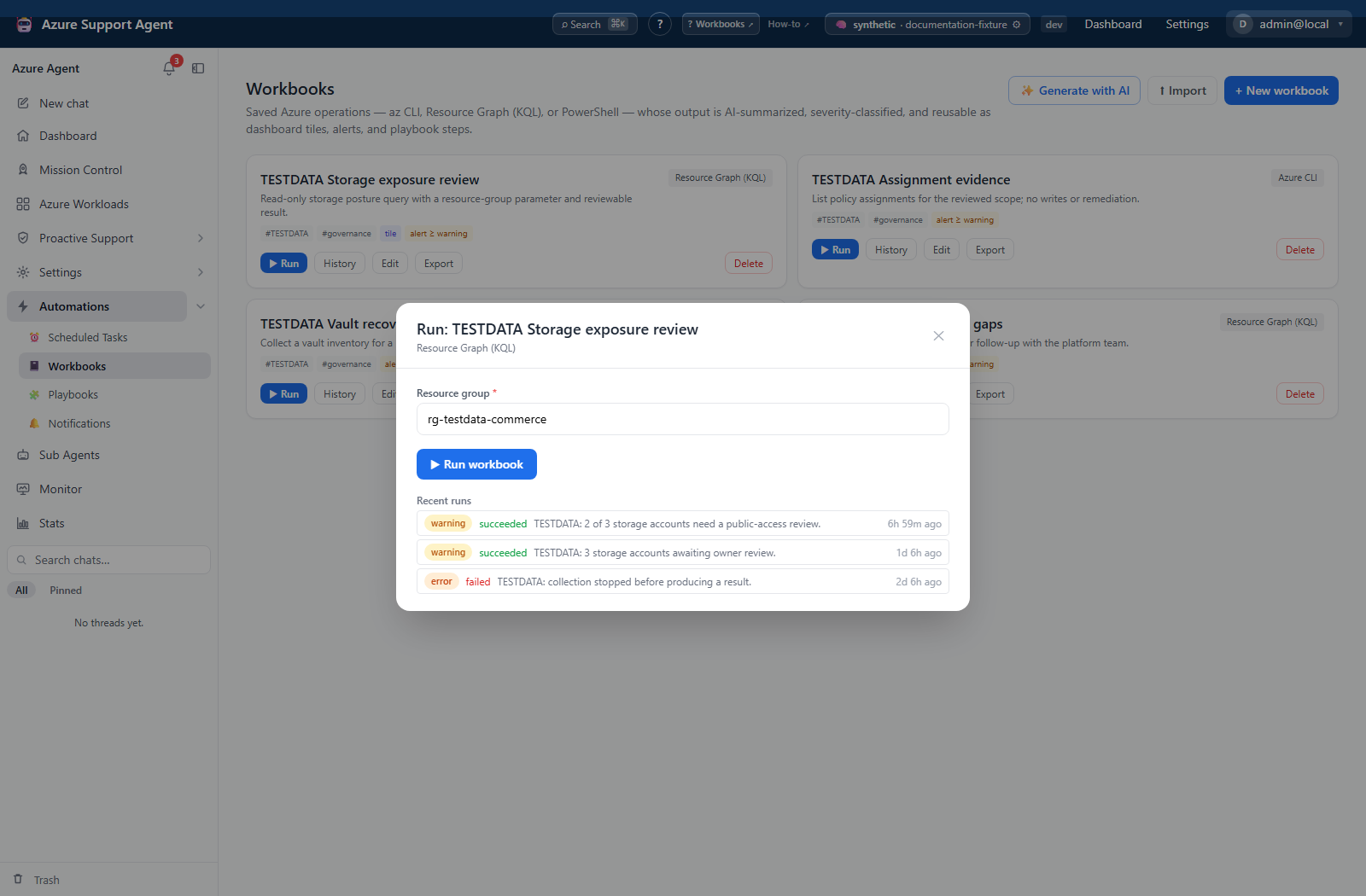
How to verify a structured result, diff, tile, or alert
- In Edit, enable AI’fy the output and choose Extract to schema. Describe the intended fields, then validate the returned JSON rather than assuming the AI follows a strict schema.
- Select Diff vs last run only when comparing equivalent scopes and parameter sets. Execute two reviewed saved runs and inspect changes in History; the comparison uses the latest successful run’s top-level structured keys.
- For a Number dashboard tile, set its metric key to an actual top-level JSON key. Check the latest result and tile timestamp; a tile does not refresh Azure or schedule the workbook by itself.
- If alerts are required, enable Emit alert event, set minimum severity, and verify a controlled saved result that meets that threshold against the notification rules.
Expected result: Structured fields feed a shallow diff/tile, and qualifying saved results emit workbook events.
Verification: Distinguish execution status from AI severity. No earlier structured result means keys appear as additions; unavailable AI/extraction can leave the tile empty. The AI processes bounded output, so inspect raw evidence before relying on a summary.
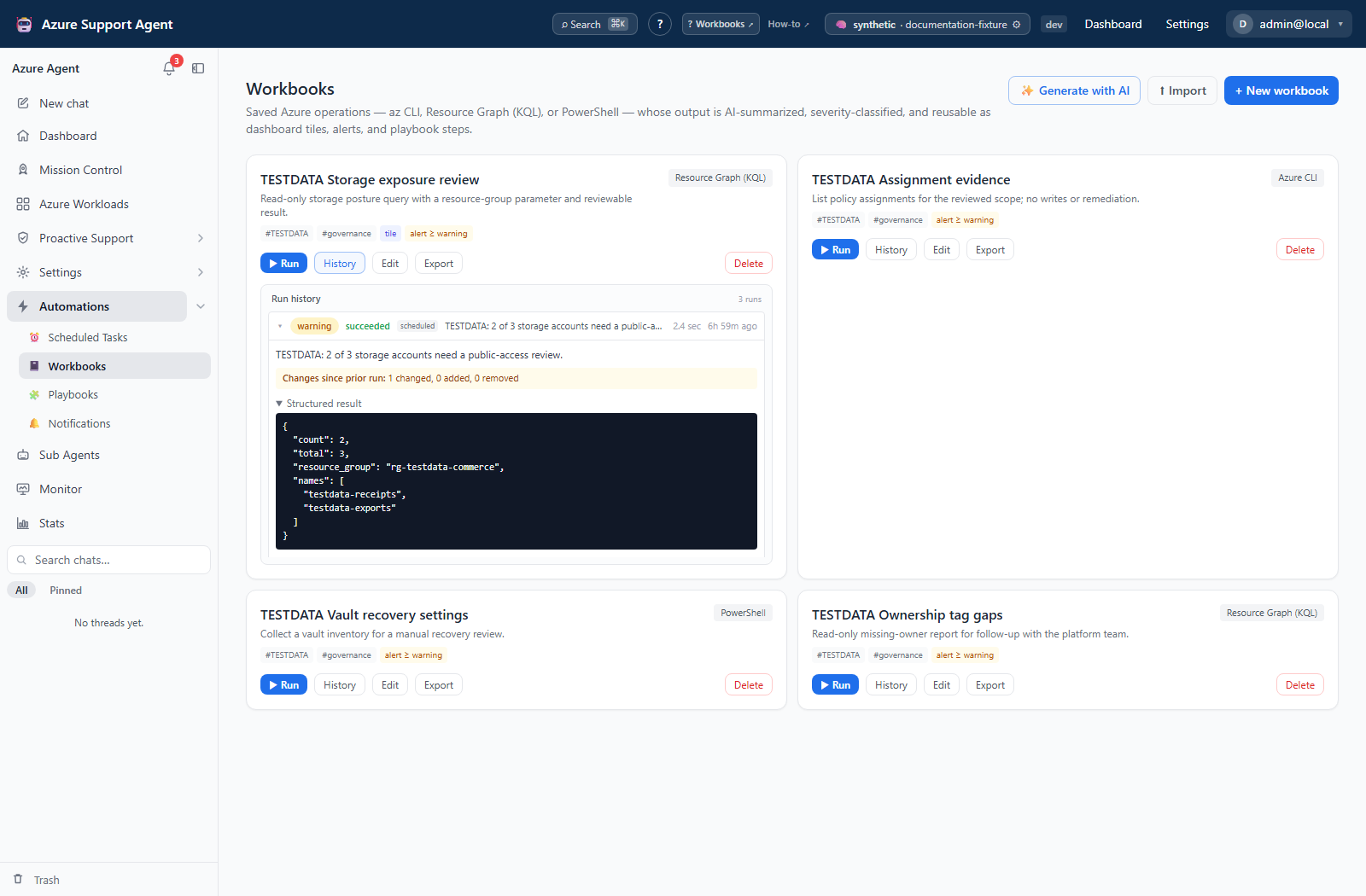
How to import, export, and reuse a workbook
- Select Export on a workbook and review the downloaded definition bundle. It contains no run history, but body/defaults, connection/tenant fields, and alert/tile settings can retain environment information. Sanitize before sharing.
- In the destination environment, select Import and choose the reviewed bundle.
- Read the import result: a single-workbook import creates a new definition, suffixing a colliding name rather than updating it. Open Edit and verify runtime, body, parameters, connection, alerts, and tile settings before executing anything.
- Use Test run with a non-production or read-only scope.
- Save any environment-specific corrections, then run once and inspect History.
- Reference the validated workbook from a playbook or scheduled task.
Expected result: The workbook is portable while environment-specific scope and connection choices remain explicitly reviewed.
Verification: Find the exact newly named workbook, verify the saved connection, and inspect its first persisted command/output. Repeating the import creates another definition. Import does not repair references to an old workbook ID.
How to retire a workbook without losing track of prior effects
- Pause schedules that reference the workbook and review every playbook that uses it.
- Open History and retain any required evidence through your approved process; the workbook Export action exports the definition, not these runs.
- Export the reviewed definition if needed, then select Delete only when removal is intended. The current Delete action is immediate and has no confirmation or trash step.
- Check referencing tasks/playbooks and any external changes from earlier executions separately.
Expected result: The workbook definition is removed; historical database rows and external effects are not undone.
Verification: Confirm the card is absent and referencing schedules are paused. There is no restore button; importing a bundle creates a new ID, not the original history association.
Safety and rollback
Definition edits/imports write application state. Test run and saved runs execute the body and may affect Azure or the host. AI actions call the configured provider. Use read-only operations first; never store secrets in body/defaults.
The command runner uses an allowlist, syntax restrictions, and recognized mutating tokens—not the workbook’s kind label or a PowerShell sandbox. Recognized writes require a writable connection and confirmation. Saved Run has no approval continuation; do not use Test run as a workaround for a rejected saved write.
History is persisted after execution. An interrupted request or missing history does not prove the external operation failed. Inspect destination state before another full run; there is no cancellation, checkpoint/resume, retry-failed, or automatic rollback here.
Troubleshooting
| Symptom | Cause and resolution |
|---|---|
| Import rejected | Check the version-1 azsupagent.bundle envelope, kind workbook, and named workbook object. Acceptance does not validate operation safety. |
| Wrong environment identifiers | Definition bundles retain body/defaults and connection references. Correct them before running and verify that the connection did not fall back to the deployment default. |
| Import succeeds but the card is missing | Import retains the bundle’s tenant field, while the list filters by current tenant/global scope. Ask an administrator to review placement; recreate a reviewed definition through New workbook in the intended tenant if needed. |
| Referenced playbook fails | Import creates a new workbook ID; existing steps can still point to the old one. Select the intended workbook on each affected step and verify its parameters. |
| Missing value | Align keys with {{parameter}} placeholders and explicitly supply values; missing substitution becomes empty text. |
| Empty extraction | AI may be unavailable, Extract to schema may be off, or the response may not contain the requested JSON. Check raw output, enable extraction, and revise the schema hint before relying on a tile/map. |
| Runtime failure | Read the captured error for disabled execution, disallowed/missing binary, timeout, or authorization failure. Review the specific policy/runtime/connection issue before executing again. |
| Write rejected | Saved Run omits confirmation; a recognized mutating command fails rather than opening an approval dialog. Review the approved execution process instead of switching to Test run. |
| Diff misleading | Check scope/parameters/schema against the latest successful run. There is no compatibility check before comparison. |
| No completed history after a connection loss | Execution may already have happened. Check destination state before rerunning; Test run intentionally records no workbook history. |