Architectures
Purpose
Architectures provide a visual model of workload components and relationships. Build a diagram manually or reverse-engineer a starting point from a workload’s Azure resources, then refine it into reviewed design context for investigations, Know-Me documentation, FMEA, and Estate Graph.
Application routes: /architectures, /architectures/:id, /architectures/:id/memory, and /architectures/memory.
Common use cases
- Document an existing workload for design review or support handoff.
- Reverse-engineer a resource inventory into a first-pass diagram.
- Compare intended relationships with current inventory and drift indicators.
- Maintain separate diagrams in collections for teams, environments, or domains.
- Provide grounding for Know-Me, FMEA, investigations, and Estate Graph.
Prerequisites, permissions, and data
architectures.readis required to browse diagrams, generation jobs, collections, memory, and revisions.architectures.writegates normal saves, collection management, lifecycle/workload changes, generation jobs and rebuild batches, Trash operations, and Know-Me authoring.- Permission caveat: the current API uses
architectures.readfor diagram clone, diagram revision restore, AI enhance, the direct from-workload stream, Memory generation (whole or section), and Memory revision restore. These actions can save application content despite the permission’s name. A read grant is not a no-mutation boundary for this feature. - Reverse-engineering requires a workload with accessible resource inventory and an Azure connection able to query its scope.
- AI-assisted generation requires a configured AI provider.
- Resource relationships are inferred from inventory and available metadata; some application-level or external dependencies cannot be discovered automatically.
Registry, collections, and jobs
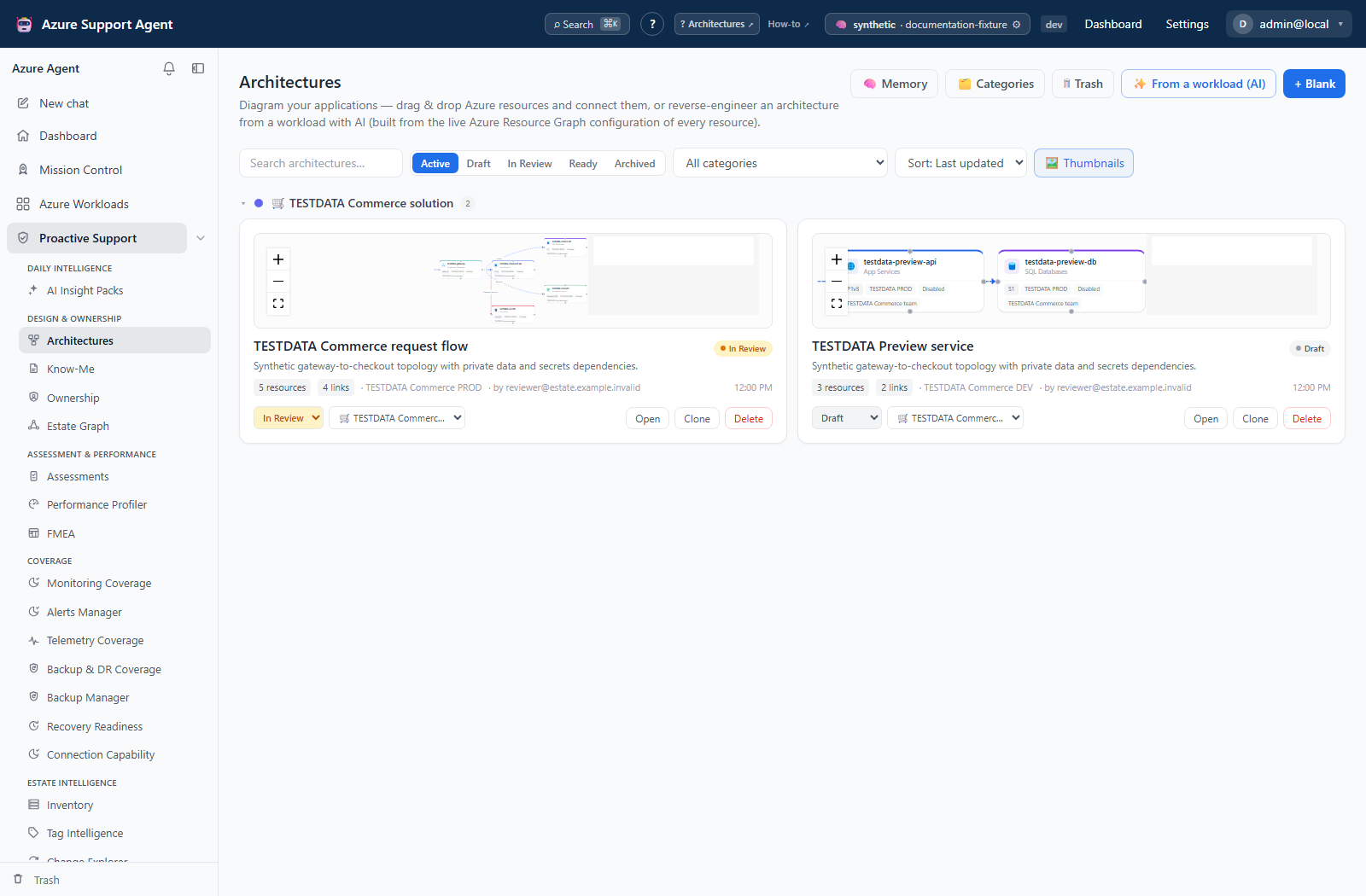
The architecture registry lists diagrams and supports search, Categories, generation jobs, and Trash. Categories are the UI name for collections; each diagram belongs to one, and deleting a category moves its diagrams to Uncategorized without deleting them. Lifecycle states are Draft, In Review, Ready, and Archived; the default Active filter hides archived diagrams. Clone creates a new draft.
From a workload (AI) and Rebuild from workload use durable work batches. Review batch progress and retry/cancel controls as well as the generation-job list; they are distinct records. The shared batch API accepts at most 500 workload IDs. Rebuild overwrites the diagram in place; save or export manual annotations first. A lifecycle badge is a human workflow marker, not a recorded approval from another reviewer.
Deleting a diagram moves it to Trash. Restore it if it was removed accidentally; purge and Empty Trash are permanent.
Canvas tabs and actions
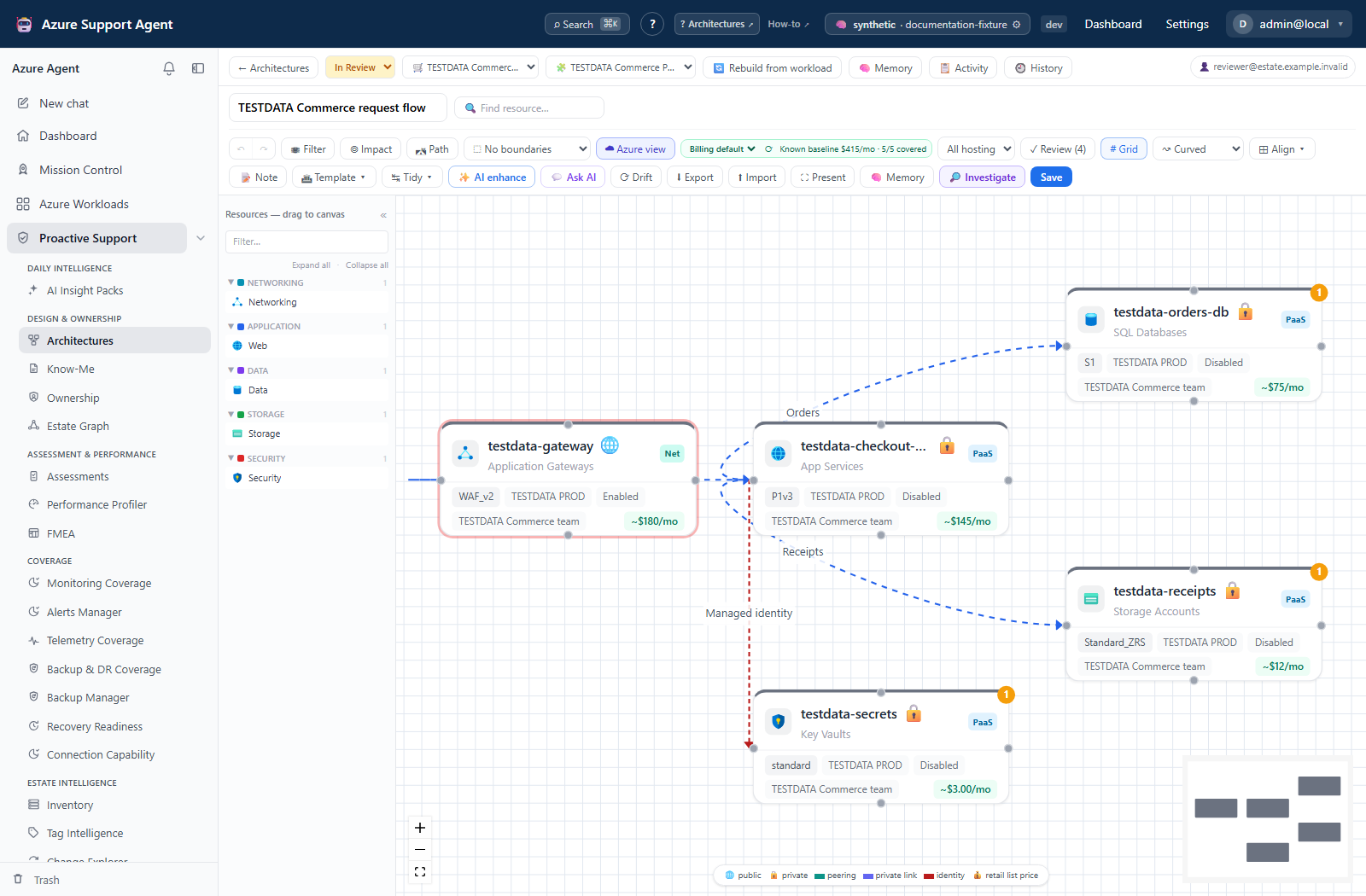
The canvas is a visual editor for nodes, edges, groups, labels, and layout. Available actions include:
- add Azure or generic components from the catalog;
- drag, select, multi-select, connect, duplicate, and delete elements;
- edit component metadata and relationship kinds;
- use automatic layout and fit/zoom controls;
- insert Hub-spoke, AKS, or Web app templates; align/distribute selected nodes, change connector routing, add notes, and use presentation mode;
- undo or redo local canvas changes;
- use Review for heuristic design lint, Impact for connected relationships, and Path for directed downstream tracing;
- use AI enhance → Apply to save and refine the diagram, or Ask AI for a non-editing answer;
- open resource-specific network or DNS diagnostic actions where supported;
- enable Azure view to load current Azure Retail Prices in a selected currency;
- save the diagram and open its Memory.
Treat generated nodes and edges as proposals. Verify identity, direction, and dependency meaning against deployment definitions and service owners before publishing the diagram.
Azure Retail Prices on the canvas
Azure view retrieves public list rates from https://prices.azure.com/api/retail/prices through the backend. The browser never constructs an OData filter or calls the pricing service directly. Use the currency selector beside Azure view to request a supported currency, and use refresh to bypass the seven-day local rate cache.
Each resource receives an explicit pricing state:
| State | Meaning |
|---|---|
| Fixed monthly baseline | One verified fixed hourly or monthly meter matched the resource. Hourly rates use 730 hours per month. |
| Usage required | Azure returned a usage rate, but operations, storage, transfer, tokens, duration, throughput, or another quantity is required. |
| Choose meter | More than one retail SKU group matches. Add an OS/tier fact or select the correct meter in the resource inspector, save, and refresh. |
| No direct meter | The node is a free/control-plane object or its charges accrue to another resource, such as an App Service plan or SQL database. |
| Not priced | The ARM type, region, or SKU cannot be mapped safely. No fallback amount is invented. |
| Price unavailable | The public API and any stale cache could not supply a complete result. Other Azure-view overlays continue to work. |
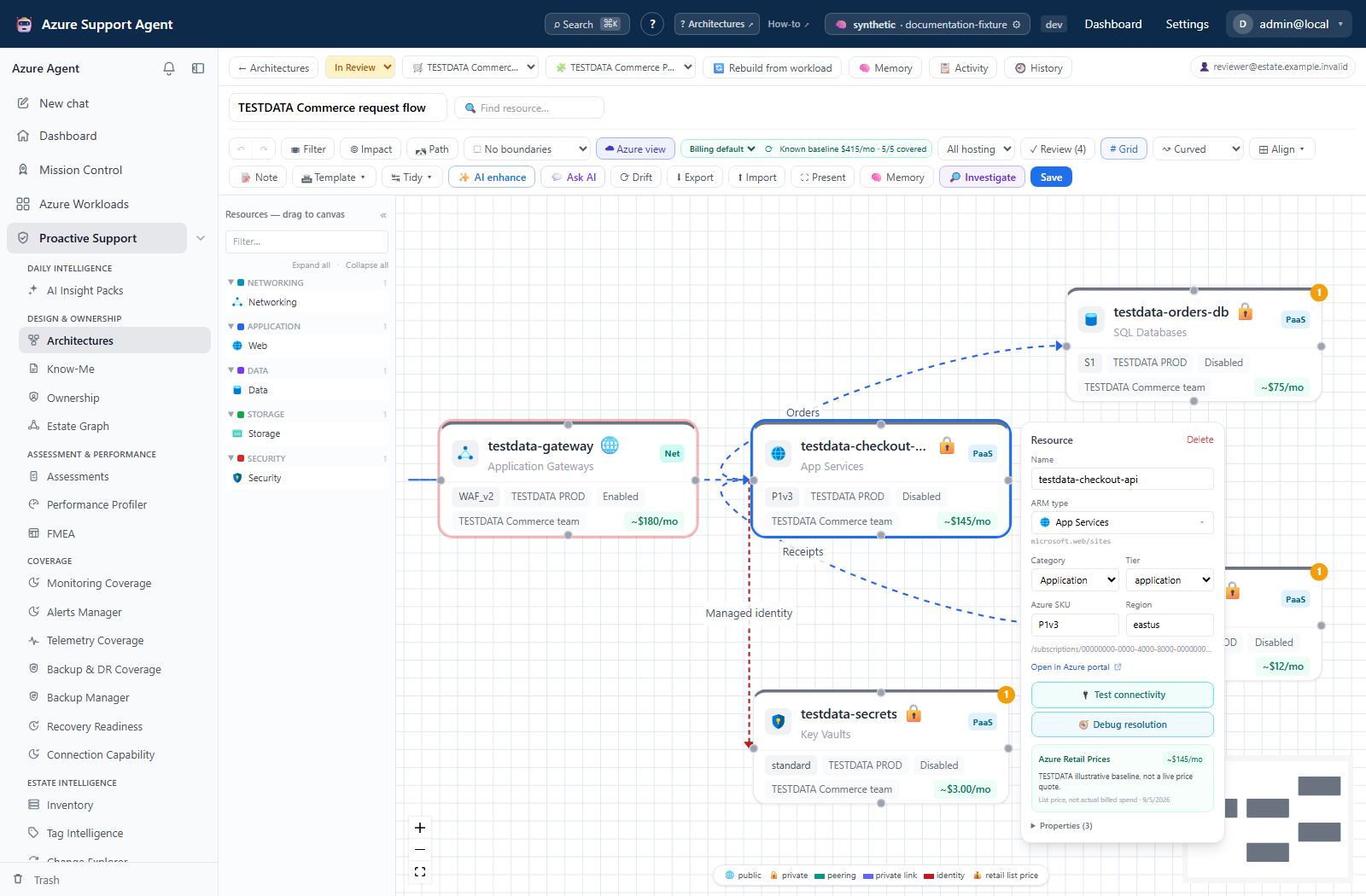
The toolbar total is labeled Known baseline and sums only deterministic fixed components. It also reports pricing coverage. It does not add unrelated component meters or estimate missing usage. Node tooltips and the inspector show service, product, SKU, meter, unit, effective date, currency, source, confidence, and stale state.
Retail pricing is not an invoice or Cost Management result. It excludes negotiated EA/MCA rates, reservations, Savings Plans, Azure Hybrid Benefit unless specifically identified, free grants, taxes, and actual usage. Use Azure Cost Management for actual billed spend; do not compare the retail baseline with an invoice as if they were equivalent.
Workflows
Create manually
- Open
/architecturesand create a diagram. - Name it, link the correct workload, and optionally choose a collection.
- Add components and connect them with meaningful relationship types.
- Group or arrange components by tier, region, environment, or trust boundary.
- Run lint checks, resolve obvious gaps, and save.
- Ask a workload owner to review the result.
Reverse-engineer from Azure
- Confirm the workload inventory and connection scope.
- Start an architecture generation job for the workload.
- Monitor progress; generation may continue if you navigate away.
- Open the generated diagram and compare every resource with inventory.
- Remove noise, add undiscoverable external systems, correct edges, and annotate intent.
- Save the reviewed diagram, then create or refresh its Know-Me document.
Interpret the result
A node represents a modeled component, not necessarily a one-to-one Azure resource. An edge represents a documented or inferred relationship, not proof of live traffic. Lint findings are design prompts. Drift compares the saved diagram with live Resource Graph inventory for the linked workload; without a workload it derives subscription/resource-group scope from Azure-linked diagram nodes. Partial workload inventory returns a conflict rather than reporting potentially false removals. This differs from Estate Graph’s cache-backed drift. Save canvas edits before checking drift.
For example, a fictional Example Store diagram might show a client calling api.example.com, a service, and a datastore. Add the externally operated client manually and confirm the edge direction with its owner; a discovered ARM relationship does not establish that request path.
Exports, history, and integrations
Export offers PNG, SVG, Mermaid, JSON, Bicep skeleton, and Terraform skeleton. Exports use the current local canvas model, including unsaved edits; exporting does not save the diagram. Import appends a supported Mermaid flowchart and is locally undoable, not a JSON/IaC round-trip. Neither skeleton export deploys anything to Azure.
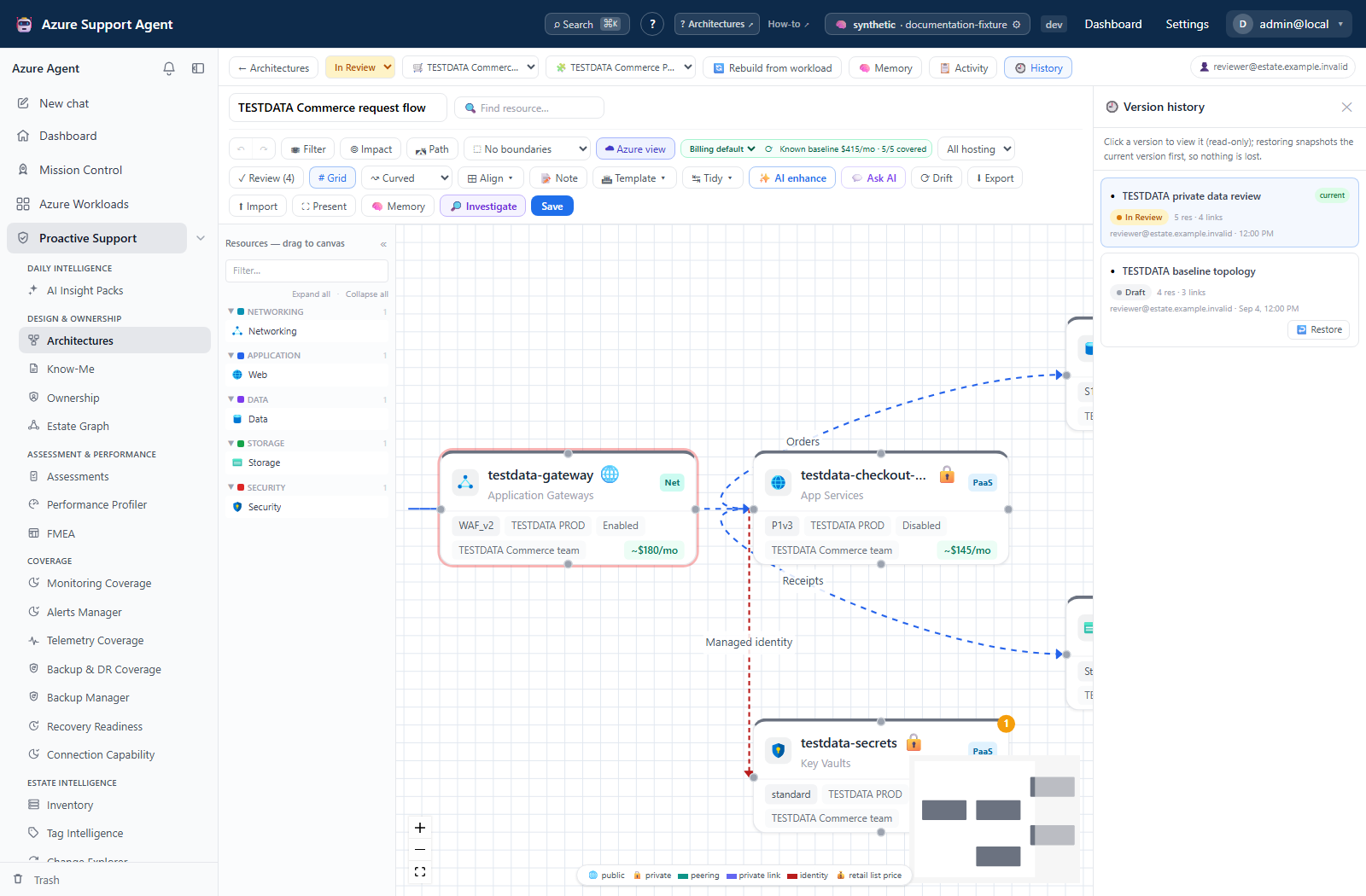
History previews diagram revisions read-only and restores a selected version as current application content. Activity records management events separately. Diagram history is bounded to 50 snapshots; it is not an unlimited backup or a cloud rollback.
Architectures integrate with:
- Know-Me and architecture memory;
- FMEA generation;
- Estate Graph nodes and relationships;
- workload detail and deep-investigation handoffs;
- collections, generation-job history, soft-delete Trash, and memory revision history.
Safety and limitations
- Reverse-engineering is read-only, but it can be incomplete because Azure metadata does not expose every runtime or business dependency.
- AI-generated structure may be incorrect. Never use it as the sole basis for migration, outage, security, or network decisions.
- Local undo/redo is not a substitute for saved history; save deliberate milestones.
- Purging a diagram is irreversible and can remove context expected by downstream documents.
- Exported diagrams may reveal resource names, topology, or security boundaries; classify and distribute them appropriately.
Troubleshooting
| Symptom | Checks |
|---|---|
| Workload has no resources | Refresh inventory, verify workload scope, and confirm connection permissions. |
| Generation is slow | Check the generation job rather than restarting repeatedly; large workloads take longer. |
| Drift reports partial inventory | Collection was incomplete and comparison was refused to avoid false removals. Resolve the collection error or narrow workload scope, then retry; do not delete diagram nodes based on this response. |
| Missing dependencies | Add application, SaaS, on-premises, or manually configured edges that Azure inventory cannot infer. |
| Save conflict or stale canvas | Reload the latest diagram before reapplying edits; avoid editing the same diagram in multiple tabs. |
| Diagram differs from Estate Graph | Compare source freshness and scope; the graph also combines cached inventory and other records. |
| Memory is stale | Open Memory and regenerate after reviewing the updated diagram. |
| Price says Choose meter | Select the resource, review the candidate product/SKU groups, choose the verified meter, save, and refresh. |
| Price says Not priced | Confirm the node has a real ARM ID, exact ARM type, Azure region, and SKU. Unsupported types remain explicitly unmatched. |
| Price says Usage required | Supply the relevant usage through a future cost model or use Cost Management; the canvas intentionally does not invent it. |
| Retail refresh fails | Keep using the diagram; stale cached rates are labeled, and reachability/hosting overlays remain independent. |
Screenshot walkthrough
These synthetic browser fixtures illustrate a diagram review, not live topology, Azure property validation, or a successful save/restore. All displayed pricing amounts are fictional examples, not live retail quotes or billed spend.
1. Find the diagram to review
2. Inspect components and relationships
3. Check a selected resource in context
4. Review retained revisions