Operate Inventory
Screenshot note: These synthetic browser-only fixtures illustrate Grid filtering and resource review, not live backend records, Azure collection, or verified resource state. Displayed costs are fictional modeled values, not billing evidence; no tag write or other application mutation was performed for these screenshots.
Prerequisites
- Product permission
inventory.read. - ARM and Azure Resource Graph Reader access across the intended scope.
- Workload definitions for workload attribution.
- Cost Management Reader for the optional Cost tab.
iam.readfor the Access drawer,ownership.readto resolve an owner, andownership.writeonly if separately approved owner tag write-back is needed. Inventory endpoints themselves, including snapshots and cost, useinventory.read, not an additionalcost.readcheck.
Route
Open /inventory or a tab route: /inventory/grid, /inventory/overview, /inventory/location, /inventory/cost, /inventory/optimization, or /inventory/changes.
How to refresh inventory and recognize stale or partial data
- Select the intended connection. The Workloads/Tenant toggle and sidebar facets filter the returned rows; they do not restrict the collection request to a subscription or workload.
- Check Updated. A red stale marker appears when the saved inventory is more than six hours old.
- Select Refresh. First load never scans automatically.
- Wait for Resource Graph collection; the cache key is tenant, connection, and scope and remains until refreshed again.
- Review counts, truncation and collection errors before interpreting totals. The collector discovers at most 500 subscriptions and pages each subscription’s resource query to 10,000 rows; the grid response holds at most 100,000 rows. The older header text mentioning 1,000 is not the current collection limit.
Expected result: Resources, subscriptions, types, locations, resource groups, tags, SKUs, hygiene flags, and workload attribution populate.
Verification and safety: Match the timestamp, connection, returned count and full summary count with Resource Graph visibility. A successful refresh or absent badge does not prove every subscription was read. Resource groups are included as separate taggable rows.
How to search, filter, group, inspect, and export the Grid tab
- Open Grid.
- Combine name/ID search with workload, type, location, subscription, resource group and hygiene facets.
- Use natural language for tag/SKU conditions or other supported queries, then review the explanation, generated filter/KQL and matched set. Cancel a slow search or simplify it if it reaches the 45-second browser deadline.
- Choose density, columns, sorting, or grouping.
- Open a resource to inspect available governance, assessment findings, cost, and workload attribution.
- Select individual rows for Export selection, or select Export for the current filtered/sorted view.
- Preserve the CSV with the displayed filters and collection timestamp.
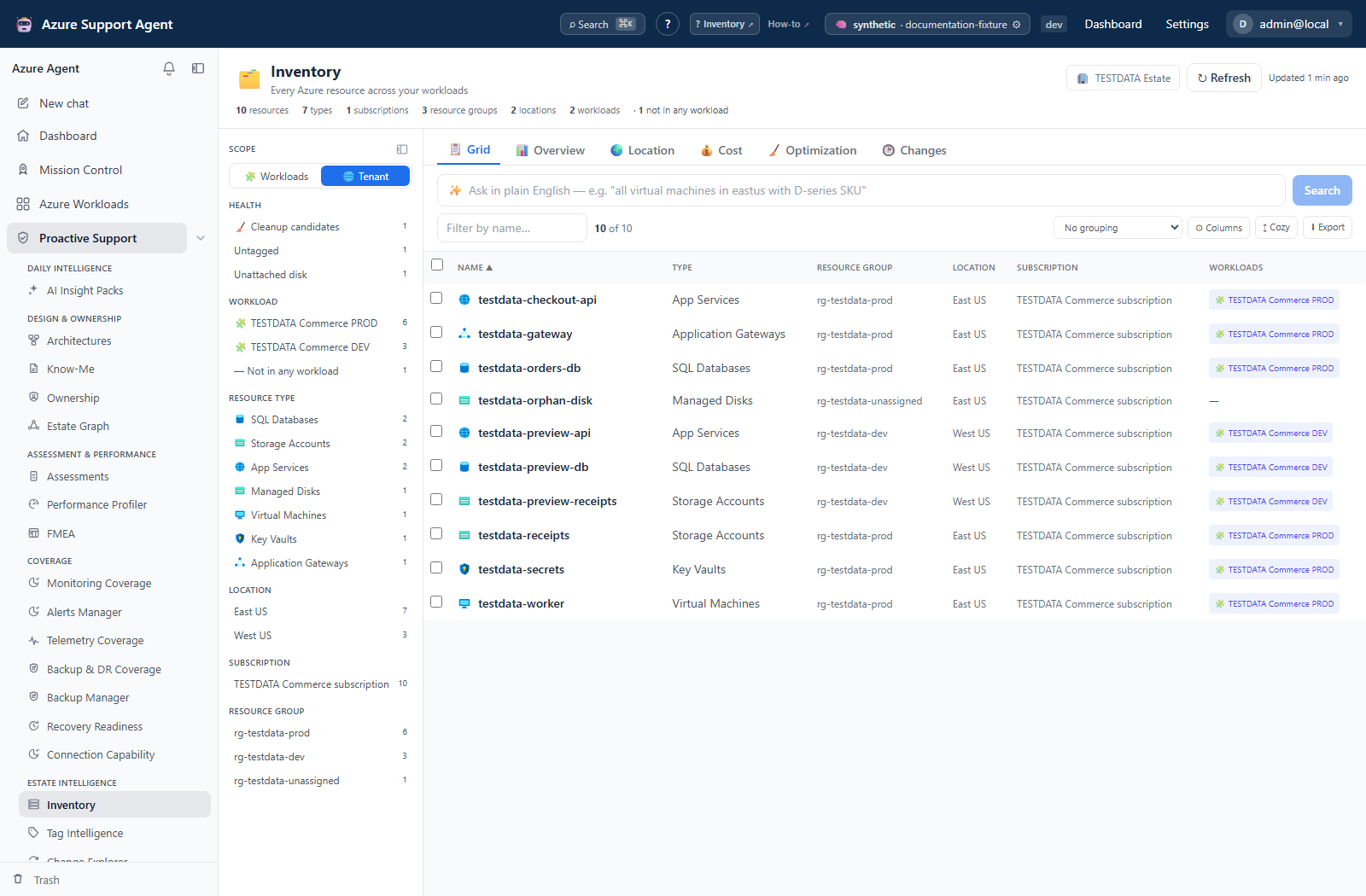
Expected result: Export contains all filtered/sorted rows, including rows outside the virtualized viewport. Export selection contains selected rows that still pass the filters. Both use fixed CSV columns, not the display column choices or complete tag dictionaries.
Verification and safety: Compare the export toast with the filtered/selected count and inspect sample rows. Record connection and filters separately: the URL preserves common facets/text, but not the complete tag/SKU/KQL/connection context.
How to inspect access, governance, findings, and owner actions
- Open a Grid resource and confirm its ID and subscription in Overview.
- Use Access for cached IAM grants, inherited/group paths and non-RBAC checks. If it says Access is unknown, not empty, open IAM and obtain a usable scan before concluding who can reach the resource.
- Use Governance for effective assignment hints and Findings for matching stored assessment evidence. Neither an empty policy list nor an empty findings list proves a clean current posture.
- Use Cost for the shared cost overlay. Its load button refreshes the connection, not only the selected resource.
- For a handoff, use Investigate to prefill Chat, Find its workload for Autopilot review/save, or Debug resolution for eligible resource types. Recheck the Autopilot connection; replace the DNS dialog’s resource-name prefill with the intended FQDN and choose an authorized sandbox source.
- If owner write-back is organizationally approved, independently record current
ownerandowner-emailvalues, verify the resolved owner, then confirm Write owner tag to Azure. Otherwise stop before this action.
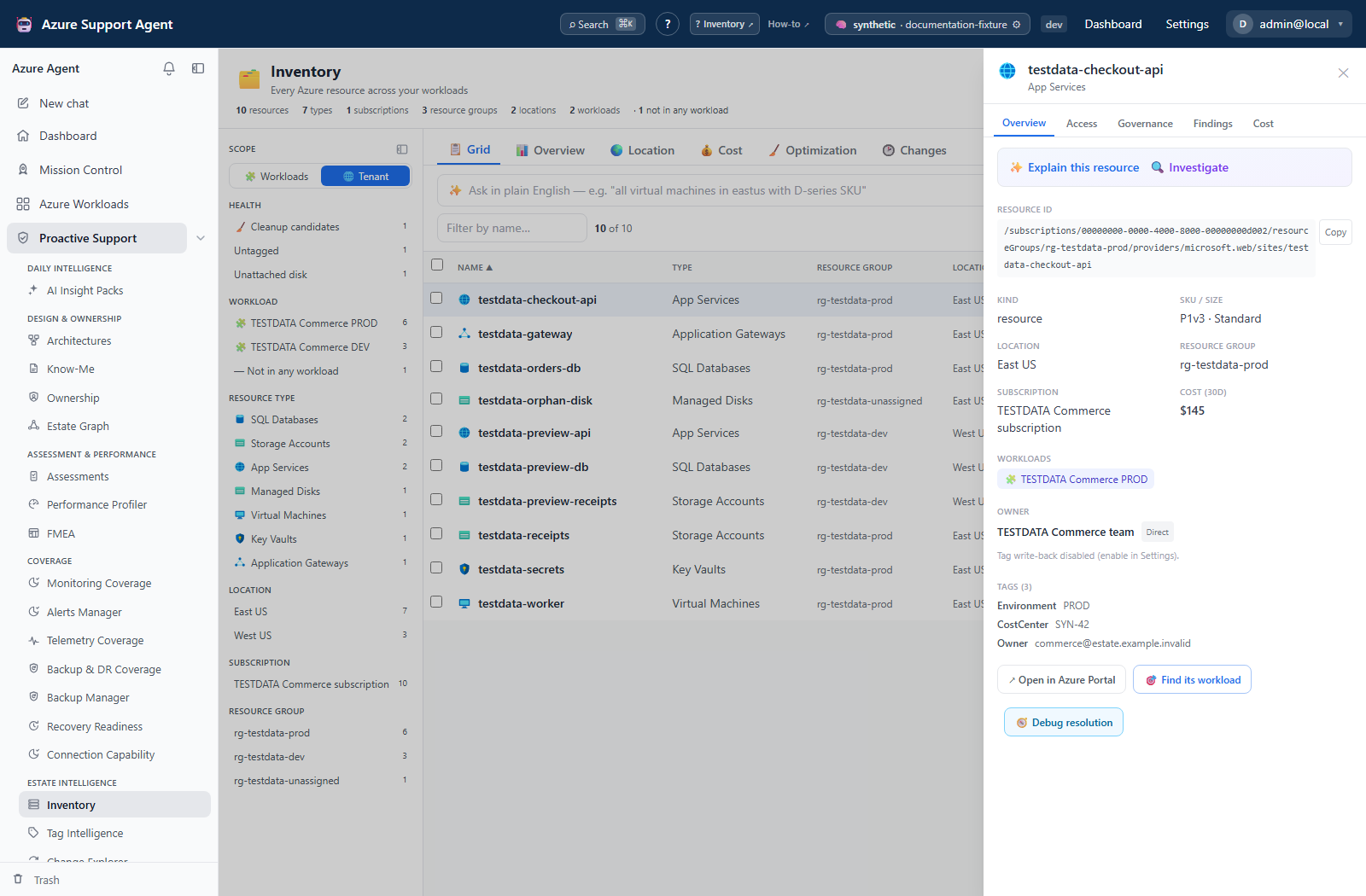
Expected result: The resource’s cached evidence and relevant specialist workflow are identified; only an explicitly confirmed owner action attempts an Azure tag merge.
Verification and safety: Owner write-back requires ownership.write and Azure write rights, but does not enforce the connection read-only flag or command-execution setting. Its status endpoint always enables the action and it creates no Tag Intelligence recovery revision. Verify actual Azure tags and preserve prior values for an independently approved rollback. Chat, Autopilot and DNS diagnostics retain their own permissions; opening their dialogs is not approval to execute them.
How to use the Overview tab
- Open Overview after a current refresh.
- Review resource, type, subscription, and workload summaries for the full cached collection, not just Grid-filtered rows.
- Use the summary to identify unexpected concentration or unattributed resources.
- Read heuristic Estate insights, or explicitly choose Generate AI insights if provider use is approved. Cancel AI stops waiting for that request.
- Move to Grid and apply matching facets for resource-level inspection.
Expected result: Estate KPIs summarize the collected cache; the grid may show fewer rows because of filters or its response cap.
Verification and safety: Cross-check summary totals against an unfiltered Grid and its returned/full counts. AI insights are optional advice, not remediation or a new Azure scan.
How to use the Location tab
- Open Location.
- Hover or select a region to inspect resource distribution.
- Use Region / Group / Type / Sub, Workloads here, zoom/pan and Clear regions to inspect concentration and change shared filters.
- Return to Grid and verify that the selected region facets identify the intended rows.
Expected result: The map highlights observed Azure locations and their resource counts.
Verification and safety: Compare the selected region with the same Grid location filter. Global/unknown locations may not map. Animated arcs to the busiest region are illustrative, not network dependencies or measured traffic.
How to load and analyze the Cost tab
- Open
/inventory/costfor the intended tenant connection. Cost has a separate cache and does not refresh with inventory. - Select Load cost when no cost has been collected, or Refresh cost to submit
POST /inventory/cost/refresh. Wait until the start is accepted before a hard navigation if confirmation matters. - While the job is queued or running, inspect the card polled from
GET /inventory/cost/refresh/statusevery second. Review completed/total and succeeded/failed subscriptions. Detailed retry/row-count events are not all mapped into the current card. - Independently count the subscriptions. The collector queries at most 25 per pass with concurrency four, but the durable adapter registers all subscriptions, reports zero omitted, and can mark unqueried items successful. Do not treat zero omitted or 100% complete as proof that a larger estate was covered.
- When the active card says Safe to navigate away — this refresh is owned by the server and continues in the background, navigate elsewhere if needed. The accepted job continues; leaving Inventory only stops this component’s polling. Return with the same tenant connection to reattach to the newest retained tenant+connection+scope job.
- Review total and rollups by subscription, type, location, resource group, or workload. A succeeded or partial terminal result is copied into the shared frontend
inventoryCostcache. - Check the terminal status, unmatched spend and subscription errors. Reported errors prevent a result from replacing the permanent server cache. However, a cap-limited result with no reported errors can still be persisted; the cost query also does not follow paginated
nextLinkresponses. - Refresh cost when it predates the inventory or decision. Job/item records are durable and interrupted leased work is requeued, rather than lost after one hour or a restart. The latest-status search matches the exact connection/scope configuration within the newest 100 cost batches.
Expected result: Available trailing-30-day cost is mapped to the filtered resources and rollups; overlapping workload costs are divided evenly. This is a best-effort overlay, not proof of complete billing coverage.
Verification and safety: Compare returned subscription IDs, period, fetched time, currency and totals with Cost Management. The snapshot collector does not reconcile mixed currencies. Use an approved API scope of at most 25 subscriptions when needed; Grid facets do not narrow collection. Reopen the same connection to check the retained job and shared browser/server caches separately. Batch-management cancel-pending/retry controls are distinct from the Cost card.
How to review Optimization candidates safely
- Refresh Inventory, then open Optimization; this tab is cache-only.
- Review unattached disks, orphaned NICs, idle public IPs, and estimated savings.
- Open each resource and validate owner, workload, dependencies, activity, locks, backups, and actual cost in Azure.
- Route a reviewed candidate through the normal change process.
Expected result: Heuristic candidates are prioritized without deleting or resizing anything.
Verification and safety: Confirm the condition in Azure and obtain owner approval. Portal opens the resource; az delete only copies a destructive command and does not run it. Unmapped candidate cost may appear as zero, which is not proof of free usage. Optimization has its own cached query and does not automatically adopt every Grid cost update.
How to capture and compare snapshots on Changes
- Select the intended connection, open Changes, and choose Take snapshot. This performs a fresh collection and saves the server-side baseline; it does not just copy the visible Grid.
- After the change window, refresh Inventory for that same connection.
- Reopen Changes and inspect current cached inventory against the latest baseline before taking another snapshot.
- Preserve the comparison, then take a new snapshot if a new baseline is wanted. The displayed drift may then become zero because the latest baseline now matches the fresh collection.
- Expand Snapshots to review timestamps/counts. Delete a snapshot only after preserving needed evidence; deletion is not recoverable through an Inventory Trash view.
Expected result: The latest saved baseline is compared with current inventory. An API consumer can pass an older baseline_id; the UI has no two-snapshot selector.
Verification and safety: Validate a sample in Azure or Change Explorer. Only SKU/resource-group/type field changes are compared, not tags/location/VM size. Fingerprints cover at most 20,000 resources, detail lists at most 500 entries each, and the server store retains 60 snapshots overall. Counts can exceed displayed detail; snapshots are neither complete event history nor immutable audit evidence.
Safety and rollback
- Inventory and cost collection are read-only. Confirming Write owner tag to Azure is an exception with the separate permission and enforcement limits described above; record prior values independently.
- Resource Graph is eventually consistent and does not expose every data-plane object.
- Cost data lags usage and may be partial.
- Snapshot deletion removes local comparison data; preserve required evidence elsewhere.
- Use Tag Intelligence for controlled tag writes and Change Explorer for actor/time evidence.
Troubleshooting
| Symptom | Cause | Resolution |
|---|---|---|
| Never loaded | Cache-only first visit has no collection. | Select the intended connection and use Refresh inventory. |
| Resource missing | Filters, access limits or Resource Graph caps omit it. | Clear facets, verify Reader visibility and collection errors, then compare the resource in Azure. |
| Cost refresh no longer appears | Different exact configuration, older batch outside the latest-status search, or deleted telemetry. | Return to the original connection and inspect retained batch history; do not assume restart erased it. |
| Cost succeeds but is too low | Subscription/page caps or unmatched resource IDs are not always surfaced. | Reconcile billing totals and returned subscription IDs; narrow the API scope rather than relying on zero omitted. |
| Cost partial/blank | Reported query failures, missing billing rights or no resource-cost rows. | Inspect errors, resolve access/throttling, refresh and check the new fetched time; unavailable is not zero spend. |
| Drift becomes zero after capture | A new latest baseline replaced the comparison target. | Inspect/preserve drift before Take snapshot, or use an older API baseline. |
| Tag changes are missing from Changes | Inventory fingerprints do not include tag values. | Use Tag Intelligence Drift instead. |
| Optimization still looks stale | Its cached server report differs from the Grid overlay. | Refresh inventory/cost, reload Optimization and verify collection times. |
| Workload attribution or Grid performance is poor | Overlapping definitions or broad client-side filtering. | Review workload scope definitions; narrow type/subscription facets and reduce groups/columns. |