Telemetry Coverage
Product permission: coverage.read for scans, artifacts, findings, tickets, evidence, and run cleanup; coverage.manage for reference/workspace edits and submitting, deciding, or deleting change requests.
Purpose
App route: /telemetry Telemetry Coverage compares discovered diagnostic settings with a resource-type-specific reference. It reports missing settings/categories and workspace-list drift; it does not test destination reachability or ingestion.
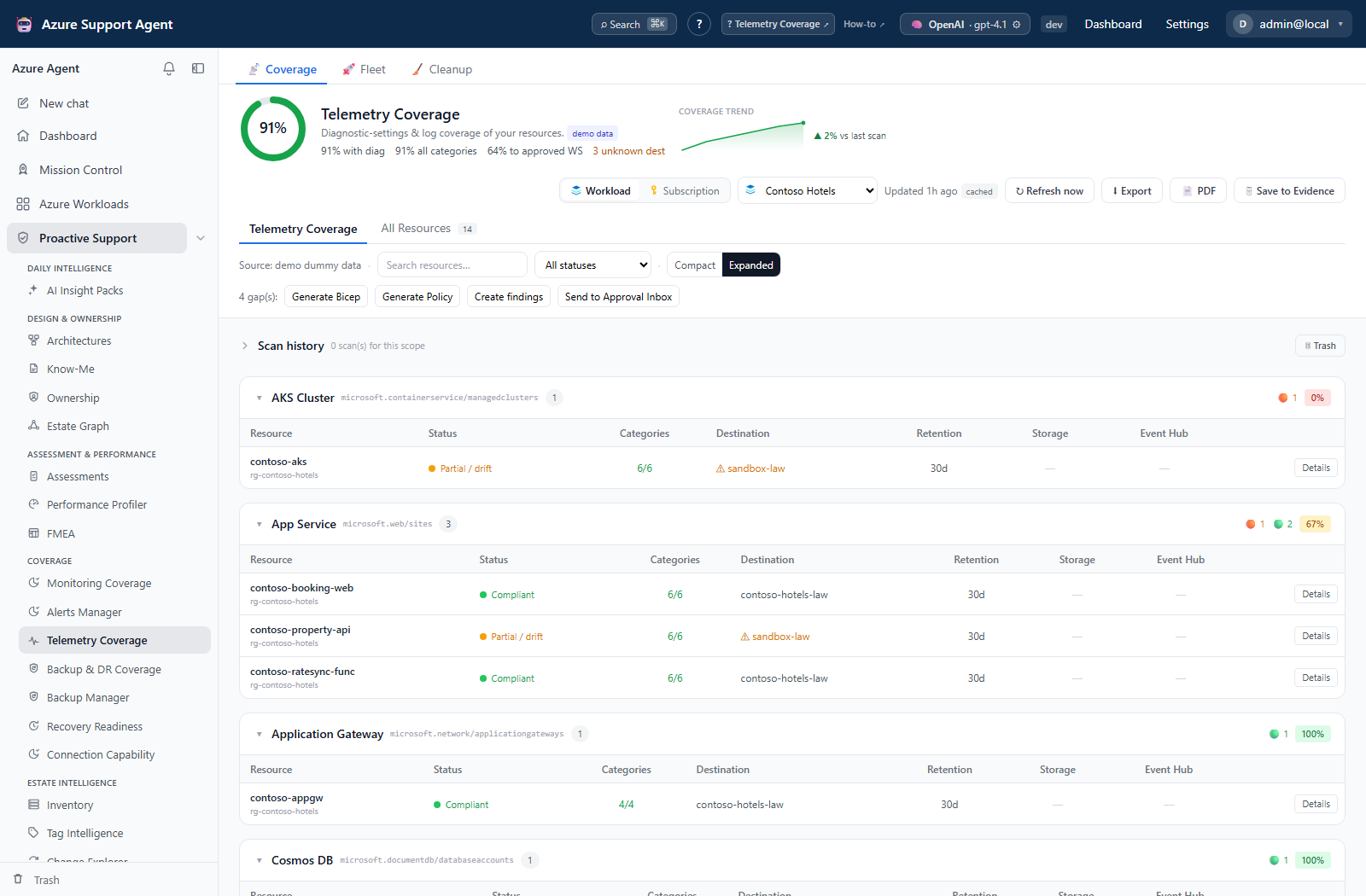
Screenshot context: These native application views use isolated synthetic demo data, not live Azure evidence. Demo Azure writes are disabled. Unknown or unreadable settings are not confirmed absence, and configured destinations do not prove ingestion.
Prerequisites and data sources
- An enabled ARM-capable Azure connection with Reader access to the selected scope and permission to read
Microsoft.Insights/diagnosticSettings. - A selected workload or subscription scope.
- A workload uses its configured connection; subscription mode lets you select a connection. Subscription discovery is loaded when you open its picker.
- For service-principal CLI collection, administrator-enabled command execution, an allowed/installed Azure CLI, and valid sign-in are required. Supported non-service-principal diagnostic-setting reads use ARM REST instead.
- Configure approved Log Analytics workspace resource IDs with
coverage.managewhen workspace drift detection is required. An empty list disables that comparison. - Write permissions and an appropriate Azure role are needed only when an exported remediation is later deployed outside this view.
Tabs and actions
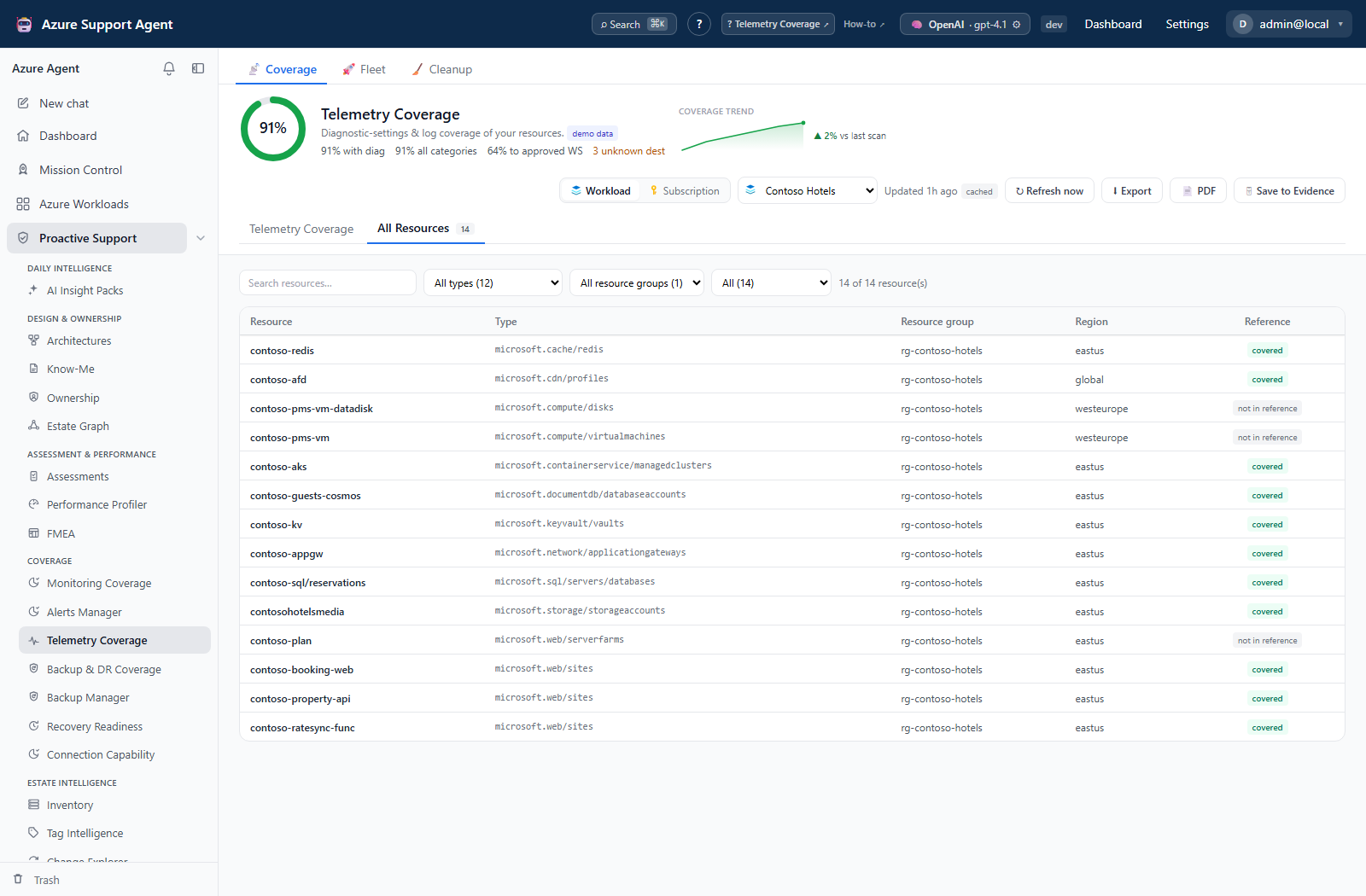
- Coverage contains Telemetry Coverage and All Resources. Search and status filters, compact/expanded groups, and category checklists help inspect the loaded result. All Resources filters include type, resource group, and reference membership; covered means membership, not compliance.
- Fleet compares latest saved workload results by coverage, resources with diagnostics, all-category percentage, and unknown destinations. Entry is cache-only; Scan selected explicitly starts a durable batch, with Cancel pending and Retry failed.
- Cleanup supports trash, restore, and purge for saved runs.
- Details shows reference categories, enabled/missing state, destination IDs, and the maximum enabled diagnostic-setting retention value observed. View in Inventory opens
/inventory/grid; Find in architecture opens the first stored diagram with a matching ARM ID, or reports no match. - Bulk generation, findings, and approval submission use all gaps, regardless of matrix filters. Drawer generation/ticket actions use one resource.
Freshness and scope behavior
Load coverage reads the saved snapshot for a newly selected scope; revisiting the last loaded scope can do so automatically. This coverage read does not scan Azure. telemetry_cache_ttl_s independently defaults to 21,600 seconds (six hours). A missing result offers Run first scan; demo scopes may regenerate synthetic data locally.
Refresh now streams scanned-resource progress and falls back to a plain refresh if streaming fails. Its server task owns collection, cache, history, and trends even after the client disconnects; application shutdown can cancel this local task. Failed collection preserves any prior good snapshot and does not create a healthy history/trend entry. Check generated time and exported scan_error/error, even if an old table remains visible.
The per-resource cap defaults to 200 (configurable 1–2,000), with 12 concurrent diagnostic reads (1–24). Only the first capped set of reference-mapped resources receives a settings read; the computation still includes other discovered reference resources, which can appear as No diagnostics. There is no dedicated cap-exceeded status. Narrow the scope or have an administrator review the cap before interpreting a large estate. Resource discovery is paged up to 10,000 rows per scope predicate.
Workflow overview
- Open
/telemetry, choose the connection and scope, and inspect freshness. - Review approved destinations under Settings → Telemetry Reference Set → Approved workspaces (
/admin/telemetry). The coverage page has no destination picker. - Refresh if the snapshot is missing, stale, or predates a relevant deployment.
- Review No diagnostics, Partial / drift, and Compliant, alongside the unreadable count and collection errors.
- Open a resource and verify category support in Azure separately; the drawer shows the reference checklist, not a live category-availability catalog.
- Generate Bicep for explicit diagnostic settings or a policy-oriented artifact for broad governance.
- Review resource scopes, categories, destination, identity/RBAC, retention expectations, and rollout approach.
- Optionally create workload findings, create a connector-backed ticket, save the latest snapshot to Evidence Locker, download a PDF, or—with
coverage.manage—send Bicep to the Approval Inbox. - Deploy through the approved IaC pipeline, then re-scan to verify.
Interpretation of results
- None: no diagnostic setting was observed.
- Partial / drift: settings exist, but reference categories are missing or at least one nonempty workspace ID is outside the approved list.
- Compliant: no category gap or workspace-list drift was found. This does not require a Log Analytics destination when settings use only storage/Event Hub, and does not prove delivery.
- Unknown destinations counts resources with workspace-list drift, not failed workspace reachability probes. Unreadable separately counts failed diagnostic-setting reads; these can also appear as None, so investigate collection failure first.
- Headline coverage is the percentage with all reference categories, whereas each resource-type group’s percentage counts compliant rows. A 100% headline can therefore coexist with destination drift. A zero-resource percentage is not positive evidence.
Category availability differs by Azure resource type and API version. Retention shown here comes from diagnostic-setting retentionPolicy, not the workspace’s table-retention policy. The current classifier uses every category in the reference even if its editor Recommended toggle is off, and treats allLogs/all groups as satisfying the whole reference checklist. Verify metrics and optional-category behavior separately before relying on the score.
Reference and approved workspaces
The built-in telemetry seed (version 2) has 116 category entries across 32 resource types. Repeated categories such as AllMetrics count once per type. Categories have log/metric kind and audit, security, operational, or performance group. These are local defaults, not a live Azure catalog.
At /admin/telemetry, add/remove types, add catalog or blank categories, duplicate/edit categories, and use Advanced: JSON. Save new version, Reset to built-in, and History → Restore create new versions; history retains 50 revisions. Category keys are capped at 80 characters, names at 120, and rationale at 600; malformed/duplicate keys are dropped on save.
Approved workspaces stores one workspace resource ID per line. Opening it reads the approved list only. Choose a connection and click Load workspaces/Refresh workspaces for optional live discovery (up to 500 workspaces); Cancel stops that request. Discovery does not add destinations to the approved list. Save the list explicitly; it is separate from reference revision history.
Remediation, approvals, and exports
Generated Bicep contains placeholder scope references and missing-category settings. Policy output is an assignment skeleton with a placeholder DeployIfNotExists definition, identity/RBAC guidance, and parameters—not a completed policy/remediation deployment. With no workspace_id in the request, generation uses the first approved workspace or a placeholder; the UI uses this default. Review drift-only output carefully because it may not reproduce all currently enabled logs.
Send to Approval Inbox proposes Bicep under /admin/telemetrychanges; the API also accepts policy output. Review View, Approve/Reject, and Mark applied after external execution. Decisions only update sign-off metadata, not the reference or Azure. Delete removes the request, not the deployment. Up to 200 gap-detail records are retained per request alongside the submitted count and generated text.
Workload Create findings writes an Operations-pillar assessment run. Drawer Create ticket immediately calls an enabled Jira/ServiceNow connector, outside the coverage approval workflow. Export downloads the full loaded JSON regardless of filters. PDF and Save to Evidence use the latest server-cached scope snapshot, not a selected historical run; verify the artifact’s timestamp.
Run history supports View/Delete and Trash restore/delete-forever/empty. Saving retains up to 30 active runs per scope; trends retain 90 points and coalesce identical scores within five minutes. Cleanup offers older-than-30/90-day, demo, empty, and retain-last-N selection (0–30; default 2); presets are not schedules. Deletion does not clear the separate latest cache or trend. Optional nightly cache refresh is described in the shared operating model.
Safety and limitations
- Diagnostic data can contain sensitive operational information. Select destinations and retention according to data classification and residency policy.
- A generated setting may increase ingestion and retention cost.
- Not every resource supports diagnostic settings or the same log/metric categories.
- Generated policy requires external validation, managed identity, and RBAC before remediation can succeed.
- Destination existence does not prove that ingestion, table routing, or downstream alerting works.
- Purge is permanent.
Troubleshooting
| Symptom | Likely cause | Resolution |
|---|---|---|
| No workspace appears | Discovery has not run, the wrong connection is selected, or access failed. | Open Approved workspaces, select the connection, load workspaces, then explicitly save approved IDs. |
| Many rows show No diagnostics | Settings were absent, unreadable, or outside the capped probe set. | Check unreadable/error fields and resource count; verify Monitoring Reader and the CLI execution gate where applicable, then retry a smaller scope. |
| 100% coverage but Partial / drift rows | The headline measures category completeness, not approved destinations. | Inspect drift_workspaces and the approved list; confirm the intended routing before changing it. |
| A category is missing everywhere | Reference names differ from supported categories or sub-resource scope. | Verify Azure category support (including storage service sub-resources), edit the reference if justified, and re-scan. |
| Policy remediation does nothing | Generated output is only a skeleton or the external assignment is incomplete. | Supply the definition, identity, RBAC and parameters; verify the external remediation task. |
| Bicep has placeholders | No reviewed symbolic scope or destination was supplied. | Replace scope/workspace placeholders and inspect enabled categories before external validation. |