Operate Alerts Manager
Screenshot context: These native application examples use isolated synthetic demo data, not live Azure evidence. Demo Azure writes are disabled. The live procedures below can send real notifications or change Azure; no such write was performed for these captures, and cost estimates are not bills.
Prerequisites
alerts_manager.readfor manager inventory andalert_analysis.readfor the embedded analysis, refresh, trend, exports, and analysis Evidence. Acceptance decisions additionally needalert_analysis.manage.alerts_manager.alert_state_writefor acknowledge, close, and reopen.alerts_manager.rule_writefor metric, log-query, and Activity Log proposals;alerts_manager.advanced_rule_writefor Smart Detector and Prometheus proposals.alerts_manager.action_group_write,alerts_manager.bulk_write,alerts_manager.query_preview,alerts_manager.test_notifications,alerts_manager.amba_blueprint_write,alerts_manager.delete, oralerts_manager.approvefor the corresponding task.- Azure read access for inventory and appropriate Azure Monitor rights for changes.
- A writable connection for managed writes. A read-only connection disables management controls even when the user has product permission.
Managed approval and apply are separate from autonomous chat: auto-execution settings do not auto-apply these requests. The current apply helpers check read_only, not auto_execute_writes=false. Prefer a gated connection operationally, but do not treat that preference as an extra server-enforced gate. Independent reviewers are recommended; Alerts Manager does not enforce requester/approver separation or dual approval based on risk.
Route
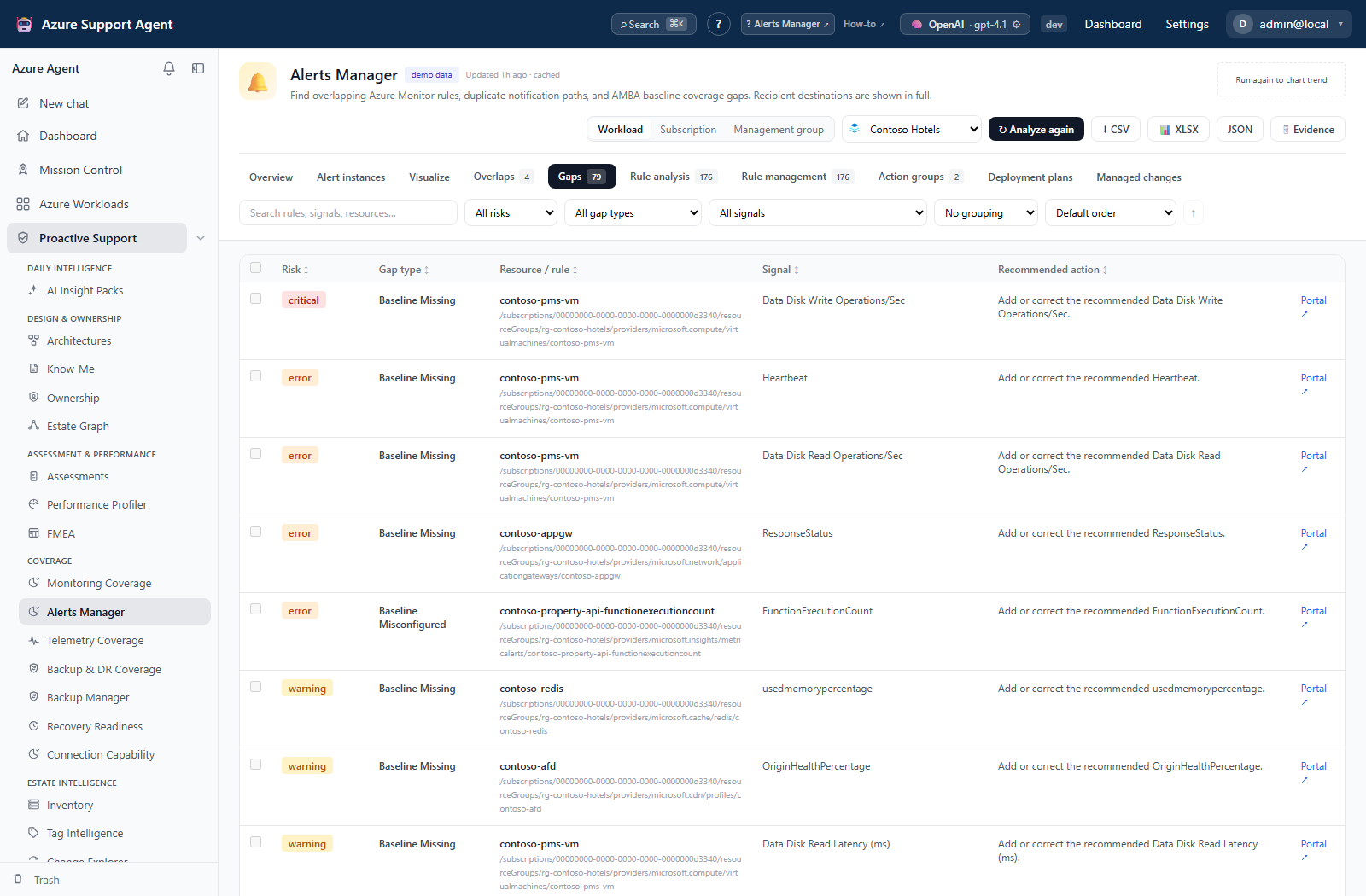
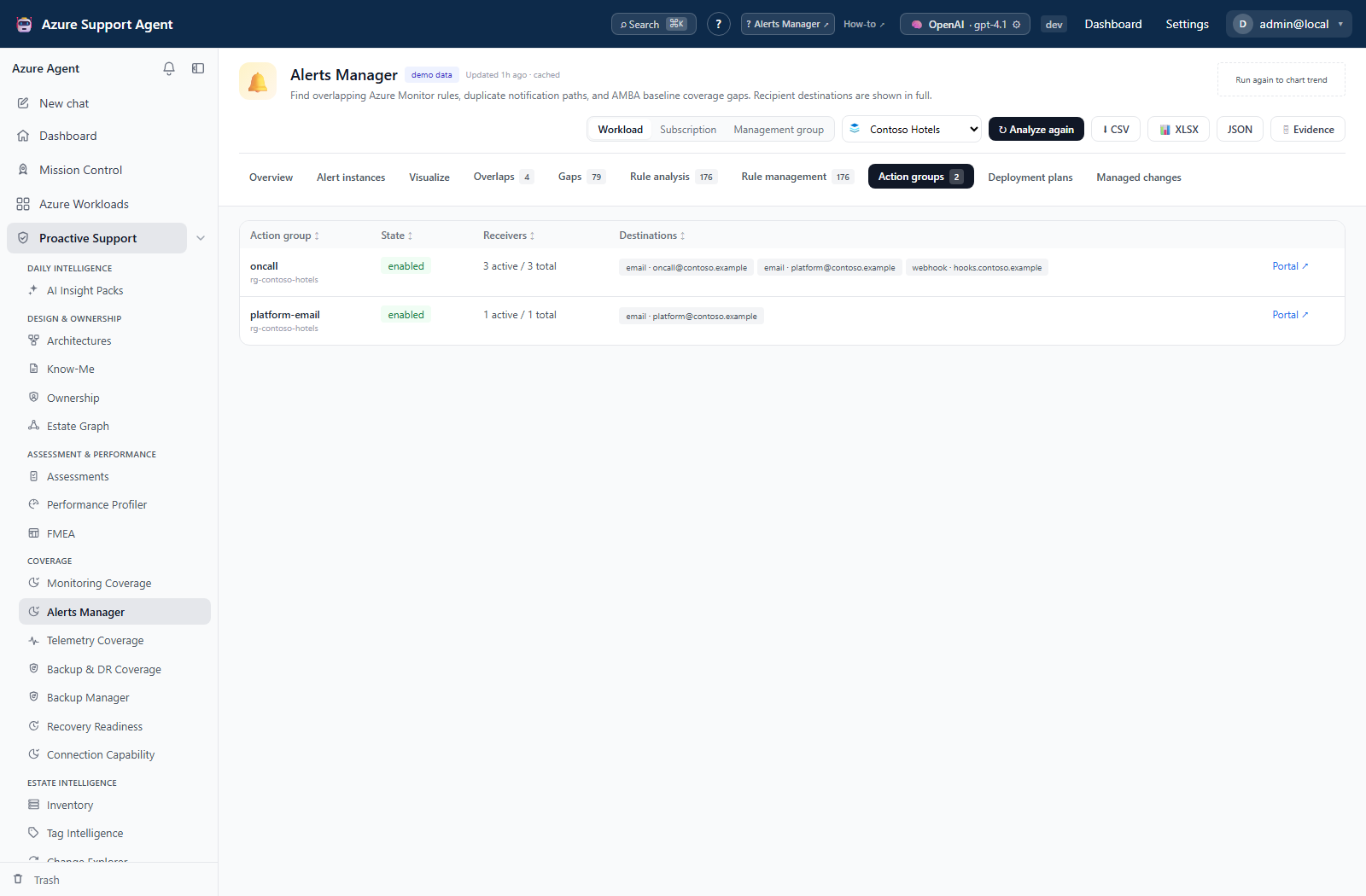
Open /alerts-manager. It normalizes to /alerts-manager/overview. Current routes are Overview, Alert instances, Overlaps, Gaps, Rule analysis, Rule management, Action groups, Deployment plans, Visualize, and Managed changes.
Alert Processing Rules, suppression/maintenance rules, routing-rule catalogs, Templates/GitOps, and legacy Analysis History/Decisions tabs are not current workflows.
The history/decision and non-executing analysis-plan APIs still exist. AMBA blueprint/version/assignment APIs also remain, but this route mounts Deployment plan review rather than the standalone blueprint authoring panel. Start a new UI remediation plan from Gaps.
How to refresh analysis and preserve evidence
- Select the connection and workload, subscription, or management-group scope.
- Check Updated, stale, and cached. Opening the page can show the prior report.
- Select Analyze alerts or Analyze again and monitor the background job.
- Review Overview, activity-log coverage, overlaps, gaps, Rule analysis, cost estimates, and trend.
- If the report is marked
partialortruncated, narrow scope or restore collector visibility before using absence as evidence. - Export the loaded analysis as CSV, XLSX, or JSON, or select Evidence to preserve it.
- After any managed apply, respond to Data stale — Analyze again; the refresh also reconciles the managed-rule inventory.
Expected result: A connection/scope-specific report is cached with a generated time and exportable evidence.
Verification and safety: Confirm the scope and generated time, then compare post-apply counts only after a new analysis. Exports can include full email/phone destinations. The analysis collector currently requests seven days of firings; its 30d column is not proof of complete 30-day history.
How to triage, acknowledge, close, or reopen an alert
- Open
/alerts-manager/inboxand load the alert instances for the selected scope. - Page through the table’s 30-day request and inspect severity and state. State/window filtering is available through the API, not as current Inbox table controls.
- Inspect fired time, monitor condition, and target. Use Azure or the dedicated history API for state history; the current table has no instance-detail drawer.
- Acknowledge when ownership is established.
- Close only after resolution or an accepted disposition.
- Reopen if the disposition was wrong or work must resume.
- Continue to Visualize, Overlaps, or Rule analysis when the symptom appears recurrent.
Expected result: Azure records the requested alert-state transition and the history updates.
Verification and safety: Reload the Inbox and confirm the state and timestamp. These are immediate Azure state writes, not approval-ledger requests. Acknowledge/close does not fix the resource, edit the rule, or suppress future firings.
How to visualize notification paths and separate them from overlaps
- Open
/alerts-manager/visualizeand run the notification simulation for the selected scope. - Use the always-visible Activity category selector. Choosing a category selects the Activity family and applies the filter locally without reloading Azure inventory.
- For Service Health, open Event types and select Service issue, Planned maintenance, Health advisories, Security advisories, or any combination. Health advisories include both
InformationalandActionRequired. - For Resource Health, filter Event status, Current resource status, Previous resource status, and Reason type. Display values such as In Progress and Platform Initiated map to Azure’s compact condition values.
- For Recommendation, filter Recommendation category and Impact level. High Availability and Operational Excellence accept both spaced and compact Azure values.
- Use Reset Activity filters to return to all categories. Changing rule family, severity, enabled state, category, or a category dimension updates the graph immediately in the browser; changing Event state reruns the simulation.
- Trace the rendered resources and rules through Action Groups to receivers; inspect duplicate or missing route edges. A rule without a condition for a selected dimension is unrestricted for that dimension.
- If an unmapped-value warning appears, use broad filters and review the routing diagnostic before narrowing the view; Azure may have introduced a value not yet classified.
- Open
/alerts-manager/overlapsto find rules sharing a signal/target or notification path, then decide whether the repeated path is intentional escalation or unintended duplicate delivery. Use firing history separately to judge noisy behavior.
Expected result: Simulated notification topology and structural overlap evidence are evaluated separately from firing frequency.
Verification and safety: Change each local rule filter and confirm that no new bulk-simulation request is made while the graph, KPIs, route count, diagnostics, CSV, and JSON describe that rule set. Graph-only display filters and routes-table search do not narrow the export. Trace each suspected duplicate from rule to Action Group to receiver. An overlap is a review signal, not automatically an error, and the simulator does not replay historical events. Use the single-rule fidelity simulator for resolved notifications and mute/throttle behavior; bulk Resolved output explicitly defers that check.
How to edit a rule or Action Group from Visualize
- In
/alerts-manager/visualize, right-click an alert-rule or Action Group node. Keyboard users can focus the node and pressShift+F10or the Context Menu key. - Select Edit rule or Edit Action Group. If several connected resources are available, select the intended name and ARM ID from the inline list.
- Confirm that the app navigates to Rule management or Action groups and opens the existing editor with the selected resource loaded.
- Review the full rule conditions, scope, routing, or receiver configuration. Cancel to return without creating a change, or save to create the normal approval-gated managed change.
Expected result: The exact connected entity opens in its existing editor. Right-clicking resource, receiver, or outcome nodes does not open an edit menu. Read-only and unauthorized actions stay visible but locked with an explanation.
Verification and safety: Close the editor and return to Visualize. Rule filters and zoom are persisted; the selected highlight is stored for the browser session and restored while its node/link remains in the graph. No Azure write occurs until a separately approved managed change is applied.
How to create a guided Activity Log alert rule
- Open
/alerts-manager/manage-ruleson a writable connection and select + Activity. - Choose the subscription, destination resource group, processing region, and target scope.
- In Activity Log conditions, choose a category. The editor replaces incompatible fields with that category’s defaults.
- For Service Health, select Event types and optionally enter impacted services or regions. For Resource Health, select Event status, Current resource status, Previous resource status, and Reason type. For Recommendation, select Recommendation category and Impact level; the Advisor operation is added automatically.
- Use the dropdown search, Select all, and Clear controls to build each
containsAnycondition. Existing custom values are identified and preserved until that field is changed. - Select one or more Action Groups, enter the change reason, and select Validate & create change. Review any overlap warning before continuing.
Expected result: The editor submits category plus guided ARM equals and containsAny conditions as an approval-gated pending change; it does not write directly to Azure.
Verification and safety: Inspect the pending change in /alerts-manager/changes and confirm the category, condition field names, selected raw Azure values, scope, and Action Groups before approval.
How to add missing AMBA alerts in bulk
- Open
/alerts-manager/gapsand filter to supported metric baseline gaps. - Select individual rows or all visible actionable rows.
- Open the remediation drawer and select one healthy live Action Group.
- Preview proposals. New current proposals are enabled on apply.
- Review metric name, namespace, aggregation, operator, threshold, dimensions, window, frequency, target, severity, and estimated cost.
- Resolve blockers. Live metric-definition preflight fails closed when a metric, aggregation, or dimension is unsupported.
- Validate the plan, include or exclude individual items, then submit.
- Open the focused Deployment plan or Managed changes and continue through approval and apply.
Expected result: Submission creates ordered pending managed changes; it does not change Azure.
Verification and safety: Confirm every included actionable gap has a pending child change and that blocked/equivalent rows were not submitted as creates. Rejected, failed, stale, or applied history does not block a new plan; only active pending/approved changes do.
How to author or edit a metric rule, including dynamic thresholds
- Open
/alerts-manager/manage-rules, reload inventory if needed, and select + Metric, Edit, or Clone. - Use the Azure-backed subscription, resource-group, placement-region, and scope selectors.
- Select the live metric, namespace, supported aggregation, dimensions, window, and evaluation frequency.
- For a static threshold, enter the operator and numeric value.
- For an implemented dynamic threshold, choose Dynamic, sensitivity (High, Medium, or Low), operator, minimum failing periods, and evaluation periods. The current editor/body builder does not expose an ignore-data-before setting. Dynamic rules cannot combine multiple conditions and accept at most five explicit resources.
- Use Preview last 6h when
alerts_manager.query_previewis available. - Add Action Groups and choose enabled state.
- Save. The editor validates, runs the noise guard, and creates a managed change request.
Expected result: A pending create/update request contains the validated desired rule and current-state snapshot.
Verification and safety: Review the noise-guard findings and managed-change details before approval; after apply, reload Rule management and re-analyze. Discover metrics also requires alerts_manager.query_preview, not just rule-write permission.
How to author log, Activity Log, Smart Detector, or Prometheus rules
- In Rule management, select + Log, + Activity, + Smart Detector, or + Prometheus for the intended family.
- For log rules, select a Log Analytics workspace, enter bounded KQL, evaluation settings, optional identity, and run Validate and preview query.
- For Activity Log rules, define exact category/condition and target subscription, then select an Action Group.
- For Smart Detector or Prometheus, obtain
alerts_manager.advanced_rule_write, use the family-specific fields, and verify target API/region support. - Review cost guidance, scopes, identities, receivers, and enabled state.
- Save to run validation and noise guard, then inspect the pending change.
Expected result: Supported advanced authoring produces a reviewed request, never an immediate silent mutation.
Verification and safety: Preview where supported, inspect the resulting ARM body in Details, and verify after apply in Azure and refreshed inventory. Log rules require one Log Analytics workspace; KQL and PromQL are capped at 8,000 characters, and KQL control/external-data operations are refused.
How to set up Essential Activity Log alerts across a management group
- Open
/alerts-manager/overview, select the Azure connection, choose Management group, and select the intended management group. - Run Analyze alerts if the page has no current report. In Essential Activity Log coverage, check for
partialortruncatedwarnings before treating a missing row as a gap. - Select Set up missing alerts. In Categories, choose Service Health, Resource Health, Security, and/or Recommendation. Missing and unhealthy categories are preselected.
- In Subscriptions, search, filter, group, and page through the resolved subscriptions. Select every intended subscription explicitly; unlisted subscriptions are never inferred.
- In Conditions & naming, map every selected subscription to a destination resource group. Existing update/enable operations retain their existing destination.
- Review the real prefilled Preferred resource-group name (
rg-monitoringwhen no policy exists) and select the colored Use where available action to apply existing matches. Its count shows how many selected subscriptions will change. - If a destination does not exist, enable Create missing resource groups, review the prefilled
eastusdefault or enter a row-specific location, and select Copy name to missing or type an explicit name. The action count shows how many unmatched rows will be filled. - Optionally select Save as connection default at any time after the preferred name is valid. This stores the preferred name, default location, and only resolved per-subscription mappings in tenant/connection-scoped application state; unresolved empty rows are omitted and no Azure resource is created.
- Set the rule-name prefix and review category conditions. Service Health requires at least one incident type; Resource Health requires at least one current status. Optional comma-separated filters are de-duplicated and bounded by the server allowlist.
- In Routing, choose only enabled Action Groups with active receivers. For a multi-subscription scope, prefer Hybrid central + local routing: select one healthy visible central Action Group, use matching-name or explicit healthy same-subscription overrides where available, and leave the central group as the supported cross-subscription fallback elsewhere.
- If a subscription requires a local route and has no healthy local group, explicitly enable local Action Group creation, select Create local clone for that row, choose a healthy visible clone source, and enter an Azure-safe prefix. The clone is an approval-gated prerequisite, not an immediate Azure write.
- Treat Suggest from ownership as ranking evidence, not an approval. Inspect full destinations for existing groups and verify any SIEM-capable route? hint. Use the separate diagnostic-settings flow for Activity Log ingestion.
- Select Review plan. Inspect resource-group prerequisites first, Action Group prerequisites second, and rules third. Confirm every
local,cross subscription, orplanned clonerelationship. Clone preview intentionally shows IDs and receiver counts without exposing endpoints or secrets. - Select Validate. If inputs or live inventory changed, rebuild the preview. Submit only after validation passes.
- Select Submit pending changes. The result is an ordered batch of pending application records; no Azure write occurs.
Expected result: Missing resource groups become pending prerequisites, explicitly selected local clones become pending Action Group prerequisites, and actionable Activity Log rule creates/updates/enables follow them. Equivalent, blocked, and invalid rows are not submitted as Azure changes.
Verification and safety: Open /alerts-manager/changes, filter to Action Required, and compare the batch order, target subscription, destination resource group, clone source/target IDs, prerequisite linkage, routing relationship, category, and sanitized ARM details with the reviewed preview. If an optional impacted-service/region or resource-group condition is refused, clear that named field and rebuild; those wizard field names do not all match the current server allowlist.
How to configure subscription Activity Log export separately
- From Essential Activity Log setup → Conditions & naming, select Configure diagnostic settings.
- Inspect the existing subscription settings and select only complete, inspectable rows. Unknown/incomplete rows cannot be planned.
- Continue to Destination. Review the four required categories: Administrative, Alert, Policy, and Security.
- Select a workspace, Storage account, or Event Hub namespace authorization rule and hub name using the scope selectors. The Event Hub ARM-ID fallback is for failed authorization-rule inventory; it is not a permission bypass.
- Choose the setting name and build Preview operations. Inspect whether an existing named or matching-destination setting will be updated. That update replaces its destination fields, so verify that an additional destination is not unintentionally removed.
- Select Validate, enter a reason, and Submit pending changes. If inputs or the prior setting changed, refresh the preview rather than reusing its token.
- Approve and apply the pending diagnostic-setting requests in Managed changes; verify ingestion at the chosen destination separately.
Expected result: Reviewed create/update requests enable log export only after apply; equivalent rows produce no change.
Verification and safety: Confirm categories, destination, target subscription, and new records arriving at the destination. This is not notification routing and may incur ingestion/storage costs. The executor cannot apply a delete inverse for a newly created setting; review removal separately in Azure.
How to accept an intentional overlap or retain a rule
- Review the overlap’s signal, targets, and receiver paths, or the rule’s findings.
- With
alert_analysis.manage, choose Accept overlap, Keep, or Exempt and provide the reason. - Reopen the analysis and check accepted versus actionable findings. Use the decision API to remove an acceptance when it no longer applies; there is no dedicated Decisions tab.
Expected result: A tenant/connection-scoped decision changes the analysis presentation and actionable counts without changing Azure.
Verification and safety: Confirm the rule still exists and that no managed apply occurred. Acceptance is not remediation, deployment approval, or proof that the signal is harmless.
How to approve and bulk-apply Activity Log prerequisites and rules
- In
/alerts-manager/changes, select the pending rows from the reviewed Activity Log batch. - Open Details for representative and high-risk rows. Confirm resource-group create/PUT requests, high-risk Action Group clone requests, and rule requests target the intended subscription, retained or mapped group, conditions, and routes. Secret-bearing receiver fields are redacted in this view.
- Select a pending rule or clone. Wait while the backend expands its transitive prerequisites, including prerequisites on other server-side pages, and review the requested, prerequisites added, and total counts. Use Select all only when the intention is to load every actionable page and resolve the combined closure.
- Approve or reject pending rows with a reason. Bulk approval includes pending prerequisites returned by the backend. To cancel an already approved but unapplied row, use its Reject control or include it in a bulk Reject decision. Approval and rejection change only application state and audit history.
- Select the approved closure and choose Apply to Azure.
- Confirm the prompt. The backend recomputes dependencies and applies topologically: resource group, then Action Group, then dependent rule. A failed branch skips only its descendants; independent branches continue.
- A row-level Apply to Azure request also uses the dependency-aware bulk-apply endpoint with that row as the requested selection. It expands and applies approved prerequisites in topological order; it does not require manually applying each ancestor first.
- If a branch fails, review the grouped prerequisite error and affected descendant IDs. Use an eligible individual clone retry or rebuild the affected plan; bulk apply cannot retry a failed root. Once the original prerequisite is applied, select an approved descendant to resume. Skipped descendants remain approved, but a new prerequisite does not automatically replace their old dependency links.
- Return to Overview, select Data stale — Analyze again, and refresh Essential Activity Log coverage.
- Verify the created resource groups, enabled rules, exact Activity Log conditions, subscription scopes, and Action Group routes in live inventory or Azure.
Expected result: Approved prerequisites and then rules are written to Azure, each applied row receives evidence, and failed siblings remain visible without hiding successful operations.
Verification and safety: Confirm every intended category reports covered after a fresh analysis. For any failed/stale row, compare its error and current Azure state rather than reapplying the old payload blindly. Failed rows are not retried by bulk apply; use the eligible individual clone-retry path or a corrected proposal before resuming descendants.
How to recover or roll back an Essential Activity Log batch
- For a failed resource-group create, correct location, Azure authorization, or name conflict and build a new wizard preview. Do not make the dependent rule bypass the prerequisite.
- For a stale Activity Log update, refresh coverage and submit a new request from live state; the old concurrency hash cannot be forced.
- For an applied Activity Log rule, select Prepare rollback with
alerts_manager.delete, review the inverse pending request, then approve and apply it through the normal flow. - For a wizard-created clone, detach every dependent rule before preparing rollback. Dependency checks run again at apply time and block deletion if a reference reappears.
- Do not expect Prepare rollback for a resource-group prerequisite. Automatic deletion is blocked because the group may contain unrelated resources.
- If a newly created resource group is genuinely unused, inspect its contents and dependencies in Azure and use a separately authorized, reviewed removal process.
- Run Analyze again and verify that the intended prior rule state is restored without reopening a required coverage gap.
Expected result: Supported rule rollback is a separately audited pending change; unsafe automatic resource-group deletion never occurs.
Verification and safety: Confirm the rollback linkage and fresh Azure rule state. If removal of a prerequisite was separately approved, verify that no unrelated resources were deleted.
How to tune noise without hiding incidents
- Begin with Visualize, Overlaps, firing history, Rule analysis recommendations, and estimated cost.
- Edit the narrowest rule rather than broadly disabling coverage.
- Use metric preview or bounded KQL preview to test the candidate condition.
- Review the editor’s noise guard, including actionable overlaps, intentional escalation layers, and projected duplicate receiver deliveries from 30-day history.
- Prefer a justified threshold, dimensions, evaluation frequency/window, or dynamic-threshold sensitivity change.
- Submit with a reason, approve through separation of duties, apply, and monitor detection after the change.
Expected result: The proposal reduces demonstrated duplication or unstable firing while retaining required signals.
Verification and safety: Compare fresh firing history, overlap groups, coverage gaps, and incident outcomes. Current Alerts Manager does not provide Alert Processing Rule suppression windows.
How to create, edit, clone, enable, delete, or test an Action Group
- Open
/alerts-manager/action-groupsand select Refresh. - Inspect enabled state, receiver count, dependencies, and rule usage.
- Select Create action group, Edit, or Clone. Choose subscription, resource group, placement region, and receiver types.
- For advanced receivers, use Azure-backed selectors for Functions, Logic Apps, Event Hubs, Automation webhooks, and workspaces where offered.
- Submit the create/update as a managed request. Enable/disable also follows managed change controls.
- Before deletion, detach all dependencies; deletion remains disabled while dependency count is nonzero.
- To test, select Test, type
SEND TEST, and expect real delivery attempts to every configured receiver.
Expected result: Authoring produces a pending request; a notification test reports current delivery success or failure.
Verification and safety: Refresh inventory after apply. For tests, check each endpoint or mailbox and remember that success proves only the tested moment. SEND TEST immediately attempts real delivery without creating a managed request; Accepted/Running is not a completed-delivery result.
How to build and submit a deployment plan
- Start from selected supported gaps, then open the remediation drawer.
/alerts-manager/deployment-plansreviews existing plans. - Create a draft from those gaps. Immutable blueprint-assignment drafting is an API workflow; the current plan-review tab does not expose the standalone blueprint editor.
- Confirm the selected workload, subscription, or management-group gap scope and one live Action Group. Blueprint assignments separately support subscription, workload, and workload-group targets.
- Preview classifications such as create, equivalent, blocked, or invalid.
- Include/exclude items and validate the draft.
- Resolve active blockers by opening or cancelling genuine pending/approved child changes, then recheck.
- Submit. Ordered child changes become pending and the plan opens focused.
Expected result: A validated plan becomes a batch of pending managed changes with no Azure write.
Verification and safety: Match the included actionable plan items to child changes and inspect each desired rule. An approved plan may still await Apply.
How to review, approve, reject, or cancel a plan
- Open the focused plan and inspect source, assignment, Action Group, validations, item classifications, and desired payloads.
- Approve only a pending plan; provide a review reason.
- Reject a pending plan when it should not proceed.
- The plan detail currently exposes whole-plan Approve and Reject only while the plan is pending. To cancel an approved-but-unapplied plan in the UI, open
/alerts-manager/changes, select its remaining approved children, review the dependency closure, and use bulk Reject. The backend plan-decision contract also accepts rejection of an approved plan, but the current plan-detail view does not expose that control. - Recreate the plan if approved content must change; do not edit approved payloads in place.
Expected result: The plan and child statuses reflect the decision while preserving audit history.
Verification and safety: Confirm pending count becomes approved or rejected and no Azure resource changed merely because approval occurred.
How to approve, reject, apply, and verify managed changes
- Open
/alerts-manager/changes; the red pulsing badge reports pending plus approved items across all server-side pages. - Open Details and compare the draft-time Azure snapshot, validated desired configuration, resulting ARM body, method, target, and concurrency hash. The dialog does not fetch new Azure state; signed URL query strings and secret-bearing fields are redacted.
- Select any actionable rows and wait for
POST /api/alerts-manager/changes/resolve-dependenciesto expand transitive prerequisites. Review requested versus added prerequisite counts and resolve any missing, cross-connection, type, or cycle error. - For pending rows, provide a reason and select Approve or Reject. For one approved-but-unapplied row, use its row-level Reject control. For multiple pending and/or approved-but-unapplied rows, select them and use bulk Reject.
POST /api/alerts-manager/changes/bulk-decisionuses one reason, resolves the branch, rejects dependents before prerequisites, and retains prerequisites shared by unselected active dependents. - For approved rows, select Apply to Azure.
POST /api/alerts-manager/changes/bulk-applyrecomputes the closure and executes its topological order, including RG → Action Group → rule where those dependencies exist. - Watch each row become applied, already applied, failed, or skipped. A failed branch skips its descendants while independent branches continue; errors are grouped by failed prerequisite and list affected descendants.
- Refresh Rule management/Action groups, then select Data stale — Analyze again.
- Verify exact enabled state, condition, scope, and Action Group routing in the refreshed app or Azure.
Expected result: Only approved changes are sent to Azure, and terminal state plus evidence/error is retained.
Verification and safety: Treat Applied as an execution result, then independently confirm live Azure state and fresh analysis convergence.
How to cancel approved changes individually or in bulk
- Open
/alerts-manager/changes, choose Action Required, and identify rows that areapprovedbut have not been applied. - For one row, open Details, verify the target and desired ARM body, select Reject, and enter a cancellation reason. This calls the individual decision endpoint and changes only the ledger and audit history.
- For a dependency branch, select the approved dependent row and wait for the server to add its transitive prerequisites. Review the requested, prerequisites added, and total counts before continuing.
- For several branches or every actionable row, select the intended rows or use Select all. Select all fetches all server-side pages before dependency resolution; it is not limited to the visible 100-row page.
- Select bulk Reject and enter one reason. The backend processes the closure in reverse topological order so dependents are rejected before their prerequisites.
- If the result reports
shared_prerequisite, leave that prerequisite active: an unselected pending or approved dependent still requires it. Either keep the shared prerequisite or separately review and select every active dependent before retrying. - Refresh Action Required and verify the cancelled rows are absent there and visible as
rejectedunder Archived or All.
Expected result: Pending and approved-but-unapplied selections become rejected without an Azure call; shared prerequisites needed by unselected active branches are retained.
Verification and safety: Confirm the decision reason and rejected status in All or Archived, confirm the actionable badge/count decreased, and refresh Azure inventory only to verify that no Azure resource changed. If a row is already applied, stop: it cannot be rejected and requires Prepare rollback where supported.
How to handle failure, stale state, retry, and rollback
- For Failed, read the error and correct permission, validation, conflict, region, metric, query, or receiver issues before creating a corrected request.
- An eligible failed Action Group create can be retried through the individual apply API, restoring source endpoints when necessary. The current Retry clone button instead calls bulk apply, which rejects failed rows; do not rely on repeated clicks to repair the root.
- After a failed prerequisite, leave skipped descendants approved. Resolve the root through an eligible individual retry or a corrected proposal, then select the approved descendant and apply again. Dependency resolution retains already-applied ancestors; skipped rows do not need reapproval, but a replacement prerequisite does not automatically rewrite old dependency links.
- For Stale, do not force the old payload. Refresh inventory and create a new request because the optimistic-concurrency hash no longer matches Azure.
- For an applied change, select Prepare rollback when
alerts_manager.deleteis available. - Review the inverse pending request; rollback is not automatic.
- Approve and apply the rollback through the same managed flow.
- Refresh and analyze again to verify restoration.
Expected result: Failure history remains intact, and rollback creates a separately approved inverse change linked to the original.
Verification and safety: Confirm rollback of linkage, applied inverse state, and restored Azure configuration. If Azure changed after the original apply, review the inverse carefully before approval.
How to perform bulk operations and export analysis
- In Rule management, select up to 50 rules and choose enable, disable, delete, or add Action Group.
- Enter a reason. Preparation validates all IDs and current snapshots; if any target fails validation, no change rows are created.
- Review the resulting independent requests in Managed changes, then bulk approve/apply only after inspecting scope and count.
- Export analysis from the page header as CSV, XLSX, or JSON.
- Export Activity Log coverage with the wizard’s CSV/JSON controls; XLSX is additionally available through its export API.
Expected result: Bulk operations preserve per-rule audit and failure status; exports capture the current analysis.
Verification and safety: Compare requested count, created count, selected scope, and post-apply inventory. Current Alerts Manager does not expose rule-definition import; do not describe analysis export as an importable deployment bundle.
How to diagnose permission, cache, and read-only failures
- Check the selected connection’s read-only banner and
/capabilityrow. - Match the action to its exact
alerts_manager.*permission. - Verify Azure RBAC at the target resource, not only the subscription list.
- Refresh the relevant live inventory when Portal/IaC changes are absent.
- Re-analyze after apply; cached analysis can otherwise show old gaps, costs, or overlaps.
- For metric preflight or query preview failures, verify region, provider namespace, dimensions, aggregation, workspace access, and query bounds.
Expected result: The UI distinguishes product authorization, connection policy, Azure authorization, stale cache, and validation failures.
Verification and safety: Retest the smallest failed operation; do not broaden all permissions as a generic fix. Server live inventory can remain cached for 120 seconds, separately from the browser’s two-minute Inbox/five-minute rule and Action Group caching.
Safety and rollback
- Alert-state changes, notification tests, approval, and Azure apply are distinct actions.
- Notification tests are real and may page people or trigger automation.
- Closing an instance never suppresses future firings.
- Dynamic thresholds require sufficient representative history; verify their behavior after deployment.
- Keep receiver secrets out of exports and documentation. The managed ledger encrypts stored payloads and redacts displayed secret-bearing values.
- Rollback is a new pending request and can itself be unsafe if Azure changed afterward.
- Reject/cancel is available only before apply and requires
alerts_manager.approve; applied rows cross the cancellation boundary and requirealerts_manager.deleteto prepare a supported rollback. - Essential Activity Log destination defaults are local tenant/connection configuration. Saving them is not an Azure change and preview always revalidates the mapped groups.
- Activity Log resource-group prerequisites cannot be automatically rolled back.
- UI Delete controls use
alerts_manager.delete, while proposal APIs use Action Group write, rule write, or bulk write according to the target. Advanced rule families additionally require advanced-rule permission. Rollback preparation specifically requiresalerts_manager.delete; do not infer API guards from button visibility alone.
Troubleshooting
| Symptom | Cause and resolution |
|---|---|
| Accept overlap, Keep, or Exempt returns 403 | These are analysis decisions. Obtain alert_analysis.manage; manager approval permission is not a substitute. |
| Optional wizard condition is rejected | The field is outside the current planner allowlist. Clear the named optional field, rebuild and validate; use the separate reviewed editor if the needed condition is supported there. |
| Retry clone reports an invalid failed status | The UI calls bulk apply, which does not retry failed rows. Review the eligible individual apply API or redraft; verify the root before resuming approved descendants. |
| Write control hidden | Check exact product permission, read-only connection state, and capability. |
| Gap preview blocked | Open/cancel active pending or approved blockers; then recheck metric definitions and Action Group health. |
| Validation fails | Verify family, scope, metric/query, aggregation, dimensions, evaluation settings, identity, and region. |
| Change stays pending | An approver must decide it; approval alone still does not apply it. |
| Reject is unavailable on a change | The row is not pending or approved, or alerts_manager.approve is missing. Applied rows cannot be cancelled; use Prepare rollback with alerts_manager.delete when that target supports rollback. |
| Apply is stale | Azure changed after the snapshot. Refresh and create a new request. |
| Duplicate notifications remain | Trace all rule-to-Action-Group receiver paths and refresh out-of-band changes. |
| Test reports success but receiver did not process | Inspect the downstream mailbox, endpoint, schema, filtering, and automation logs. |
| Destination mapping stays unresolved | Select an existing group, or enable missing-group creation and provide a valid location for the proposed group. |
| Local Action Group override fails preview | Choose a healthy group in the rule subscription, clear the override to use the healthy central fallback, or explicitly plan a local clone. |
| Hybrid routing leaves subscriptions unresolved | Select a healthy visible central Action Group, a healthy local override, or an explicitly enabled clone with a healthy source and safe prefix. |
| Planned clone is invalid | Resolve its resource group/location, enable clone creation, select a visible enabled source with an active receiver, and use an Azure-safe prefix. |
| Approved Activity Log rule returns a prerequisite conflict | Select the rule and use Apply to Azure; row-level apply resolves its closure and enforces resource group → Action Group → rule order. Approve any pending ancestor and correct missing, cross-connection, type, or cycle errors first. |
| Selecting a row adds prerequisites not visible on the current page | Review the requested/prerequisite counts. This is the server-authoritative transitive closure, including rows discovered across pages. |
| Bulk approval includes more rows than originally checked | Pending prerequisites are intentionally included. Inspect the expanded closure before confirming; approval remains an application-state write and does not mutate Azure. |
| Bulk apply reports failed and skipped rows together | Use the grouped prerequisite error to correct or retry the failed root. Independent branches already continued, and skipped descendants remain approved for the next closure retry. |
| Rejection reports a shared prerequisite | An unselected active dependent still needs that row. Review the dependent; the backend intentionally leaves the shared prerequisite pending or approved. |
| Clone details omit receiver endpoints | This is the secret-safe design. Preview and audit details expose IDs and counts; encrypted source values are restored only for apply or eligible retry. |
| Prepare rollback is unavailable for the resource group | Automatic group deletion is intentionally blocked; inspect the group and use a separately reviewed Azure removal process only if it is empty and unshared. |
| Wizard-created clone rollback is blocked | Detach all dependent alert rules and refresh. Deletion is guarded both when rollback is prepared and when it is applied. |