Run and govern assessments
Prerequisites
assessments.read; the assessment run/mutation permission assigned by the deployment (commonlyassessments.run) for enqueue, finding state, waivers, and custom controls.- Current workload inventory and required Resource Graph, policy, RBAC, identity, or attestation access.
- Optional AI provider and ticket connector.
Route
Open /assessments or /assessments/{runId}. Main views include Assessments, Fleet, and Cleanup; assessment tabs include Run & history, Portfolio, Custom controls, and Trash.
How to run an assessment
- Open Run & history and select one or more workloads.
- Choose WAF/WARA/WASA or the offered control pack and pillars; enable AI summary only when needed.
- Confirm workload membership, connection, and source access.
- Enqueue the run; monitor queued/running/succeeded/failed/cancelled state.
- Cancel only an in-flight run that should stop; already collected evidence may remain.
- Open the completed run and inspect evidence completeness/confidence before score.
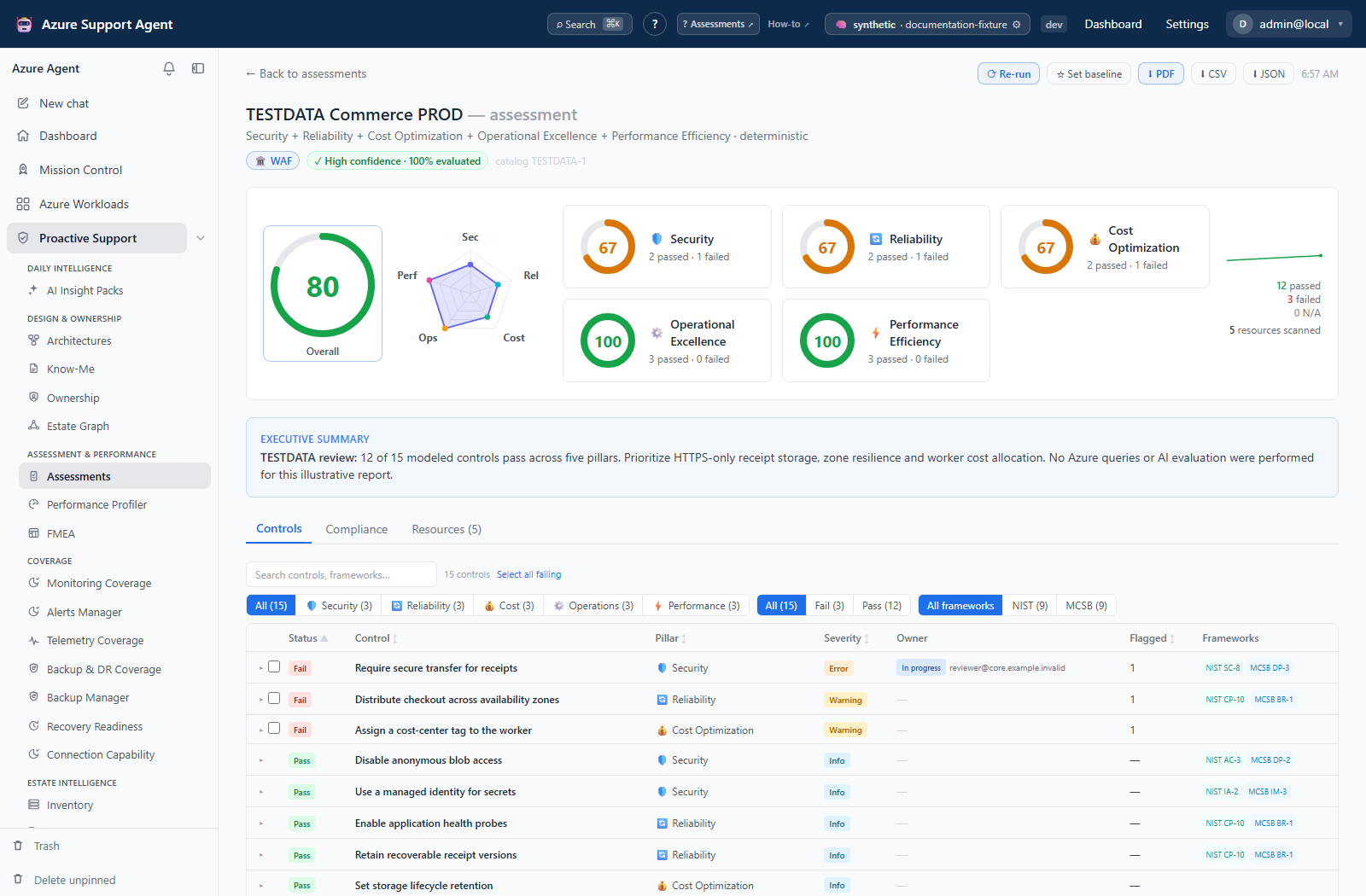
Expected result: A persisted run contains scope, catalog/pillars, control outcomes, pillar/overall scores, resources, and optional AI summary.
Verification: Confirm workload, trigger, catalog scope, generated time, resource count, errors, manual controls, and N/A controls.
How to interpret and manage finding lifecycle
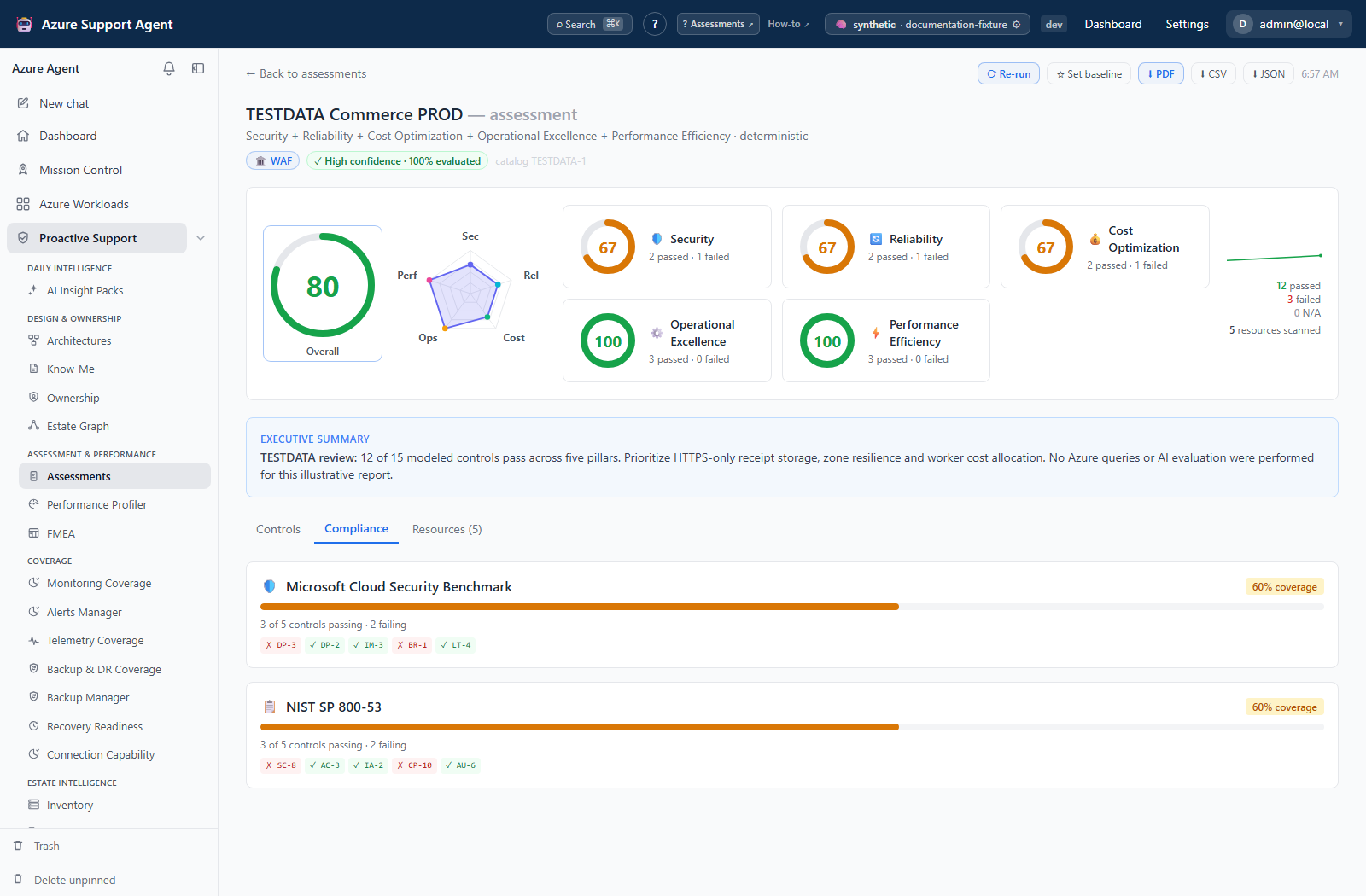
- In Controls/Findings, filter fail/error/manual/waived, severity, pillar, or framework.
- Expand critical/high findings and inspect evidence, affected resources, impact, and suggested remediation.
- Treat error as not evaluated, manual as requiring attestation, and waived as accepted risk—not pass.
- Select one or many findings and set the offered lifecycle state, assign an owner, or hand off to the Safe-Rollout Planner.
- Create tickets only after selecting the intended connector; bulk ticket creation requires confirmation.
- Re-run after remediation using comparable scope/catalog and compare with the previous or pinned baseline.
Expected result: Findings have explicit triage state, owner/ticket as needed, and comparable follow-up evidence.
Verification: Reload the run and confirm state/assignee/ticket; open the external ticket and compare identifiers.
How to create or revoke a waiver
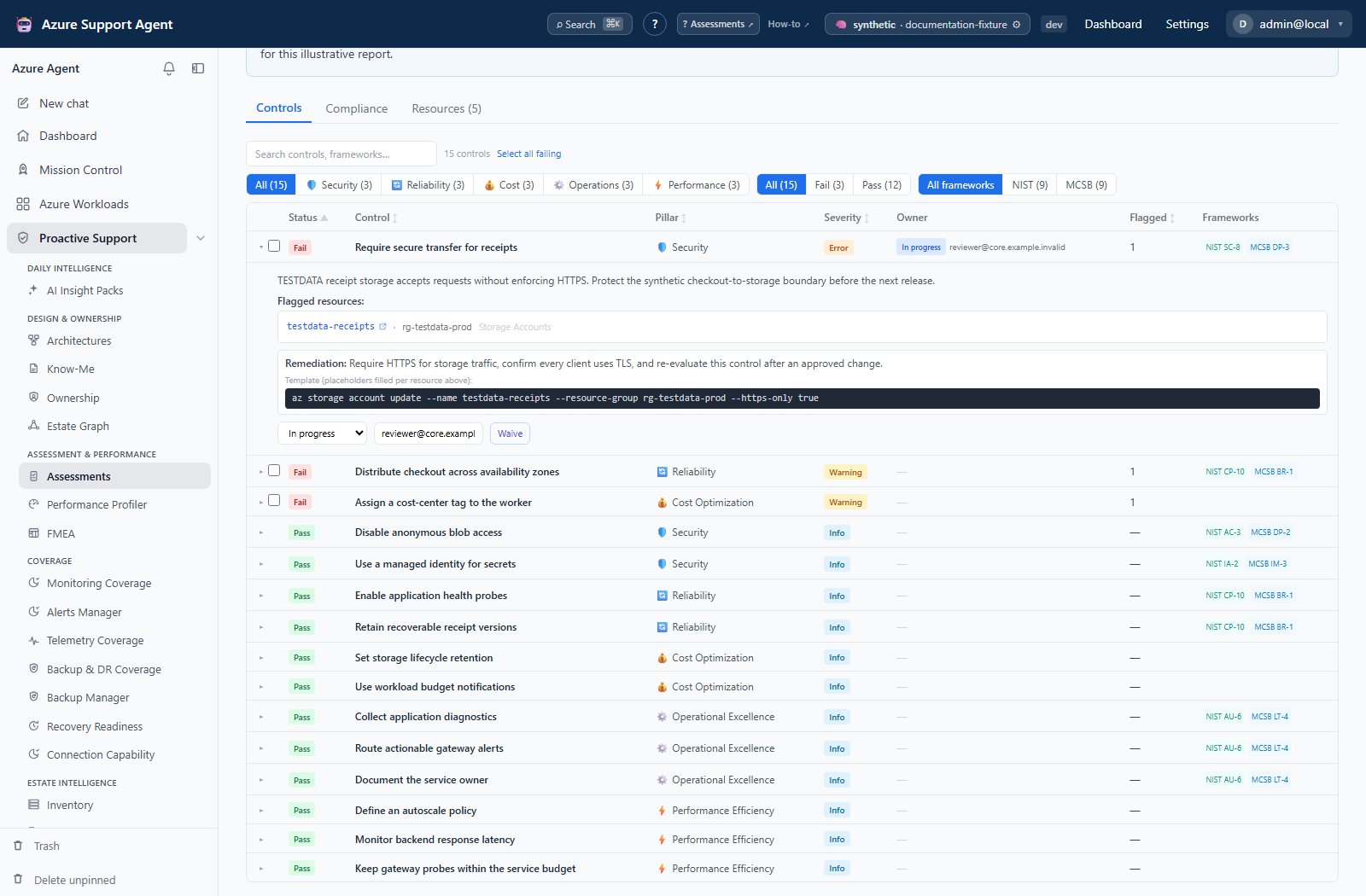
- Select Waive… for one or selected findings.
- Enter a concrete justification, approver, and expiry date.
- Confirm the finding/risk and save.
- Review the waived badge/details and governance context.
- Revoke the waiver when expired, invalid, or remediated; rerun to evaluate normally.
Expected result: The exception is time-bound and auditable without deleting the technical finding.
Verification: Confirm workload/check ID, approver, expiry, and waived count; verify revocation removes waiver treatment.
How to export PDF, CSV, JSON, or preserve evidence
- Open a completed persisted run.
- Select ⬇ PDF for a rendered report; wait for generation or cancel only the current PDF request.
- Use CSV for finding analysis and JSON where the current export action/API is available for structured retention.
- For durable evidence, retain the exported run or use the available product evidence/case handoff from findings/source workflows; do not claim an in-page Evidence button when none is shown.
- Review the artifact for identifiers and sensitive evidence before sharing.
Expected result: A point-in-time artifact reflects the selected run.
Verification: Match run ID, workload, timestamp, totals, and representative findings.
How to schedule recurring assessments
- Open
/automations/tasksand select + New schedule. - Set What should this schedule run? to Assessment.
- Select workloads, an assessment pack or custom pillars, AI/alert options shown, and schedule name.
- Choose daily, weekly, or cron/builder cadence, time, and time zone.
- Review schedule preview/next runs and notification methods; enable and create the schedule.
- Monitor run history; scheduled assessment reports link back to
/assessments/{runId}.
Expected result: The scheduler enqueues assessments at the previewed cadence and preserves run history.
Verification: Confirm enabled state, next run, trigger label scheduled, and resulting report.
How to operate Portfolio and Fleet
- Use Portfolio for the latest completed score/pillar view per workload.
- Compare scope/catalog/freshness before ranking workloads.
- Use 🚀 Fleet for saved latest state and supported mass-run controls.
- Select a bounded workload set, start the fleet run, monitor terminal states, and drill into each result.
- Use Cleanup or Trash to restore, then purge only after retention review.
Expected result: Current fleet posture and outliers are visible without confusing unknown/stale values with health.
Verification: Confirm every selected workload has a terminal run and comparable evidence.
Safety and rollback
- Assessments are point-in-time and not certification.
- Suggested remediation/AI custom checks require technical review and staged execution outside the assessment.
- Waiver rollback is revoke; finding-state/assignment can be changed; external ticket rollback follows the connector system.
- Normal run deletion moves to Trash; purge/empty Trash is permanent.
- Preserve required reports before cleanup.
Troubleshooting
| Symptom | Resolution |
|---|---|
| Run remains queued | Check worker/queue health and avoid duplicates. |
| Controls error | Expand the error, restore source permission/query support, and rerun. |
| Score changed unexpectedly | Compare scope, catalog, permissions, N/A/error counts, and baseline. |
| Resource is missing | Refresh workload inventory and verify selected scope. |
| PDF is slow | Allow generation to complete; use cancel only for the active request. |
| Schedule fails | Check schedule target, workloads/pillars, time zone, enabled state, and scheduler history. |