Operate Backup and DR Coverage
Screenshot context: These native application views use isolated synthetic demo data, not live Azure evidence. Demo Azure writes are disabled. The populated protection and DR examples do not mean the live coverage collector retrieves jobs, restore tests or Site Recovery pairs.
Prerequisites
- Product permission
coverage.readfor scans, artifacts, findings, tickets, evidence, and run cleanup;coverage.managefor reference edits and submitting/deciding/deleting change requests. - ARM Reader access to resources and vault metadata in the selected workload/subscription.
- Independent access to backup jobs, recovery points, restore tests and replication evidence in the source service. The current live collector does not fetch those deep facts or ASR pairs; permissions alone do not fill that implementation gap.
Route
Open /backupdr. Use Coverage, Fleet, or Cleanup. Coverage contains Backup Coverage, Disaster Recovery (/backupdr?tab=dr) and All Resources (/backupdr?tab=all). Workload scope uses its configured connection; subscription mode lets you select a connection.
How to assess protection posture
- Open Coverage, select the connection and scope, and use Load coverage for a newly selected scope. Inspect the saved timestamp; revisiting the last loaded scope can restore its cache automatically.
- Refresh when the scan is absent, stale, or predates a protection change.
- Review red failed checks before amber degraded evidence.
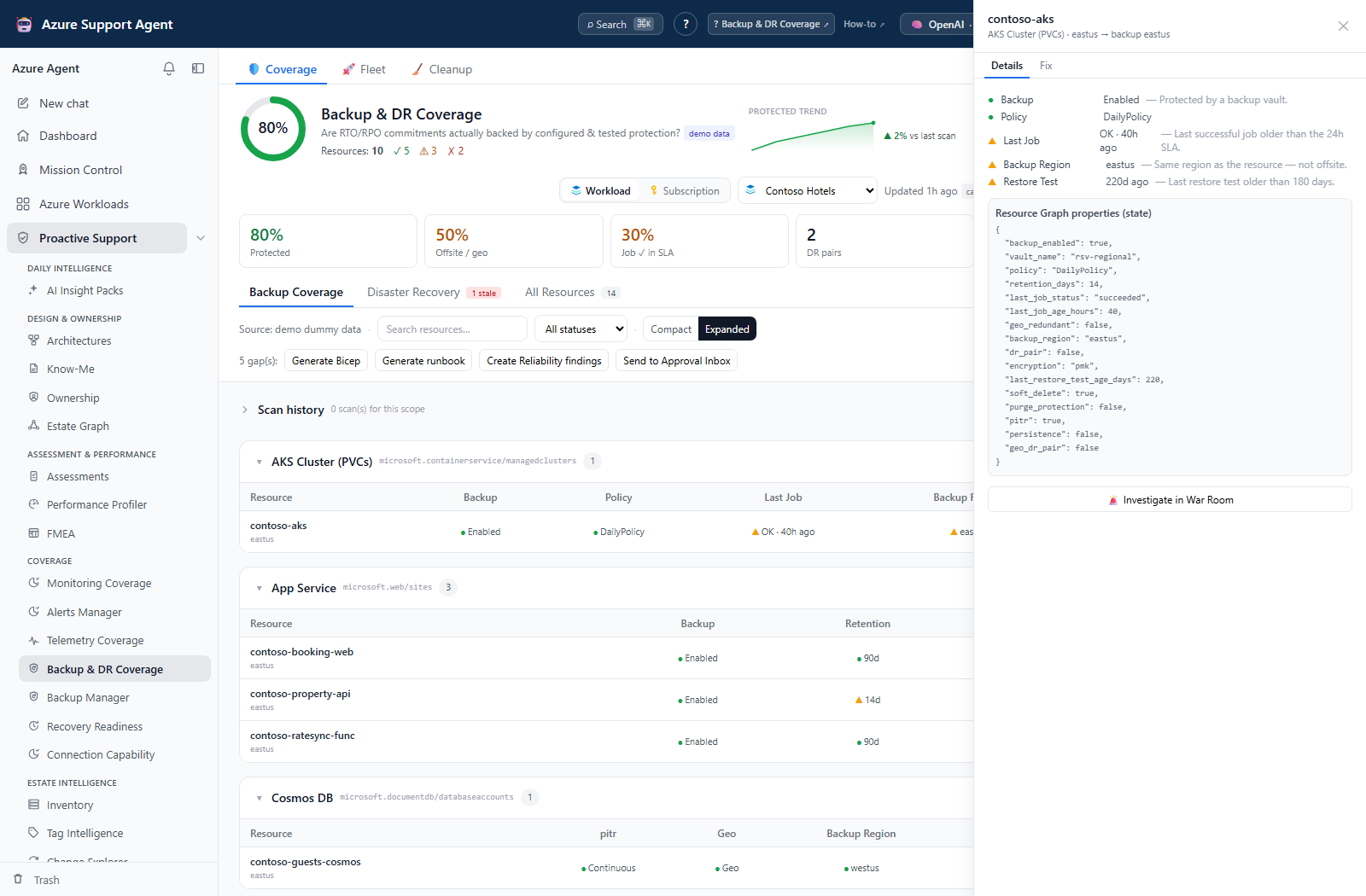
- Open a resource’s Details and inspect its checks and raw state. Distinguish actual property evidence from missing job/policy/restore facts and type/SKU heuristics.
- Distinguish N/A from failed: unknown backup region can produce N/A, while missing state can produce red/amber. Reference-omitted checks are not rendered as columns.
- Confirm critical findings in the source Azure service.
Expected result: Checks are classified green, amber, red or N/A from supplied state. The live result is a best-effort Resource Graph view, not a complete protection/job audit. Headline Protected counts backup-enabled resources and soft-delete-enabled Key Vaults, not all-green rows.
Verification and safety: Confirm generated time and exported scan_error/error; a failed scan may leave a previous good result visible. State extraction defaults to the first 200 reference resources (configurable 1–2,000), while later resources can still appear with empty state. Narrow the scope and verify jobs/replication independently. Green configuration is not restore proof, and an All Resources covered label only means reference membership.
How to investigate a DR or recovery-evidence gap
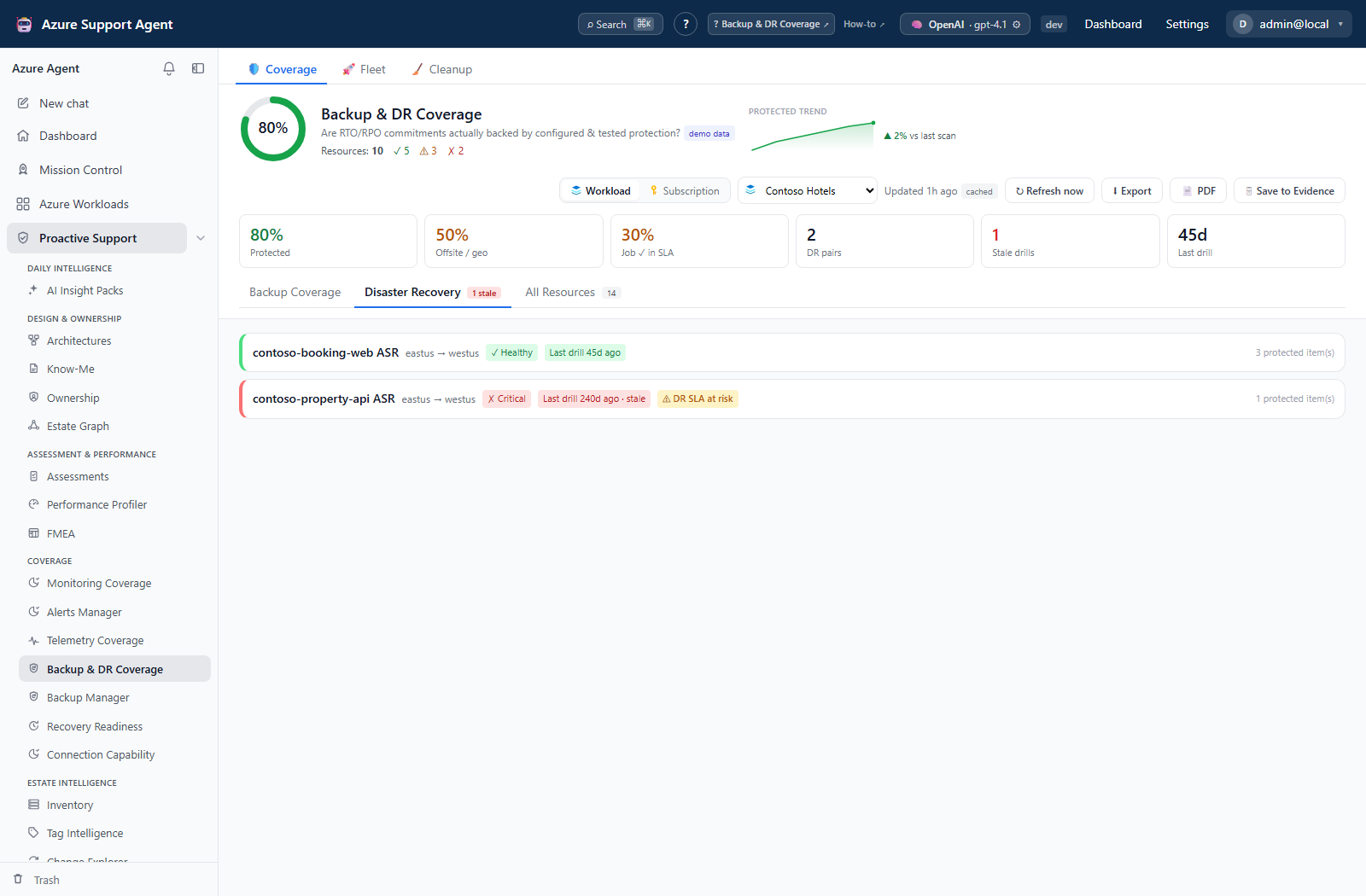
- Open Disaster Recovery and inspect supplied pair regions, replication health, protected-item count and last-drill age.
- Treat DR SLA at risk, Never drilled, and stale-drill labels as investigation prompts. The pair stale-drill threshold defaults to 180 days (configurable 1–3,650).
- If the live pair list is empty, verify ASR/service-specific replication elsewhere: this collector currently supplies no pair records. Do not infer that the estate has no DR.
- For a resource gap, open Details or Fix → Investigate in War Room to pass the workload, resource and failed-check prompt to
/chat(requireschat.use). - Obtain actual restore/failover-test evidence and reconcile it with the property-based finding before proposing a change.
Expected result: The investigation distinguishes configured protection, heuristic evidence, missing collection and exercised recovery.
Verification and safety: The resource Restore Test check has a fixed 180-day cutoff, independent of the configurable pair threshold; retention uses a fixed 30-day minimum. The last-job SLA defaults to 24 hours (1–8,760), but live coverage does not fetch jobs. Never run a production failover merely to clear a dashboard label.
How to prepare and verify remediation
- In a resource drawer, open Fix and generate Bicep or a PowerShell-oriented runbook for that gap. Header generation uses all gaps, not filtered rows.
- Add owners, RPO/RTO, data classification, target region, vault policy, cost, validation, rollback, and the approved change window.
- Review every placeholder and service-specific step. Bicep is a generic Recovery Services vault/VM-policy skeleton with an association TODO, including for non-VM gaps; runbooks contain examples only for selected types and TODOs elsewhere.
- Execute through the organization’s Azure/IaC process; this view never enables protection or triggers failover.
- Perform an approved restore or test-failover exercise when required.
- Capture recovery evidence and refresh the same scope.
Expected result: A starting artifact is available for conversion into an organization-specific, reviewed recovery change or runbook—not an automatically service-correct deployment.
Verification and safety: Require service-specific validation and successful recovery evidence. Re-scan for properties this collector actually measures, but do not require a green score from unsupported live job/restore checks as proof of success.
How to curate and restore the protection reference
- With
coverage.manage, open Settings → Backup/DR Reference Set (/admin/backupdr) and record the current version/counts. - Select a resource type and toggle applicable checks or edit its label/category/guidance. The built-in seed has 86 type/check assignments across 17 types and 13 distinct check keys.
- Add/remove resource types only where the collector and recovery model support the intent. Advanced: JSON applies changes to the draft; Discard abandons unsaved edits.
- Choose Save new version, then reopen and verify the saved check set; the backend drops unknown/duplicate check keys.
- Use History → Restore for a retained revision, or Reset to built-in to replace the current map with the shipped seed. Both create another version; 50 revisions are retained.
- Refresh an affected workload and compare its classifications with the approved recovery requirements.
Expected result: Future scans use the revised type/check map; existing Azure protection and saved snapshots are unchanged.
Verification and safety: Adding a type/check does not implement missing evidence collection. Restore only changes the application baseline, not vault policy, replication, or recovery points. Retain independent recovery evidence rather than removing controls solely to raise the score.
How to review a backup/DR change request
- Review the complete gap set and use Send to Approval Inbox with
coverage.manage. The UI submits Bicep; the API also accepts runbook proposals. - Open
/admin/backupdrchanges, inspect scope, requester, count and format, and expand View. - Approve or Reject a pending request. Neither applies the artifact.
- Execute approved steps through the external change process and verify recovery/configuration in the source service.
- Choose Mark applied only after that external verification. Preserve evidence before Delete because request deletion has no trash/restore flow.
Expected result: The request records human sign-off and a manually asserted applied status.
Verification and safety: Approval, Mark applied and Delete do not execute or roll back Azure changes. Only 200 gap-detail records are retained per request alongside its submitted count/text; keep the full JSON/artifact for larger proposals.
How to compare fleet results and manage retention
- Open Fleet to compare saved protected/offsite/recent-job percentages and DR-pair counts. Entry reads cached data, not Azure.
- Select workloads and Scan selected (up to 500 requested IDs; three concurrent coverage items per feature). The server continues through navigation/reload. Cancel pending affects queued work; Retry failed includes partial/cancelled items.
- Open each result and verify a new timestamp. Export downloads full loaded JSON; PDF and Save to Evidence use the latest server-cached scope result, not filtered rows or a historical run selection.
- Use Create Reliability findings for a workload assessment run, or a drawer’s Jira/ServiceNow ticket action for an immediate external ticket independent of coverage approval.
- In Run history, View a prior scan and verify the displayed time changed before relying on it. Delete moves it to Trash; Restore recovers it.
- In Cleanup, inspect cross-scope selections and sizes. Older-than-30/90-day, demo, empty, and retain-last-N presets (0–30; default 2) select records rather than scheduling retention. Trash first, then purge only after retention approval.
Expected result: Explicit fleet batches update cached results; retained artifacts identify their actual scope/time. Saving retains up to 30 active runs per scope; trends retain 90 points and merge identical scores within five minutes.
Verification and safety: Inspect batch succeeded/partial/failed/cancelled totals, artifact timestamps and raw state. Cleanup presets may select beyond the searched scope. Trash retains snapshots; purge is irreversible, and history deletion does not clear the latest cache or trend. Optional nightly cache refresh is described in the shared operating model.
Safety and rollback
- Never trigger production failover solely to clear a finding.
- Enrollment, retention, replication, and failover can affect cost, residency, and recovery-point availability.
- Roll back with a service-specific approved plan; validate that rollback does not remove required recovery points or protection.
- Purge is irreversible.
Troubleshooting
| Symptom | Likely cause | Resolution |
|---|---|---|
| Protected item appears unprotected | Deep protection collection is absent or state extraction was capped. | Inspect raw state and scope size, then confirm actual protection in Backup Manager/Azure. |
| Latest job/test is missing | Coverage does not fetch live job/test records. | Check the source schedule, paused protection, job status and exercise evidence rather than retrying coverage indefinitely. |
| DR list is empty | Current live collector supplies no ASR pair records. | Verify replication in the source service; do not equate empty with no DR. |
| Supplied pair is unhealthy/stale | Replication or drill evidence failed the displayed criterion. | Inspect source errors and exercise age before changing configuration. |
| Check should not apply | Reference mapping differs from the recovery design. | Review the exact type/check map with a coverage manager; understand that exclusion only changes scoring. |
| Runbook is generic | That resource type has only a skeleton/TODO. | Add service-specific objectives, validated steps, owners, approvals and rollback before execution. |