One-click installation
Use the one-click path when you want a complete Azure-hosted installation without building an image or running deployment commands locally. The supplied template deploys into your subscription and returns the application’s HTTPS URL. Expect about ten minutes end to end.
Prefer the CLI, or want full control over the resources? Use manual deployment instead.
Prerequisites
- Resource-creation access in an Azure subscription and resource group.
- Permission to assign Reader later, or assistance from an Azure RBAC administrator.
- A strong temporary bootstrap administrator password of at least 12 characters and a separate PostgreSQL administrator password of at least 16 characters.
- A model provider credential or OAuth account for first-run configuration: an API key (OpenAI, Azure OpenAI, Anthropic, Gemini and others), a GitHub Copilot or ChatGPT sign-in, or a local Ollama / LM Studio endpoint.
Cost footprint
The template provisions a cost-conscious footprint: an Azure Container App with one always-running replica and a maximum of two, a PostgreSQL Flexible Server (Burstable B1ms), a Standard_LRS storage account for Azure Files, and a Log Analytics workspace. PostgreSQL is usually the main ongoing cost. Diagnostics are enabled; alert rules, zone redundancy, database HA, geo-backup, and deletion locks are opt-in. Check current regional pricing before deployment.
Deploy
- Select the Deploy to Azure button above. It opens the portal’s Custom deployment blade pre-loaded with the template. Every resource is created in your own subscription.
- Select the subscription, resource group, and region. Confirm that the selected region supports the template’s Container Apps and PostgreSQL choices.
- Enter separate bootstrap and PostgreSQL administrator passwords. Do not reuse personal credentials. The bootstrap password is temporary and must be changed at first sign-in; the database password remains an application dependency.
- Review the remaining parameters, including the mutable
latestcontainer image, automatically generated revision suffix, database tier/storage/backup/HA settings, replica limits, diagnostics, alerts, locks, and private-networking choice. - In public database mode, explicitly acknowledge the cross-tenant
AllowAzureServicesfirewall behavior. Private mode usesNoand creates private endpoints instead. - Select Review + create, resolve validation errors, and then select Create.
- Wait for the deployment to finish. PostgreSQL commonly takes longer than the other resources.
- Open the deployment’s Outputs tab and copy
applicationUrl. - Open that HTTPS URL. A cold container may take several seconds to answer the first request.
Template parameters
The bootstrap and PostgreSQL passwords plus the public-database acknowledgement are required. The remaining settings have working, cost-bounded defaults.
| Parameter | Default |
|---|---|
| Location | westus3, validated for Container Apps and PostgreSQL B1ms |
| Container image | the published Docker Hub latest tag; each deployment generates a fresh revision suffix so Azure pulls the current image |
| Container revision suffix | latest-<UTC timestamp>, evaluated separately for every deployment |
| Admin username | admin |
| PostgreSQL | Burstable Standard_B1ms, 32 GiB, autogrow off, 14-day backup, no geo redundancy or HA |
| Azure Files | 32 GiB share, Standard_LRS, 14-day share soft delete |
| Container App | 1-2 replicas, 20 concurrent HTTP requests per replica, 1 vCPU / 2 GiB |
| Observability | 30-day logs and data-service diagnostics on; alert rules off |
| Protection | system-assigned identity on; deletion locks off |
Verify the current defaults in deploy/main.bicep; the template is authoritative when it differs from this table.
Moving the registry’s latest tag does not update an already running Container App by itself. Rerun the deployment to refresh it. The generated timestamp changes template.revisionSuffix, causing Azure Container Apps to create a new revision and pull the current latest image even when all other parameters are unchanged.
What the template creates
The deployment includes the application Container App, its environment, PostgreSQL Flexible Server, persistent storage, Log Analytics, data-service diagnostics, supported health probes, and a system-managed identity. The identity does not automatically receive Reader over your subscriptions. Container App console and system logs use the environment’s native Log Analytics connection; the template deliberately does not add a duplicate unsupported app diagnostic setting.
Production preset
deploy/production.bicepparam opts into private networking, two-to-four replicas, General Purpose PostgreSQL with same-zone HA and autogrow, ZRS files, 90-day logs, metric alerts, and CanNotDelete locks. It reads passwords from AZSUP_ADMIN_PASSWORD and AZSUP_POSTGRES_PASSWORD, and an optional receiver from AZSUP_ALERT_EMAIL.
These choices cost more and remain region-dependent. Confirm that the region offers the selected PostgreSQL SKU, availability-zone support, Container Apps zone redundancy, and Storage ZRS before deploying. Geo-redundant backup and zone-redundant PostgreSQL HA remain explicit opt-ins because they are not universally available.
After deployment
- Sign in as the bootstrap administrator.
- Complete the forced password change. The default policy requires upper case, lower case, and a digit, with a minimum length.
- Configure an AI provider under Settings → AI Providers. Providers ship disabled until one is configured.
- Add a tenant connection under Settings → Azure tenants using Host identity (managed identity).
- Grant the Container App identity Reader at the smallest useful subscription or management-group scope.
- Test the connection before running discovery.
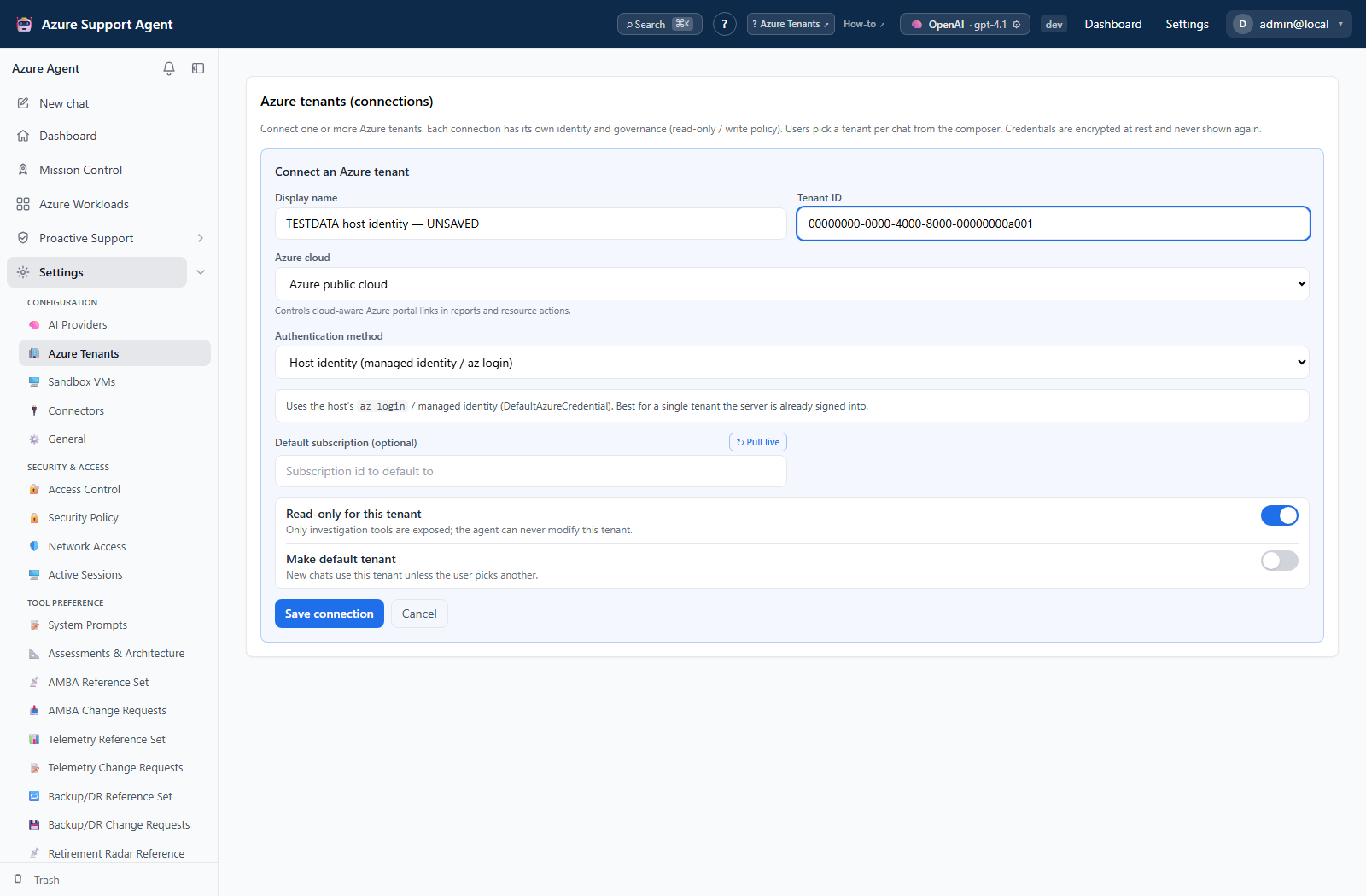
Grant the managed identity read access
In the portal: Subscription (or Management group) → Access control (IAM) → Add role assignment → role Reader → assign to Managed identity → select the Container App. Or with the CLI:
# Get the app's managed identity principal id
PRINCIPAL_ID=$(az containerapp show -g <resource-group> -n <app-name> \
  --query identity.principalId -o tsv)

# Grant Reader at the subscription scope
az role assignment create --assignee-object-id "$PRINCIPAL_ID" \
  --assignee-principal-type ServicePrincipal \
  --role Reader \
  --scope /subscriptions/<subscription-id>
Back in the application, select Test on the connection; it should list your subscriptions.
Continue with First-run setup.
Safety notes
- Deployment creates billable Azure resources. Confirm the resource group contents and pricing.
- Do not paste IDs or secrets into issue reports or public chat transcripts.
- Reader enables broad metadata visibility at its assigned scope. Use resource-group or subscription scope instead of management-group scope when practical.
- Private networking is a create-time design choice in the supplied template; validate DNS and outbound access requirements before selecting it.
- The Azure Files Container Apps mount still requires an account key. The template keeps shared-key access enabled while protecting the account with private endpoints in private mode; it does not claim identity-based CSI support.
- Optional Key Vault secret URIs use a managed identity. For one-pass deployment, supply an existing user-assigned identity that already has Key Vault Secrets User; a new system identity must be granted access and the template redeployed.
- Microsoft Defender plans are subscription-level, potentially billable settings. This resource-group template does not enable them; review Defender for Cloud separately with the subscription owner.
Troubleshooting
| Symptom | What to check |
|---|---|
| Template validation fails | Provider registration, regional availability, naming constraints, quotas, and your create permissions |
| The app URL does not answer immediately | Container cold start, startup/liveness probe results, and Container App revision health |
/readyz returns 503 | The bounded database check or the recent 30-second event-loop health window failed; inspect logs without expecting error details in the response |
| Sign-in fails | The exact bootstrap username/password entered during deployment |
| Azure test reports that account setup or sign-in is required | The managed identity has not received Reader at the selected scope |
| Discovery returns no resources | Connection scope, Reader assignment propagation, and the selected subscription |
| No models appear in the chat model picker | A provider is configured but not enabled under Settings → AI Providers |
| A pasted Azure CLI token expires immediately | Generate a fresh token with az account get-access-token and paste the full JSON |
| The administrator password is lost | Another administrator can reset it under Settings → Access Control → Users; otherwise reset it against the database as described in manual deployment |
Teardown
Deleting the resource group removes everything the template created unless the optional CanNotDelete locks are enabled. Remove those locks deliberately before teardown.
az group delete --name <resource-group> --yes --no-wait
In the portal, open the resource group and select Delete resource group. See upgrades and uninstall for the full removal checklist.