Configure connectors
Prerequisites
- Product permission
connectors.manage. - A least-privilege destination account, endpoint, token, webhook, key, role, queue, bucket, or Azure connection required by the selected mode.
- Approval to create a real destination event before using Send test.
Route
- Open
/admin/connectors.
Catalog and unsaved review
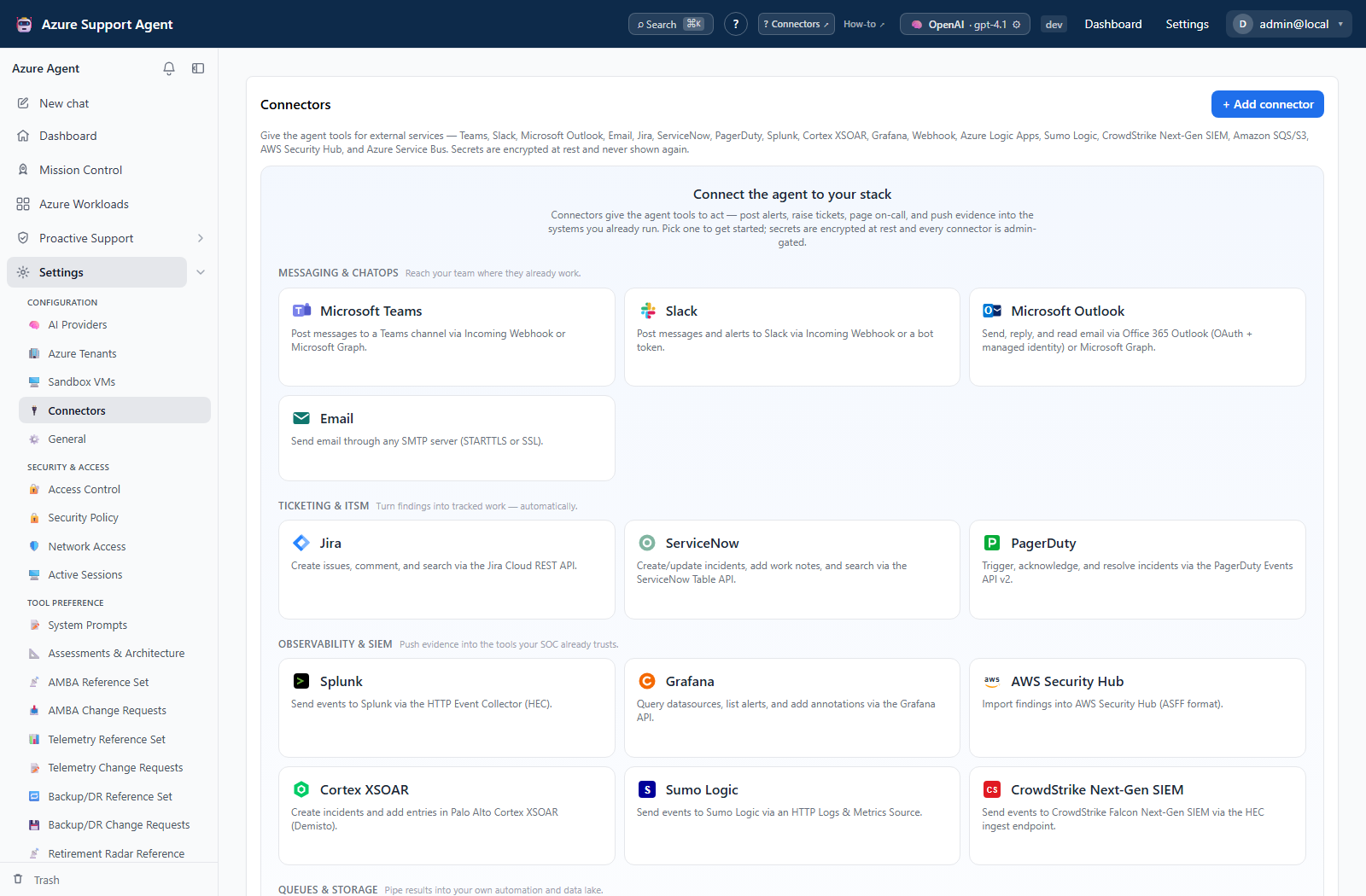
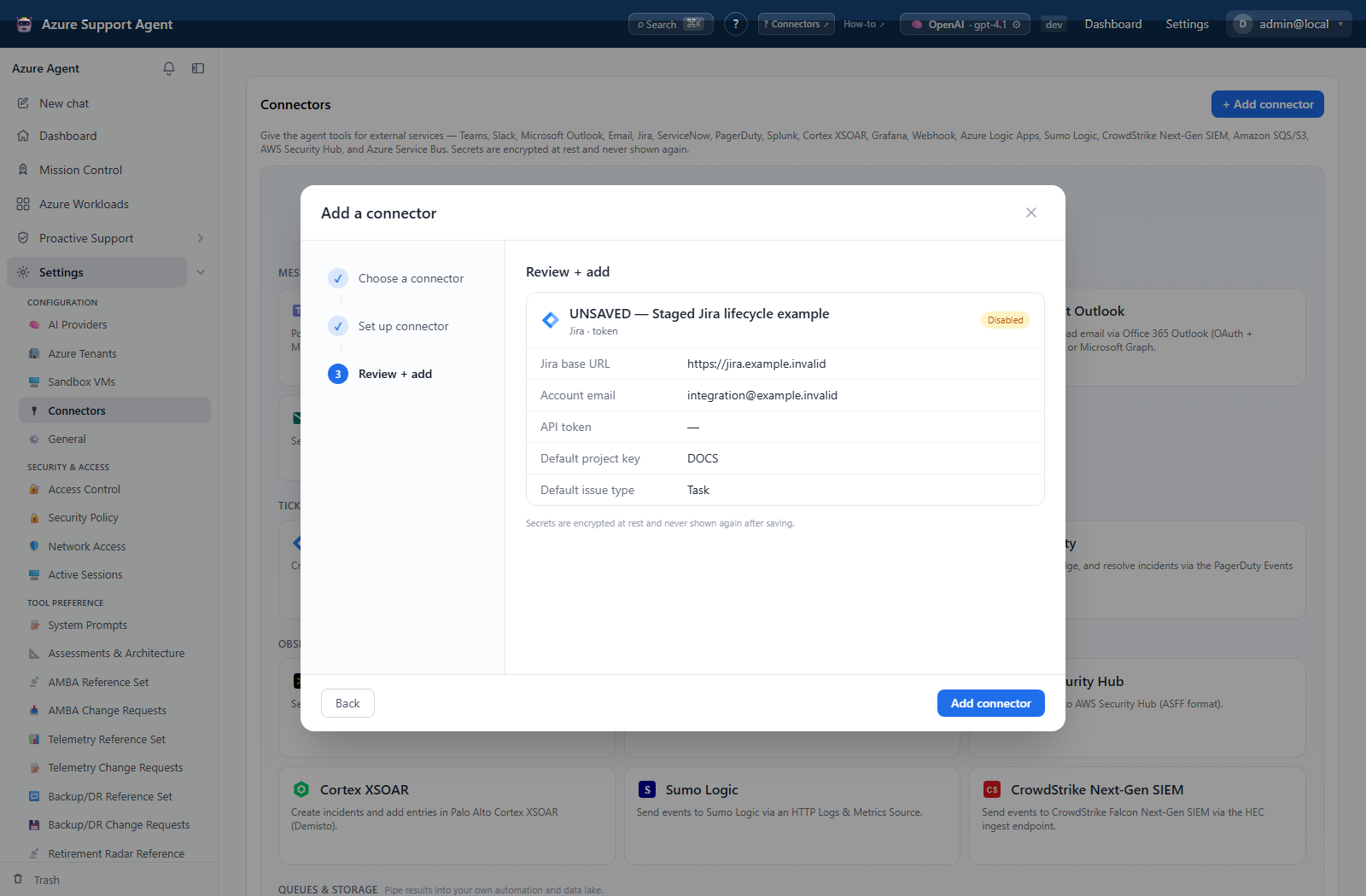
These native screens illustrate provider selection and review before saving, not a completed integration. The draft is unsaved and disabled, credential secrets are empty, and non-secret values are fictional with non-resolving example domains. No save, authentication, test, or delivery is demonstrated.
How to add and verify a connector
- Select Add connector, search the gallery, and choose one of the types visible in the build. The current registry supports Teams, Slack, Outlook, SMTP email, Jira, ServiceNow, PagerDuty, Grafana, Splunk, Cortex XSOAR, generic webhook, Amazon SQS, Amazon S3, AWS Security Hub, Azure Service Bus, Azure Logic Apps, Sumo Logic, and CrowdStrike Next-Gen SIEM.
- Enter a name, choose the offered mode, and complete only the generated fields and inline setup guidance.
- Save the connector disabled where the form allows it. Secret fields are encrypted and returned empty with a stored-value indicator; leaving a secret blank on edit preserves it.
- Select Test. Depending on type, this is a read-only reachability/authentication probe or a configuration-presence check; read the status detail.
- If Send test is offered, confirm the destination and select it once. This performs a real delivery and can create a message, incident, annotation, workflow run, or ingested event.
- Verify the event at the destination, then enable the connector.
- Select the connector in the intended notification, task, ticket, or automation workflow and run the smallest representative test.
Expected result: The connector shows a healthy status and the destination receives the expected test or workflow payload.
Verification: Correlate the application status and Audit Log with destination-side delivery logs. A presence-only Test result does not prove delivery.
Safety and rollback
Validate changes in a non-production scope first, and preserve a known-good configuration for rollback.
Treat webhook URLs, SAS-signed Logic App URLs, tokens, passwords, connection strings, AWS keys, and routing keys as secrets. Do not copy masked values into docs. Disable the connector to stop new use, remove it from dependent rules, and revoke the external credential. Deleting the connector does not remove events already created. PagerDuty and workflow tests can trigger real downstream actions.
Troubleshooting
| Symptom | Resolution |
|---|---|
| Send test creates an unintended external event | Disable the connector, inspect destination logs, reverse or close the controlled event, and rotate the credential when it may have been exposed. |
| Stored secret appears blank | This is expected masking. Leave it blank to keep it; enter a new value only to rotate. |
| Test passes but delivery fails | The test may only validate configuration. Use Send test where offered and inspect destination permissions/logs. |
| URL is rejected | Use the HTTPS and host pattern required by the connector; webhook-like connectors enforce SSRF protection. |
| Connector cannot use Azure/Graph | Test the selected Azure connection and its exact Graph or mailbox permission. |