Security troubleshooting
| Symptom | Safe checks |
|---|---|
| OIDC redirect/sign-in fails | Compare generated redirect URI exactly; verify issuer/discovery, client ID/secret, PKCE-compatible web registration, clocks, and TLS. |
| SAML assertion rejected | Verify ACS/entity ID, signing certificate/current key, signed assertion, attributes, and clock skew. |
| User signs in but sees no app | JIT may have assigned noaccess; review direct/group roles. |
| API returns forbidden | Identify the exact product capability, then Azure/Graph permission and connection read-only state. |
| Session expires early | Compare idle and absolute policy; inspect last-seen and server clocks. |
| Stored secret no longer works | Rotate/re-enter it; check whether encryption key or deployment volume changed. |
| Write remains pending | An authorized approver must decide it; inspect request scope and reason. |
| Approved write did not apply | Read execution error and verify external state/credential/RBAC; approval is not success. |
| Connector URL rejected | HTTPS, allowed host, DNS resolution, and SSRF policy may block it. Do not weaken checks for private/untrusted targets. |
| Audit record missing | Confirm tenant/time/action and permission; correlate feature-specific run/case records and server logs. |
Preserve current logs and evidence before changing policy. Do not paste credentials into support channels. If access recovery would require bypassing authentication or audit controls, use the documented deployment recovery process and record the change externally.
Separate account state from authorization
For a successful sign-in followed by missing access, an authorized administrator can inspect Settings → Access Control → Users. Check the account’s status and role assignments first, then compare the affected session’s active role with the exact capability required by the feature.
Inspect session state separately
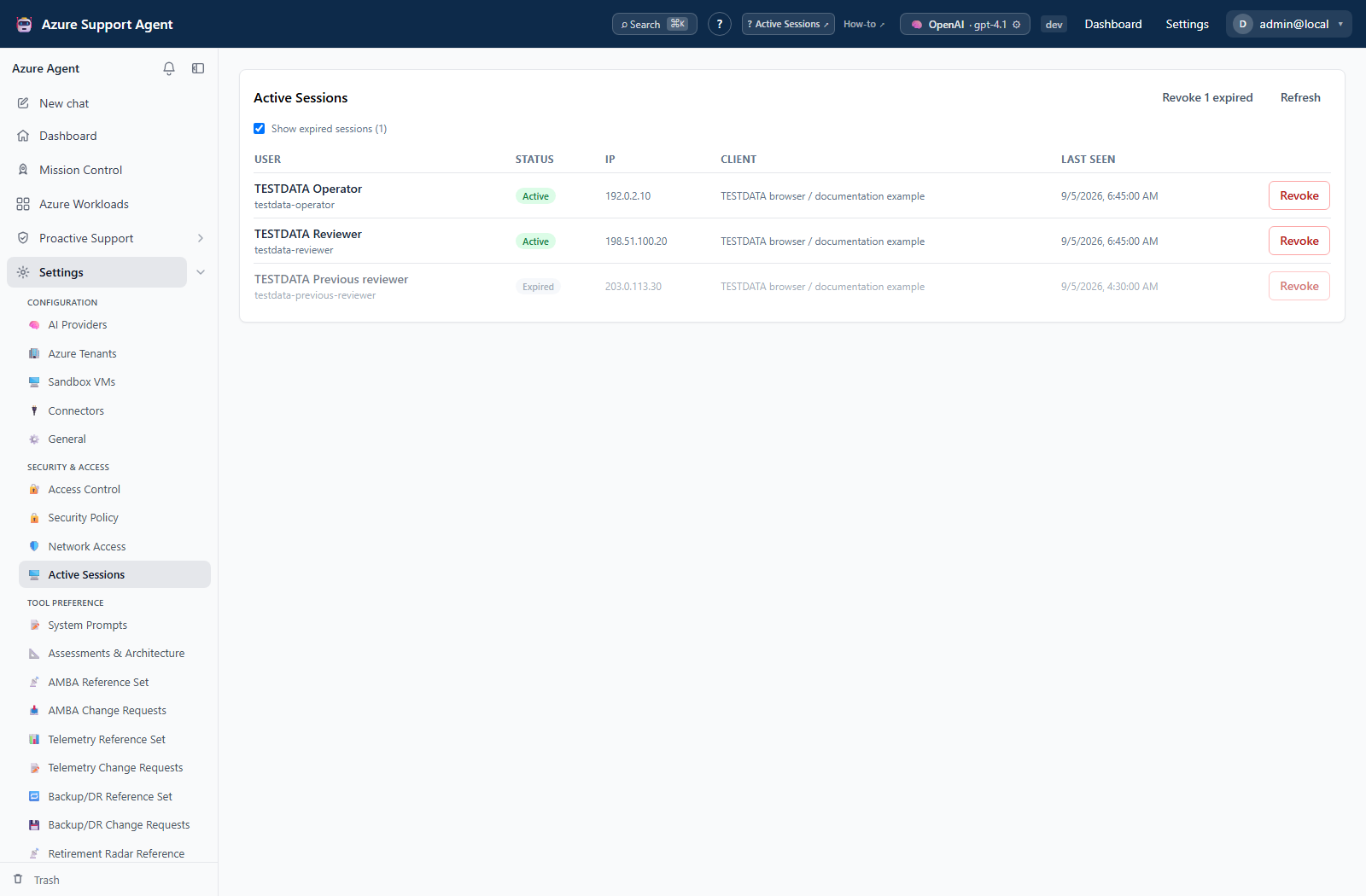
Use Settings → Active Sessions to compare status and last-seen time. Show expired sessions includes expired records; a session row is not a substitute for checking the active role’s permissions.
Distinguish catalog availability from authorization
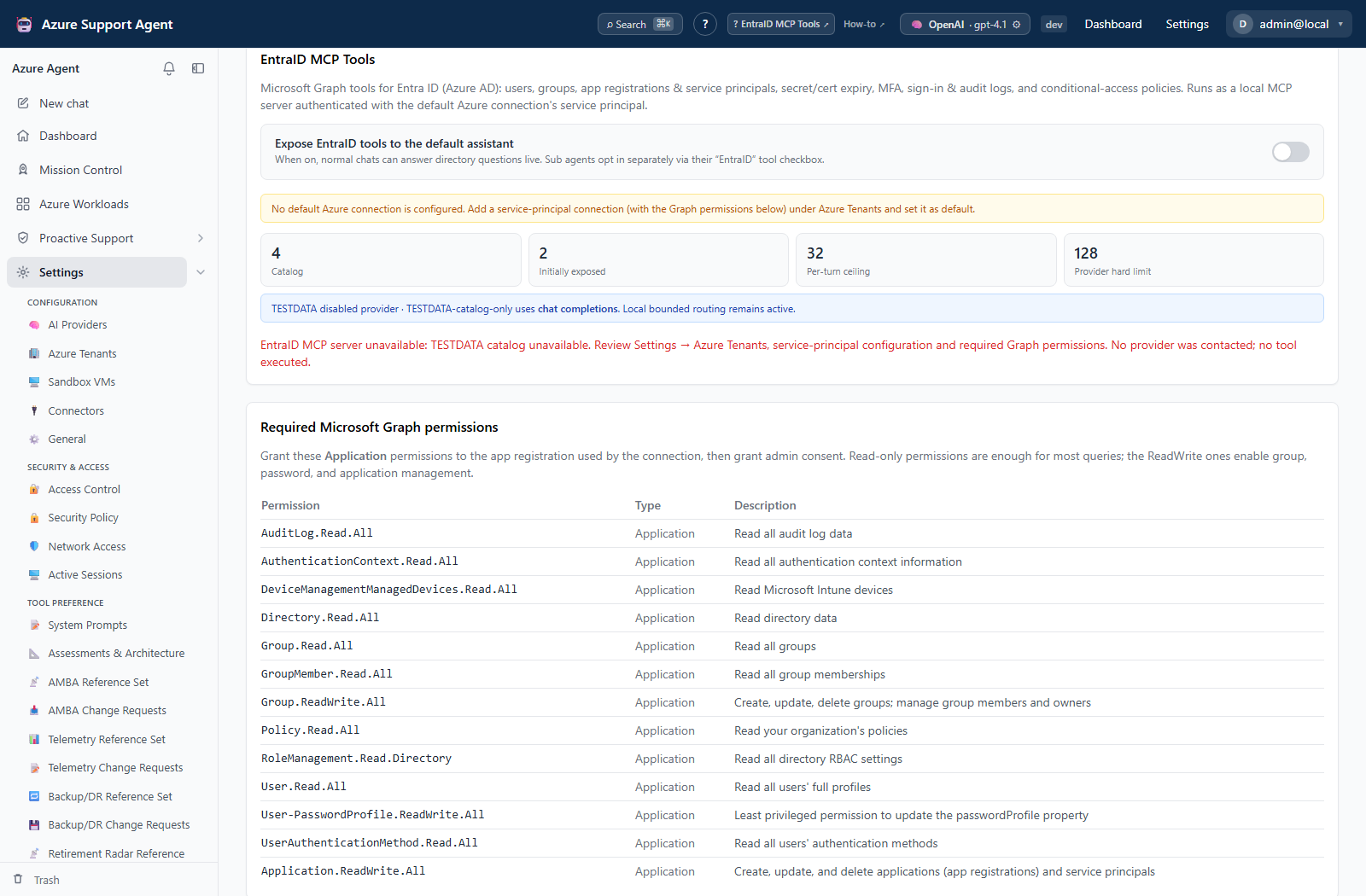
Read the error on Settings → EntraID MCP Tools before changing permissions. A catalog-unavailable message is not an empty successful inventory or proof that authentication failed; investigate the reported configuration and availability boundary first.