Operate Tag Intelligence
Prerequisites
- Product permission
tagintel.readfor analysis, AI/policy/script generation, previews and exports;tagintel.writefor catalog/snapshot/saved-change/group mutations, imports, apply and revert. These are not admin-only routes. - A recently collected cache for the same connection and scope, loaded/refreshed through Tag Intelligence or the matching Inventory scope.
- Cost Management Reader for Cost; the Load cost data button also needs
inventory.read. - For apply: a non-read-only connection, enabled command execution, allowed/available Azure CLI, and Azure tag-write rights such as Tag Contributor at each target. Revert does not enforce the same read-only/command-execution gates; review its recipe before proceeding.
- An approved bulk metadata change and recovery process.
Route
Open /tagintel or a tab route: Census, Hygiene, Coverage, Cost, Drift, Policy, AI Generate, or Remediate.
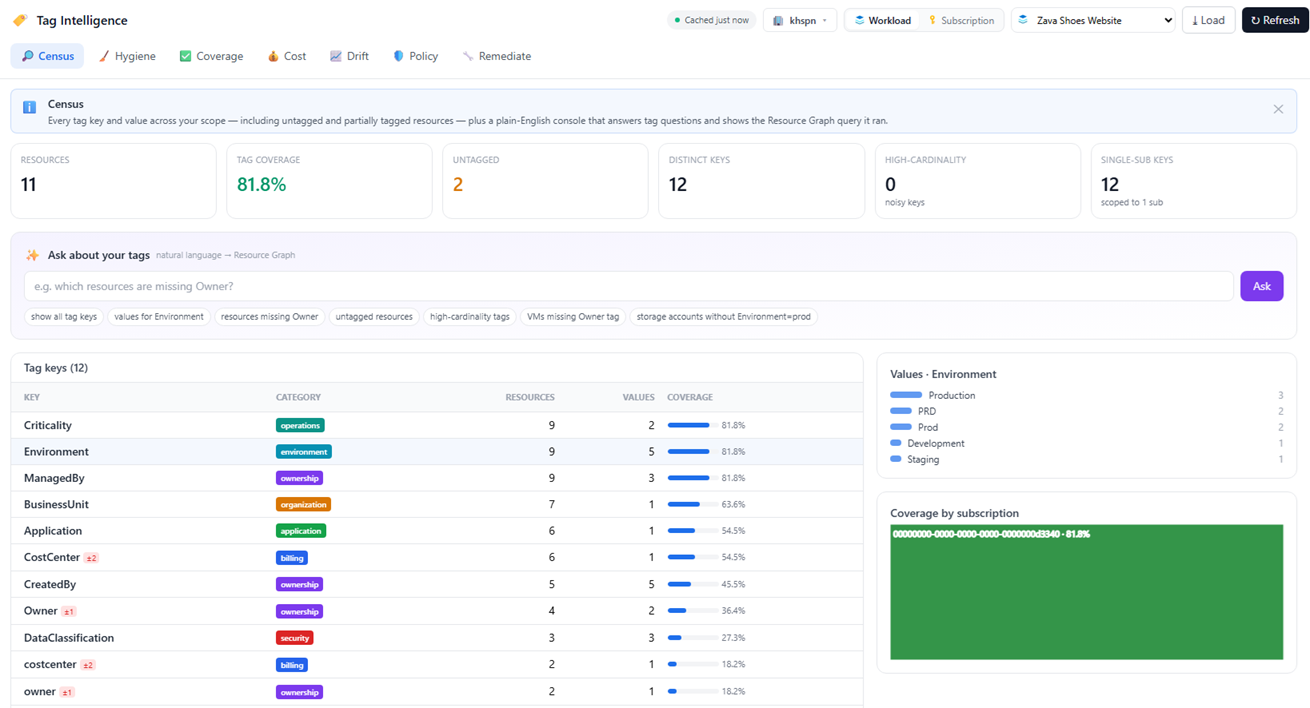
How to use Census and the plain-English console
- Open
/tagintel/census, select scope, and check the freshness warning. - Choose Load for cached data or Refresh for a fresh collection. Refresh itself scans the selected scope; it does not require a preceding whole-connection Inventory refresh. In-app navigation does not stop its browser background registry, but reload/close is not durable-job recovery.
- If the response reports
truncated, narrow the scope: analysis is capped at 5,000 resources. - Drill from key to value, subscription, resource type, and resource. Drill requests are cache-only and return at most 200 children per node. fold casing also folds separators; disable it when checking exact spelling.
- Use the question console for tag questions and inspect its explanation, Resource Graph query, and matching rows.
- Use the key search or
?key=deep link for a focused view, recording the connection/scope separately. Use the Ask result’s filter, Copy CSV or CSV for the returned rows.
Expected result: Observed keys and sampled results can be traced to cached resources, with drill/query text for further review.
Verification and safety: Compare the exact scope and collection timestamp, not just connection names. Ask resource results stop at 200 rows and the values answer uses the top eight values per key; CSV does not recover omitted rows. The displayed ARG query is review text, not an extra live query. Absence of a cap warning does not rule out upstream partial collection.
How to normalize Hygiene findings into the catalog
- Open Hygiene and review near-duplicate keys, casing drift, value variants, and inferred workload clusters.
- Confirm business semantics with owners; lexical similarity does not prove equivalence.
- Use Seed from discovered keys to consider the first 12 keys, skipping existing canonical/alias matches. This persists catalog entries and can immediately mark billing/ownership/environment keys required.
- Review the catalog table. The current UI offers Remove, not a full catalog editor; use the catalog API through an approved workflow to change canonical/alias/category/purpose/required/inherited/scope/allowed-value/owner fields.
- Select Fix or Fix all for reviewed rename/normalize operations. This replaces the staged builder draft and navigates to Remediate; preserve unrelated draft work first.
Expected result: The tenant catalog records intentional conventions and the remediation cart contains only reviewed operations.
Verification and safety: Reopen the catalog and inspect queued operation type, source key/value, destination and scope. Catalog metadata does not automatically enforce allowed values or scope-specific requirements. Lexical synonyms are not proof that automation/billing consumers accept the replacement.
How to prioritize Coverage gaps
- Open Coverage. It uses catalog-required keys; when none exist, use Quick required-tag check with comma-separated reviewed keys, for example
Owner,Environment, then select Check. - Read Evaluated, exempt count, and Compliant / all required tags. This differs from Census Any-tag coverage by design.
- Review resources missing all or several requirements.
- Record a Missing only one tag group’s missing key and resources, then follow Send to Remediate. This link does not stage an operation or select those resources.
- Build an Add tag (if missing) operation with an approved value, such as
Owner=platform-team. Confirm that every resource it could affect in the selected scope is approved, then preview. - Validate the fixed platform-type exemptions rather than treating exempt resources as compliant resources.
Expected result: Required-tag coverage identifies nonblank required keys and a prioritized queue; it does not automatically build a targeted fix.
Verification and safety: Check current tags, missing key, intended value and the actual preview target list. Coverage normalizes key casing/separators; Add tag uses exact key presence, so review casing variants first. Default exemptions include Insights, Alerts Management and Security resource types. A zero evaluated count can report 100% and is not proof of a tagged estate.
How to allocate Cost by tags
- Open Cost.
- If empty, identify the cache scope before using Load cost data. The button refreshes whole-connection Inventory cost, not the selected subscription’s cost key. If subscription mode stays empty, use an approved API workflow to populate that same
sub:scope instead of repeatedly clicking. - Choose Workload, Subscription, or a tag key actually listed in Cost by.
- Review allocated/unallocatable spend and Billing code → workload → owner. Allocatable means a nonempty BillingCode, CostCenter, CostCentre or Billing tag; changing the chart dimension does not change that definition.
- Trace missing allocation back to Census/Coverage before proposing a billing tag.
- If reconciling a billing catalog, an authorized API consumer can supply
cmdb_codestoPOST /tagintel/cmdb-reconcileand review in-both, Azure-only and CMDB-only codes. This is a normalized comparison, not a live CMDB integration or an Azure write.
Expected result: Available trailing cost is grouped by observed tag-derived dimensions.
Verification and safety: Check the underlying Inventory cost period, currency, freshness and 25-subscription/page limits against Cost Management. This is a join with current cached tags, not historical billing-time tags. Tag Cost attributes overlapping resources to their first workload, unlike Inventory’s equal split; workload-mode normalized resources can have no attribution and show unassigned. Do not equate a zero allocation with zero spend.
How to capture Drift and inspect revisions
- Refresh the intended Tag scope, open Drift, and choose Capture snapshot before a campaign. Capture reads cached tags; it does not perform a new scan.
- After the campaign, refresh, capture again, and select base → head. Open Keys added/removed, Value changes or Resources changed cards for details and billing changes.
- For applied-change recovery, switch to Remediate → Tag change history, not Drift. This lists Tag Intelligence and ownership tag-apply revisions across the tenant, not only the current scope.
- Expand the exact revision and check its connection, actor, resource IDs, applied/failed counts and per-resource diff.
Expected result: Snapshots show tag-state drift; revisions show recoverable applied changes.
Verification and safety: Compare capture context and resource IDs. Drift stores 30 snapshots per connection/raw-scope key, but omits workload ID from that key; different workloads can share a history bucket. Key recasing alone may not appear as a tag-value delta. Revisions are separately capped at 100 per tenant/connection and the UI diff shows 100 rows; neither history is immutable or unlimited.
How to generate policy safely
- Open Policy and choose effects for required catalog keys, or the fallback CostCenter/Environment/Owner candidates. There is no value-editor control on this tab.
- Generate audit, append/inherit, or deny definitions and initiative material.
- Inspect generated parameters and the rollout ladder. append and inherit generate Modify, not Append; inherit reads resource-group tags. Replace
REPLACE_MEand subscription placeholders and review the generated role/managed-identity requirements. - Start in audit at a test scope; analyze compliance and exemptions.
- Use Open Rollout Planner to transfer the generated definitions to
/policy/rollout, or assign externally through the approved policy/IaC process. Advance only through reviewed stages.
Expected result: Policy JSON is generated but not assigned in Azure.
Verification and safety: Validate definitions, parameters and initiative with policy tooling and test-scope compliance before stronger effects. The handoff does not assign policy; Deny can block deployments and Modify remediation needs an appropriately authorized identity.
How to use AI Generate without granting it authority
- Open AI Generate and describe a narrow tagging intent.
- Review proposed operation types, match counts and notes. Generation considers at most 40 operations and may propose removal as well as addition/normalization.
- Remove incorrect or overbroad operations.
- Send the proposal to Remediate for deterministic preview.
Expected result: AI creates an untrusted proposed change set, not an Azure change.
Verification and safety: Do not trust the AI match count as an apply boundary. Per-operation resource_ids are carried by the proposal but ignored by the multi-operation planner. The builder supplies no request-level resource restriction, so preview can affect all applicable resources in scope. Stop if the approved set is smaller; choose a fully approved narrow scope or a separately reviewed API request with explicit top-level targets.
How to preview and export a remediation plan
- Open Remediate from a queued fix, AI proposal, or saved change set.
- Review the five builder operations: Add tag (if missing), Set tag (overwrite), Rename key, Normalize value, and Remove key. Inheritance is a Policy workflow, not a remediation operation.
- Run Preview (dry-run) and inspect before/after diffs, overwrite count and targets. The transformation graphic is symbolic until a plan exists; its per-operation counts are approximate. Re-preview after every operation/scope edit rather than trusting an older displayed plan.
- Generate and copy PowerShell, Azure CLI, ARG validation and rollback text as needed. No Bicep tab is provided, and no approval checkbox is needed just to generate scripts.
- Review least-privilege advice, locks, policy, inheritance, Azure tag limits, reserved prefixes, unsupported resource types, billing, automation, and lifecycle effects.
- Save the change set if needed and reopen it to compare the stored operations. Load current tags is not a per-resource backup: it creates repeated overwrite operations from sampled values, so remove duplicates and check order before using it.
Expected result: A reproducible plan and rollback material are generated from cached current state.
Verification and safety: Plans return only 1,000 items even if the count is larger; the UI shows only 100. Split large plans and inspect the complete intended items independently. Scripts/apply use the returned items; ARG validation covers only the first 50 IDs and not resource groups in resourcecontainers. Saving/importing currently drops remove_key and per-operation target IDs. A successful preview or save is not approval or a guarantee of lossless replay.
How to apply tags safely and verify partial results
- Keep the approval window short. Refresh/re-preview if the estate changed, and verify that the actual preview covers only approved resources. Saving the draft before refreshing matters: refresh while Remediate is mounted clears the editor.
- Obtain organizational approval, check I approve applying these tag changes, select Run on Azure, then confirm Yes, apply to Azure.
- The route requires
tagintel.writeandapproved=true. The executor blocks a missing/read-only connection, reads current tags through Resource Graph, and blocks reported read errors. Writes then require the command runner’s execution/allowlist/CLI checks and Azure authorization. The app does not preflight every target’s Azure role, lock or policy decision. - Keep the page open and monitor per-resource results. Up to eight workers perform writes. Navigation/reload is not a durable apply/resume workflow.
- Separate applied, skipped and failed resources using the returned outcomes and current Azure tags. The live rebase can remove no-ops, so execution totals may differ from cached preview counts; not every returned field is displayed by the UI.
- Confirm the recovery revision actually appears in Tag change history and preserve independent before-state evidence. Revision capture is best-effort after completion, not committed before writing.
- Refresh Census/Inventory, capture Drift, and verify downstream billing, policy, and automation.
Expected result: Applicable resources are attempted and terminal outcomes are reported; a revision is normally recorded for successful resources. Partial success or an interrupted stream must be reconciled before further action.
Verification and safety: Compare outcomes, retained revision and Azure tags. Add/update diffs use Merge; removals/key recasing replace the full tag set. There is no ETag/preview-version lock, batch transaction or automatic rollback. A reported snapshot error blocks apply, but an ID missing from Resource Graph is treated as untagged; verify missing targets independently. Never call a partial batch fully successful or assume a dropped stream made no writes.
How to revert without overwriting later legitimate changes
- In Remediate → Tag change history, expand the exact revision and identify its captured prior tags and connection. Preserve required evidence before history retention removes it.
- Refresh current tags and compare them with the revision’s after-state.
- If any resource changed later, do not run the original revert unchanged; build a new reviewed change set from current state and the recovery copy.
- Obtain independent change approval before confirming Revert. The route requires
tagintel.writeandapproved=true, but the underlying ARM path does not enforce the connection read-only flag or command-execution setting. Do not treat those controls as revert protection. - Review the response and current Azure tags. Revert performs ARM Replace with up to eight workers; it does not compare current tags with the original after-state and does not abort on a failed pre-revert snapshot read.
- Refresh and verify Azure, Census, Drift, billing, policy, and automation.
Expected result: Revert attempts to replace every recorded target with its prior tag set and records an inverse revision. It does not decide whether overwriting later changes is safe.
Verification and safety: Check each resource, not just the reverted badge. The original is marked reverted even after failures; the inverse includes all requested targets and may lack valid pre-revert tags after a snapshot error. Do not blindly repeat the original or revert the inverse. Build a separately reviewed corrective change for unresolved resources. Revert is another write, not automatic conflict-safe undo.
How to manage, export, and import saved change sets
- Save a reviewed change set and organize it into a group.
- Duplicate when a new variation is needed rather than overwriting historical intent.
- Export the library or choose a group filter first. A search alone does not restrict export; with a group selected, the current filtered sets are used. Inspect the downloaded bundle’s actual count.
- Inspect imported JSON for operations, scopes, resource IDs, and group names.
- Import; records are added as new items and referenced groups are matched by name or created.
- Reopen imported sets, compare operations with the original bundle, then preview against the current estate before applying. Deleting a group moves its sets to Ungrouped; it does not remove them.
Expected result: Portable definitions are managed without automatically executing them.
Verification and safety: Check imported/skipped/errors and content. Bundles omit audit actor/timestamps/run history; they are reusable definitions, not execution evidence. Save/import currently discards remove_key and per-operation target IDs, and an omitted normalize-value source can become a broad value match. Compare the round trip before any run.
Safety and rollback
- Analysis, policy generation, AI generation, preview, and script generation do not write to Azure, although script generation saves local plan history.
- Apply and revert can trigger policy, chargeback, automation, access, or lifecycle behavior.
- Scripts and bundles contain resource identifiers; handle as operational data and never include credentials.
- Concurrent Azure changes can make a preview or revert unsafe. Apply/revert do not share identical gates, and neither offers durable resumable execution or guaranteed precommitted recovery history.
Troubleshooting
| Symptom | Cause | Resolution |
|---|---|---|
| Census misses tags | A different scope was refreshed or Load returned old cache. | Refresh this Tag scope and verify counts/current tags; a whole-connection Inventory refresh is not the same cache key. |
| Coverage differs from Census | Coverage requires every selected key with a nonblank value and excludes fixed platform types. | Compare required keys and evaluated/exempt counts; do not equate any-tag presence with compliance. |
| Remediate contains an old/empty draft | Coverage’s link only navigates. | Build the intended operation explicitly and remove unrelated draft operations. |
| Subscription Cost remains empty | Load cost data populated the whole-connection key. | Populate the matching scoped cache through an approved API workflow; then recheck allocation. |
| Saved/imported deletion disappears | The current cleaner omits remove_key. | Compare saved/imported operations and stop if intent changed. |
| Apply rejected | Product approval/permission, connection, snapshot, command runner or Azure authorization checks failed. | Read the exact error and resolve that prerequisite through the approved process; do not use revert as a bypass. |
| Some resources failed or stream ended | Concurrent writes are not all-or-nothing, and history may not have reached terminal persistence. | Verify Azure and retained outcomes first; re-preview only independently identified unresolved targets. |
| Revert marked complete despite failures | The original status is marked reverted after the attempt. | Inspect per-resource results; create a reviewed corrective plan instead of blind original/inverse replay. |
| AI preview targets too much | Per-operation target IDs do not constrain the planner. | Stop and use an entirely approved narrow scope or verified top-level API targets. |