Configure ticketing and ITSM connectors
Jira and ServiceNow intentionally have no Send test button because delivery would create a real record. PagerDuty is allowlisted, but its Send test triggers a real alert.
The screenshots illustrate native unsaved, disabled setup or review steps. Credential secrets are empty; entered domains are non-resolving examples and other values are fictional. No connector was saved, authenticated, or tested, and no issue, incident, or alert was created.
Prerequisites
connectors.manage.- Jira Cloud base URL, account email, API token, and optional default project/issue type.
- A least-privilege integration account that can browse the intended project and create issues only when required.
- Instance URL and a dedicated integration username/password with a scoped ITSM role.
- Optional approved defaults for urgency, impact, assignment group, and caller.
- An Events API v2 integration routing key from the intended PagerDuty service and an optional default source.
- An agreed test window and responder awareness.
Route
- Open
/automations/connectors.
How to configure Jira
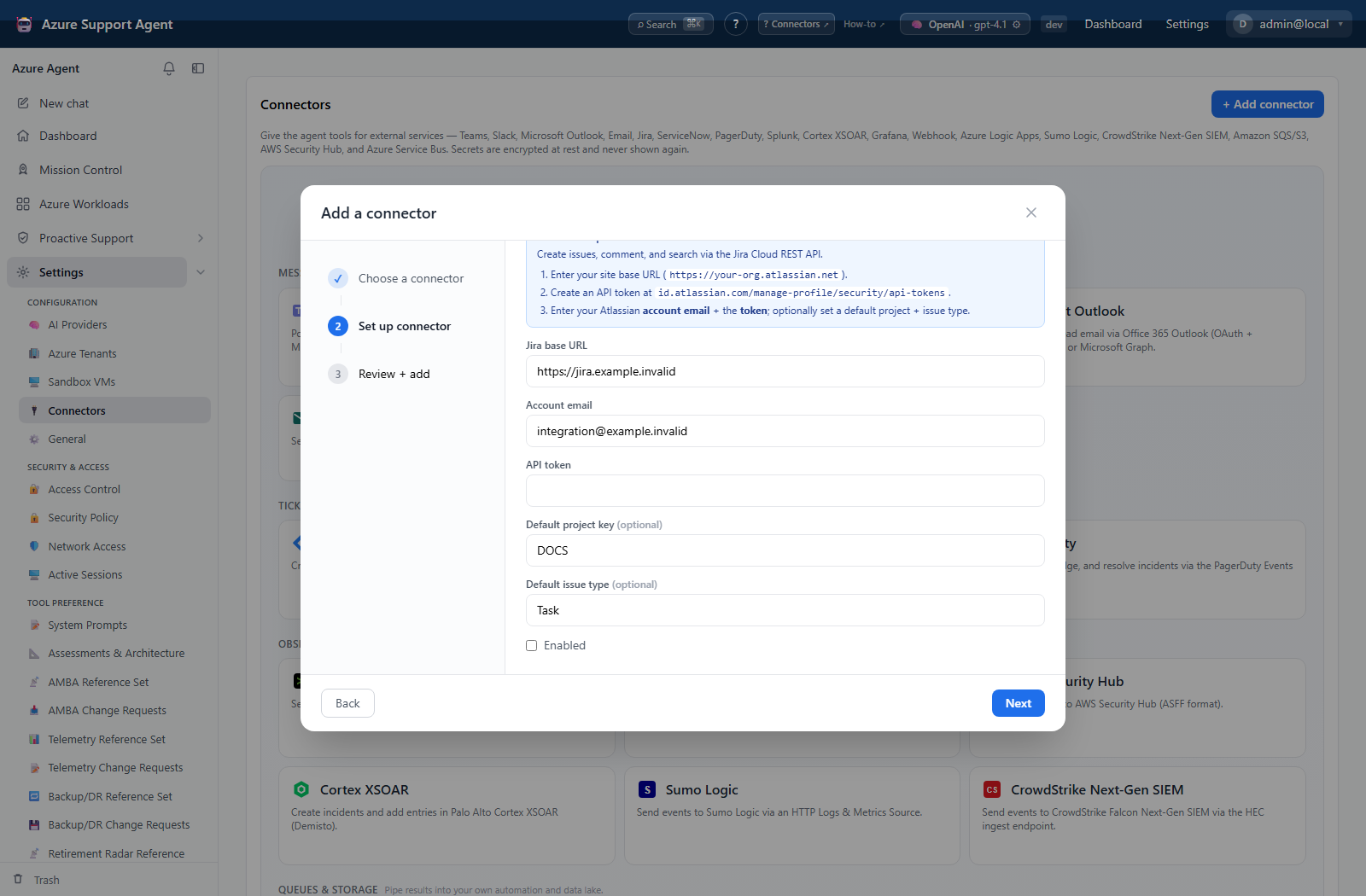
- Add Jira, enter the site URL, account email, token, and optional defaults, then save disabled.
- Select Test; it performs a read-only
GET /rest/api/3/myselfauthentication check. - Confirm the returned status, then enable the connector.
- There is no Send test UI/API support. Safely verify browsing/search through an approved read-only agent workflow first.
- If end-to-end creation must be proven, use a controlled sandbox project and an explicitly approved workflow, then close/delete the test issue according to Jira policy.
Expected result: Test reports authenticated without creating an issue.
Verification: Confirm the integration identity and project permissions in Jira; for an approved creation test, verify project, issue type, reporter, and issue key.
How to configure ServiceNow
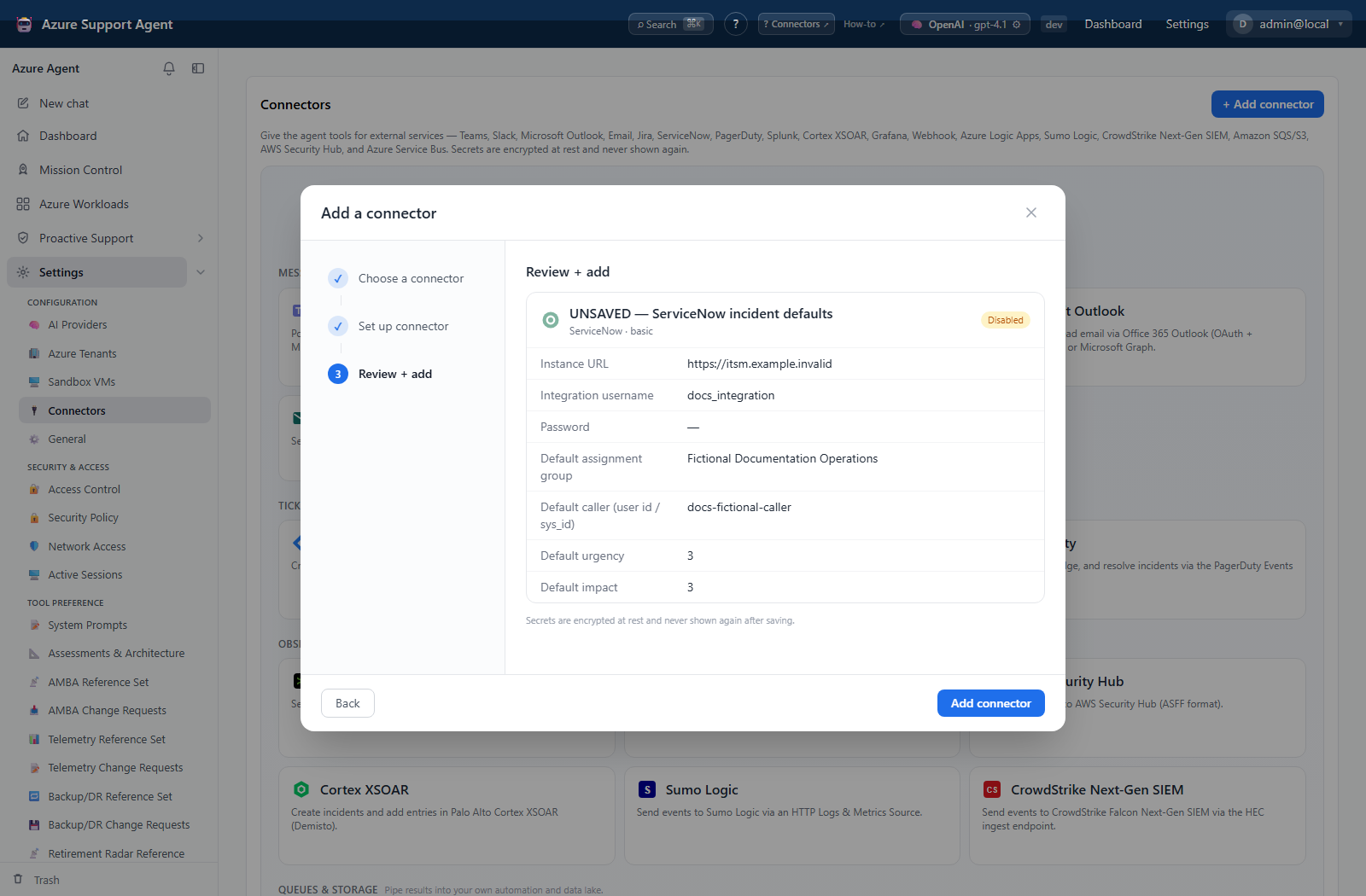
- Add ServiceNow, enter the instance and integration credentials, set approved defaults, and save disabled.
- Select Test; it performs a read-only incident-table query limited to one number.
- Confirm authentication, then enable the connector.
- There is no Send test UI/API support. Verify read access first; if creation must be proven, use a non-production instance or designated test process through an approved workflow.
- Resolve/close the test incident according to ServiceNow policy.
Expected result: Test reports authenticated and creates no incident.
Verification: Confirm the integration user and, only for an approved creation test, the incident number, assignment, urgency, and impact.
How to configure PagerDuty
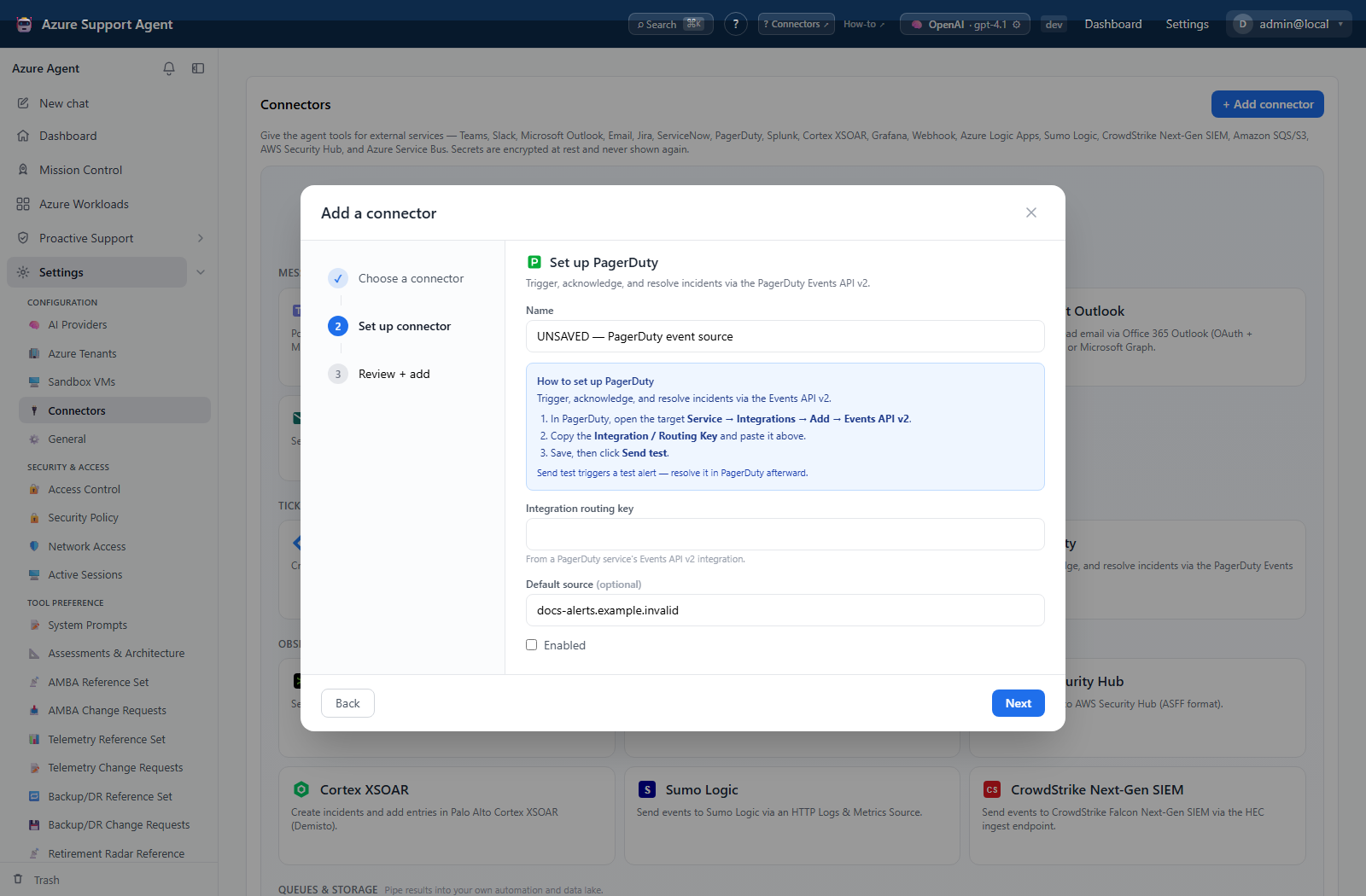
- Add PagerDuty, enter the secret routing key and optional source, and save disabled.
- Select Test; it only confirms that a routing key is stored.
- Enable and select Send test. This sends a real trigger event and can open/notify an incident.
- Confirm the target service, severity, and routing behavior.
- Resolve the test alert in PagerDuty immediately after verification.
Expected result: Test reports configured; Send test creates a real PagerDuty event/alert.
Verification: Check the intended service, incident timeline, notifications, and integration source.
Safety and rollback
Use a dedicated account rather than a personal administrator. Disable the connector, revoke credentials, and close any controlled test incident.
Coordinate before sending. Resolve the test event, disable the connector, and rotate a disclosed routing key.
Do not use a production project for first validation. Disable the connector and revoke the token; clean up any deliberately created test issue in Jira.
Troubleshooting
| Symptom | Resolution |
|---|---|
| A controlled test creates a production incident or issue | Disable the connector, close the controlled record, verify the configured project/table/routing key, and move first validation to a test destination. |
| Check Cloud base URL, email/token pairing, token status, project key, issue type, and browse/create permissions | Absence of Send test is expected. |
| Connector lifecycle | Review connector configuration and retry. |