Workload detail
Route: /workloads/{id}
Purpose
Workload detail is the command center for one application boundary. It combines registry metadata and resources with cached composition, health, risk, and activity signals, then links to the tools that produced those signals.
When to use it
- Before an assessment, investigation, or mission to confirm scope.
- To understand why a fleet score is good, warning, poor, or unknown.
- To inspect resource types, locations, subscriptions, classifications, and risk.
- To refresh an Autopilot-origin workload after resources change.
Prerequisites and data sources
Prerequisites and permissions
workloads.readto view the workload; Analyze also requires the permissions of each underlying feature.workloads.writeto refresh membership or edit membership or metadata.- A usable connection for refresh and live feature scans.
- Feature-specific permissions for linked analysis pages.
Tabs and actions
Freshness and scope behavior
Membership Refresh is separate from Analyze. Refresh reads Azure and saves the reconciled workload definition; it does not modify Azure resources. It scans resource groups identified by the workload’s existing explicit resource nodes, not every resource implied by a broader scope.
Enumeration must complete before membership is saved. The refresh collector retains at most 1,000 resources across the requested groups; a truncated, failed, or malformed response cancels the refresh with HTTP 502. Failure to resolve scope exclusions also cancels it. In these cases, membership and last_refreshed remain unchanged; an unreadable group is not treated as empty.
The workload’s saved connection ID is authoritative: a missing connection returns HTTP 404 and a disabled connection returns HTTP 400, rather than falling back to another connection. Default connection resolution is used only when the workload has no saved connection ID.
Workflow overview
Workflow
- Open a workload from
/workloads. - Confirm the name, environment, criticality, workload type, data classification, connection, and group.
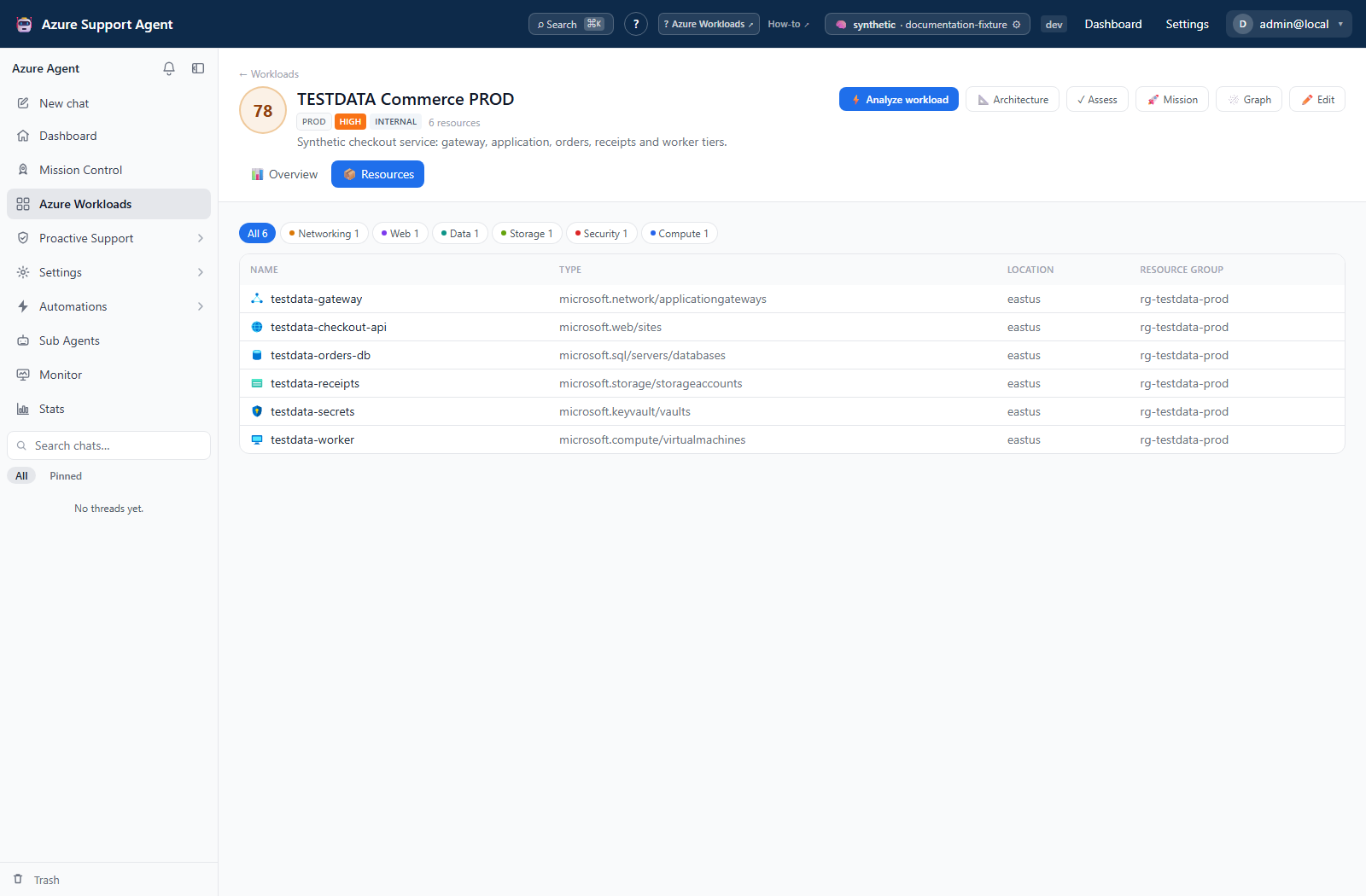
- Review the Resources tab. Verify that scope nodes, explicit resources, and exclusions represent the intended application.
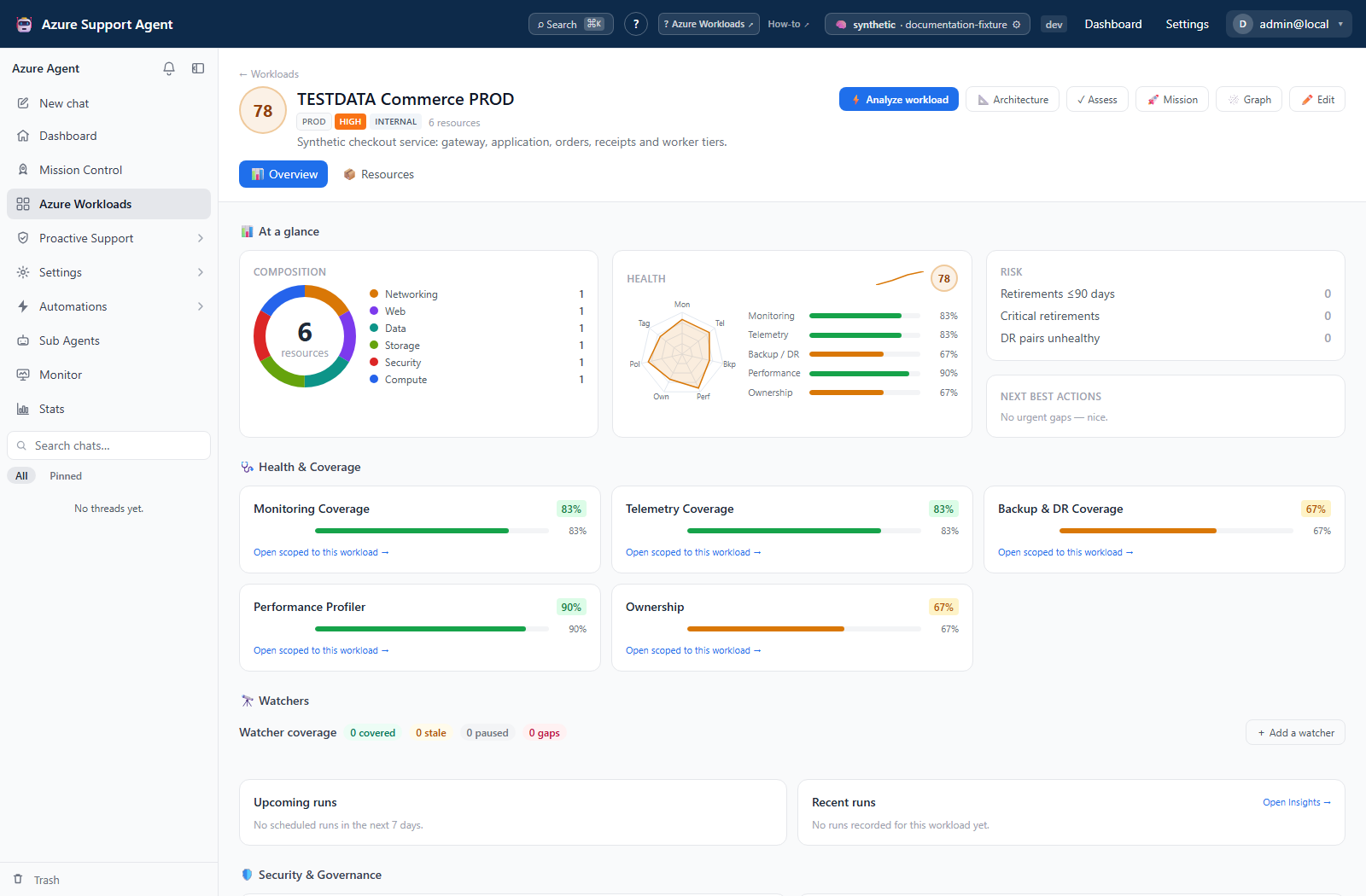
- Review composition by category, resource type, location, and subscription.
- Inspect each health component and its freshness. Do not rely on the aggregate alone.
- Review retirement, critical-finding, and assessment-gap counts.
- If signals are missing or stale, select Analyze. The action requests relevant monitoring, telemetry, backup/DR, radar, ownership, and other refreshes available to the user.
- To reconcile membership, return to the workload card on
/workloadsand select Refresh withworkloads.write. Review the added/removed counts, then reopen Resources. - Follow next-action links to assessments, architectures, Chat, or Mission Control.
Interpretation of results
Interpret results
The overall health score uses only present signals. A missing component is represented as unknown and excluded from weighting rather than treated as zero. Consequently:
- Not analyzed means there are no usable component scores.
- A good aggregate with only one present component is not equivalent to comprehensive health.
- A component’s age can make an otherwise precise score unsuitable for a current decision.
- Risk counts are prompts to inspect the source feature, not full finding records.
Resource summary counts are derived from workload membership and refresh results. Scope nodes may imply many resources even when only a few nodes are stored.
Exports, history, scheduling, and integrations
No dedicated export, history, scheduling, or integration controls are documented for this feature page.
Safety and limitations
Safety
- Confirm membership before running expensive or broad analyses; downstream tools inherit workload scope.
- Refresh can add newly discovered resources and remove deleted ones under tracked resource groups. Review the reported delta.
- Current refresh logic is focused on resource-group children; manually review higher-level scope changes.
- Editing nodes or exclusions can invalidate profiles and alter assessment/coverage results.
- Use soft delete for decommissioning. Purge only after confirming dependent documents and retention needs.
Troubleshooting
| Symptom | Resolution |
|---|---|
| Not analyzed remains after Analyze | Check each feature call, connection access, and application permissions; some signals may be unavailable |
| Aggregate looks better than expected | Inspect which components are absent; scoring renormalizes over present signals |
| Resources are missing after refresh | Verify origin and tracked resource groups; manually edit scopes that refresh does not reconcile |
| Refresh returns HTTP 403 | Membership refresh writes the workload definition. Request workloads.write; workloads.read alone is insufficient. |
| Refresh reports that resources were left unchanged | Azure enumeration was unreadable, incomplete, malformed, or scope exclusions could not be resolved. Check connection access and throttling; a scope exceeding the 1,000-resource limit needs a reviewed smaller workload boundary, not repeated retries of the same oversized query. |
| Refresh reports a missing or disabled connection | Correct the workload’s saved connection or ask a connection administrator to restore it. An explicit invalid connection is not replaced by the default. |
| Deleted Azure resource remains | Run Refresh for an eligible workload or remove the explicit node manually |
| Analyze produces authorization errors | Verify both feature permission and Azure data access |
| Detail cannot open | Workload may be in Trash or purged; return to fleet/Trash and verify the ID |
Screenshot walkthrough
These synthetic browser fixtures illustrate the Overview and Resources review for one workload. They do not verify live membership, health, or analysis results.
1. Review composition and health context
2. Confirm resource membership