Manage Access Control
Prerequisites
- Product permission
users.manage. - A reviewed role/group assignment and a secure channel for an initial local password, if used.
- A task inventory mapped to exact capabilities in the displayed permission catalog.
- A reviewed group purpose and role set.
- An IdP application with the exact redirect/ACS values shown by the application.
- OIDC issuer/client details and secret, or SAML entity ID, SSO URL, and signing certificate.
- A tested local recovery administrator before changing sign-in policy.
- For self-service Active Role switching, only an authenticated session with two or more assigned roles is required;
users.manageis not required to switch your own session.
Route
- Open
/admin/access. - Open
/admin/groups. - Open
/admin/identity. - Open
/admin/policies. - Open
/admin/roles. - Open
/admin/users.
How to create or update a user
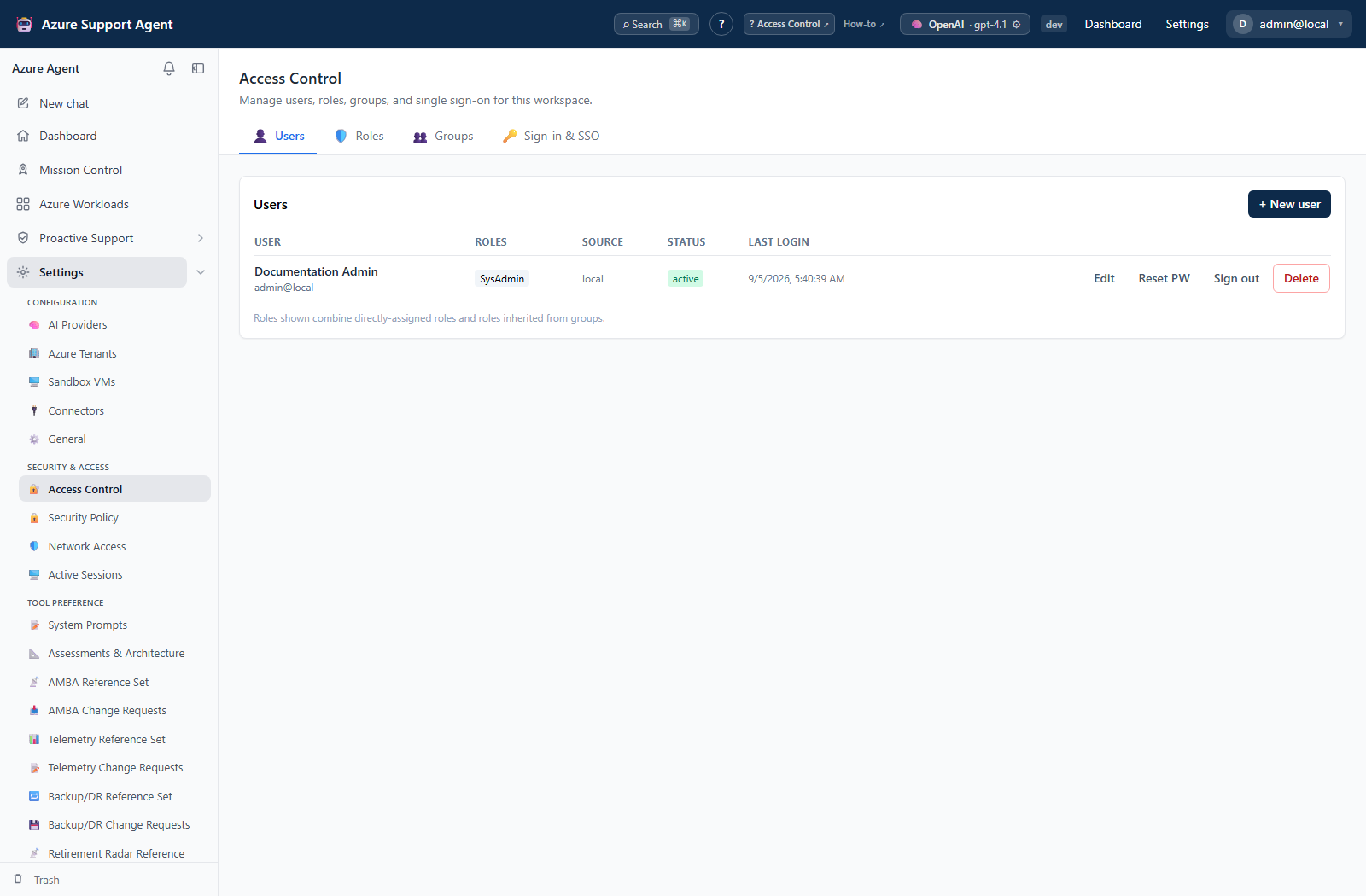
- Select New user and enter the visible username, email, and display-name fields.
- For a local account, enter an initial password and keep first-sign-in password change enabled when offered. Leave the password absent for an SSO-only account.
- Assign only approved direct roles and groups, then create the user.
- To change access, edit status, roles, or groups and save.
- Use Reset password only for a local recovery. The reset clears lockout state and revokes that user’s sessions.
- Use Sign out to revoke all sessions when access may be compromised.
- Delete only after checking ownership and dependent records; the application protects the current/last administrator conditions enforced by the page.
Expected result: The user appears with the intended auth source, status, direct/group assignments, effective roles, and last-login state.
Verification: Test with a separate browser session. Confirm permitted actions work and prohibited actions remain hidden or return forbidden. Review the corresponding access.* Audit Log entry.
How to create a least-privilege custom role
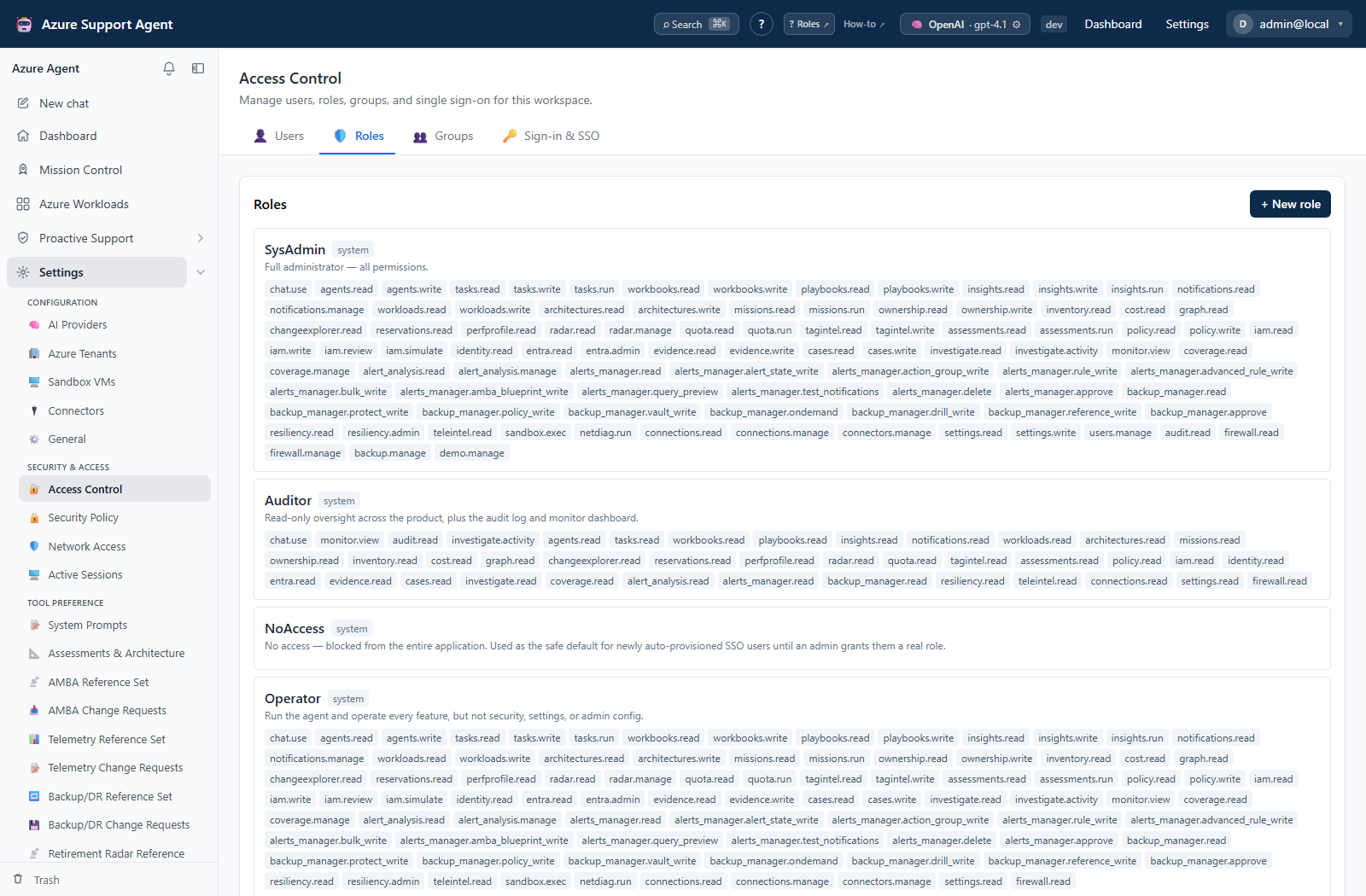
- Select New role and enter a clear name and description.
- Select only capabilities required by the task; do not infer wildcard behavior.
- For a split editor, select both its route/read capability and mutation capability—for example
monitor.viewplussettings.write,audit.readplussettings.write,firewall.readplusfirewall.manage, orradar.readplusradar.manage. - Save the role.
- Assign it to one test user directly or through a test group.
- Test allowed and denied workflows in a separate session.
- Expand assignment only after review.
Expected result: The custom role grants exactly the selected capabilities. Built-in system roles remain read-only.
Verification: Compare the user’s effective permissions and exercise one positive and one negative test. Check Audit Log for role creation/update.
How to manage role-bearing groups
- Select New group and enter its name and description.
- Select the roles that every member should inherit.
- Save the group.
- Open
/admin/usersand assign reviewed users to the group. - Inspect each user’s effective roles and test one member account.
- Periodically remove stale members or broad roles.
Expected result: Every member inherits the group’s roles in addition to direct assignments.
Verification: Compare member counts and effective roles before and after assignment, then verify a representative permission.
How to switch the active role and verify direct-route denial
- Open the account menu and record the current navigation entries.
- Under Active Role, select another role already assigned directly or through a group.
- Wait for identity refresh; do not manually reload the page.
- Confirm the left navigation, Dashboard shortcuts, Settings/Proactive cards, and command palette now show only routes allowed by that role.
- Enter a known unauthorized feature URL directly.
- Confirm Access not granted appears before the protected feature loads, then verify its API returns
403for the missing capability. - Select another assigned role when required. To return to the unscoped direct/group union after an explicit selection, start a new session.
Expected result: Role selection downscopes the current session immediately; it never grants an unassigned role, and a direct URL does not bypass client or backend enforcement.
Verification: Exercise one permitted route and one denied route, and confirm no protected feature request starts for the denied route.
How to recover from the NoAccess wall
- Open the account menu on the NoAccess wall.
- If another assigned role is available, select it and wait for identity refresh.
- Confirm normal navigation appears and open one route authorized by the selected role.
- If no alternative role is available, sign out and ask an administrator to grant an approved role.
- Have the administrator verify the assignment with one allowed and one denied route; do not replace NoAccess with a broad role solely to remove the wall.
Expected result: A user with another assigned role can recover without bypassing the zero-permission backend lockout; a user with only NoAccess remains blocked from application data.
Verification: Confirm normal feature queries do not run on the wall and begin only after a role with permissions becomes active.
How to configure and test OIDC or SAML SSO
- Select New provider, choose OIDC or SAML, and enter only the fields shown.
- For OIDC, configure issuer, optional discovery URL, client ID, client secret, scopes, and optional group claim or account-selection prompt.
- For SAML, configure entity ID, SSO URL, signing certificate, and visible attribute mappings.
- Set the display/button label and keep the provider disabled until validation succeeds when the UI allows it.
- Select Test connection. This validates OIDC discovery/JWKS or SAML certificate/configuration; it does not perform a user login.
- Save, copy the generated redirect URI, ACS URL, or metadata URL exactly into the IdP, then enable the provider.
- Test a real sign-in in a private browser. Review JIT provisioning and the safe default role on
/admin/policies.
Expected result: The login page offers the enabled provider and a real OIDC PKCE or signature-validated SAML sign-in creates/resolves the intended user.
Verification: Complete a private-browser round trip and confirm auth source, external provider, assigned role, and Audit Log. Newly provisioned users should receive the configured least-privilege default, commonly noaccess.
Safety and rollback
Permissions from direct and group roles form a union until the session is explicitly scoped to one active role. Remove the test assignment or restore the prior capability list to roll back. Deleting a custom role removes its assignments; it does not recreate previous access automatically. Never add users.manage to a narrow role: the application treats that capability as effective administration.
A broad group role expands access for every member. Remove the role from the group or remove a member to roll back. Deleting a group removes memberships but does not delete users or roles.
The client secret is encrypted, masked, and replaced only when a non-empty value is submitted. Never copy it into logs. Disable the IdP to stop new SSO logins, retain a local recovery path, and revoke the IdP secret/certificate externally if compromised. Existing application sessions must be revoked separately.
Passwords are hashed and never displayed. Do not share them in tickets. Keep at least one tested administrator and recovery path. Roll back an assignment by restoring prior roles/groups or disabling the user. A deleted user requires restore from an approved backup; recreating the same name does not recreate the original identity or sessions.
Troubleshooting
| Symptom | Resolution |
|---|---|
| Role cannot be edited | Built-in system roles are intentionally immutable. |
| User still has a removed capability | Find another direct or group role that grants it, then start a fresh session. |
| Action is forbidden despite a role | Confirm the exact capability and active session role, not only the role name. |
| Member has too much access | Review all group and direct role unions. |
| Group change seems stale | Refresh and test with a new session or after reauthentication. |
| OIDC test reports issuer/discovery failure | Match issuer exactly and verify discovery/JWKS reachability. |
| SAML test reports certificate failure | Check certificate format, validity dates, IdP entity ID, and SSO URL. |
| Test passes but login fails | Verify the exact redirect/ACS URI, claims/attributes, clock, and real browser flow. |
| New SSO user has no access | Assign an approved role; noaccess is the safe JIT default. |
| User cannot sign in | Check status, auth source, local-login policy, lockout, required password change, or IdP state. |
| User has unexpected access | Review both direct roles and group-inherited roles plus the session’s active-role downscope. |
| Custom role has unrestricted access | Remove users.manage; it intentionally makes the holder an effective administrator. |
| Active Role cannot return to the union | Start a new session. The UI selects individual assigned roles; an explicit active role is session-scoped. |
| Delete or demotion is blocked | Preserve the protected administrator/recovery condition instead of bypassing it. |