Workload fleet
Route: /workloads
Purpose
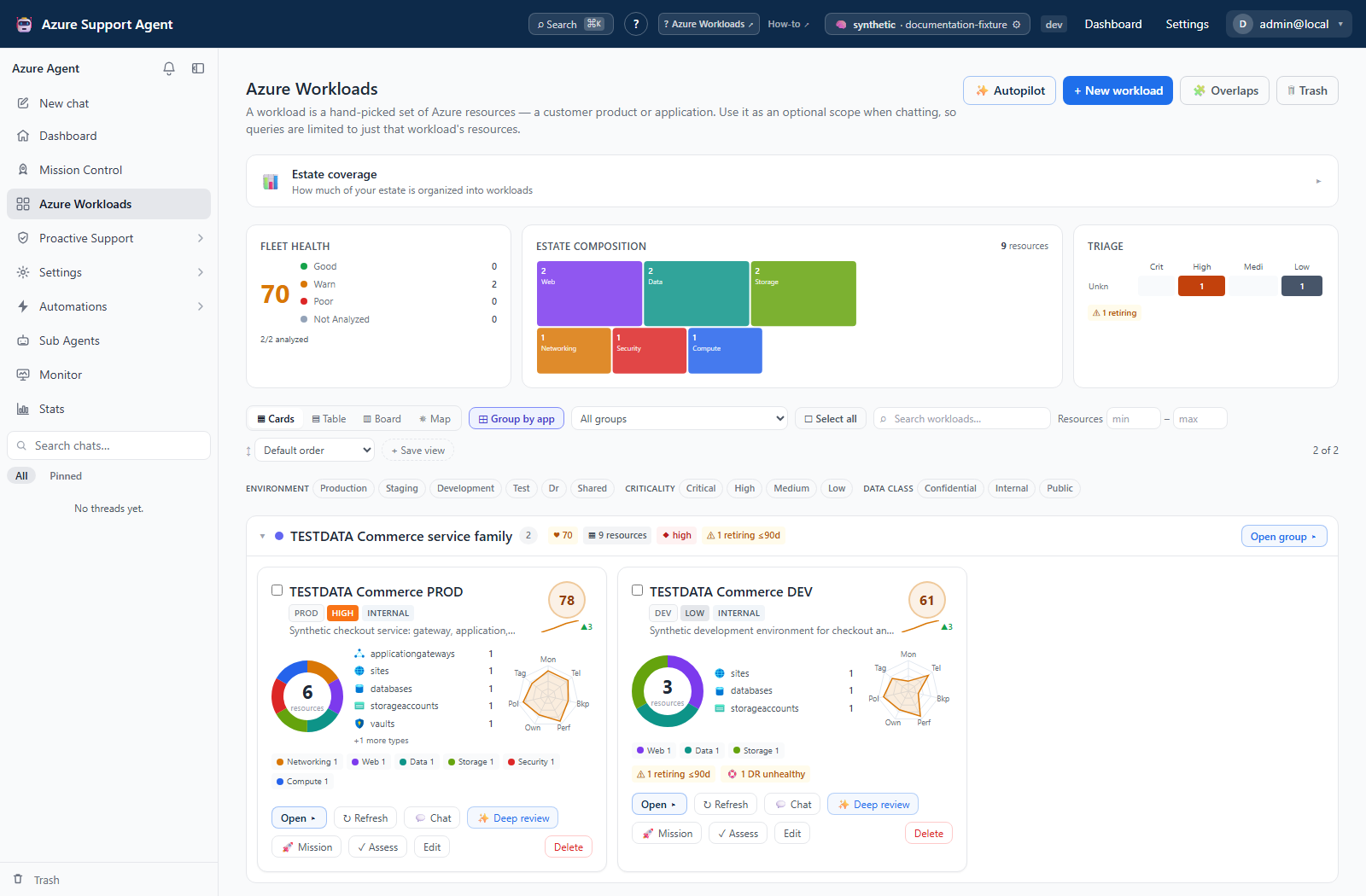
The fleet cockpit provides a portfolio view of active workloads. Use it to identify unknown or low-health workloads, see estate composition, compare environment and criticality, and open a workload for deeper analysis.
When to use it
- Daily or weekly fleet triage.
- Finding workloads that have never been analyzed.
- Prioritizing production/critical workloads with coverage or retirement risks.
- Starting Autopilot, manual workload creation, merge, grouping, or overlap analysis.
Prerequisites and data sources
Prerequisites and permissions
workloads.readto view the fleet and profiles.workloads.writeto create, refresh membership, edit, merge, delete, or group workloads.- Existing workloads, or a readable Azure connection for discovery.
- Prior feature scans for meaningful health and risk values.
Tabs and actions
| Surface | Actions |
|---|---|
| Fleet | Switch cards/table/board/map, group cards by application, filter by group/classification/search/resource count, sort, save a layout/filter view, select all shown |
| Selection toolbar | Launch durable missions, launch deep reviews, merge, group, or move up to 500 workload definitions to Trash |
| Workload card/row | Open, refresh, chat, deep review, mission, assess, edit, or move one definition to Trash |
| Trash | Restore one workload, permanently purge one, or permanently empty Trash |
| Discovery and integrity | Open Autopilot, Groups, Overlaps, or estate-coverage orphan triage |
The Resources minimum and maximum are inclusive. The count uses the cache-only workload profile’s composition total when available; before a profile is available it falls back to the number of explicit resource nodes in the workload definition. The filter applies to cards, table, board, map, grouped cards, and Select all shown, and its values persist in the browser.
Freshness and scope behavior
The active workload list and Trash are application-registry reads. Fleet profiles, group rollups, overlap summaries, health and risk are cache-only; opening the page does not scan Azure. Profiles and lightweight group/overlap queries are treated as fresh for 60 seconds in the browser.
The workload definitions can arrive before the shared fleet-profile response. During that initial gap, each card keeps its name and actions visible while a sliding shimmer and fixed-size skeletons occupy the score, composition and health-visualization areas. This is a loading state, not a claim that the workload has zero resources. The shimmer stops when profiles succeed or fail, does not cover already-cached cards during a background refetch, and becomes static when the browser’s reduced-motion preference is enabled.
Selection is keyed by workload ID rather than by the current view. Switching layouts or narrowing a filter does not discard earlier selections, so the selection count can exceed the visible row count. Opening Trash clears the active selection to prevent lifecycle actions crossing views.
Workflow overview
Workflow
- Open
/workloads. - Review fleet composition, environment-by-criticality distribution, health bands, and risk indicators.
- Filter or sort to place critical, production, unknown, or poor-health workloads first. The Resources min–max filter isolates fragmented definitions (for example, max
4). - Open a workload card or row to inspect its detail.
- For Not analyzed, run analysis from workload detail rather than assuming failure.
- Use Autopilot to discover missing application boundaries.
- Open Overlaps when resource ownership is ambiguous, or Groups to compare related environments.
- Launch Mission Control for a coordinated multi-system sweep.
Bulk lifecycle operations
The selection toolbar works across cards, table, board, map, grouping, search, and filters. Use Select all shown to add the current visible result while retaining selections made elsewhere. Move N to Trash soft-deletes up to 500 selected workload definitions in one operation. The confirmation names the workload/resource totals and any group memberships.
Bulk Trash does not modify Azure resources and does not cascade-delete architectures, Know-Me, FMEA, assessments, missions, evidence, or audit history. It reports workloads moved, already trashed, or no longer found. Restore from Trash before permanent purge if the selection was wrong.
Safety and lifecycle
- Editing membership changes the scope used by downstream analyses.
- Merge moves source workloads to Trash and has no dedicated undo; review members and downstream links first.
- Normal delete is soft-delete and can be restored. Purge and empty-trash are permanent.
- Trashed workloads are excluded by downstream active-workload consumers. Their group association metadata is preserved so restoration returns them to the same group.
- Fleet pages read cached profiles and should not be mistaken for a live Azure scan.
Interpretation of results
Interpret fleet health
A workload profile combines available monitoring, telemetry, backup/DR, performance, ownership, policy, and tag signals. The overall score reweights only the signals that are present.
| Band | Score | Meaning |
|---|---|---|
| Good | 80–100 | Available signals are broadly healthy; inspect freshness and any remaining risks |
| Warning | 50–79 | Material gaps exist and should be planned for remediation |
| Poor | 0–49 | Available signals indicate significant gaps or failures |
| Not analyzed | No score | No usable signals have been computed; this is unknown, not zero |
Because the score is normalized over present signals, two workloads with different signal coverage are not always directly comparable. Open detail and check freshness and component scores.
Exports, history, scheduling, and integrations
No dedicated export, history, scheduling, or integration controls are documented for this feature page.
Safety and limitations
- Resource-count filtering is a browser view filter, not a deletion policy. Review the selected count and confirmation names before bulk Trash, especially after filters have hidden rows.
- Bulk Trash accepts 1–500 distinct workload IDs and performs one local registry write. Missing or concurrently trashed IDs are reported rather than rolling back definitions that were moved.
- Trash changes only workload definitions. Azure resources are never deleted or moved.
- Group association metadata is preserved in Trash and returns on restore. Purge and empty Trash permanently remove definitions and have no restore path.
- Resource counts can lag Azure until a workload is refreshed or edited; inspect membership before treating the count as authoritative.
Troubleshooting
| Symptom | Resolution |
|---|---|
| Fleet is empty | Run Autopilot or create a workload; verify workloads.read |
| Workload says Not analyzed | Open it and run Analyze |
| Score changed sharply | Compare component freshness and determine which newly available signal changed normalization |
| Resource count is stale | With workloads.write, refresh resource-group children from the workload card or edit its nodes. Incomplete enumeration leaves membership unchanged; follow the membership-refresh procedure. |
| A deleted workload vanished from the active group view | Restore it; active views exclude Trash, but the saved group association returns with it |
| Bulk Trash action is disabled | Select 1–500 active workloads; more than 500 must be split into multiple reviewed batches |
| Merge result is unexpected | Inspect the merged workload and source entries in Trash before any permanent purge |
| Resource filters show no workloads | Clear the minimum/maximum values or correct a minimum greater than the maximum. Both boundaries are inclusive. |
| Cards briefly show a sliding highlight | Fleet profiles are still loading from the server cache. Wait for the visualization skeletons to resolve; no Azure scan is running. |
| A card says Visualization unavailable | The shared cached-profile request failed. Reload to retry; the workload definition and its actions remain available. |
| Selected count is larger than the visible result | Selection persists when layouts or filters change. Use Clear or Deselect all and review the selected count before Trash. |
| Bulk Trash moved fewer definitions than selected | Some IDs were already trashed or disappeared concurrently. Read the result banner and reopen Trash before retrying. |
Screenshot walkthrough
This fleet example uses synthetic browser fixtures to illustrate portfolio triage, not a live Azure scan or verification of workload health.