AI Insight Packs
Purpose
AI Insight Packs are reusable monitoring definitions that collect selected operational evidence, apply a materiality gate, and produce a compact digest. Run a pack on demand while investigating a workload, or schedule it to watch for meaningful changes without sending a notification for every uneventful run.
Application route: /insights (section routes may appear as /insights/:section).
Screenshot note: These native views use browser-only synthetic definitions and saved digest results. No AI inference, source collection, probe, scheduler run, or notification occurred. A completed digest here is a modeled example, not a real monitoring result.
Common use cases
- Summarize recent workload changes and highlight security-sensitive operations.
- Watch retirement, cost, identity, policy, backup, RBAC, or assessment signals.
- Produce a recurring operations or leadership digest.
- Test a monitoring idea against a real workload before scheduling it.
- Group related packs into collections and pin important packs.
Prerequisites, permissions, and data
| Requirement | Detail |
|---|---|
| Read access | insights.read to view packs, templates, digests, health, and schedules. |
| Authoring | insights.write to create, edit, clone, enable, snooze, pin, organize, and update read state. |
| Execution | insights.run to start on-demand runs. |
| Scope | A workload or supported scope with accessible evidence. |
| AI | A configured AI provider is needed for interviews, generation, refinement, and narrative synthesis. |
| Sources | Packs can use adapters backed by Change Explorer, Retirement Radar, cost, RBAC, assessments, backup, identity, and policy data. Availability depends on configured connections and prior scans. |
| Scheduling | The automation scheduler must be running for recurring execution; notification connectors are required for external delivery. |
Schedules use tasks.read for cadence previews/history, tasks.write for creation and pause/resume, and tasks.run for schedule Run now. Create case requires cases.write. Pack/run permissions do not imply these handoff permissions.
Source scope and freshness
Eight adapters are registered: Change Explorer, Radar, Cost cleanup, Access (RBAC), Assessments, Backup & DR, Identity risk, and Policy compliance. Change Explorer invokes its analysis service for the requested window; the other seven primarily read stored snapshots or records. The pack lookback is therefore not a promise that every included observation was collected during that window.
Pack definitions advertise workload, subscription, and tenant scopes, but adapter scope differs. Assessments requires a workload; several adapters anchor to the first workload ID; cost/RBAC can use subscription-level filtering; identity and policy use tenant-wide snapshots. Do not present a workload-labelled digest as exclusively that workload’s data. The inline Run/Schedule dialog anchors to a workload and does not provide a subscription-ID picker; a subscription schedule needs a real subscription ID in Scheduled Tasks/configuration.
Definitions normalize lookback to 1–720 hours (default 24). Recent Runs loads 300 records; the API caps listing at 500, and latest/health/coverage summaries inspect up to 500. Today means latest per pack/scope within loaded history, not only runs created today. Schedule projection defaults to seven days, allows 1–31, and caps occurrences per task; it is not unlimited execution history.
Library and detailed actions
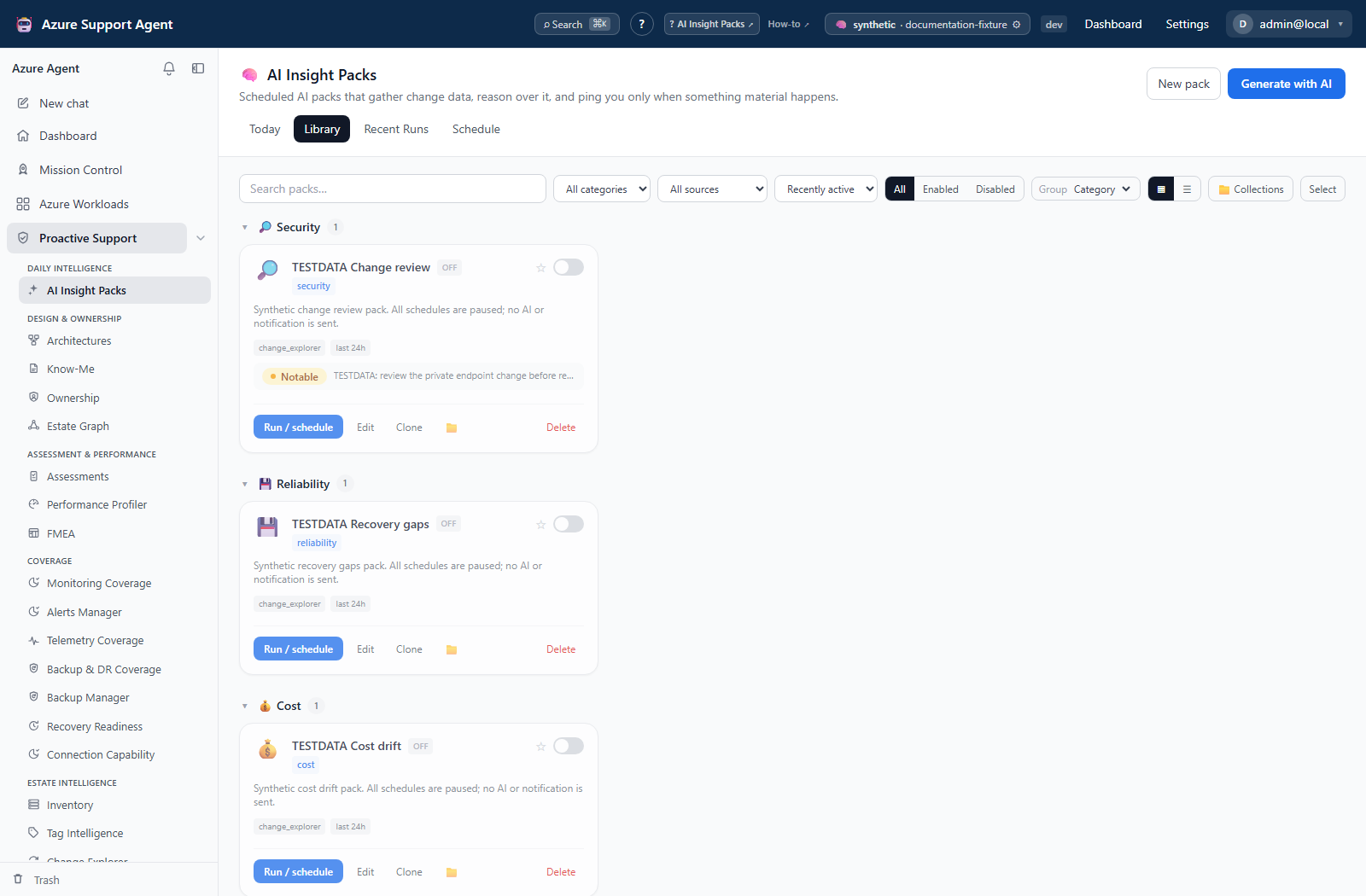
The library presents saved packs and starter templates. From a pack, you can:
- open or edit its definition;
- clone it before making a variant;
- enable or disable it;
- snooze it temporarily;
- pin it and add it to collections;
- open Run / Schedule;
- review recent runs, unread material digests, health, and upcoming executions.
AI generator wizard
The guided flow is Goal → AI interview → Generate → Preview & save.
- Describe what the pack should watch and who needs the result.
- Answer the AI interview questions about source, scope, lookback, materiality, and output.
- Generate a draft and inspect every field.
- Choose a workload for a real test. It does not write Azure configuration or notify, but it does persist a digest and can update source-comparison fingerprints. The wizard’s live definition preview is deterministic; an AI sample is illustrative, not that test’s evidence.
- Refine, regenerate, or save the pack.
The editor provides Preview, Sample, and Review tabs. AI examples are explicitly illustrative; a real test run uses current accessible evidence. Validation issues must be resolved before save.
Run and schedule
In Run / Schedule, choose the workload anchor/scope, then either run now or create a schedule with cadence, time, and time zone. Lookback and materiality come from the pack definition. The on-demand notification checkbox does not disable scheduled notifications: schedules run with notification enabled, subject to materiality and snooze. Review destinations in Scheduled Tasks/notification routing before creating the active schedule.
An on-demand run continues server-side if the dialog is closed; the completed digest is persisted. This is not the durable Fleet queue used by assessments/profiler, and does not promise restart recovery for an unfinished job. Schedule includes Timeline and Coverage Matrix; covered/stale/paused describes watcher recency, not the health or completeness of its source data.
Workflow
- Start from a template or select Generate with AI.
- Define a narrow operational question and evidence sources.
- Preview against a non-sensitive workload.
- Check that normal evidence produces Nothing notable and meaningful evidence produces Notable or Urgent.
- Save, select the production scope, and configure the schedule.
- Run once on demand before enabling notifications.
- Review digest history and tune noisy criteria or weak source coverage.
Interpret a digest
A digest shows the pack and scope, evidence lookback, headline, bullets, structured rows, counts, notification state, and materiality-gate reason.
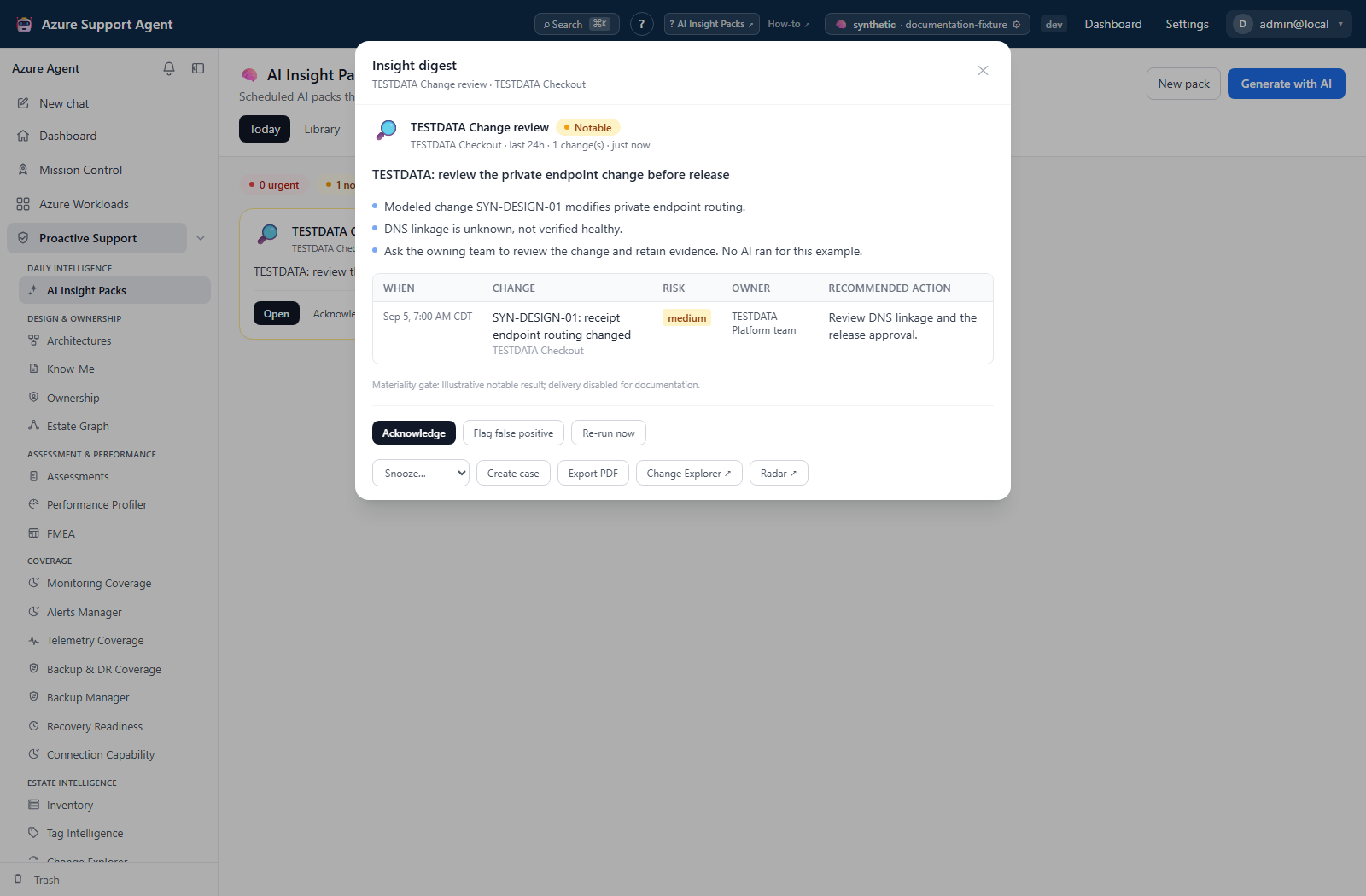
- Nothing notable means the collected evidence did not cross the pack’s materiality threshold. It does not prove that no issue exists.
- Notable indicates review-worthy evidence.
- Urgent indicates the highest pack verdict and should follow the organization’s triage process.
- AI degraded means narrative generation failed and a deterministic summary was used. Inspect source rows rather than relying on prose.
- Notified confirms that the run crossed notification rules and delivery was requested; use connector delivery logs to confirm external receipt.
- A run can be
succeededeven when an adapter was unavailable or AI degraded. Inspect each source’sok, notes, and counts before treating Nothing notable as meaningful. Deterministic always-notify flags can trigger delivery below the normal verdict threshold; snooze suppresses delivery but retains the run.
Exports, history, and integrations
- Open a saved run from recent history; material runs can be marked read, and all can be marked read in bulk.
- Download a run as a PDF when a portable digest is required.
- Scheduled packs integrate with the automation scheduler and configured notification channels such as Teams, Slack, email, or in-app notifications.
- Source data is drawn from other product modules; refresh those modules when a digest reports stale or missing coverage.
Safety and limitations
- Pack runs are observational, but their conclusions are only as complete as the selected sources and current caches.
- AI can omit context, overstate causality, or produce an unsuitable threshold. A human must approve pack definitions and urgent escalation logic.
- An illustrative sample is synthetic and must not be treated as evidence.
- Closing a run dialog does not cancel the background job.
- Pause or remove the scheduled task to stop recurring execution. The current scheduled target does not enforce the pack’s enabled flag; disabling the library card alone is not a reliable stop control.
- Do not place secrets, credentials, or sensitive personal information in goals, prompts, pack instructions, or notification text.
Troubleshooting
| Symptom | Checks |
|---|---|
| No evidence in a run | Confirm scope, source adapters, connection access, prior source scans, and lookback duration. |
| Pack is too noisy | Raise or narrow the materiality criteria, reduce sources, test again, or snooze while tuning. |
| Subscription schedule will not save | The inline dialog supplies a workload anchor, not a subscription ID. Configure a supported workload schedule or supply the intended subscription in Scheduled Tasks; do not use an empty subscription scope. |
| Quiet digest despite missing data | An unavailable adapter can coexist with a succeeded digest. Open source notes, refresh the named source feature, and rerun before relying on the verdict. |
| A disabled pack still runs | The scheduled task remains active. Pause that task; use snooze only when execution should continue without notification. |
| No external notification | Confirm the verdict crossed the gate, notifications were enabled, and the connector is configured and healthy. |
| AI generation fails | Confirm the AI provider is available; retry, author manually, or use the deterministic run output. |
| Run appears stuck | Close and reopen recent runs; background execution continues, and final state is persisted. |