Core and workload operations
Use these recipes to move from estate orientation to a workload-scoped investigation or coordinated mission.
Prerequisites
- Sign in and select only Azure connections and workloads you are authorized to inspect.
- Product permissions vary by task:
chat.use,workloads.read,workloads.write,missions.read, andmissions.run. - Live checks require suitable Azure data-plane or control-plane read access; AI tasks require an active provider.
Route
Start at /dashboard, /chat, /workloads, or /mission-control.
How to choose a workflow
- Use Dashboard and Chat to orient, ask a focused question, or convene a Deep Investigation War Room.
- Use Workload fleet and manual creation to review the portfolio or define a known boundary.
- Use Autopilot discovery to survey a broad Azure scope and review proposed workload boundaries.
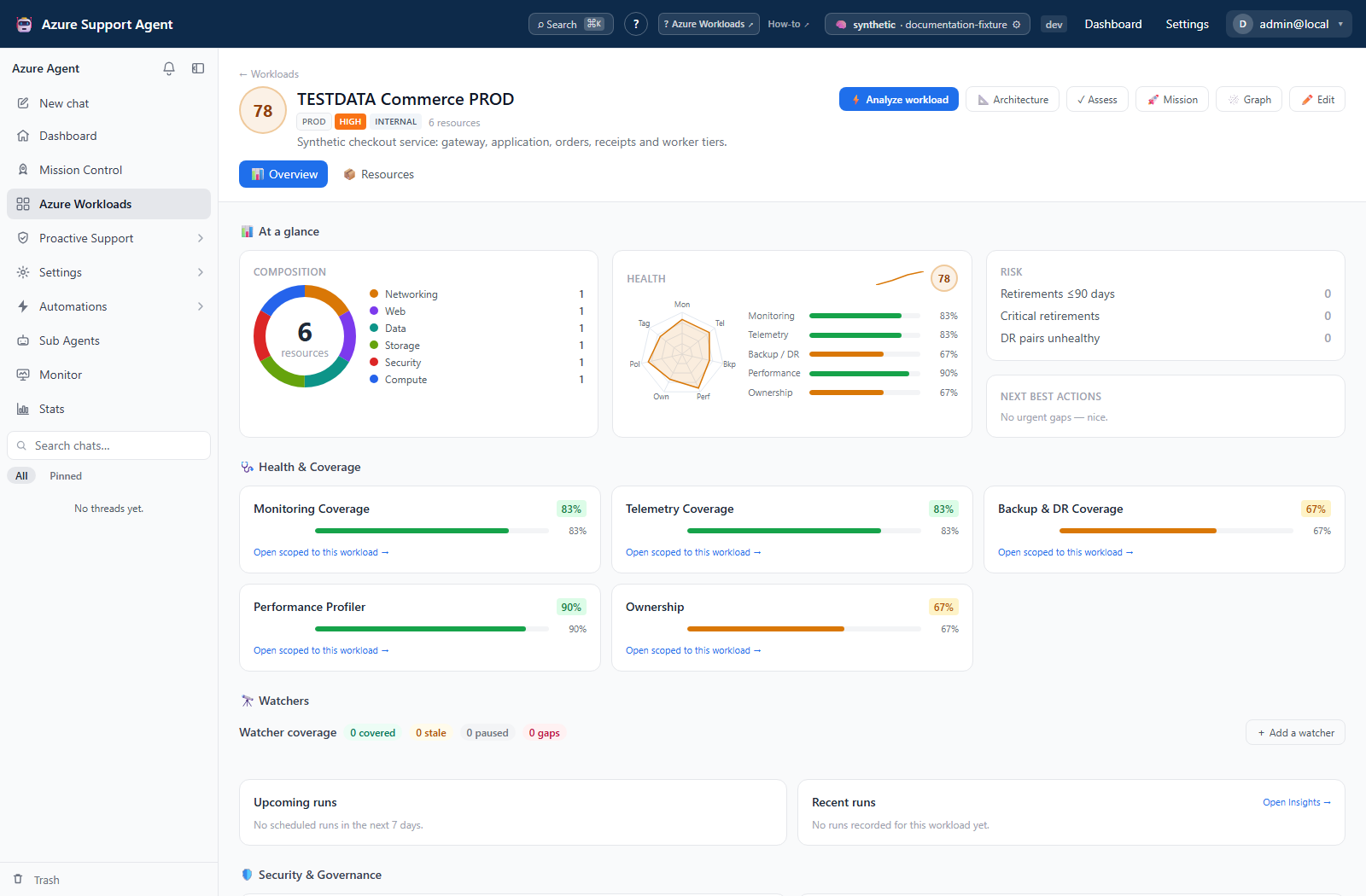
- Use Workload detail, groups, and overlaps to validate membership, compare related environments, and resolve duplicate attribution.
- Use Mission Control for a repeatable multi-system sweep.
- Use Proactive Support, Monitor, and Stats to choose a specialist area or inspect application summaries.
Expected result: The selected workflow matches the decision: orientation, investigation, scope definition, portfolio organization, or coordinated analysis.
Verification: Confirm the route, Azure connection, workload, data timestamp, and permissions before interpreting or changing application records.
Task index
| Task | Guide |
|---|---|
| Orient and investigate | Dashboard and Chat |
| Create and review workloads | Workload fleet |
| Discover workload boundaries | Autopilot |
| Manage detail, groups, and overlaps | Workload detail and groups |
| Run coordinated analysis | Mission Control |
| Select proactive features and inspect health | Proactive Support, Monitor, and Stats |
Safety and rollback
Dashboard, Chat evidence gathering, discovery survey, and most analyses are read-oriented. Saving workloads and groups changes the application registry, not Azure. Normal workload deletion is recoverable from Trash; merge, purge, and empty-trash require extra care. Mission cancellation stops remaining orchestration but does not undo completed reads or generated records.
Troubleshooting
| Symptom | Resolution |
|---|---|
| A page is empty | Check product permission, selected connection, workload existence, and whether a first scan is required. |
| Data looks old | Open the owning feature and inspect freshness; do not treat Dashboard or fleet cache reads as live scans. |
| An action is unavailable | Check the write/run permission and any Azure or AI capability required by that specific action. |