Explore the Estate Graph
Prerequisites
graph.read; deployments may restrict Graph to administrators.- Workloads, architectures, and cached inventory; optional assessment, cost, coverage, retirement, RBAC, and change data for overlays.
Route
Open /graph or /graph/{focusId}.
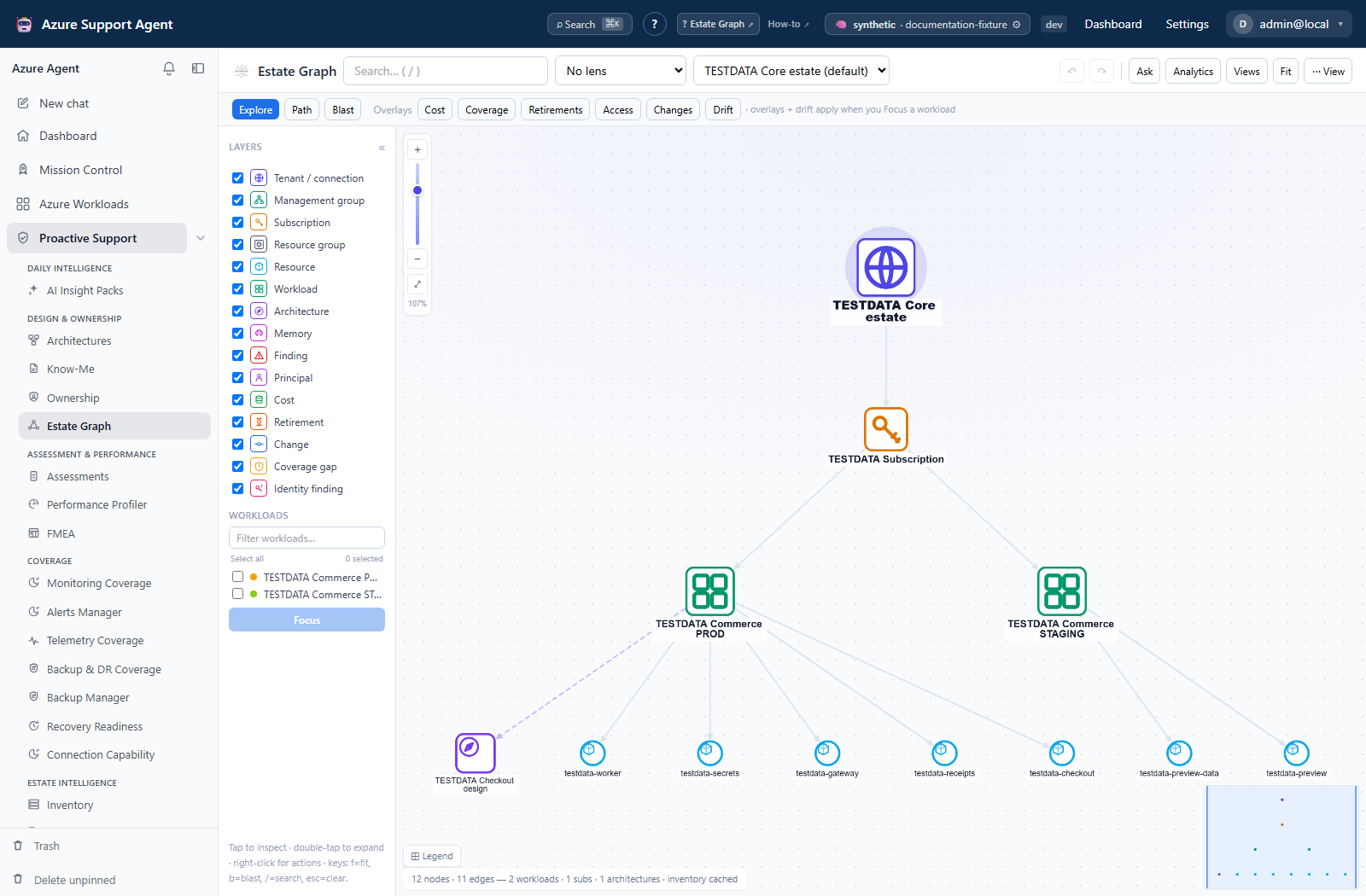
How to find, expand, and inspect nodes
- Select the correct Azure connection and load the overview.
- Search by workload, architecture, subscription, resource group, or resource name.
- Select a result to highlight/inspect; double-select or use Expand to bloom children.
- Use layer toggles to show/hide node kinds and choose Organic, Hierarchy, or Concentric layout.
- Right-click for Inspect, Expand, Isolate/Focus, Hide, Blast radius, or export actions offered for that node.
- Use Open in to navigate to the owning workload, architecture, inventory, or assessment view.
Expected result: The graph is narrowed to the relevant topology and the node inspector shows assembled context.
Verification: Compare node IDs and relationships with workload membership, architecture, and inventory; presence does not prove live traffic.
How to use lenses, overlays, and drift
- Focus one workload; overlays and drift require a focused workload.
- Apply one lens/overlay at a time: risk, cost, coverage, retirements, access/RBAC, changes, or other labels exposed by the current menu.
- Enable Drift to compare intended architecture with current inventory.
- Inspect highlighted node details and source timestamps.
- Refresh the source feature when data is absent/stale, then reload/focus the graph.
- Clear/reset before switching to an unrelated question.
Expected result: Nodes are recolored/annotated with available cached source evidence and drift differences.
Verification: Open the source module and match scope, timestamp, value, and resource ID.
How to find a path
- Select Path mode.
- Pick the source node, then the target node.
- Review the highlighted path and hop count.
- Expand hidden dependencies or reveal node kinds and retry when an expected path is absent.
Expected result: A shortest path through currently assembled nodes/edges is highlighted, or no path is reported.
Verification: Validate every edge against architecture/inventory; no graph path does not prove no real dependency.
How to estimate blast radius
- Select Blast mode and click the source node, or right-click and choose Blast radius from here.
- Review direct and indirect highlights and impacted workload count.
- Inspect the highest-impact nodes and open the affected workloads.
- Correlate with redundancy, routing, failover, and application behavior outside the graph.
Expected result: Downstream reachable nodes are highlighted to the supported depth.
Verification: Confirm critical dependencies with reviewed architecture and operational owners; this is topology analysis, not failure simulation.
How to export the graph
- Focus/filter/layer the exact canvas to share.
- Fit the required nodes and remove accidental highlights.
- Open the View/context menu and choose Export PNG for a high-resolution visual or Export JSON for current nodes/edges.
- Store the artifact as sensitive infrastructure metadata.
Expected result: The visible graph state is downloaded as PNG or JSON.
Verification: Open the export and confirm required nodes, filters, scope, and absence of unintended topology.
Safety and rollback
- Graph is cache-backed/read-oriented; saved presentation preferences do not change Azure.
- Hidden nodes and filters change path/blast results.
- AI narrative/Ask features, where enabled, are advisory and cannot add evidence.
- Reset view or change saved layout to roll back presentation changes.
- Exports reveal topology and identifiers.
Troubleshooting
| Symptom | Resolution |
|---|---|
| Overview is empty | Check permission, connection, active workloads, architectures, and inventory cache. |
| Overlay is empty | Focus a workload; refresh its source module and verify permission/freshness. |
| Search misses a resource | Confirm it is in selected-connection cached inventory. |
| Path is absent | Expand nodes, unhide kinds, and confirm the relationship is modeled. |
| Graph is crowded/slow | Focus fewer workloads, collapse findings, hide kinds, or change layout. |
| Export is incomplete | Export uses current visible state; reveal and fit required nodes first. |