Operate Telemetry Coverage
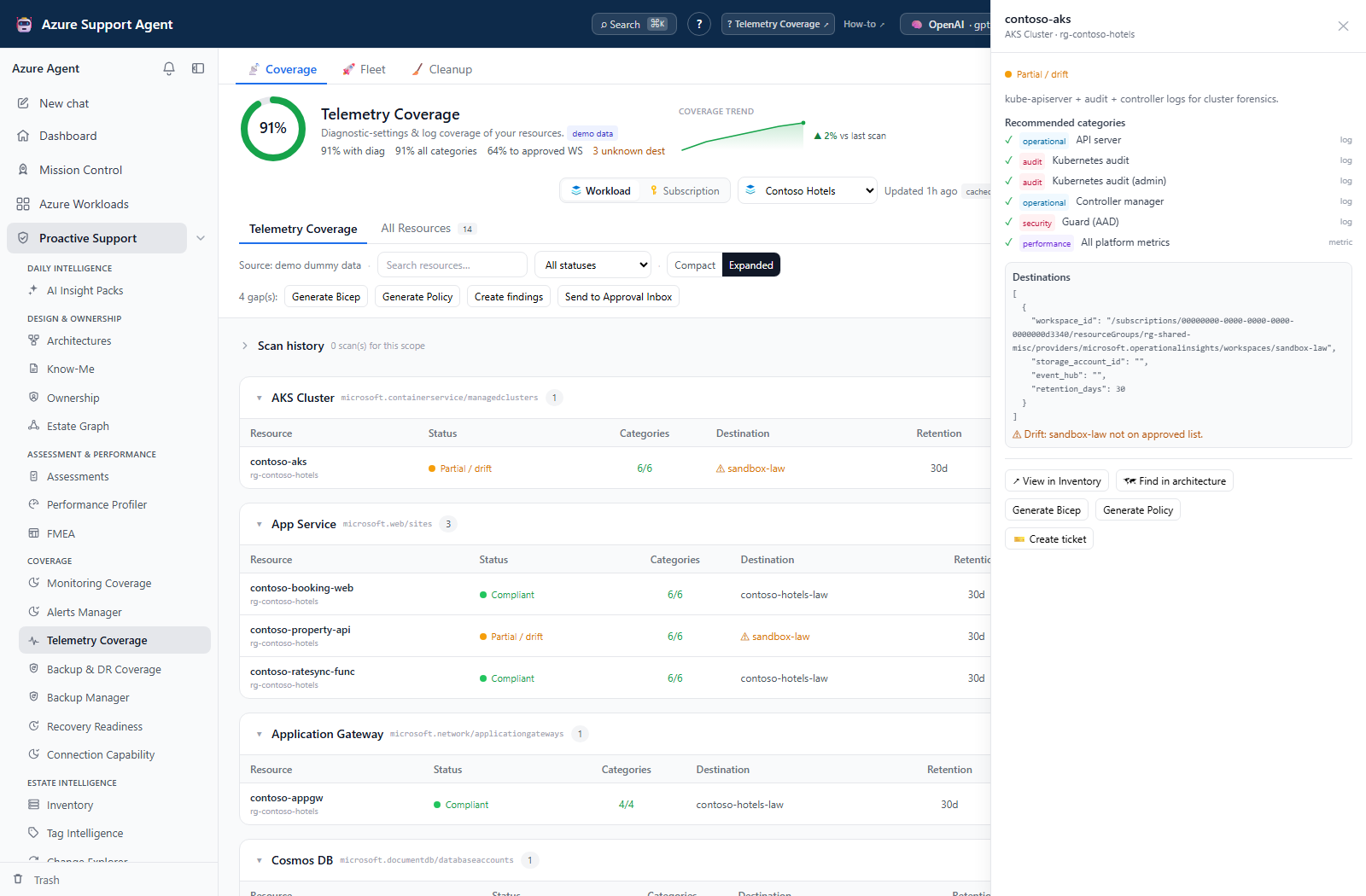
Screenshot context: The native application example uses isolated synthetic demo data, not live Azure evidence. Demo Azure writes are disabled. Check collection errors before reading None as absent settings; verify ingestion separately in a live workflow.
Prerequisites
- Product permission
coverage.readfor scans, artifacts, findings, tickets, evidence, and run cleanup;coverage.managefor reference/workspace changes and submitting/deciding/deleting change requests. - ARM Reader access to the scope and permission to read
Microsoft.Insights/diagnosticSettings. - For the service-principal CLI path, administrator-enabled command execution and an allowed/installed Azure CLI; supported non-service-principal reads use ARM REST.
- Approved workspace resource IDs when workspace-list drift should be evaluated; an empty approved list disables that comparison.
Route
Open /telemetry. Use Coverage, Fleet, or Cleanup. Coverage contains Telemetry Coverage and All Resources (/telemetry?tab=all). Workload scope follows its configured connection; subscription scope lets you pick a connection.
How to audit diagnostic settings
- Open Coverage and select the connection and workload or subscription.
- Use Load coverage for a newly selected scope, then check the saved time and age. The independently configured TTL defaults to six hours; a missing scan offers Run first scan.
- Review approved destinations in
/admin/telemetry; there is no destination picker in the coverage panel. The generator uses the first approved workspace unless an API caller supplies another. - Use Refresh now for current collection and watch scanned-resource progress. Initial Fleet reads do not scan; explicit Fleet batches and optional nightly collection are separate operations.
- Filter No diagnostics, Partial / drift, or Compliant. Inspect unreadable/error fields separately: unreadable is not a fourth selectable status, and failed collection may leave the previous snapshot visible.
- Open Details and compare the reference checklist, enabled categories, destination IDs, and observed diagnostic-setting retention. Verify category availability and workspace retention independently in Azure.
- Use View in Inventory for the resource grid or Find in architecture for the first stored diagram matching its ARM ID. These destination screens require their own permissions.
Expected result: Resources are classified against the active resource-type reference and destination rules.
Verification and safety: Confirm a new generated time and inspect exported error/scan_error and unreadable counts. The first 200 reference resources are probed by default (configurable 1–2,000, concurrency 12 within 1–24); later resources can appear as No diagnostics without a cap warning. Narrow the scope before acting on that result. Headline coverage measures all-category coverage, not workspace compliance.
How to generate and verify remediation
- Review a resource gap and the approved destination list. Empty lists produce a destination placeholder; UI generation otherwise uses the first approved ID.
- Use its drawer to generate Bicep or Policy for one gap. Header generation processes all gaps, not just filtered rows.
- Review resource references, categories, workspace ID, retention, data residency, ingestion cost, and target scope.
- For DeployIfNotExists, add an assignment identity and suitable RBAC before creating a remediation task.
- Validate and deploy outside this view through the approved pipeline.
- Refresh Telemetry Coverage and verify categories and destination.
- Confirm ingestion or table routing separately; destination existence alone does not prove data arrival.
Expected result: A Bicep or policy-assignment skeleton is produced; no diagnostic setting is changed by this view. Policy output still needs a real definition, identity, RBAC and a valid deployment wrapper.
Verification and safety: Use a new scan for observed configuration and a destination query for ingestion proof. Review drift-only Bicep carefully: output based on missing categories may not include existing logs. The classifier’s allLogs handling and the editor’s Recommended toggle do not establish that every metric/category was independently verified.
How to maintain approved workspaces
- With
coverage.manage, open Settings → Telemetry Reference Set (/admin/telemetry) and Approved workspaces. - Review the saved list. Enter one full workspace resource ID per line; an empty list turns off drift detection.
- If discovery is needed, select a connection and choose Load workspaces or Refresh workspaces. This makes a live query for up to 500 workspaces; opening the dialog alone does not.
- Cancel an unwanted discovery request, or copy reviewed IDs into the approved list. Discovery does not approve destinations automatically.
- Select Save, reopen the dialog to verify the list/order, and refresh the affected coverage scope.
Expected result: The stored list controls subsequent workspace-list comparisons and the default generation destination.
Verification and safety: The first approved ID becomes the UI generator’s destination. Verify tenancy, region, data classification and cost before saving. This list is separate from reference revision history; preserve the former list if rollback is required. Saving it changes neither existing diagnostic settings nor cached scan classifications.
How to curate and restore the telemetry reference
- Open
/admin/telemetrywithcoverage.manage. The built-in seed contains 116 category entries across 32 resource types; a customized reference can differ. - Select a type and add/edit/duplicate/remove categories, or add/remove a resource type. Set category key, log/metric kind, group, and guidance after verifying Azure support.
- Use Advanced: JSON → Apply to draft for structured edits if needed; Discard abandons unsaved changes.
- Select Save new version, then reopen the saved values and counts. Keys are capped at 80 characters, names at 120, and rationale at 600; malformed/duplicate keys are dropped.
- To recover a retained version, use History → Restore. Reset to built-in replaces the types map with the shipped seed as another version.
- Re-scan a small affected scope before adopting the change broadly.
Expected result: Save/reset/restore creates a new version; at most 50 revisions are retained.
Verification and safety: The current collector still evaluates categories whose Recommended checkbox is off; do not rely on that toggle as an exclusion. Reference restore does not restore the approved-workspace list or deploy Azure settings. Consult the classification limitations.
How to review a telemetry remediation request
- Review the full gap set and first approved workspace, then choose Send to Approval Inbox with
coverage.manage. The coverage UI submits Bicep; the API also accepts policy output. - Open
/admin/telemetrychanges, inspect scope/requester/count/format, and expand View. - Approve or Reject a pending request. Export/download the reviewed artifact from coverage and deploy only through the organization’s external process.
- Verify the resulting configuration and ingestion, then use Mark applied on the approved request.
- Preserve necessary review evidence before Delete; it removes the request without a trash/restore step.
Expected result: Review status and decision metadata are recorded; no reference or Azure settings are changed by approval.
Verification and safety: Mark applied is not an execution receipt. Requests retain at most 200 gap-detail records alongside the submitted count/text; retain full JSON for larger proposals. Rejection/deletion does not undo an external deployment.
How to compare fleet posture and retain evidence
- Open Fleet to compare latest saved workload snapshots by coverage, with-diagnostics count, all-category percentage, and unknown destinations (workspace drift).
- Select workloads and choose Scan selected (up to 500 requested IDs, three concurrent coverage items per feature). The server continues through navigation/reload; Cancel pending affects queued work and Retry failed includes partial/cancelled items.
- Open a workload and confirm a newer generated time. Export downloads full loaded JSON; PDF/Evidence Locker actions use the latest server-cached scope snapshot, not an older selected run or filtered view.
- Use workload Create findings for an Operations assessment run, or a drawer’s Jira/ServiceNow ticket action for an immediate external handoff. Neither is a coverage approval decision.
- Expand Run history for View/Delete and Trash restore/delete-forever/empty. If View does not change the displayed timestamp, do not assume the historical snapshot loaded.
- In Cleanup, review cross-scope selection and size before trash/restore/purge. Older-than-30/90-day, demo, empty, and retain-last-N presets (0–30, default 2) select records rather than scheduling retention.
Expected result: Explicit Fleet scans update cached results; retained artifacts identify their actual collection time. Saving retains up to 30 active history runs per scope and up to 90 trend points, coalescing identical scores within five minutes.
Verification and safety: Inspect batch terminal totals, match scope/time/count in the downloaded artifact, and preserve evidence before purge. History deletion does not clear the latest cache/trend. A cleanup preset can select records beyond the searched scope; inspect the total selection. Optional nightly cache warming is described in the shared operating model.
Safety and rollback
- Generated settings can increase ingestion and retention cost and can move sensitive operational data.
- Roll back through the IaC deployment that created or changed the setting; then re-scan and verify destination behavior.
- Category support differs by resource type. Do not deploy a stale custom reference blindly.
- Purge is permanent.
Troubleshooting
| Symptom | Likely cause | Resolution |
|---|---|---|
| No approved workspace | List is empty or live discovery has not run. | Load workspaces on the correct connection and explicitly save approved IDs with coverage.manage. |
| Many unreadable/None rows | Read failure, CLI execution gate, missing settings, or cap exhaustion. | Inspect errors and counts; verify read access/execution prerequisites and retry a smaller scope. |
| Category is missing everywhere | Reference/category name or sub-resource scope is wrong. | Verify API support and storage service sub-resources, then correct the reference if justified. |
| Policy remediation does nothing | Generated artifact is only a skeleton or external remediation is incomplete. | Supply the actual definition, assignment identity/RBAC and parameters; inspect the external remediation task. |
| Data does not arrive | Configuration classification does not test ingestion. | Query the intended destination and inspect routing/retention independently. |
| Approval returns 403 | coverage.manage is missing. | Have an authorized coverage manager review and submit the proposal. |