Monitoring Coverage
Product permission: coverage.read for scans, artifacts, findings, tickets, evidence, and run cleanup; coverage.manage for reference edits and submitting, deciding, or deleting change requests.
Purpose
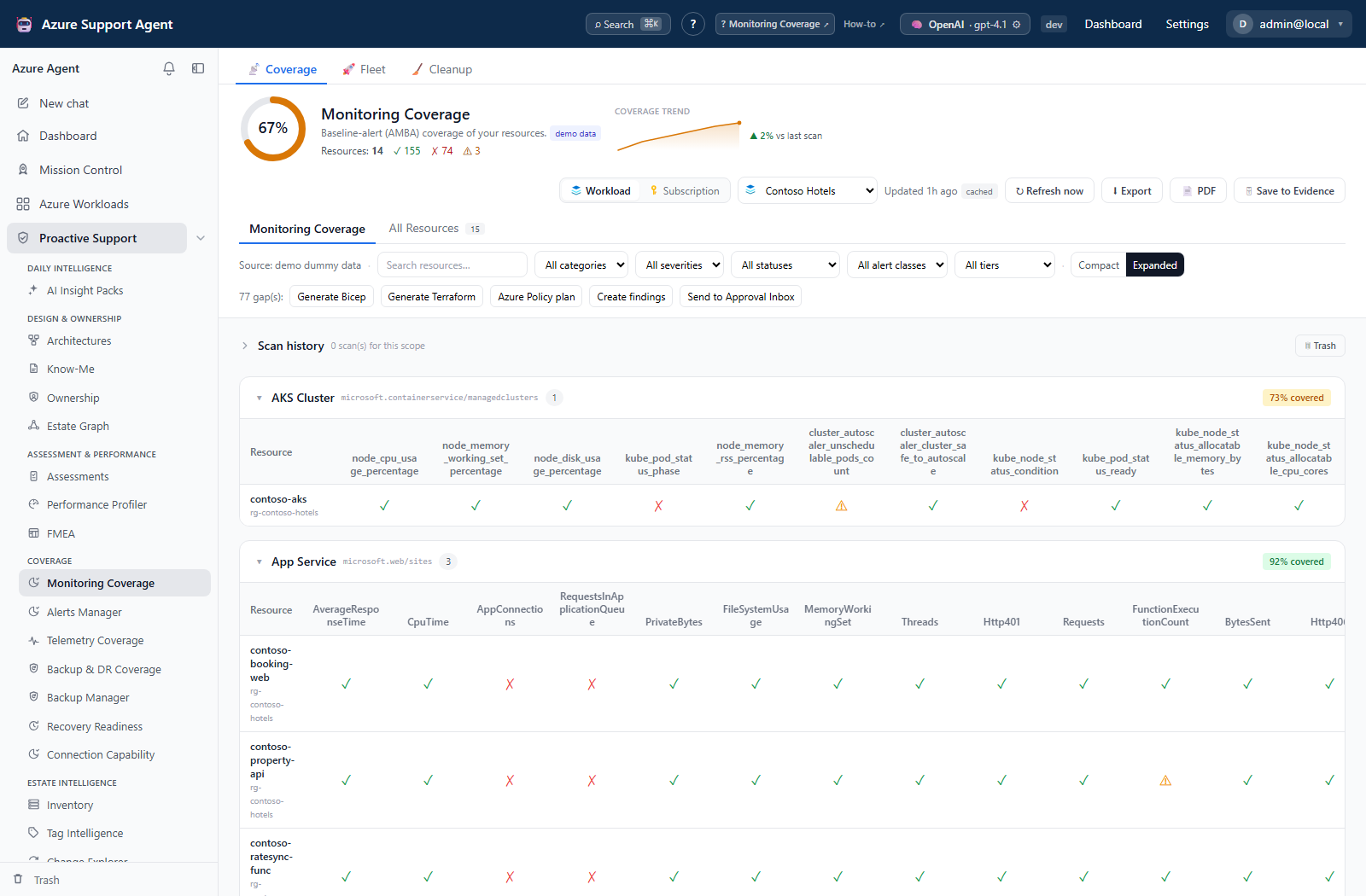
App route: /coverage Monitoring Coverage compares metric, log-search, and Activity Log alert rules discovered in Azure with the configured Azure Monitor Baseline Alerts (AMBA) reference. It classifies scored expectations as present, missing, misconfigured, or suppressed and preserves successful scans for trend and fleet views.
Screenshot context: These native application views use isolated synthetic demo data, not live Azure evidence. Demo Azure writes are disabled. Missing or unreadable observations must not be treated as proof that no alert exists.
Prerequisites and data sources
- An enabled Azure connection that can acquire an ARM token.
- Reader access to resources, metric alerts, scheduled-query rules, Activity Log alerts, action groups, and alert processing rules in the selected subscriptions. Collection uses Azure Resource Graph, not notification-delivery tests.
- A workload definition for workload-scoped analysis, or access to the selected subscription scope.
- A workload uses its configured connection; the connection picker is locked in workload mode. Subscription mode lets you choose the connection and browse subscriptions.
Use Connection Capability first if subscriptions or rules unexpectedly disappear.
Tabs and actions
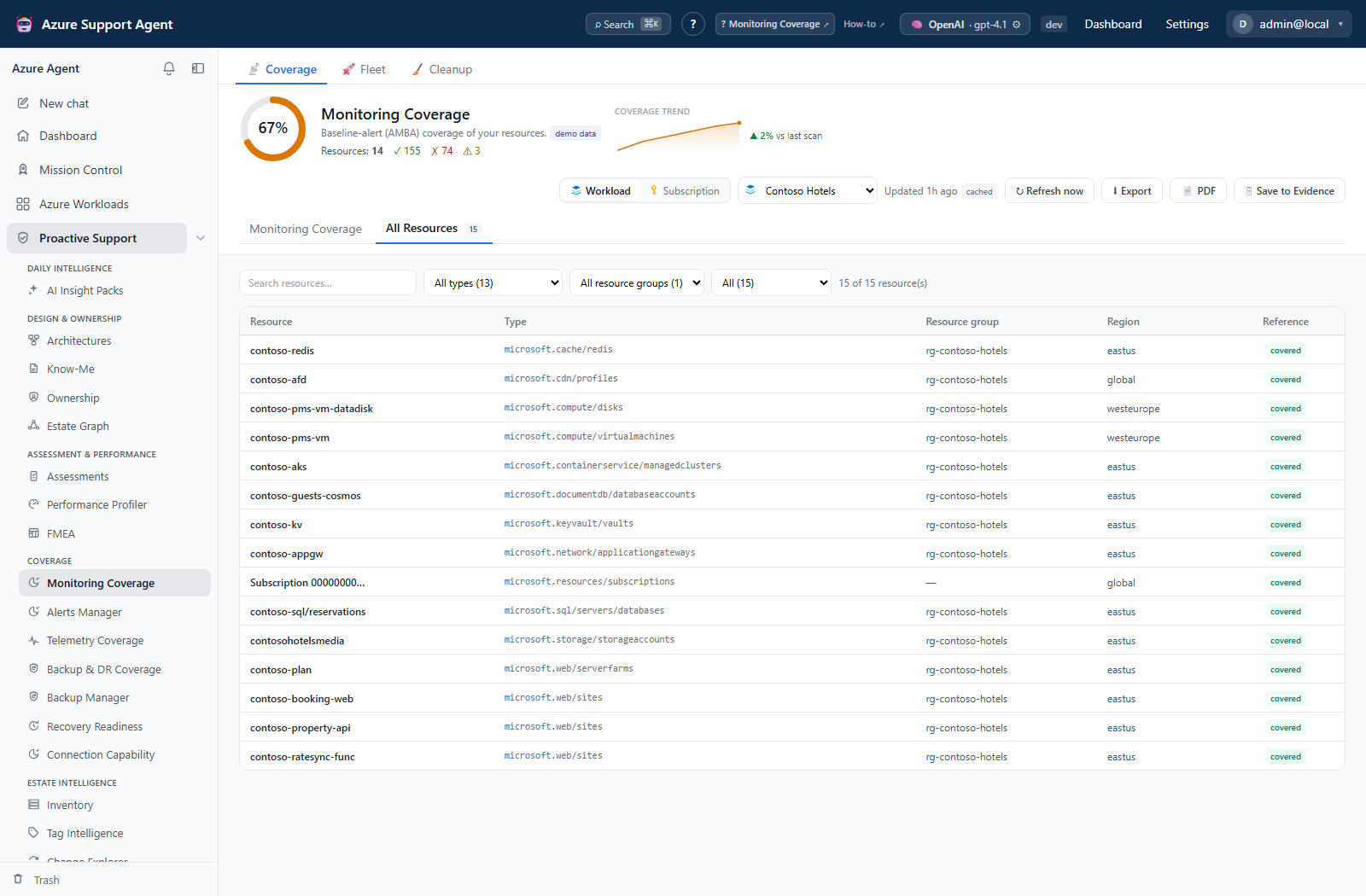
- Coverage contains Monitoring Coverage and All Resources. The latter filters by resource type, resource group, and reference membership; its covered label means the type is in the reference, not that every alert passed.
- Fleet compares the latest saved result for each workload without scanning on entry. Select workloads and use Scan selected, Cancel pending, or Retry failed for a server-owned batch; drill-down opens the workload with its connection.
- Cleanup manages saved runs through trash, restore, and permanent purge.
- Search, category, severity, status, alert class, and tier filters narrow the matrix without changing the underlying scan. Compact/expanded density controls resource-type groups.
- A resource detail view explains expected alert status and observed configuration.
- Bulk generation, finding registration, and approval submission use all gaps, not just filtered rows. Use a drawer’s generation or ticket action for one gap.
Freshness and scope behavior
For a newly selected scope, Load coverage reads the saved result; revisiting the last loaded scope can load it automatically. Ordinary coverage reads do not scan Azure. A missing cache produces Run first scan. The independent amba_cache_ttl_s default is 21,600 seconds (six hours); age and stale state do not erase the snapshot. Demo scopes can regenerate synthetic data and demo trends locally.
Refresh now starts explicit collection. Navigation does not cancel the browser’s background refresh, and server-side collection/cache writing is shielded from request cancellation. Successful refreshes record history and trend data. A failed refresh preserves a previous good snapshot with scan_error rather than recording a false new score; Monitoring Coverage displays that failure separately. Confirm the generated time, not just the end of a spinner.
Resource collection is paged up to 10,000 rows per scope predicate; the separate alert/routing query is capped at 10,000 rows. These are collection ceilings, not a guarantee of complete estate coverage.
Workflow overview
- Open
/coverageand select a connection and scope. - Check the snapshot timestamp and refresh when needed.
- Review the overall percentage, then filter by severity or status.
- Open missing and misconfigured rows. Confirm that the resource is in the intended baseline and that the observed rule targets the expected resource.
- Choose Generate Bicep, Generate Terraform, or the bulk Azure Policy plan.
- Download the artifact, add the intended action group and organization-specific naming, tags, scopes, thresholds, and deployment controls.
- Optionally create workload findings, create a connector-backed ticket, save the latest snapshot to Evidence Locker, download a PDF report, or—with
coverage.manage—send generated Bicep to the Approval Inbox. These are separate handoffs; approval does not itself prove Azure deployment. - Validate and deploy through the normal repository and pipeline review process.
- Refresh Monitoring Coverage and confirm that gaps moved to present.
Generated Bicep and Terraform support static/dynamic metric alerts, scheduled-query rules, and Activity Log alerts. The Azure Policy output is an AMBA-ALZ management-group rollout plan, not a ready-to-apply assignment. Generation is not deployment and does not manage Terraform state. Resolve action-group TODOs and review unmapped policy gaps (the plan lists at most 50).
Finding registration is available in the UI only for workload scope and creates an Operations-pillar assessment run. Create ticket immediately calls a configured, enabled Jira or ServiceNow connector; it does not wait for the coverage Approval Inbox.
Interpretation of results
- Present means the selected matching rule passed the implemented checks, including enabled state and required action-group wiring. This is not a notification-delivery test.
- Missing means no matching rule was observed for a baseline expectation.
- Misconfigured includes disabled rules, missing/unusable action groups, static/dynamic criterion mismatch, threshold drift, optional severity checks, or conditional suppression warnings. Window/frequency are displayed for review, but are not themselves compared by the current classifier.
- Suppressed means a matching alert is covered by an enabled, unconditional remove-action-groups rule. It earns no coverage credit; review suppression intent before generating another rule.
- Coverage percentage counts present expectations as 1 and missing/suppressed expectations as 0. Misconfigured expectations count as 0 by default, or 0.5 when
amba_misconfig_counts_as_gapis false. It is not the percentage of all Azure resources monitored. - No data/unreadable should be investigated as a collection problem, not treated as a clean result.
Threshold tolerance defaults to 10% of the absolute expected threshold. A configured AMBA threshold-override tag can replace that expectation per resource. MonitorDisable=true, yes, or 1 excludes resources when honoring the tag is enabled. Subscription-level health alerts appear on synthetic subscription rows. Reference changes can change a later scan without an Azure change.
Reference set and change requests
Settings → AMBA Reference Set (/admin/amba) starts from 702 entries across 81 resource types: the pinned AMBA 2026-06-03 catalog’s 675 entries/76 types plus 27 local entries, including five additional types. These are catalog counts, not a scan denominator. The upstream tiers contain 109 core, 452 recommended, and 114 optional entries; local additions are recommended. Default scoring uses core/recommended, excludes nondeployable and thresholdless static guidance, and can restrict patterns (alz, hpc, avd, rag, avs).
The editor supports adding types/alerts, catalog selection, duplication/removal, static/dynamic thresholds, log queries, Activity Log conditions, severity, tiers, patterns, dimensions, action-group requirements, and Advanced: JSON. Save new version, Reset to built-in, and History → Restore write a new reference version; the last 50 revisions are retained. Saves normalize/drop malformed entries; alert keys are limited to 64 characters, dimensions to 8 with 16 values each, and dynamic failing periods to 1–24. Reopen the saved version to verify it.
Settings → AMBA Change Requests (/admin/ambachanges) shows proposed remediation, not reference diffs. Use View IaC, Approve/Reject, then Mark applied after external deployment. These statuses record sign-off only; they do not execute or roll back Azure changes. Delete removes the request without a trash workflow. Requests retain at most 200 gap-detail records while the count and generated text represent the submitted set.
Exports and saved runs
Export downloads the full loaded JSON, not the filtered table. PDF and Save to Evidence instead fetch the latest server-cached snapshot for the scope, with no run-ID selection; they can differ from an older on-screen result. Verify the resulting artifact’s timestamp. Evidence capture writes an immutable snapshot; its later access is governed by Evidence Locker permissions.
Run history offers View/Delete and Trash restore/delete-forever/empty. Saving retains up to 30 active runs per scope; trash is retained until purged. Trends retain 90 points and merge identical scores within five minutes. Cleanup offers cross-scope selection, older-than-30/90-day, demo, empty, and retain-last-N presets (0–30; default 2). Presets select records; they are not retention schedules. Run deletion does not clear the separate latest cache or trend series. See the shared operating model for optional nightly cache refresh.
Safety and limitations
- The scan is read-only. IaC is generated as text and is never applied by this view.
- Review alert cost, frequency, dimensions, regional support, and action-group routing before deployment.
- The generated rule cannot infer the correct on-call destination.
- Resource Graph/API throttling, unsupported metrics, inaccessible subscriptions, or scan limits can produce partial results.
- Purging a saved run is irreversible; trash first when retention policy permits.
Troubleshooting
| Symptom | Likely cause | Resolution |
|---|---|---|
| Never scanned | No saved snapshot for the selected scope. | Confirm workload/connection and use Run first scan or Refresh now. |
| Result remains stale | Refresh failed or Azure throttled collection. | Read the scan-error banner, reduce concurrent scans, retry, and require a newer generated time. |
| Expected rule is missing | Target, metric/dimensions, query signature, or Activity Log condition did not match. | Compare the drawer with the actual rule and its resource/subscription scope; do not rely on its name alone. |
| Score fell after refresh | Changed reference, discovered resources, routing, suppression, or incomplete access. | Compare the reference version, exclusions and observed issues before treating the change as a deployment regression. |
| Approval returns 403 | Submission needs coverage.manage, even if the button is visible. | Ask an authorized coverage manager to review and submit. |
| Generated template is not deployable as-is | Action-group or policy details remain placeholders. | Resolve TODOs and unmapped gaps, then validate in the normal IaC toolchain. |