Operate Monitoring Coverage
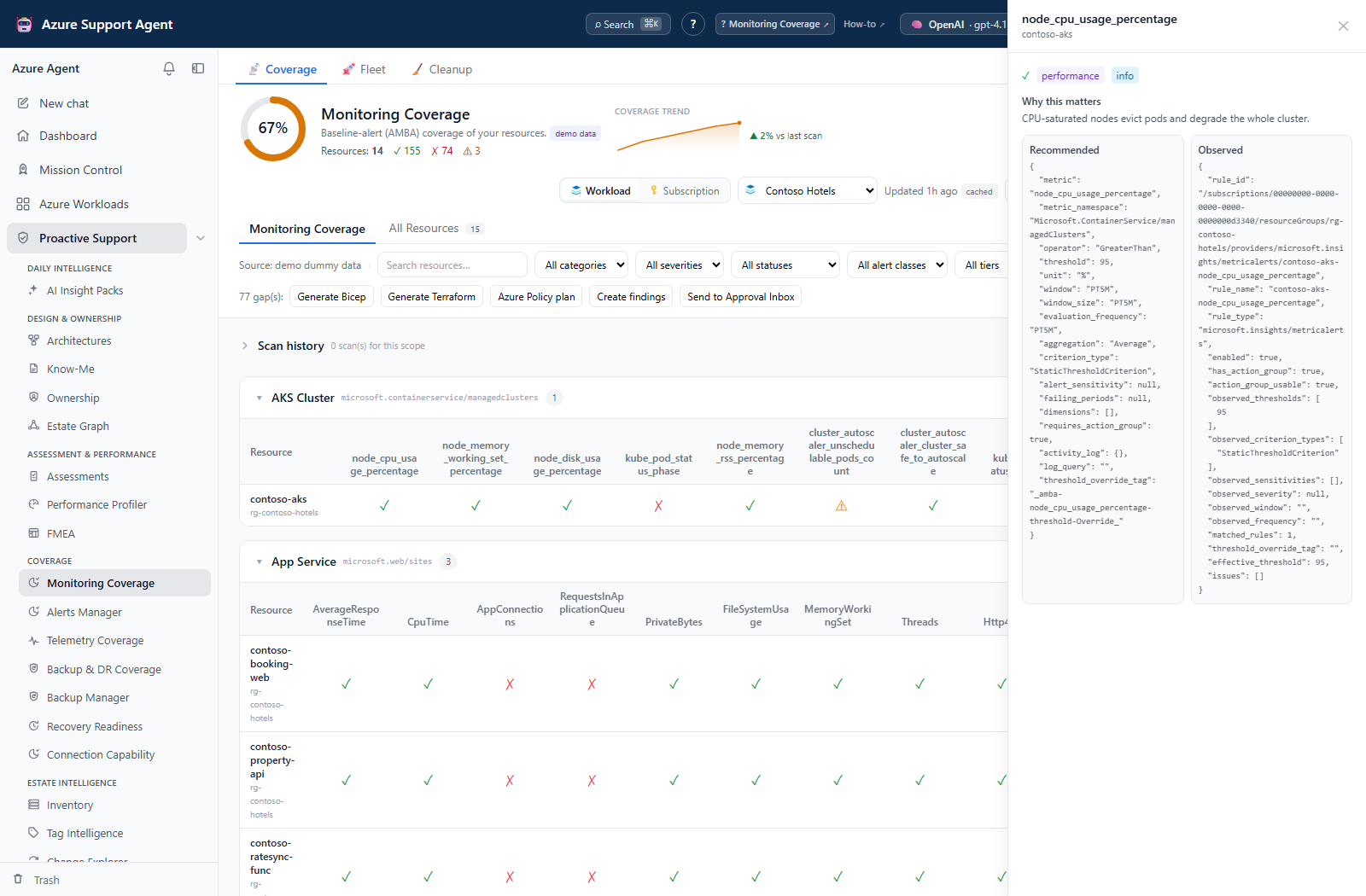
Screenshot context: The native application example uses isolated synthetic demo data, not live Azure evidence. Demo Azure writes are disabled. The live workflow below still requires independent configuration and notification checks.
Prerequisites
- Product permission
coverage.readfor scans, artifacts, findings, tickets, evidence, and run cleanup;coverage.managefor reference edits and submitting/deciding/deleting change requests. - An ARM-capable connection with Reader access to resources, metric/log/Activity Log rules, action groups and alert processing rules in the selected subscriptions.
- A workload definition for workload mode, or access to the selected subscription.
Route
Open /coverage. The top-level views are Coverage, Fleet, and Cleanup. Coverage contains Monitoring Coverage and All Resources; /coverage?tab=all opens the latter. A workload_id query parameter selects a workload; its configured connection is authoritative.
How to scan one scope and interpret its score
- Open Coverage and select the connection and workload or subscription.
- Use Load coverage for a newly selected scope, then check Updated, age, and stale state. Revisiting the last loaded scope can restore its saved result automatically; the coverage read does not collect Azure data.
- Select Refresh now when the result is absent, stale, or predates a deployment.
- Wait for collection to finish. Navigation does not cancel the background refresh, and collection/cache writing is shielded on the server. A failed scan preserves the previous snapshot and does not add a healthy run/trend point.
- Review overall coverage, then search resources or filter by status, severity, category, alert class, or tier. Use All Resources for type/resource-group/reference-membership filters.
- Open a row and compare the expected metric, aggregation, threshold, window, dimensions, target, and enabled state with the observed rule.
Expected result: Scorable static/dynamic metric, log-search, and Activity Log expectations in enabled tiers/patterns are classified present, missing, misconfigured, or suppressed. Nondeployable/thresholdless static guidance is not scored. The built-in reference has 702 entries/81 types, but that is not the per-scope denominator.
Verification and safety: Require a new generated timestamp and inspect scan errors, routing/suppression, exclusions, and the evaluated recommendation count. Default tolerance is 10%; default tiers are core/recommended. All Resources covered means reference membership, not a passing alert. Review window/frequency and notification delivery independently; they are not fully verified by a Present cell.
How to generate remediation IaC
- Filter to Missing or Misconfigured.
- Open each gap and confirm that the baseline applies to the resource.
- Use the drawer’s Generate Bicep or Generate Terraform for one gap. Header actions generate for all gaps, even while filters hide some. Azure Policy plan creates a bulk AMBA-ALZ management-group rollout plan.
- Download the artifact and replace reviewed placeholders, especially Action Group and scope references.
- Validate naming, metric support, dimensions, aggregation, threshold, frequency, window, cost, and routing in the normal repository pipeline.
- Deploy outside Monitoring Coverage through the organization’s approved IaC process.
- Return to
/coverage, refresh the same scope, and confirm that the expectation becomes present.
Expected result: A reviewable artifact is downloaded; this page does not change Azure.
Verification and safety: Validate the artifact in its native toolchain, resolve policy unmappedGaps/action-group TODOs, and use a fresh scan plus routing checks rather than the download as proof of deployment. Suppressed alerts may need an intentional suppression reviewed, not a duplicate rule.
How to operate fleet coverage
- Open Fleet. It reads only the latest saved workload results and does not scan Azure on page load.
- Search workload name/environment/criticality, or sort by coverage, missing/misconfigured counts, scan time or name; inspect stale and failed indicators separately.
- Select workloads, or select all visible rows.
- Choose Scan selected (up to 500 requested workloads); the server admits at most three coverage items for this feature concurrently.
- Leave or reload if needed; the server owns the queue. Cancel pending cancels queued work, not results already collected or necessarily running scans.
- When the batch finishes, use Retry failed for failed/partial/cancelled items, then open a workload to inspect its cached detailed report.
Expected result: Fleet rows update with recommendation, present, missing, misconfigured, age, environment, and connection data.
Verification and safety: Check batch succeeded/partial/failed/cancelled totals and each result’s timestamp. A terminal batch is not necessarily successful; drill-down must retain the workload’s connection.
How to curate or roll back the AMBA reference
- With
coverage.manage, open Settings → AMBA Reference Set at/admin/ambaand note the current version and counts. - Select a resource type. Add an alert from the catalog or a blank entry, duplicate/edit one, or remove a type/alert only after confirming the intended baseline.
- Set the alert class, metric/query/Activity Log conditions, static/dynamic threshold, severity, tier, pattern and action-group requirement. A local threshold-override tag changes expectations only for resources carrying that tag.
- If using Advanced: JSON, apply it to the draft, then review. Discard abandons unsaved changes; Save new version persists the complete type map.
- Reopen the saved reference to verify normalization. Keys are limited to 64 characters; dimensions to 8 with 16 values each; dynamic failing periods to 1–24.
- To undo a saved reference change, open History → Restore on a retained revision. Use Reset to built-in only when replacing the current reference with the shipped seed is intended.
- Refresh an affected workload and compare the new score with the former baseline.
Expected result: Save, restore, and reset produce new reference versions; up to 50 revisions are retained.
Verification and safety: Reference rollback changes future classifications, not Azure alert rules or historical scans. Review counts and actual saved fields; the backend drops malformed or duplicate entries. Do not remove requirements solely to raise the score.
How to review a coverage change request
- After reviewing the full gap set, use Send to Approval Inbox with
coverage.manage; the coverage UI proposes Bicep. - Open
/admin/ambachangesand check scope, requester, gap count, format and View IaC. - Choose Approve or Reject on a pending request. Approval records sign-off only.
- Deploy approved material through the external reviewed pipeline, then refresh and verify the intended Azure state.
- Only after that verification, choose Mark applied on the approved request. Preserve necessary evidence before Delete, which has no request-trash workflow.
Expected result: A pending request becomes approved/rejected, with applied available in the UI after approval. No step here executes Azure remediation.
Verification and safety: A request stores at most 200 gap-detail records even when its count/text covers more. Keep the full JSON/artifact for large proposals. Mark applied is a human assertion, not a deployment receipt; deleting or rejecting a request cannot undo external changes.
How to preserve or clean up a run
- Check scope and timestamp. Export downloads full loaded JSON; PDF and Save to Evidence fetch the latest server-cached scope snapshot, not a selected history run or filtered view.
- For workload gaps, Create findings creates an Operations assessment run. For one gap, choose a Jira/ServiceNow connector in its drawer to create a ticket immediately; coverage approval is not involved.
- In Run history, inspect a saved run with View and confirm that its displayed time actually changes. Use Delete to move it to Trash; Restore recovers it.
- Open Cleanup for cross-scope selection. Review the selection/count after older-than-30/90-day, demo, empty, or retain-last-N presets (0–30; default 2); a preset can select beyond the searched scope.
- Trash obsolete runs first. Use Purge permanently, Delete forever, or Empty Trash only after retention requirements are satisfied.
Expected result: Downloads/evidence identify the snapshot they actually used; trashed runs remain recoverable until purged. Saving retains up to 30 active runs per scope; trends retain 90 points and coalesce identical scores within five minutes.
Verification and safety: Open the downloaded artifact/evidence or restored run and compare scope and time. Deleting history does not erase the separate latest cache/trend, and trash does not physically reclaim its snapshot. See the shared operating model before assuming no background collection is configured.
Safety and rollback
- Scanning and IaC generation are read-only. Roll back a deployed artifact through the same reviewed IaC system that applied it.
- Coverage is weighted expectations, not the percentage of resources monitored: misconfigured expectations receive no credit by default, or half credit when
amba_misconfig_counts_as_gapis false; suppressed expectations receive none. - Review alert cost and routing before deployment. The generator cannot infer the correct on-call destination.
- Purge is irreversible.
Troubleshooting
| Symptom | Likely cause | Resolution |
|---|---|---|
| Never scanned | No cached result for this scope. | Select a valid scope and use Run first scan/Refresh now. |
| Rule is unexpectedly missing | Matching failed on resource scope, signal, or conditions. | Compare metric/dimensions, log-query signature or Activity Log conditions in the drawer with Azure. |
| Score falls after refresh | Reference, inventory, suppression or access changed. | Check the reference version, exclusions and observed issues before deploying fixes. |
| Fleet row stays stale after a batch | Its scan failed or was cancelled; an old result is still visible. | Inspect batch totals/errors and retry the affected workload; require a newer timestamp. |
| Artifact fails validation | Placeholders or service-specific parameters are unresolved. | Review metric support, aggregation, dimensions, region, action groups and policy mappings in the normal pipeline. |
| Approval submission returns 403 | coverage.read does not include submission. | Have a user with coverage.manage review and submit. |