Operate AI Insight Packs
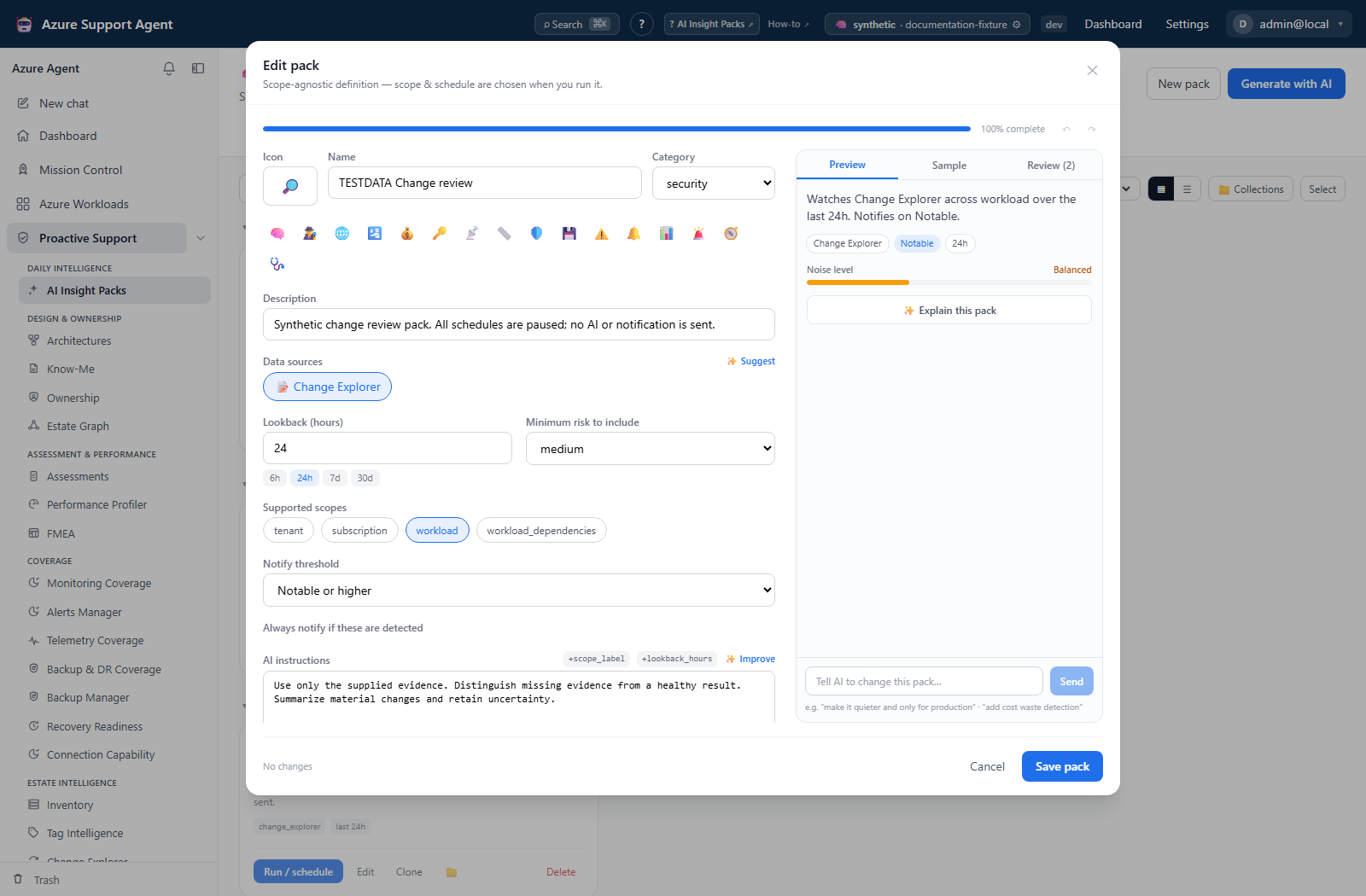
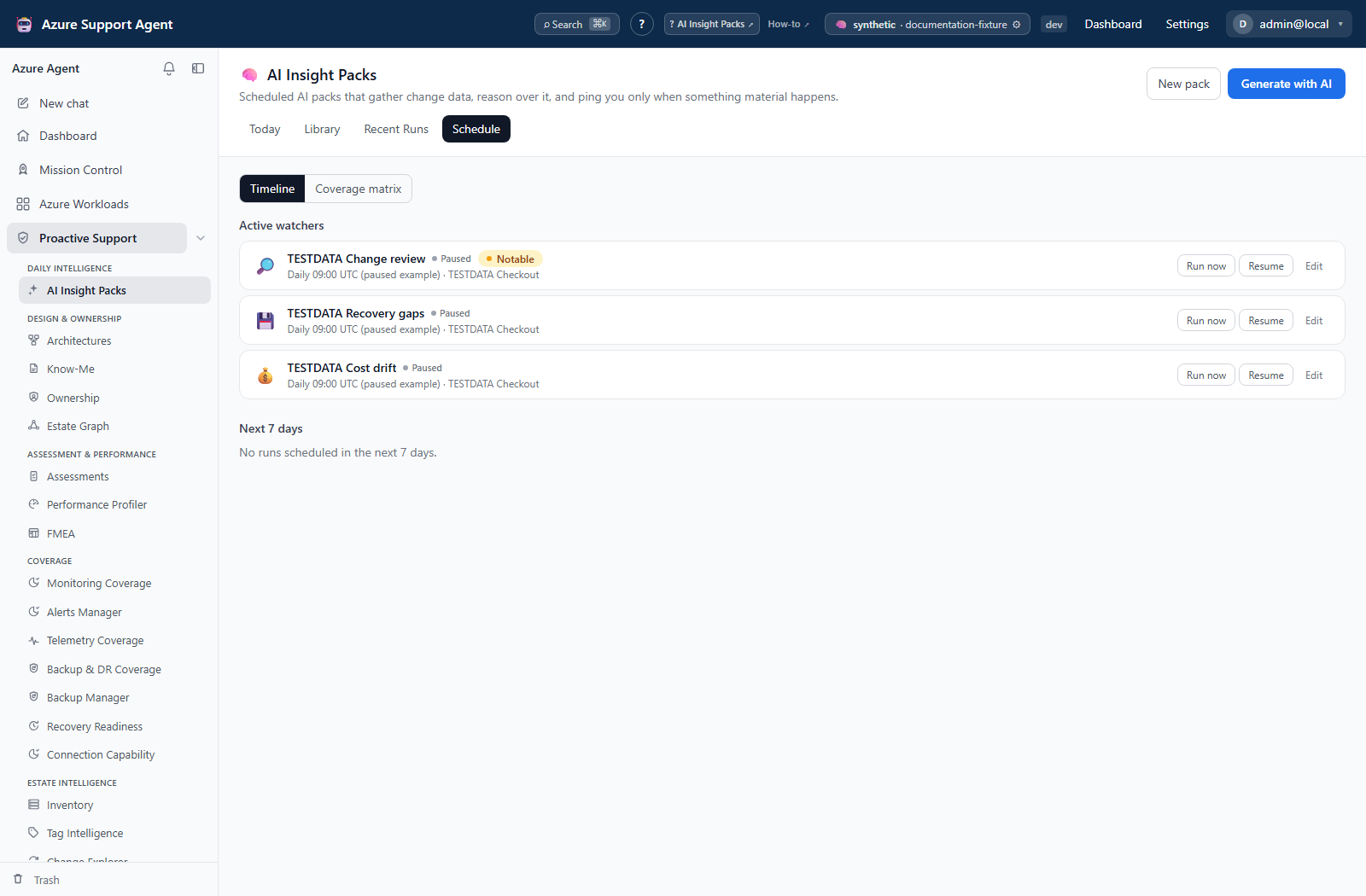
Screenshot note: These are synthetic definitions and schedule records in the current native UI. Saved records and previews are browser-only examples, not real AI results. No generation, sample run, source collection, probe, scheduler execution, or notification occurred.
Prerequisites
insights.read;insights.writefor definitions/state;insights.runfor execution.- Accessible source modules and a supported workload, subscription, or tenant scope.
- An active AI provider for interview/generation/refinement and scheduler/connectors for recurring external delivery.
Route
Open /insights; sections include Today, Library, Recent Runs, and Schedule.
How to create and test a pack
- Open Library and start from a template or select Generate with AI.
- In the Goal → interview → Generate flow, define audience, operational question, sources, scope, lookback, materiality, and output.
- Review the generated definition; do not accept invented thresholds or escalation logic.
- Use Preview/Sample/Review as offered. A sample is illustrative; select a workload for a real read-only preview.
- Save only after validation issues are resolved.
- Run once on demand with notification disabled.
- Confirm routine evidence yields Nothing notable and material evidence yields Notable or Urgent.
Expected result: A reusable, validated pack exists and produces a persisted digest from accessible sources.
Verification: Open the run and compare source counts/rows, scope, lookback, verdict, and materiality-gate explanation.
How to run, triage, and acknowledge digests
- In Today, review urgent, notable, and quiet counts per scope.
- Open unread material cards; opening marks the digest read.
- Inspect evidence bundles and flags before accepting the narrative.
- Acknowledge when triage ownership is established; mark false positive when the verdict is demonstrably wrong.
- Use Recent Runs to filter by verdict, pack, notification, and day; mark all read only after review.
- Use Re-run now when current evidence is required. Closing the dialog does not cancel the background run.
- Create a case or open linked Change Explorer/Radar context where the digest offers those actions.
Expected result: Material digests have explicit read/acknowledged/false-positive state and an appropriate handoff.
Verification: Reopen the digest and confirm state, actor/time, scope, and linked record.
How to schedule and tune a watcher
- Open Run / Schedule or the Schedule tab.
- Select workload/scope, cadence, time, time zone, notification behavior, and lookback.
- Verify the next-run preview, then enable the schedule.
- Review Timeline and Coverage Matrix for watcher gaps and next-seven-day occurrences.
- Pause/resume the schedule or use Edit to open Scheduled Tasks for cadence changes.
- Snooze a noisy pack to suppress notifications temporarily; note that snoozed packs still run and retain records.
- Review health/noise and false-positive rates; narrow sources or raise materiality, then test again.
- When retiring a watcher, disable/remove its schedule as well as disabling the pack.
Expected result: The intended scope runs at the displayed local/UTC cadence and only material results request notification.
Verification: Confirm next-run time, scheduler history, resulting digest, and connector delivery log.
How to export a digest
- Open a persisted run.
- Confirm scope, lookback, source rows, and verdict.
- Select Export PDF and review the downloaded report before sharing.
Expected result: A portable snapshot of that run is downloaded.
Verification: Compare report title, scope, timestamp, verdict, and findings with the in-app run.
Safety and rollback
- Packs observe source data and do not directly change Azure.
- AI text and thresholds require human review; Nothing notable does not prove health.
- Snooze suppresses notification, not execution.
- External delivery may expose operational metadata; minimize sensitive text.
- Disable a bad schedule immediately, correct the pack, and test on demand before re-enabling.
Troubleshooting
| Symptom | Resolution |
|---|---|
| Run has no evidence | Check scope, adapters, source scans, connection, and lookback. |
| Too noisy | Narrow sources/filters, raise materiality, test, or snooze while tuning. |
| Schedule did not run | Check pack and schedule enabled state, time zone, next run, and scheduler history. |
| No notification | Verify verdict gate, notify setting, and connector delivery health. |
| AI degraded | Use deterministic rows/counts; check provider before regenerating the definition. |