Inventory
App routes: /inventory and /inventory/:tab
Product permissions: inventory.read authorizes every Inventory endpoint, including cost collection and snapshot creation/deletion. cost.read is the separate capability for actual-cost queries in chat, not an extra gate on the Inventory Cost tab. The drawer’s Access view requires iam.read; owner resolution requires ownership.read, and owner tag write-back requires ownership.write. Administrators also pass these guards.
Purpose
Inventory creates a normalized Resource Graph view for the selected Azure tenant connection. It enriches resources with workload attribution, tags, hygiene flags, optional cost, and point-in-time snapshots. The backend contracts support narrower scope keys, but the current Inventory connection picker selects a tenant connection and sends the default whole-connection scope.
Prerequisites and data sources
- An ARM/Resource Graph-capable connection with Reader access across the intended scope.
- Product access to Inventory.
- Workload definitions when using workload attribution/filtering.
- Cost Management Reader at the relevant billing/subscription scope for cost data; Inventory still works without cost.
Tabs and actions
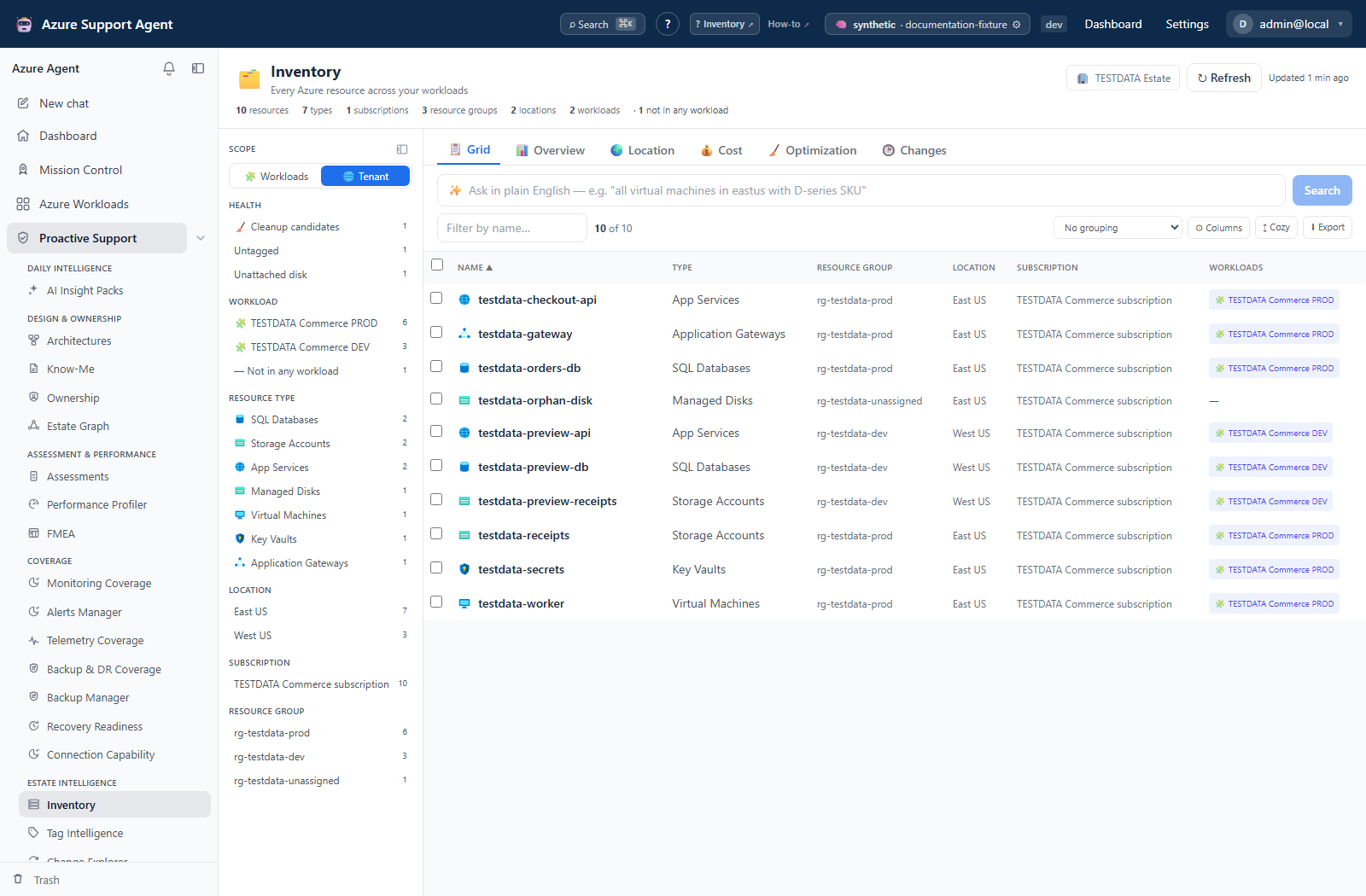
- Grid: searchable resource table with cascading facets, density and column controls, grouping, natural-language search, row details, and CSV export.
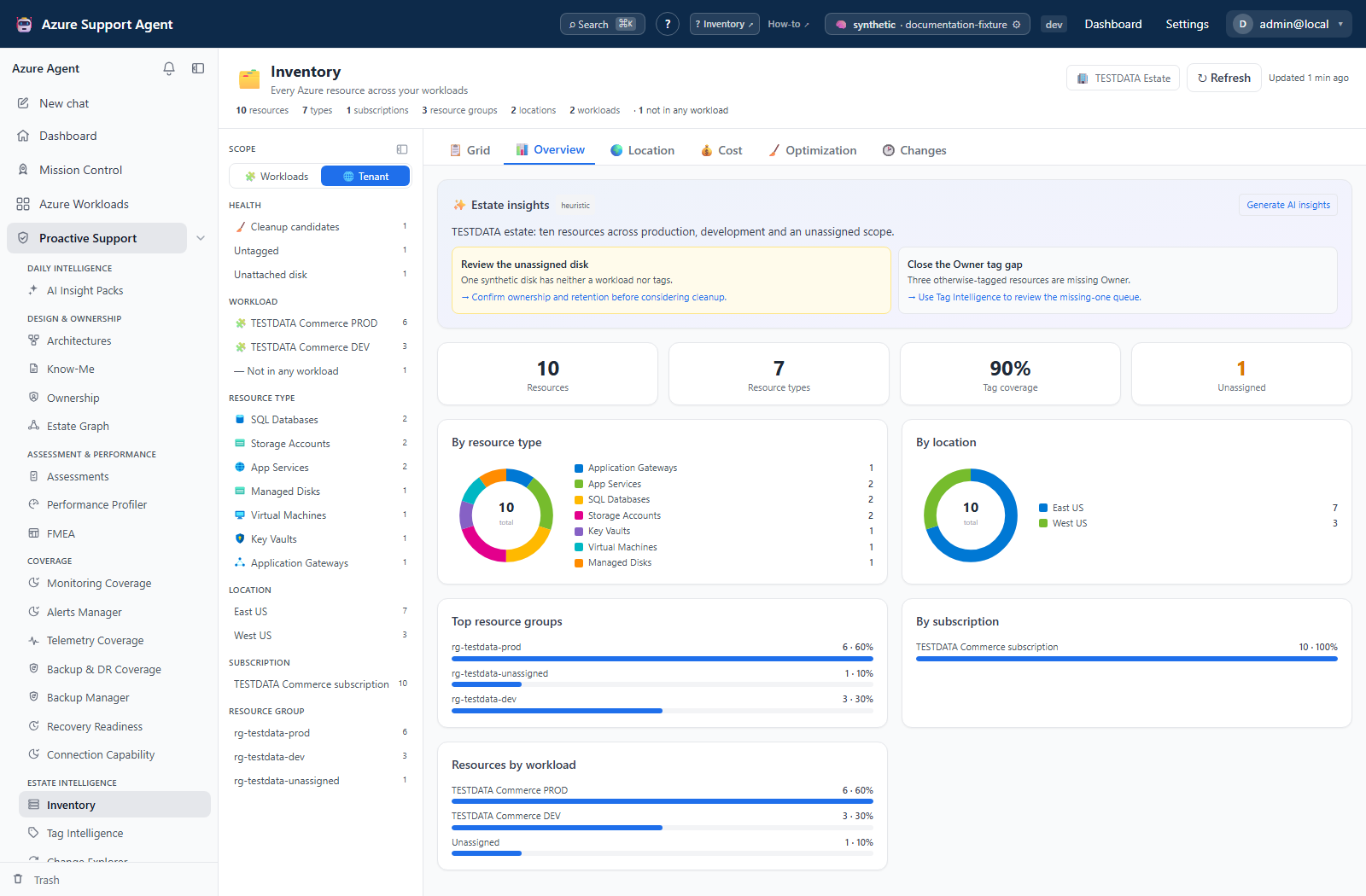
- Overview: estate KPIs, resource/type/workload summaries, deterministic estate insights, and opt-in Generate AI insights with cancellation. This is a whole-cache overview, not a summary of the Grid’s current filters.
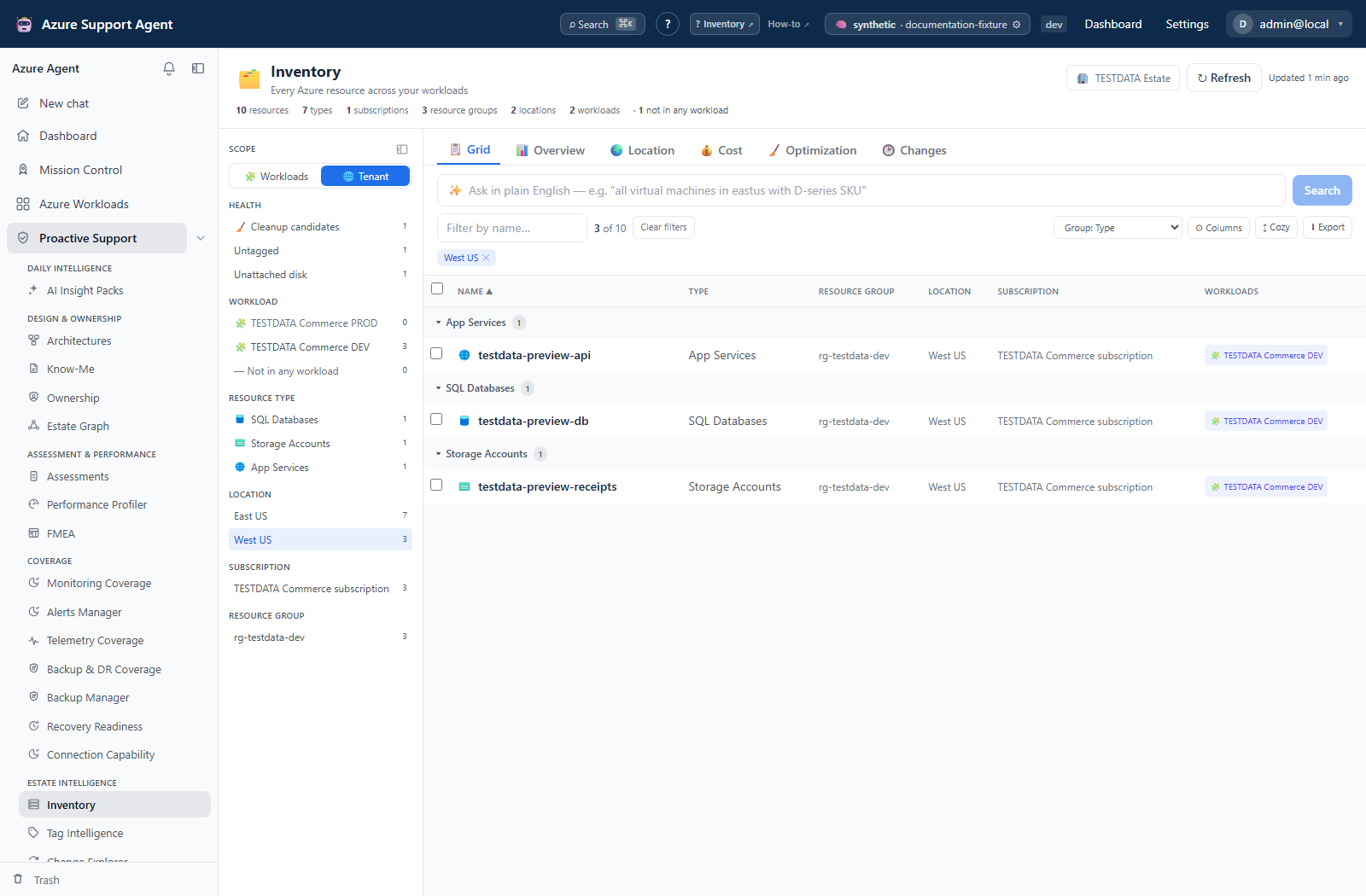
- Location: interactive geographic distribution; select a region to focus the estate.
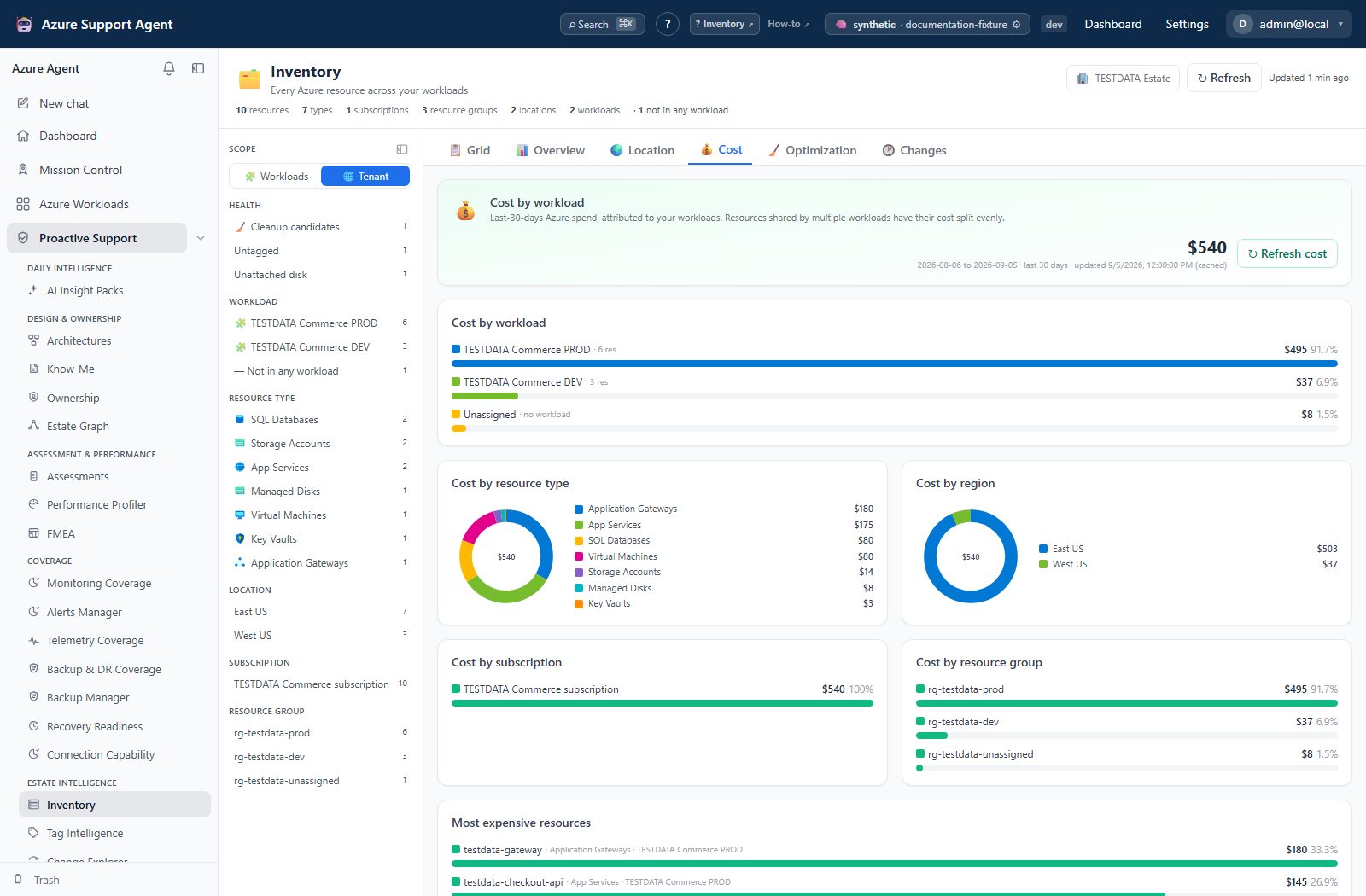
- Cost: trailing-30-day actual cost by resource, workload, type, region, subscription, and resource group, with a detached refresh job and per-subscription progress.
- Optimization: cached analysis of unattached disks, orphaned NICs, idle public IPs, and associated cost opportunities.
- Changes: Take snapshot, snapshot history/deletion, and current cached inventory compared with the latest snapshot. The UI does not offer a two-snapshot selector. This is snapshot drift, not the Azure Activity Log; use Change Explorer for actor/time forensics.
Grid and Cost use the current client-side filters. Location keeps all regions matching the other filters on the map; selected regions narrow Grid/Cost. Its Region / Group / Type / Sub breakdowns and Workloads here chips change those filters. The animated arcs connect regions to the busiest region for illustration; they are not measured network paths or traffic. Overview, Optimization, and Changes do not inherit Grid facets as collection scope.
Resource drawer and handoffs
| Drawer view | What it actually reads or does |
|---|---|
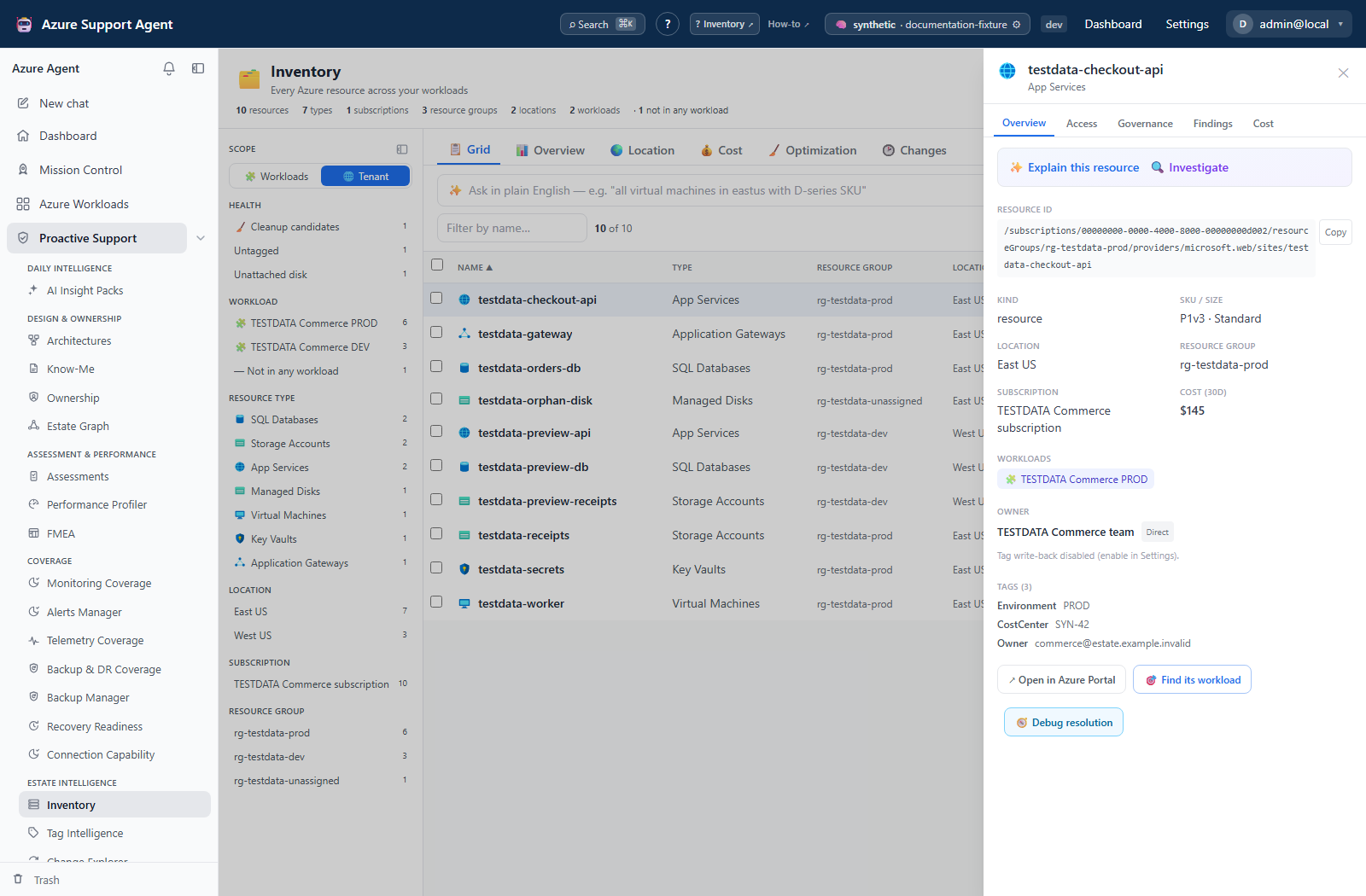
| Overview | Cached properties/tags and resolved owner; Explain this resource invokes AI. Investigate prefills Chat, and Find its workload opens seed-mode Autopilot for separate review/save. Check the connection again in that modal. |
| Access | Cached IAM principal/grant paths and non-RBAC access checks. Access is unknown, not empty means no usable scan; zero bypass checks means the resource type was not assessed. Open Effective Access carries the resource scope into IAM. |
| Governance | Effective policy assignments computed from a separately collected policy inventory, cached for five minutes. This is not a live compliance verdict; collection gaps or management-group ancestry not represented by the scope match can omit assignments. |
| Findings | Matching flagged-resource entries from the latest run per workload among the most recent 200 non-trashed assessment runs. An empty drawer is not proof that the resource has been assessed or has no issues. |
| Cost | The shared resource-cost overlay; Load cost launches the connection’s cost refresh, not a query limited to that single resource. |
Eligible private-endpoint/PaaS resources also offer Debug resolution. It opens a separate diagnostic workflow with the resource name prefilled, not necessarily a valid FQDN; select the correct target and sandbox source before running it. These handoffs retain their own permissions and safety requirements.
Freshness and scope behavior
The main inventory cache is persistent per tenant, connection, and scope and has no automatic TTL. A normal page visit is cache-only; an empty state indicates that the scope has never been loaded. Refresh forces Resource Graph collection and replaces the saved estate for that key.
The frontend can retain query results while navigating, and cost is cached separately. Refreshing inventory does not refresh cost. Updated becomes red after six hours; that is a warning, not an expiry. Optimization reads server-cached inventory and cost through its own query, rather than launching a new Azure scan or directly consuming the Grid’s browser cost overlay.
Collection discovers at most 500 subscriptions and pages each subscription’s resource query up to 10,000 rows. Resource groups are collected separately and included as taggable inventory rows. The header’s wording about subscriptions being truncated at 1,000 is older than the current collector; use the actual collected scope and counts. The response is capped at 100,000 resource rows, while facets/summary describe the full collected cache. Collection errors can leave a partial cache; absence of a truncation badge alone does not prove all subscriptions were read.
Cost refresh lifecycle
Selecting Load cost or Refresh cost sends POST /inventory/cost/refresh. The API returns 202 Accepted with a server-owned, database-backed work batch. A start first looks for an active batch with the same tenant, connection, and exact scope configuration. Status lookup searches the newest 100 cost batches for that configuration. Inventory polls GET /inventory/cost/refresh/status every second while the job is queued or running, and also refetches on window focus.
After the start request has been accepted, switching tabs or routes, unmounting Inventory, closing the page, or making a hard navigation does not cancel the server task. While it is active, the progress card explicitly says Safe to navigate away — this refresh is owned by the server and continues in the background. Unmounting stops that component’s polling. A hard navigation before the POST has reached the server and returned acceptance is not guaranteed to start or confirm a job. Returning to the Cost tab asks for the newest retained job for the same tenant, connection, and scope and resumes polling if it is still active.
The card shows subscription completion totals and queued/running/succeeded/partial/failed state. The current adapter does not supply all the collector’s detailed retry/row-count events, so the recent-updates list or retry delay may be absent. Its elapsed value is derived from item duration, not guaranteed batch wall time. Use per-subscription outcomes rather than the percentage alone.
The cost collector queries at most 25 subscriptions per pass, with concurrency four. Its per-subscription snapshot query makes up to four attempts on throttling; this is not a universal retry policy for all cost APIs or durable work. Important limitation: the batch registers all discovered subscriptions, but its adapter currently reports zero omitted subscriptions and can mark unqueried items successful. An available result without reported query errors can be cached even when the 25-subscription cap excluded subscriptions. A green completion card is therefore not proof of whole-connection coverage. Use a scope of at most 25 subscriptions and reconcile returned subscription totals; the current Inventory UI offers only a connection picker, not a narrower collection-scope picker.
Job/item state is stored in the application database, not in a one-hour in-memory ledger. Interrupted leased work is requeued by the durable worker. Batch management supports canceling pending work, retrying failed/partial/cancelled items, and deleting terminal batch records; these controls are not on the Inventory Cost card. Removing batch telemetry is separate from removing cached cost data.
The terminal InventoryCost result for a succeeded or partial job is placed in the shared browser inventoryCost cache for Grid, Cost, and the resource drawer. The separate server-side JSON cost cache has no TTL and is keyed by tenant, connection, and normalized scope. Results with reported subscription errors or unavailable resource cost do not replace it; the cap limitation above still applies. A cached-only cost read never launches Cost Management queries.
The snapshot cost query reads one response’s rows and does not follow Cost Management nextLink; busy subscriptions may therefore be incomplete without a truncation warning. It also displays a single currency without currency conversion or a mixed-currency reconciliation guard. Verify billing scope, currency and totals independently before chargeback. The separate cost-rollup API can collect Inventory on a cache miss even when its cost lookup is cache-only.
Workflow overview
Find and export resources
- Open
/inventoryand select the correct connection/scope. - Refresh if the snapshot predates the decision or is absent.
- On Grid, combine name/ID search with workload, type, location, subscription, resource group and hygiene facets.
- Use natural language for tag/SKU conditions or other supported queries. Review the generated structured filter/query and its matched set; AI interpretation can be imperfect.
- Group or choose columns for analysis.
- Open a row to inspect governance, findings, cost, and workload attribution available for that resource.
- Export CSV. Export includes all filtered/sorted rows, not just rows rendered in the virtualized viewport. Export selection includes selected rows that still match the filters. Columns are a fixed export schema, independent of the display column chooser; full tag dictionaries are not exported. Record filters, connection and timestamp with the evidence.
Common facets and text search are reflected in the URL; tag/SKU/KQL state and the connection are not a complete portable view definition. Grouping, density and column choices are browser preferences, not saved server snapshots.
Capture and compare snapshots
- In Changes, select Take snapshot to collect fresh inventory and save a baseline.
- After the change window, refresh Inventory for the same connection.
- Reopen Changes and inspect the current cache against the latest snapshot before taking another snapshot.
- Capture a new baseline only after preserving the comparison you need. Taking it makes the latest snapshot match the newly collected state, so the displayed drift can return to zero.
Snapshots are server-side JSON application records, not browser localStorage. The store retains at most 60 snapshots overall, with up to 20,000 resource fingerprints per snapshot. Changed-field detection compares only SKU, resource group, and type; it does not compare tags, location or VM size. Each added/removed/changed list returns at most 500 details, with counts calculated before that list cap. The API accepts an explicit baseline_id, but the current UI uses the latest baseline. Snapshots can be deleted and are not immutable audit evidence or actor attribution.
Review optimization candidates
- Open Optimization after a recent inventory refresh.
- Validate the hygiene signal and dependency/ownership context.
- Check activity, locks, backups, and actual cost in Azure.
- Route the candidate through the normal change process. Inventory does not delete or resize resources.
Interpretation of results
- Untagged means no tags were observed.
- Unattached disk, orphaned NIC, and idle public IP are heuristic cleanup flags, not deletion authorization.
- Missing cost usually means unavailable permissions, unmapped charge data, or a cache that has not been loaded—not zero spend.
- Workload attribution follows local workload definitions and can overlap or be absent.
- Snapshot changes show differences in observed normalized state, not every intermediate Azure event.
Exports, history, scheduling, and integrations
- Grid exports the current filtered/sorted rows or selected rows as browser-generated CSV.
- Changes stores server-side inventory baselines and allows their deletion; it is not Azure Activity Log history.
- Cost progress is backed by durable batch/item records, separate from the permanent cost cache.
- Inventory has no scheduling control. Cost and inventory refreshes are explicit user actions.
Safety and limitations
- Resource collection, cost collection, natural-language filtering, exports, optimization analysis, and snapshots do not mutate Azure.
- The resource drawer’s Write owner tag to Azure confirms in the browser and calls the
ownership.writeendpoint. It mergesownerand, when available,owner-email, preserving other tags. The status endpoint currently always enables this feature; there is no settings enablement gate. This path does not enforce the connection’s read-only flag or the command-execution setting, and it does not create a Tag Intelligence recovery revision. Treat the UI confirmation, product permission and Azure RBAC as separate controls; record prior values and use an approved recovery process. - Optimization never deletes a resource. It can copy an
az resource deletecommand, which becomes destructive only if a user runs it outside the app. - The full estate is processed server-side and much filtering is client-side, so very large results can be slow or truncated.
- The grid virtualizes resource rows and group headers, but filtering still processes the returned list in the browser; narrow facets for large estates.
- Resource Graph is eventually consistent and does not expose every data-plane object/property.
- Natural-language search is assistive. Verify scope and filters before exporting conclusions.
- Cost values are trailing/processed billing data and may lag current usage.
Troubleshooting
| Symptom | Cause | Resolution |
|---|---|---|
| Never loaded | No cached collection exists for this key. | Select the intended ARM-capable connection and use Refresh. |
| Resource is missing | Facets, inaccessible subscriptions, Resource Graph coverage, or collection/response caps can omit it. | Clear filters, check Reader access and collection errors, and compare the resource in Resource Graph before concluding it is absent. |
| Cost job no longer appears | Status lookup uses the exact configuration and only the newest 100 feature batches; a record may also have been deleted. | Re-select the original connection and inspect retained batch history. Restart alone does not discard durable jobs. |
| Cost says succeeded but totals are low | The 25-subscription cap, an unfollowed cost page, or unmatched inventory rows can be invisible to the success state. | Reconcile subscription IDs and billing totals; narrow collection scope through an approved API workflow. A Grid facet does not narrow cost collection. |
| Cost ends partial or unavailable | Reported subscription failures can reflect missing billing access or throttling. | Inspect the errors, correct access or wait before refreshing; compare the new fetched time because an older error-free server cache may remain. |
| Optimization still shows old savings | It uses a separate server-backed query/cache, not the new Grid overlay. | Refresh inventory/cost as needed, then reload the Optimization view and compare collection times. |
| Drift vanished after Take snapshot | The latest baseline was replaced by the fresh capture. | Preserve drift before capturing; an API consumer can compare current inventory with an explicit older baseline. |
| Tags changed but Inventory drift is empty | Its fingerprints do not compare tags. | Use Tag Intelligence Drift with comparable snapshots. |
| Access drawer is unknown | IAM or non-RBAC checks have not been measured. | Open IAM, obtain iam.read if needed, and collect the relevant scan; do not interpret unknown as no access. |
| Owner write works despite a read-only badge | The ownership write-back path does not check that flag. | Do not use it as a write barrier; restrict ownership.write and Azure tag-write rights and require independent change approval. |
| Search times out or Grid is slow | AI search has a 45-second browser deadline; large client-side filters can also be expensive. | Cancel/simplify the query or use type/subscription facets, then verify the fallback filter explanation. |
Screenshot walkthrough
These synthetic browser fixtures illustrate inventory review, not live collection, completeness checks, or verified resource state. The cost example uses fictional modeled spend, not a live bill or Cost Management reconciliation.
1. Establish the inventory view
2. Narrow a regional review
3. Inspect a resource before taking action
4. Return to estate-wide context
5. Review allocation without treating it as a bill