Review privileged access and activations
Prerequisites
- Product permission
entra.readfor every view on this page.entra.adminis only needed to start a collection or change finding state. - Tier 1 consent for directory role definitions and assignments.
- Tier 3 consent for PIM depth: per-role configuration, eligibility schedules, and activation history. Activation history is a separate scope from PIM configuration, so PIM can be measured while activations remain blind.
- Appropriate P2/ID Governance licensing for PIM. For native activation detail, use
RoleManagement.Read.Directoryfor schedule instances andAuditLog.Read.Allfor the PIM audit log; adding Graph write scopes is not the read-only solution. - An Azure ARM connection for the cross-plane view. Without it the Azure side is reported as unavailable with a reason, rather than shown as zero.
- A completed collection for the tenant.
Route
/entra/privileged, with the Overview, Assignments, PIM config, Activations, JIT hygiene and Cross-plane sub-tabs.
How to compare standing versus eligible privilege
-
Open
/entra/privilegedon the Overview sub-tab and read the KPI row: global admins, privileged principals, standing privileged, eligible, how many roles are fully configured in PIM, and how many principals hold power in both planes. - Treat the standing privileged figure as the headline. Standing privilege is permanent power that never passes through an approval, a justification or an expiry.
- Open Assignments and switch standing/eligible/all, then search by principal or role. Tier and principal-type filters are API parameters, not current UI selectors. Inspect permanence: the standing lens alone does not prove every active row is permanent.
- Search for a principal or a role to narrow the list. Each row carries the role, the assignment kind — active, group-derived or eligible — and the last activation recorded for that principal and role.
- Pay particular attention to group-derived assignments. Privilege inherited through a group is the form most often missed in a manual review.
- Use JIT hygiene only with its separate source/error notes and
identity.read. Its bundled legacy live pipeline has standing candidates but no live schedule-only groups. Use native PIM config/Activations for collected schedule evidence instead of treating demo-only hygiene rows as real history.
Expected result: A candidate list of standing assignments to convert to eligibility, and eligible assignments to remove because they are never used.
Verification: Confirm the assignment type and activation history for each candidate in Microsoft Entra PIM before proposing a change. Graph data here is a cached snapshot.
How to review per-role PIM configuration health
-
Open the PIM config sub-tab. Each privileged role is a row and each control is a column: MFA on activation, approval, justification, ticket, bounded duration and notifications.
- Read the per-role score alongside the controls. A role that is eligible-only but activates with no MFA, no approval and no duration limit is standing privilege with extra steps.
- Prioritize tier-0 roles. A weak activation policy on a highly privileged role is worth more than a missing notification on a minor one.
- Check the domain state shown with the grid. If PIM configuration is blind or unlicensed, an empty grid means “could not look”, not “nothing to fix”.
- Record the roles whose activation requirements need to change, with the specific control that is missing.
Expected result: A per-role list of missing activation controls, ordered by role tier.
Verification: Open the role setting in Microsoft Entra PIM and confirm the control state matches before raising a change.
How to review activations and drill into one session
-
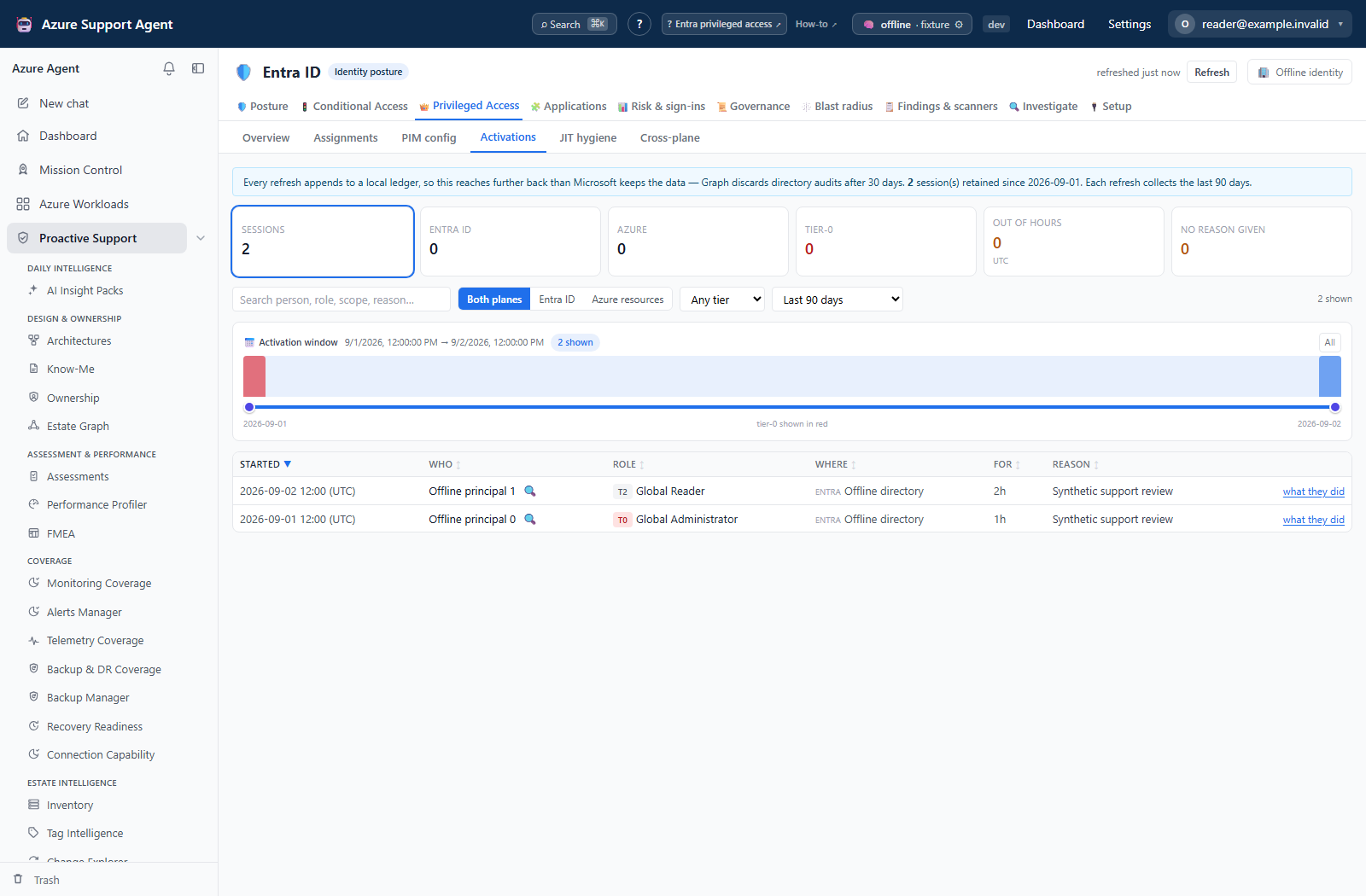
Open the Activations sub-tab. The tiles summarize the window: total sessions, Entra ID versus Azure, tier-0 activations, activations outside the working day, and activations with no reason given.
- Set the window with the day selector — 7, 30, 90 days, or everything recorded. History reaches past the retention Graph offers because sessions are merged with a durable local ledger; the source banner states what came from where.
- Filter by plane to separate directory elevation from Azure resource elevation, and by tier to isolate tier-0.
- Select a tile to filter to that cohort — for example out-of-hours activations. Out-of-hours is judged against your browser’s timezone offset, which is shown, rather than against UTC.
- Search across person, role, scope, reason and ticket number to follow one thread.
- Open a session to read who elevated, the role and scope, when it started and ended, how long it was granted for, the outcome, the justification quality, and whether it was self-service or granted by someone else.
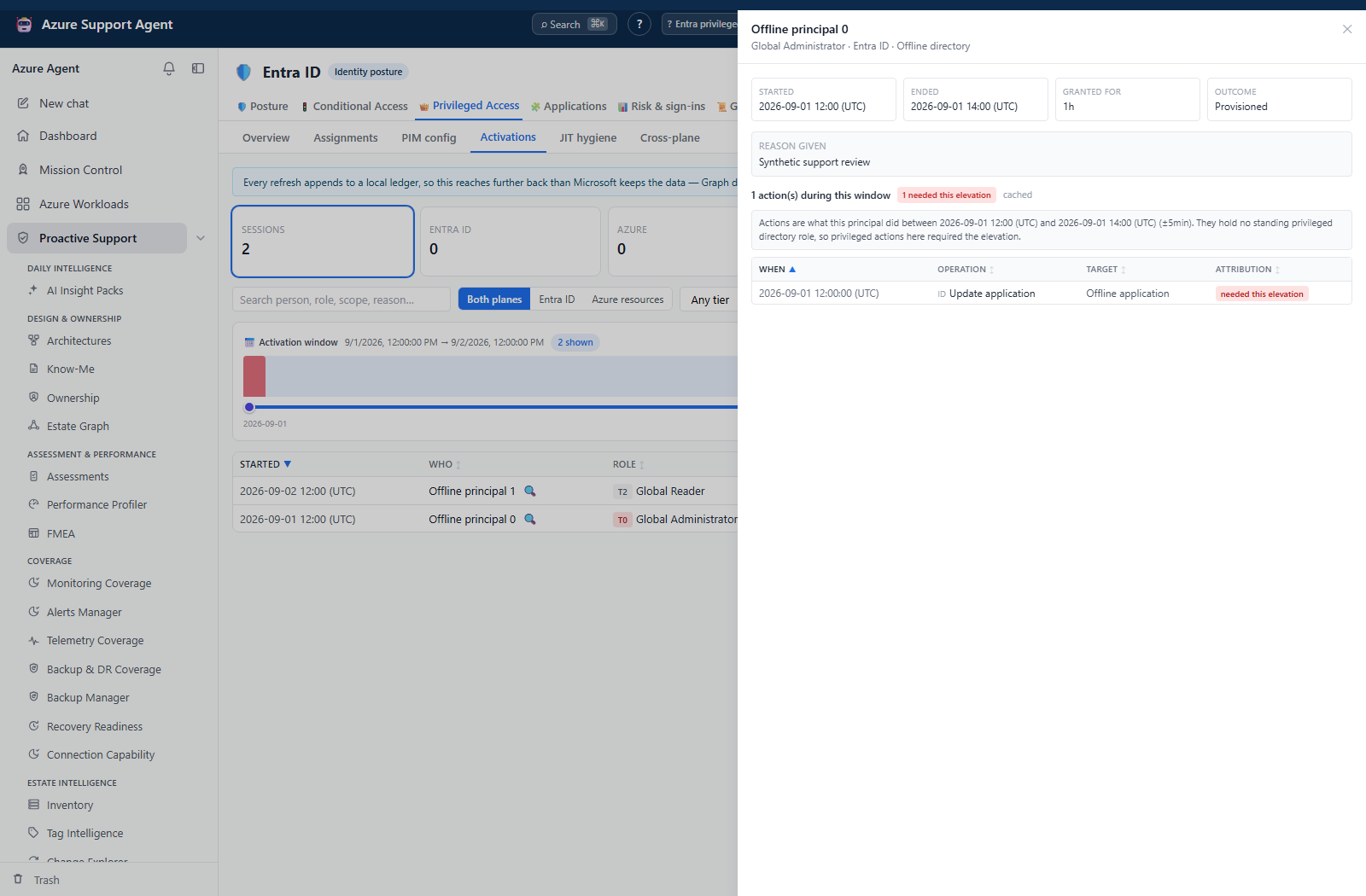
- Select what they did to open the drawer and start its action read immediately. It uses a two-minute padded window and, for Azure activations, the session’s own subscription. Read error notes before interpreting an empty result. Attribution checks broad standing-role presence, not exact historical permission for every operation.
Expected result: A short list of activations that need an explanation, each with the actions taken during the elevated window.
Verification: Confirm the activation and its justification in Microsoft Entra PIM, and confirm the actions against the Azure activity log for the subscription in question.
The following browser fixtures illustrate the session-to-action review, not a live Microsoft Graph read or a computed assessment of privileged activity.
How to check cross-plane power and produce the evidence pack
-
Open the Cross-plane sub-tab. Each row is a principal with its Entra roles and permissions beside its Azure roles, broad scopes and subscriptions.
- Read the availability and age of the Azure side first. If the ARM link is unavailable or stale, the page says so with a reason — the correlation is only as current as its weaker half.
- Prioritize principals holding power in both planes. A principal who can grant themselves directory roles and also controls subscriptions is a single point of total compromise, and this correlation does not exist in any Microsoft surface.
- Use the principal’s Investigate link with
investigate.read; applicable non-Azure activity may load automatically underinvestigate.activity. The API-only privilege dossier is a separate endpoint, not the link’s destination. - Use
/api/entra/privileged/activations-exportfor retained sessions in the review window, or Posture’s workbook. The Activations tab itself has no export button. The table loads at most 500 sessions, Cross-plane 1,000; neither page count guarantees export completeness. - Store the export as governance material. It contains identity metadata; it contains no secret or certificate value, because none is ever retrieved.
Expected result: A dated evidence pack for the review window, plus a named list of cross-plane principals to reduce.
Verification: Spot-check several exported rows against Microsoft Entra PIM and the Azure portal, and confirm the export’s window and generation time match the review period.
Safety and rollback
These views do not activate roles, approve requests or change assignments/PIM policies. Action enrichment reads Microsoft and stores a local cache; native refresh also updates the activation ledger, retained up to 100,000 sessions. A cached action result can be older than later events and needs an API refresh=true to bypass it. Preserve raw source evidence for consequential conclusions.
Removing standing privilege, converting an assignment to eligible, or tightening an activation policy happens in Microsoft Entra PIM through your approved change process. Plan the rollback before the change: keep at least two confirmed emergency access accounts, stage the removal of standing privilege one role at a time, and re-collect afterwards so the next review sees the new state. Exports and dossiers name real people and real roles — never paste tenant IDs, object IDs, user principal names or justification text into tickets, prompts or shared examples.
Troubleshooting
| Symptom | Resolution |
|---|---|
| PIM configuration is measured but activations are blind | Activation history needs its own scope. Grant it from /entra/setup, re-check permissions, then collect. |
| The PIM grid or activation list is empty | Check the domain state on the grid. Blind or unlicensed means “could not look”, not “nothing found”. |
| The Azure side of cross-plane is missing | No ARM connection is linked, or the link is stale. The page names the reason. |
| Out-of-hours counts look wrong | The judgment uses your browser’s timezone offset, which is shown beside the tile. Confirm it matches the tenant’s working day. |
| A justification reads as unknown rather than missing | The source for that session cannot carry a justification, so no judgment is made. |
| Names appear as raw object identifiers | The resolving collector failed or lacks permission. Fix consent and collect again. |
| Activation history is shorter than expected | Graph retention is limited; the durable ledger only holds what was collected while the product was watching. |