Backup Manager
Product permissions: backup_manager.read; write actions use backup_manager.protect_write, backup_manager.policy_write, backup_manager.vault_write, backup_manager.ondemand, backup_manager.drill_write, and backup_manager.reference_write according to the action. backup_manager.approve decides and applies managed changes, and is also required to permanently purge stored analyses or analysis history from the Cleanup tab.
Purpose
App routes: /backup-manager and /backup-manager/:tab
Backup Manager is the operational management plane for Azure Backup and Azure Site Recovery. It is the sibling of Alerts Manager: there the inbox is fired alerts, here it is failed backup jobs; there the rules are alert rules, here they are backup policies; and the destinations are vaults rather than action groups. Backup & DR Coverage remains the separate read-only scoring view, and its findings can be ingested here as a remediation queue.
Some actions mutate Azure. Availability depends on both the signed-in user’s permission and the connection’s read-only policy. Local drill records, reference edits, and Cleanup actions have their own permissions and are not Azure apply requests.
Screenshot context: These native application views use isolated synthetic demo data, not live Azure evidence. Demo Azure writes are disabled. Example recovery points, jobs and drills do not prove a real recovery, and displayed demo costs are estimates rather than actual Azure billing.
What this module deliberately does not do
Two whole classes of operation are absent by design rather than unimplemented, and the module reports the omission instead of hiding it. GET /api/backup-manager/refusals lists them, and the capability flags can_restore and can_delete_backup_data are always false.
- Restore of any kind. There is no restore target type in the change model. Restores are performed in the Azure portal by the team that owns the workload, under their own change control.
- Destructive backup operations: deleting backup data, purging soft-deleted items, locking immutability, disabling soft delete, and unregistering a container. These cannot be rolled back, so they stay in the portal.
Only stop protection with data retained exists. A request to stop protection in any other mode is refused by the apply path, not merely hidden in the UI.
Prerequisites and data sources
Prerequisites
- An Azure connection that can read the Resource Graph
recoveryservicesresourcestable across the selected scope. - For management-group analysis, permission to read the selected management group hierarchy plus Reader-equivalent access on every descendant subscription that should be included.
- Reader access to Recovery Services vaults and Backup vaults for the per-vault configuration reads (soft delete, storage redundancy, Resource Guard, diagnostic settings).
Microsoft.CostManagement/query/actionon the in-scope subscriptions for actual spend. Without it the Cost tab still reports list-price estimates and says why actuals are missing.- A Log Analytics workspace receiving vault diagnostics for long-horizon Backup Reports. Pasted-token connections cannot query Log Analytics because the token audience differs; use a service-principal or managed-identity connection.
- Target-specific ARM write access on the connection at apply time, plus the matching product permission to draft the change.
Data sources
- Azure Resource Graph is the spine: protected items, backup instances, policies, jobs, Site Recovery replicated items, and recovery plans, collected from nine independent queries.
- ARM configuration reads, potentially several per vault, for the facts Resource Graph does not expose.
- Azure Cost Management for invoiced spend, and the Azure Retail Prices API for list prices.
- Log Analytics for job history beyond the Resource Graph window.
Individual Resource Graph failures degrade the affected section and appear in errors; if all nine sources fail, the analysis fails and keeps the previous snapshot. Inspect per-vault enrichment errors as well: not every failed supplemental read is represented by the top-level partial flag.
Tabs and actions
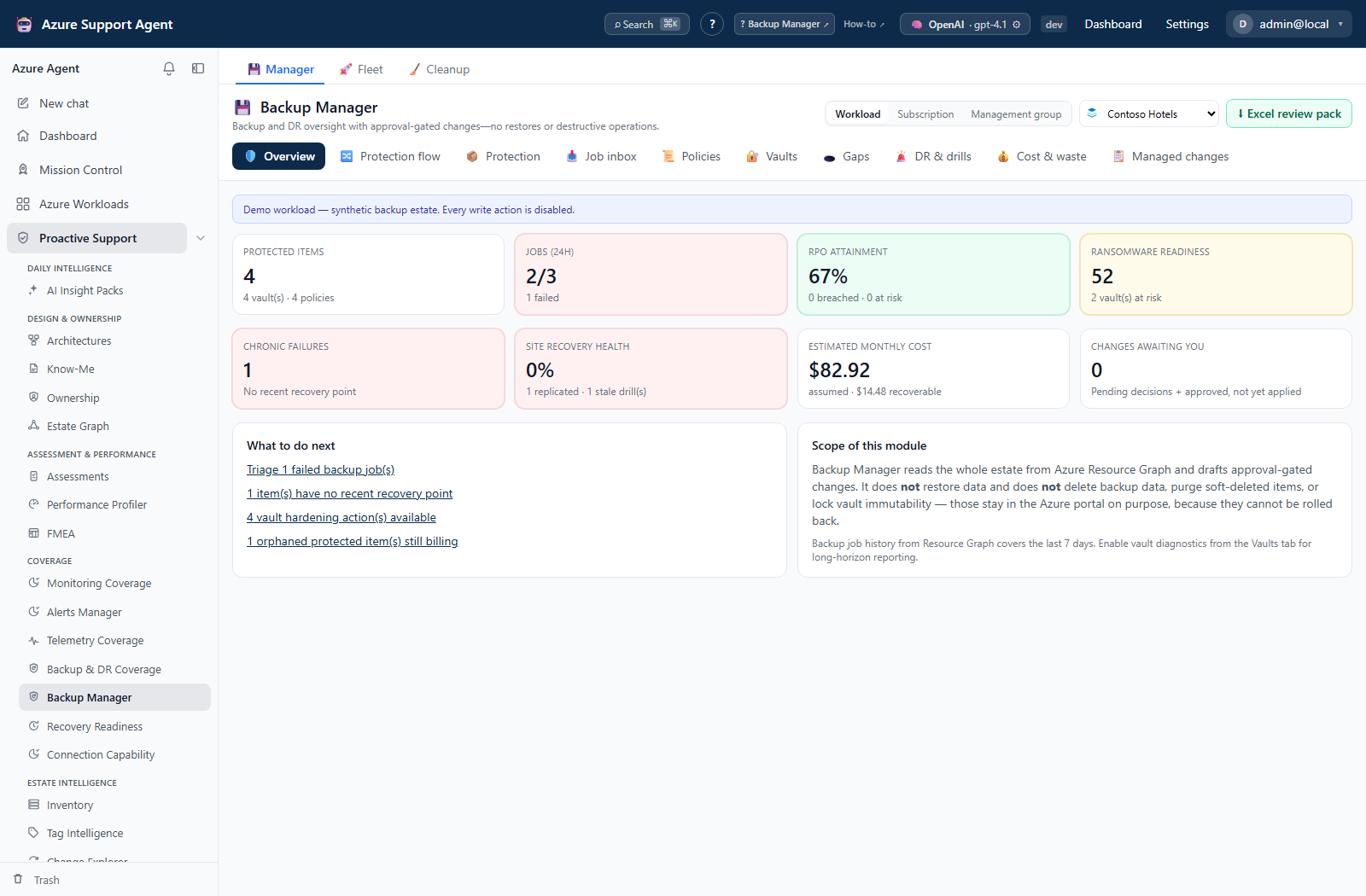
- Overview is the scorecard: protected items, job success in the last 24 hours, RPO attainment, ransomware readiness, chronic failures, Site Recovery health, estimated monthly cost, and the count of changes awaiting a decision.
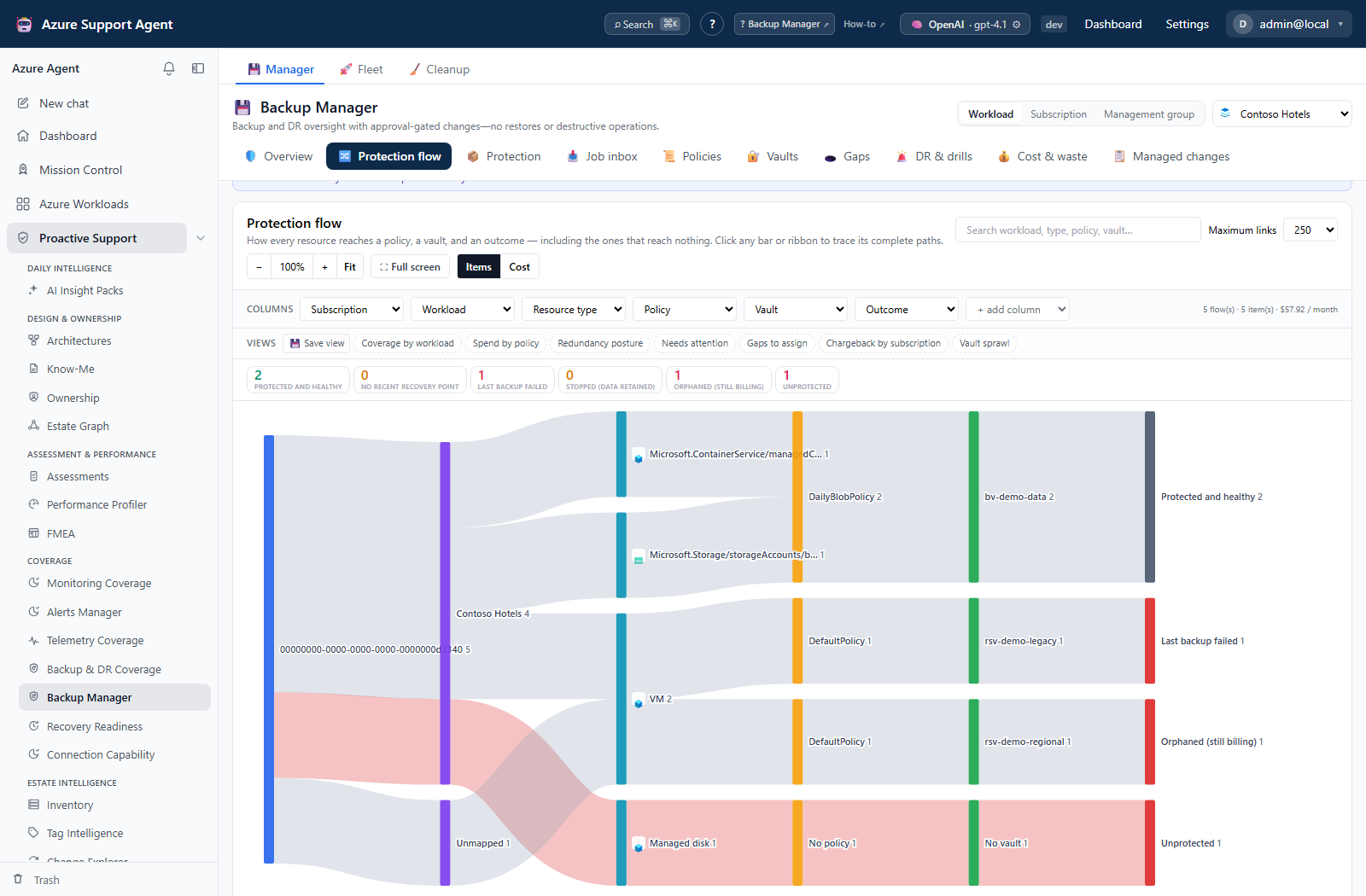
- Protection flow renders the estate as a Sankey: which subscription, workload, resource type, policy and vault each item flows through, and how it ends up. Columns are configurable, flows can be weighted by item count or by real money, and unprotected resources are drawn as their own branch.
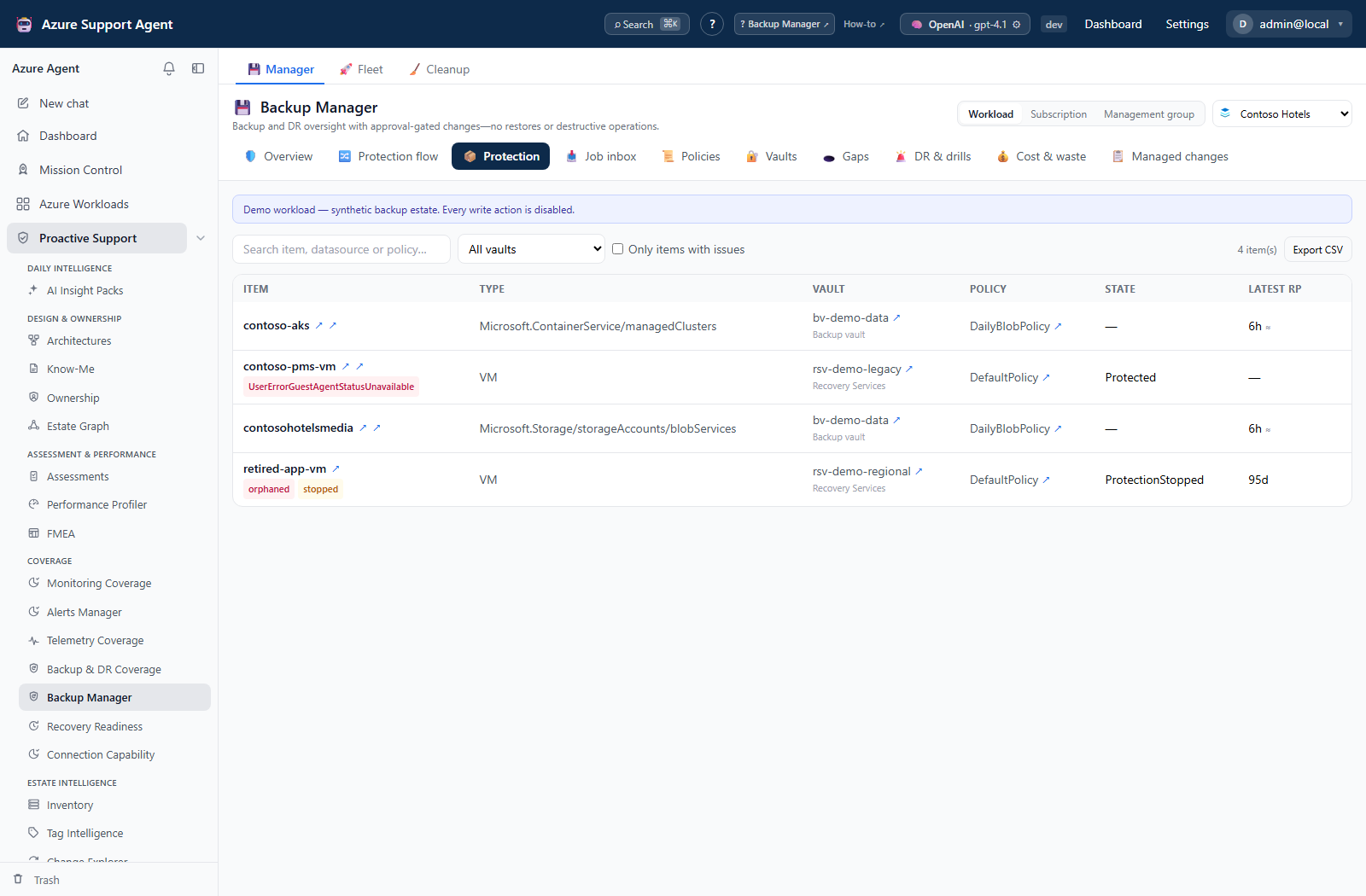
- Protection lists every protected item with its vault, policy, state and latest recovery point, and flags orphaned and stopped items.
- Job inbox clusters failures by root cause against a knowledge base of Azure Backup error codes rather than listing every job, and surfaces chronic failures and backup-window congestion.
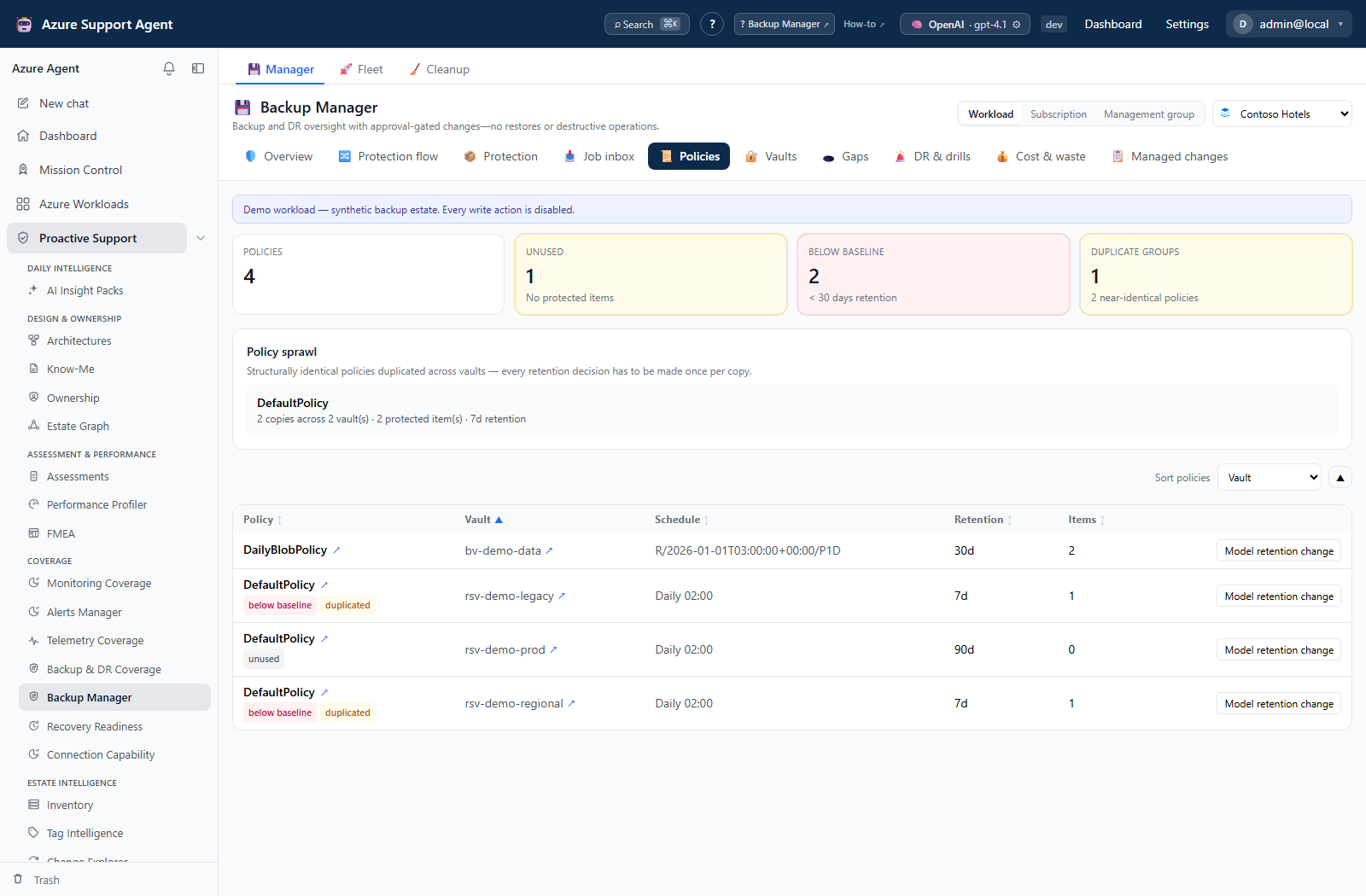
- Policies analyzes sprawl, drift and retention floors, and models recovery-point impact without submitting a policy change. Exact enumeration is bounded; the dialog distinguishes exact and estimated items.
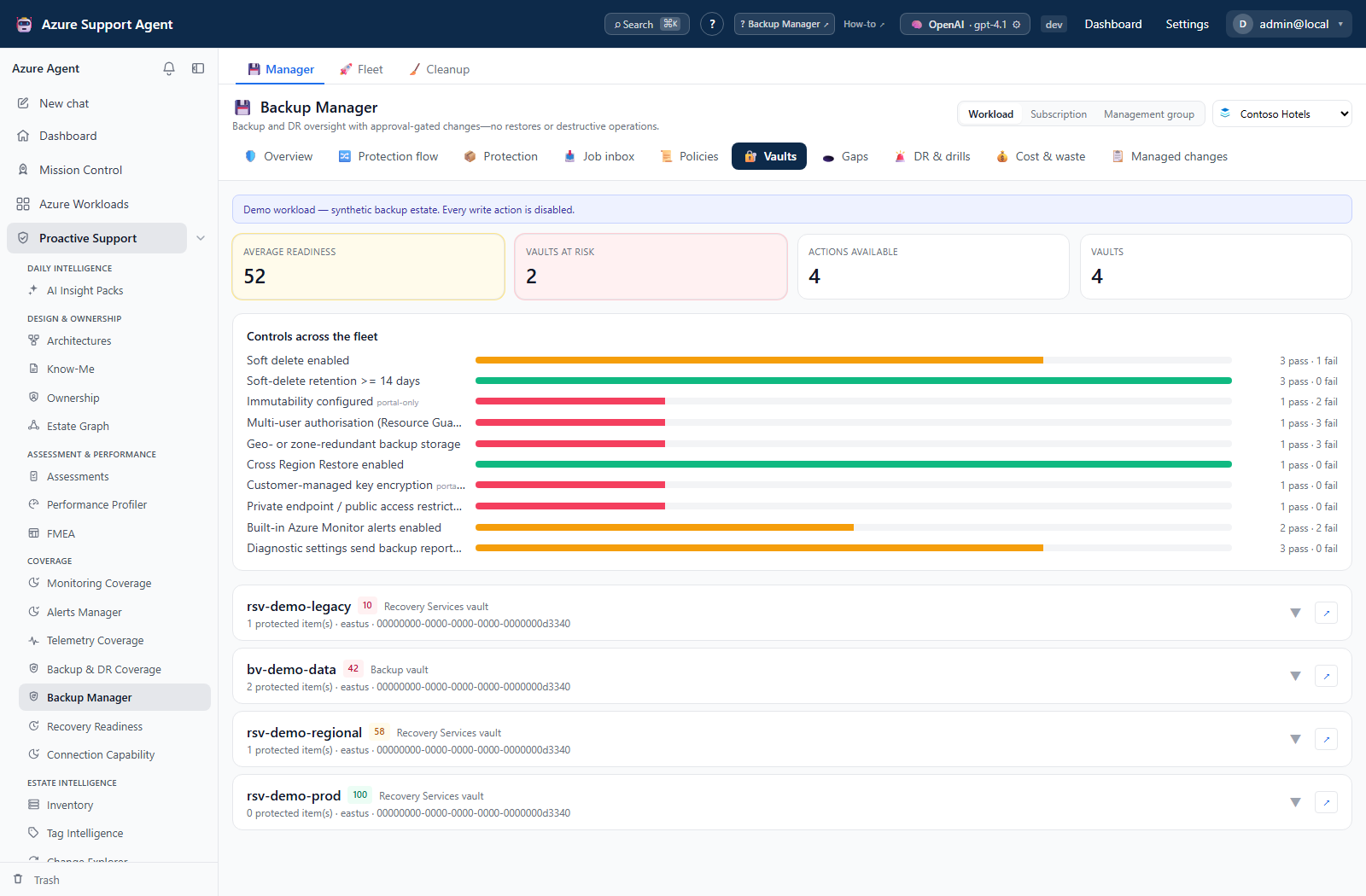
- Vaults scores ransomware readiness per vault and offers the hardening controls that are safe to automate.
- Gaps detects backup-eligible resources with no protection and ingests findings from Backup & DR Coverage, then plans protection for the selected ones.
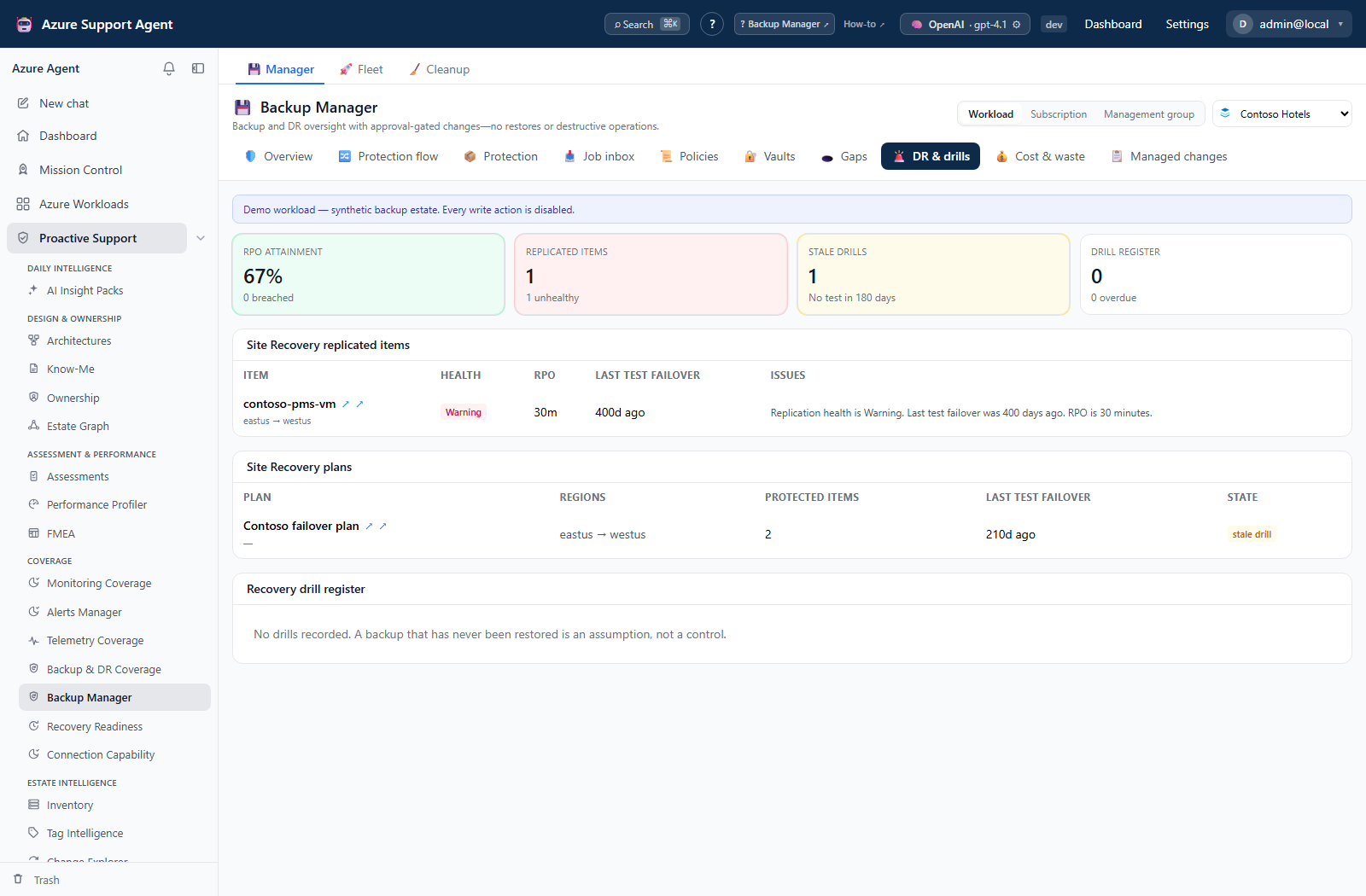
- DR & drills reports Site Recovery readiness and RPO attainment, and maintains the recovery drill register.
- Cost & waste layers list prices, measured consumption and invoiced spend, and prices recoverable waste.
- Managed changes is the approval ledger: pending, approved, applying, applied, failed, rejected and rolled-back requests.
Tab controls are permission- and capability-dependent. A read-only connection disables Azure-management controls even when the signed-in user holds the permission. Local Cleanup/reference operations have separate authorization and are not universally disabled by that connection flag.
The target registry also defines vault creation, backup-policy changes, and auto-protect assignments. A registry entry or permission is not a visible authoring workflow: the current Manager tabs provide retention modeling and vault hardening, not general vault/policy/assignment creation forms.
Above those tabs sits a view strip — Manager · Fleet · Cleanup — matching Backup & DR Coverage and Change Explorer. The tabs above answer questions about the selected scope; Fleet and Cleanup are estate-wide and are therefore a level up rather than peers in the same row.
Protection inventory
Use Protection to trace an item to its source, policy and vault, then inspect its recovery-point age. Stopped and orphaned labels deserve review; retained backup data can still exist and incur charges even when the source is absent.
Policy sprawl
The Policies view puts duplicate, unused and below-baseline policies beside their retention and item counts. These are investigation cues, not automatic permission to shorten retention or delete a policy; unknown retention must remain unknown rather than zero.
Vault posture
Read the score with its underlying controls and enrichment warnings. Supported hardening actions and portal-only controls are distinct; a high score cannot compensate for an unreadable control or missing recovery exercise.
Site Recovery
DR & drills brings replication health, RPO and drill age together. A healthy replica answers a different question from a recently exercised recovery procedure; neither a displayed demo drill nor a scheduled register entry proves that an actual test ran.
Fleet
App route: /backup-manager/fleet
Every tab in the Manager view answers a question about one scope. Fleet answers it for the whole estate: for each workload it shows protection percentage, protected items, gaps, failing jobs, RPO attainment, vault posture score, estimated monthly cost and when the analysis was taken.
The grid is served entirely from stored results and never reads Azure. Opening it costs nothing, however large the estate.
Launching a sweep
Select workloads and choose Analyze selected. One durable batch owns the selected workload list and invokes the same analysis pipeline as a single-scope analysis:
- Analyses continue if you navigate away or close the tab, and the grid reconnects to them when you return.
- Repeated single-scope starts reattach to that scope’s running job. Fleet is a separate durable batch path; do not start overlapping single-scope and Fleet work expecting one shared job record.
- Two Backup Manager batch items run at a time. The server owns admission and the queued tail, including restart recovery; the browser does not hold the remaining work. An analysis collects nine Resource Graph sources in bounded subscription batches plus per-vault configuration, cost, and pricing reads.
- Cancel pending cancels queued items, not already-submitted Azure operations. Completed analysis results remain available.
Rows show analyzing… with the current phase, queued, or failed with details on hover. Read the batch bar to distinguish failed, partial, and cancelled items; the row presentation groups those outcomes as failed. Retry failed creates a retry batch for failed, partial, and cancelled items, not successful ones. Demo workloads are listed but cannot be launched — they are synthetic and composed on read.
Cost is collected as in a single-scope analysis, including actuals when available. The Fleet column is nevertheless Est. cost / mo from the estimate summary; open Cost & waste to inspect invoiced or allocated actuals.
Sorting
The default order is worst first: never-analyzed workloads lead (an unmeasured workload is the largest unknown), then the most gaps, then the lowest protection percentage, then the most failing jobs. Sort by any column to ask a narrower question — lowest RPO attainment, weakest vault posture, highest cost.
Selecting a workload’s name opens it in the per-scope tabs with its connection already set.
Where fleet numbers come from
When an analysis finishes it writes a small summary row for that workload alongside the full stored analysis. The grid reads those rows, which is why it is instant and why it stays accurate even after the stored analysis for a scope has been evicted by the store’s scope cap.
A workload analyzed before this tab existed is backfilled from its stored analysis the first time the grid is opened, so history is not lost.
Cleanup
App route: /backup-manager/cleanup
Two different things accumulate, and the tab treats them separately.
Stored analyses
These are the full documents every tab reads. They are large — a busy estate is hundreds of kilobytes — and the store keeps a bounded number of scopes, evicting the oldest when it is full. The table lists each stored scope with its size, age, protected items, gaps and state, so the operator decides what survives instead of discovering an eviction as an empty tab.
A scope is flagged orphaned when it can never be opened again:
- its workload has been deleted;
- its Azure connection has been removed;
- it was written by an older analysis shape.
One-click selectors pick every orphan, or everything older than thirty days. Purging removes the stored analysis and the fleet summary row that pointed at it. Nothing in Azure changes and no backup data is touched — a purged scope simply has to be analyzed again. Purging requires backup_manager.approve and is audited.
Analysis history
Every completed analysis also records a compact history entry — headline protection percentage, counts, cost totals and any source errors, but none of the row-level inventory. History is what makes “how did this workload look last week?” answerable without keeping thousands of rows per run.
The history list groups by scope and offers the current presets: retain the last N per scope, older than 30 / 90 days, demo runs, and empty runs. Trash is restorable; Purge is permanent and approver-gated, and can be requested directly without trashing first. History’s scope grouping is not a connection-specific current-snapshot comparison.
Freshness and scope behavior
The Manager’s ordinary data tabs load the completed snapshot rather than starting an Azure estate sweep on page load, tab switch, or scope change. A full estate sweep is expensive, and numbers that move while an operator is working a decision are worse than numbers that are slightly old. Analyze backups explicitly refreshes that snapshot. Scope-picker discovery, a different cost period, retention modeling, and mutation preflights can separately read Azure; legacy inventory/summary APIs are also not cache-only snapshot endpoints.
One analysis supplies the Azure-data sections for every tab. Overview and Job inbox derive from that same snapshot, with different windows and display limits. Until a scope has been analyzed, the Manager tabs show the analyze prompt rather than silently starting a sweep; live ledgers are handled separately.
Overview job totals use a trailing 24-hour window, while Job inbox can show the broader retained job window and applies a display cap. Match those windows before expecting visible row counts to equal the headline. Workload collection currently resolves member subscriptions and collects their backup estate; it is not a per-datasource workload membership filter. Verify resource IDs before acting on a row or attributing all scope costs to that workload.
The analysis runs on the server and survives navigation: closing the tab or moving elsewhere in the app does not abandon it, and returning reconnects to its progress. Progress is reported per phase — resolving scope, reading Resource Graph, checking for orphans, reading vault configuration, analyzing, pricing, saving — with the row count each of the nine Resource Graph sources returned. Starting an analysis for a scope that is already analyzing re-attaches to the running job instead of launching a second sweep.
Results are stored per tenant, connection and scope, and survive a restart. Row lists are bounded — 2,000 jobs, 5,000 protected items and 2,000 gaps — and a truncated section says so. The 24 most recently analyzed scopes are retained; the Cleanup tab shows what is held and lets you purge dead scopes so the cap protects the ones you actually use.
If every Resource Graph source fails — an expired token or a revoked role — the analysis is reported as failed and the previous result is kept. An empty estate would otherwise be indistinguishable from a genuine “nothing is protected” answer and would overwrite a good analysis. A partial failure still saves and is flagged.
Demo workloads are synthetic and are composed on read, so they need no analysis and offer no Analyze button.
Backup job history from Resource Graph covers a rolling window of approximately seven days. Longer horizons require vault diagnostics shipping to Log Analytics.
Management-group scope
Choose Management group to analyze every descendant subscription visible to the selected Azure connection, including subscriptions below nested child management groups. The picker uses the live Azure management-group hierarchy and is bound to the selected connection; changing the connection clears the previous group so a scope cannot silently cross tenants.
Management-group discovery fails closed. An invalid or invisible group, a hierarchy branch that cannot be read, or a group with no visible subscriptions stops the analysis and keeps the previous completed result. An empty resolution is never interpreted as “all visible subscriptions.” The progress panel reports the resolved subscription count and Resource Graph batch progress.
Large management groups are queried in bounded subscription batches. Detail rows remain bounded, and source totals, failed batches and truncation are reported as partial rather than as a clean undercount. Backup & DR Coverage findings are merged only from existing subscription-level cached coverage scans; Backup Manager never starts those scans itself.
Cost Management queries each descendant subscription with bounded concurrency. When billing currencies differ, amounts are displayed separately and are never summed, allocated or compared. Backup Reports query every distinct in-scope Log Analytics workspace with bounded concurrency; workspace failures and any aggregate that cannot be safely scoped are reported as limitations.
Management-group scope is analysis-only. All tabs, filters, portal links, CSV/XLSX exports, history and Cleanup remain available, but drafting or applying Azure changes requires narrowing to a workload or subscription in the UI. Scope-bearing mutation and retention-impact APIs reject a management-group request. The decision/apply endpoints operate on ledger IDs rather than an analysis scope; review each change’s connection and target instead of assuming the picker limits those operations.
Exports and Azure portal links
The Overview header offers Excel review pack after a scope has a completed analysis. It is the one-file equivalent of the entire Manager view: Summary and limitations first, then protected items, RPO, jobs and failure analysis, policies and compliance, vault posture and capacity, protection gaps, Site Recovery and drills, cost and waste, and the public managed-change ledger. An Index groups the sheets by the same parent areas as the UI. Management-group workbooks also include Scope subscriptions, listing the exact descendants resolved when the analysis ran; Summary records the group name, ID, count and completeness.
The workbook is built from the last completed snapshot. Downloading it never reads Resource Graph, ARM, Cost Management, Retail Prices or Log Analytics. If a new analysis is in progress, the button exports the prior completed result and the Summary names its timestamp. Before the first analysis the button is disabled and the endpoint returns an Analyze-first response.
The Coverage & limitations sheet must be read before interpreting blank sheets or zeroes. It records source errors, partial and assumed cost inputs, unpriced items, the job-history window and every bounded row section. A failed source is not represented as a clean empty result. Demo exports are marked as synthetic. Cost columns always carry their currency and keep estimates, actuals and allocated actuals separate.
The workbook and existing CSV exports neutralize spreadsheet-formula prefixes in Azure-controlled names. The workbook exports only the browser-safe managed-change projection; encrypted before/ desired/after payloads, operation URLs, credentials, tokens and provider traces are never included. Managed changes and the drill register are live database-backed ledgers rather than analysis rows, so they are read when the workbook is generated and carry a separate Live ledgers read timestamp. Those sheets are connection-wide where the ledger model cannot prove a narrower resource scope; the analyzed Azure sections remain bound to the selected tenant, connection and scope.
Resource rows expose small ↗ Azure portal actions when a validated ARM resource id exists: source resources, protected items, vaults, policies, jobs, Site Recovery items, drill targets and managed-change targets. The link is constructed by the application rather than accepted from a provider payload. It uses the connection’s configured Azure cloud (public, US Government or China), opens in a separate tab and carries no token. A deleted/orphaned datasource deliberately says Source deleted and has no source link, while its retained protected-item and vault links remain available when valid. A recovery-point timestamp is not enough to manufacture a recovery-point link.
The per-grid Export CSV actions remain available for targeted operational extracts. They now read the same completed snapshot as the screen rather than starting another Azure collection.
Sorting in operational grids
Sortable headers use aria-sort, keyboard-focusable header buttons and visible direction arrows. Preferences are saved in the browser and survive navigation, reload, scope changes and a new analysis. Sorting always copies the snapshot rows before ordering; it never mutates the shared analysis or changes the id behind an action.
- Chronic failures: item, vault, last recovery point and error. Default is no recovery point first, then oldest recovery point. The complete collection is sorted before the 50-row display cap, which reports
Showing 50 of N. - Backup jobs: started, item, operation, status and cause. Default is newest first. Status and search filters run before sorting, and the 100-row display cap runs last.
- Policies: policy, vault, schedule, retention and protected items, plus an Attention first order for below-baseline, duplicated and unused policies. Unknown retention is not zero.
- Gaps: resource, type, resource group, region and explicit severity rank. Default severity is critical → error → warning → info → unknown; it is never alphabetic.
Checkboxes and actions remain keyed by immutable ids after sorting. In particular, gap selection, Select all, remediation preview/submission, on-demand backup, job cancellation and retention-impact modeling cannot be retargeted by a row-order change.
Workflow overview
Triage failing backups
- Analyze the scope, then open Job inbox.
- Work the failure clusters rather than individual jobs: each cluster carries the Azure error code, its cause, and the documented remediation.
- Check chronic failures — items with no recent recovery point are a protection outage even when today’s job succeeded.
- Where a retry is appropriate, draft an on-demand backup; it enters the ledger as a change rather than running immediately.
Close a protection gap
- Open Gaps. Live detection and findings ingested from Backup & DR Coverage are listed separately.
- Select the resources to protect, then choose a target vault and policy.
- Preview. Blocked items state why — for example, cross-subscription protection is not supported, so the vault must be in the resource’s subscription.
- Submit. Each ready item becomes a pending change; nothing reaches Azure yet.
Harden a vault
- Open Vaults and review the per-vault score and its failing controls.
- Select the controls to apply. Controls that cannot be automated safely are reported as portal-only and are never offered as an action.
- Submit, then approve and apply from Managed changes.
Storage redundancy is locked by Azure once a vault holds its first protected item, so that action is withdrawn rather than offered and failed.
Understand what backup actually costs
- Open Cost & waste. The default period is the last complete month.
- Compare the list-price estimate with invoiced spend, and read the variance.
- Use the meter breakdown to see what is actually billed, and the per-item table for the apportioned figures.
- Review recoverable waste, which is priced from actual spend when actuals are available and from list prices otherwise.
Changing the period or the cost type is an explicit action and fetches that period on demand.
Read the protection flow
- Open Protection flow. The default chain runs subscription → workload → resource type → policy → vault → outcome.
- Switch the weighting between Items and Cost. The same estate answers a different question: where the machines are, versus where the money goes.
- Click any bar or ribbon to highlight its complete paths; each node also shows its own weight.
- Use a preset, or build a chain and save it as a named perspective for later. Perspectives are stored per browser.
Selecting a node offers a related action: a vault opens its posture and a policy opens the Policies tab, where the intended policy must be selected for modeling. The unprotected action preselects the snapshot’s gaps, not just a searched ribbon. Recheck the selection before submission. Flow freshness uses a fixed 48-hour threshold, while Job inbox and DR use their separate reference/tier thresholds.
Sweep the whole estate
- Open Fleet from the view strip at the top of the module. Every workload is listed with the headline of its last analysis; nothing is fetched from Azure to draw the grid.
- Sort worst-first (the default) to see what has never been measured, then what has the most gaps.
- Select the workloads to measure and choose Analyze selected. Two batch items run at a time; the server keeps the remaining queue.
- Leave the tab if you want — the analyses run on the server. Come back and the grid reconnects to whatever is still running.
- Work the worst rows: open a workload to land in its per-scope tabs with the connection already set.
Reclaim storage
- Open Cleanup from the view strip.
- In Stored analyses, select orphaned scopes — deleted workloads, removed connections, old shapes — and purge them. This is the change that frees real space and stops useful scopes being evicted.
- In the history list below, apply a retention preset such as retain last 2 per scope or older than 30 days.
- Trash first if you are unsure: trashed entries can be restored. Purge is permanent and requires the approve permission.
Interpretation of results
- An orphaned item is a protected item whose source was not found; retained backup data can still bill. If the resource sweep fails, orphan detection is omitted. Its resource lookup is capped, so confirm the source’s absence in Azure before treating a row as deleted.
- RPO attainment is measured against the tier in the editable reference, not an Azure setting. Missing recovery-point ages count separately as unknown; an empty eligible set can still yield a 100% display, which is not evidence of recoverability.
- Ransomware readiness is a weighted score over vault controls. Controls that are portal-only are scored but never offered as an action.
- Estimated cost is a list price. It is not a bill, and it will usually differ from invoiced spend because it assumes a full month at the current footprint.
- Applied means the request completed. Only a fresh analysis proves Azure converged.
- A Fleet protection percentage is measured against what the detectors judged backup-eligible — protected items plus open gaps — not against every resource in the workload. A workload with nothing eligible reports no percentage rather than 0% or 100%.
- A Fleet row is only as fresh as its analysis. The Last analysis column is part of the reading, not decoration.
- An orphaned stored analysis in Cleanup is about this module’s storage, not about Azure. Purging one deletes a cached report, never backup data.
How backup cost is attributed
Azure Cost Management attributes backup charges to the vault, never to the individual protected item. This was established by querying live billing data, not assumed. Per-item cost therefore cannot be read directly.
The Cost tab apportions each vault’s actual spend across its items, weighting by measured consumption where Log Analytics provides it, then by estimated cost, then equally. The apportioned figures reconcile back to the vault total exactly, and each row states which basis it used. Any spend that cannot be attributed to an in-scope vault is reported as unattributed rather than being spread silently.
List prices come from the Azure Retail Prices API in the tenant’s billing currency, so the estimate and the invoice are comparable. Protected instances are a flat monthly rate per datasource type, not a size band. Managed disks have no protected-instance meter at all — Azure Disk Backup is snapshot-billed outside the Backup service — and are priced as zero and flagged, rather than being silently under-reported.
Variance refuses to compare a partial period, such as month-to-date, or two periods in different currencies, and says which it is rather than showing a misleading delta.
Approval, apply, and rollback
Every supported Azure mutation drafts a managed change. Submission and approval do not change Azure; only Apply to Azure submits the operation. On-demand backup, cancellation of a running Recovery Services job, test failover, and test-failover cleanup are material operations, not read-only diagnostics. Drill-register outcomes, reference edits, and Cleanup write local application state immediately instead.
The asr_test_failover target requires two distinct approvers. The first approval records the approver and leaves the request pending; the same person cannot supply both. Such rows are excluded from bulk approval and must be approved individually. The target’s dual-approval flag, not a generic high-risk label, controls this requirement. Requester/approver separation is not enforced; arrange independent review operationally.
Managed apply remains approval-gated even when chat is autonomous. Its helper checks read_only=false, not auto_execute_writes=false; a gated connection is recommended, but that mode setting is not an additional API gate. Bulk decision acts on pending rows only. The individual decision API can reject an approved-but-unapplied request, whereas the current UI’s bulk Reject skips it. Select carefully: bulk selection is not the Alerts Manager cross-page dependency-closure workflow.
Azure Backup writes are long-running. Apply parks the row in an applying state with the operation URL, and a dedicated poller drives it to applied or failed, with a 120-minute deadline. A row that is still applying is not lost if the browser closes.
Optimistic concurrency runs for updates that carry an expected hash. A mismatch returns 409 and is recorded as failed with a state-changed message, not a dedicated stale status. Not every operation carries this hash; inspect the operation and fresh Azure state rather than assuming a universal conflict guarantee.
Where a rollback is supported it is prepared as a new reviewed request: a protection create can become stop-with-data-retained; vault-security, vault-alert, and backup-policy updates need a stored before-state; an auto-protect assignment create can become assignment deletion. On-demand backups, job cancellation, test failovers/cleanup, vault creates, and diagnostic creates have no generic rollback here. Reversing a policy setting cannot recover recovery points already pruned.
Schedule drill creates a register entry, not scheduled execution of a restore. The UI creates a restore record with a default 180-day cadence and offers Passed/Failed recording with evidence. A completed non-cancelled recurring record creates its next occurrence. Actual Site Recovery test failover defaults to NoNetwork and creates billable drill resources; after review/testing, draft and apply cleanup separately.
Exports, evidence, and the editable reference
The CSV API supports protected items, jobs, policies, gaps, posture, and drills. The current UI exposes per-grid CSV buttons for Protection and Job inbox, plus the Overview workbook. CSV and workbook downloads do not mutate Azure; these two endpoints do not themselves write an export audit record.
The explicit Evidence API captures a completed snapshot, and drill outcomes can request evidence (the UI does). The current apply and LRO paths do not automatically capture Evidence Locker snapshots, so do not assume that an applied change has an evidence ID.
The failure knowledge base, vault checks, retention tiers, service limits and cost rates live in a versioned, editable reference document with bounded revision history. Editing requires backup_manager.reference_write; a revision can be restored, and the whole document can be reset to the shipped seed.
The reference keeps 50 revisions. Its service-limit defaults are planning inputs, not a live quota probe: 2,000 Recovery Services items per vault, 5,000 Backup vault instances, 200 policies, and an 80% warning threshold. Retention modeling enumerates at most 25 candidate Recovery Services items, estimates the rest, and returns at most 200 item-detail rows. Cost detail keeps the top 200 rows; actual-cost cache TTL is six hours and retail-price TTL is seven days. The workbook managed-change sheet is capped at 10,000 rows and reports truncation.
Safety and limitations
- Restores and destructive backup operations are unavailable by design. Do not plan a recovery procedure around this module.
- Resource Graph job history is a rolling window of about seven days. Absence of a job in this view is not proof it never ran.
- A collector that fails records an error and degrades one section. Treat an incomplete analysis as incomplete evidence, not as a clean result.
- Truncated sections are flagged. Do not read a bounded list as a complete inventory.
- Cost figures are apportioned, not per-item billing records. They reconcile to the vault total, which is the level Azure actually bills.
- A vault’s storage redundancy cannot be changed after its first protected item; the module withdraws the action rather than failing the apply.
- Backup Reports require vault diagnostics and a queryable workspace. A pasted-token connection cannot read Log Analytics.
- Saved Protection flow perspectives are stored per browser. They do not follow a user to another machine and cannot be shared.
- Fleet covers workloads only. Subscription and management-group scopes are analyzed individually from the per-scope tabs.
- A fleet sweep is not instant. Two analyses run concurrently by design, so a large estate takes as long as it takes; the cap protects the tenant from throttling.
- Purging analysis history does not delete audit records or Evidence Locker snapshots, which are retained independently.
- Approving is not applying, and applying is not converging. Verify against Azure after apply.
Troubleshooting
| Symptom | Cause and resolution |
|---|---|
| Every Manager tab asks me to analyze | No completed snapshot exists for the selected scope. Click Analyze backups; ordinary tab navigation does not start that sweep. |
| Management-group picker is empty or unavailable | Confirm the selected connection can read the management-group hierarchy. Use Retry after correcting access; the picker never falls back to another connection. |
| Management-group analysis says no visible subscriptions | The group is empty for this connection, or the identity cannot see its descendants. Grant hierarchy and subscription Reader access, then retry. The product will not substitute an all-visible scan. |
| Management-group analysis is partial | Open the progress details and workbook Coverage & limitations. One or more ARG batches, Cost Management subscriptions, Log Analytics workspaces, or cached Backup & DR Coverage subscription scans were unavailable or capped. |
| Actual spend shows multiple currencies | The group crosses billing currencies. Backup Manager reports each currency separately and intentionally disables combined totals, allocation, and estimate variance. |
| Write actions are unavailable for a management group | This scope is analysis-only. Narrow to a workload or subscription before drafting, approving, or applying an Azure change. |
| The analysis failed and my old data is still shown | Every Resource Graph source failed, most often an expired or revoked credential. The previous analysis was deliberately kept. Refresh the connection credential and analyze again. |
| Analysis reports zero of everything but no error | Check the connection’s Reader access at the selected scope and the reported errors. A permission gap degrades a section rather than failing the sweep. |
| A tab shows stale numbers | Nothing refreshes automatically. Click Analyze again; the header shows when the current analysis was taken. |
| Cost shows an estimate but no actuals | The connection lacks Cost Management query rights on the in-scope subscriptions, or the period has no billed backup usage. The reported reason states which. |
| Actual spend and the estimate disagree sharply | Expected. The estimate assumes a full month at the current footprint; a vault populated part-way through the month bills less. Confirm with the meter breakdown. |
| Per-item cost looks approximate | It is apportioned. Azure bills backup to the vault, not the item. The rows reconcile to the vault total exactly and each states its basis. |
| Backup Reports are unavailable | Enable vault diagnostics to a Log Analytics workspace, and use a service-principal or managed-identity connection — pasted tokens cannot query Log Analytics. |
| A write button is disabled | Check the specific product permission, the connection’s read_only state, and the capability matrix. |
| A change is stuck in applying | The poller stops after 120 minutes or 240 polls and records failed/OperationTimeout. Check the actual Azure job before any retry: the timeout does not prove Azure cancelled or undid the operation. |
| A change failed with 409 or an Azure-state-changed message | An expected update hash did not match. Read the live target and prepare a corrected request; repeated unchanged drafts can also indicate a snapshot/hash-shape mismatch requiring application support. Never force the old payload. |
| I approved a test failover but it remains pending | Its dual-approval flag requires a second, different approver. Use the row-level Approve control; bulk approval skips these requests. |
| Reject skips an approved Backup Manager row | Bulk decision only accepts pending rows. The individual decision API supports rejecting an approved-but-unapplied row; use an authorized review of that API rather than treating bulk success as cancellation. |
| Retention impact looks exact for every item | Exact enumeration covers at most 25 candidate Recovery Services items; other items use estimates. Read exact/estimated counts and verify unknown current retention in Azure before planning a decrease. |
| Restore is not offered anywhere | Intentional and permanent. Perform restores in the Azure portal under the owning team’s change control. |
| A gap cannot be remediated | The preview states why. The most common cause is a target vault in a different subscription from the resource. |
| A vault redundancy action disappeared | The vault already holds a protected item, after which Azure locks redundancy. |
| Saved flow perspectives vanished | They are stored per browser. A different browser, machine, or a cleared cache has no access to them. |
| Fleet says a workload was never analyzed but I analyzed it | The analysis was for a different connection than the one the workload is registered with, or its stored analysis was purged. Analyze it from the Fleet row to record it against the workload’s own connection. |
| A fleet sweep seems slow | Two analyses run at a time on purpose. The header shows how many are outstanding; each row shows its current phase. |
| A fleet row sat on “analyzing” and then went idle | Check the durable batch status and Last analysis before relaunching: the item may have completed or been requeued after interruption. Reopen Fleet to reconnect; retry failed/partial items only after inspecting the result. |
| A tab went back to “No backup analysis yet” | The stored analysis for that scope was evicted by the store’s scope cap or purged in Cleanup. Analyze the scope again, and purge orphaned scopes so the cap protects the ones you use. |
| Purge is disabled in Cleanup | Permanent deletion requires backup_manager.approve. Trash is available to anyone with read access and is restorable. |