Connect with a service principal (client secret)
An Entra app registration authenticating with a client secret. This is the most capable method: it works across tenants, supports Microsoft Graph and Log Analytics, and runs unattended.
When to choose this
Choose it for any long-lived or production connection, for a tenant the application does not itself run in, and whenever Entra or identity features are needed. If organizational policy forbids shared secrets, use a certificate instead — the capability is identical.
Step 1 — Create the app registration
- In the Azure portal, open Microsoft Entra ID → App registrations → New registration.
- Give it a name that identifies this application, choose single-tenant unless you intend cross-tenant use, and leave the redirect URI empty. A redirect URI is not needed for application authentication.
- Register, then copy the Application (client) ID and Directory (tenant) ID from the overview.
Step 2 — Create the client secret
- Open Certificates & secrets → Client secrets → New client secret.
- Set the shortest expiry your rotation process supports.
- Copy the secret Value immediately. It is shown once and cannot be retrieved later; the Secret ID is not the credential.
Step 3 — Grant Azure access
Authentication grants no resource access. Assign a role at the scope you intend to read.
- Open the management group or subscription to connect.
- Select Access control (IAM) → Add role assignment.
- Assign Reader for read-only use, and assign it at the highest scope you actually intend to cover so that discovery sees the whole estate.
- Select User, group, or service principal, and pick the app registration by name.
Grant additional roles only where a specific approved workflow requires them. Per-connection Read only remains the enforcement point inside the application.
Step 4 — Grant Microsoft Graph access (only for Entra features)
Skip this unless Entra, identity, or app-registration features are needed. When they are, grant Application permissions to this same app registration and obtain tenant admin consent. The required permission set and consent procedure are listed in Microsoft Entra setup.
Step 5 — Fill the form
Open /admin/tenants and select Add connection.
| Field | Value |
|---|---|
| Display name | A non-sensitive label, for example Contoso Production |
| Tenant ID | Directory (tenant) ID from step 1 |
| Azure cloud | The cloud the tenant lives in |
| Authentication method | Service principal (client secret) |
| Client (application) ID | Application (client) ID from step 1 |
| Client secret | The secret Value from step 2 |
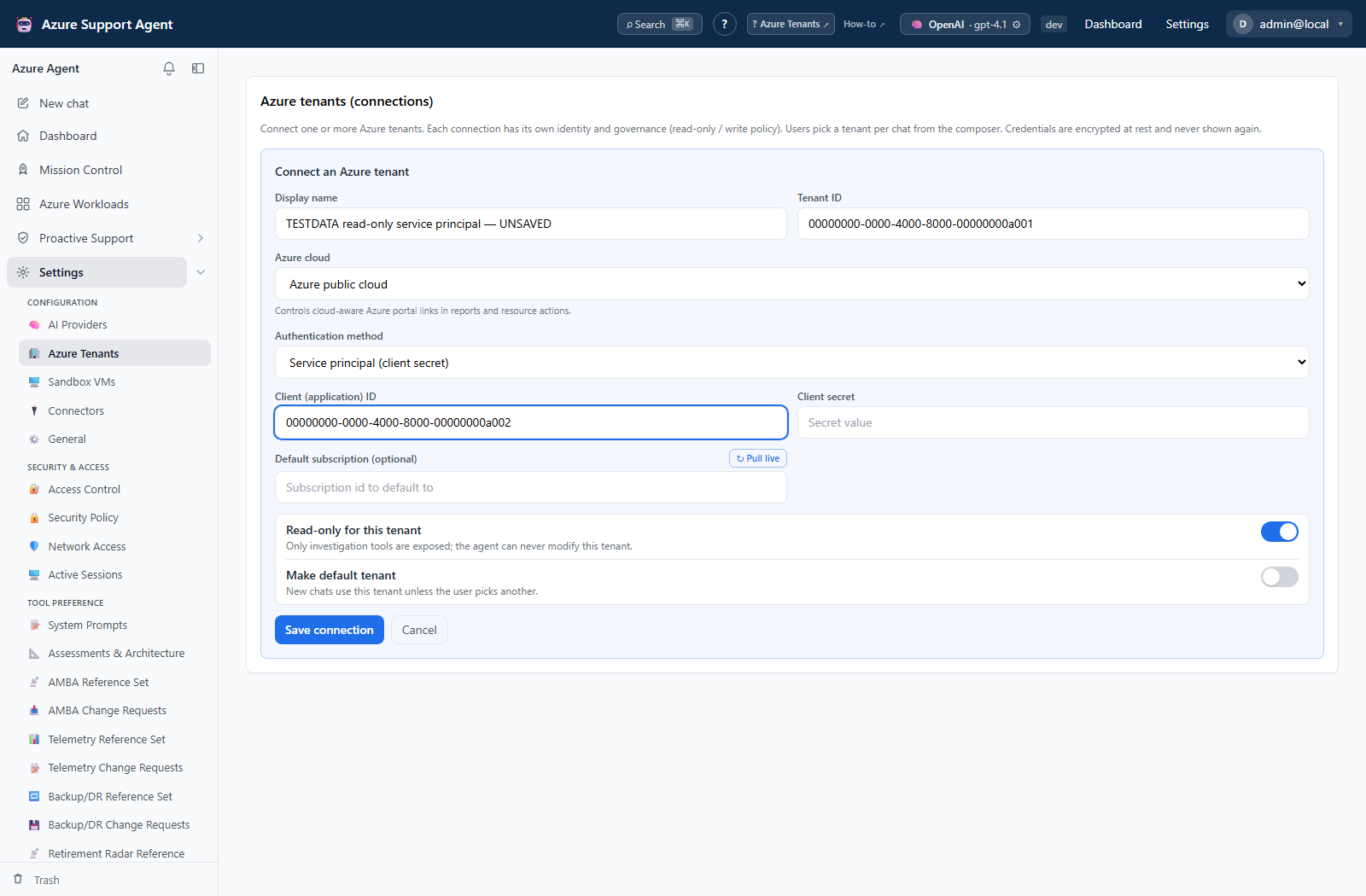
Keep Read only enabled. Save, then run Test, Discover, and — if step 4 applies — Validate EntraID.
The secret is encrypted at rest and write-only. On a later edit the field shows a placeholder; leave it blank to keep the stored secret, or paste a new value to replace it.
Capabilities and limits
Full ARM, Resource Graph, and Log Analytics access, Microsoft Graph when consented, cross-tenant support, and unattended operation. The only recurring constraint is secret expiry.
Rotation and revocation
The secret has a fixed expiry and the connection fails once it passes. Create the replacement secret before the current one expires, paste it into the form, save, and test; then delete the old secret in Azure. Deleting the connection here does not revoke anything — remove the secret and the role assignment in Azure.
Troubleshooting
| Symptom | Resolution |
|---|---|
AADSTS7000215: Invalid client secret | The Secret ID was pasted instead of the Value, or the secret expired. Create a new secret and paste its Value. |
AADSTS700016: Application not found in the directory | The client ID does not exist in this tenant. Confirm the tenant ID and that the registration is in it. |
| Test succeeds but Discover returns nothing | No role assignment. Complete step 3 at the intended scope. |
| Entra validation reports missing permissions | Grant the required Graph Application permissions and admin consent as described in step 4. |