Connect with a service principal (certificate)
The same app registration identity as the client-secret method, authenticating with a certificate instead. Capability is identical; only the credential format and its handling differ.
When to choose this
Choose it where policy forbids shared secrets, where certificate lifecycle is already managed centrally, or where a longer validity than a client secret is wanted. If neither applies, the client secret method is simpler to operate.
Step 1 — Create the app registration
Follow step 1 of the client secret page: register the application and copy the Application (client) ID and Directory (tenant) ID. Do not create a client secret.
Step 2 — Obtain a certificate
Use a certificate from your internal authority where one is required. For a self-signed certificate:
openssl req -x509 -newkey rsa:2048 -sha256 -days 365 -nodes \
  -keyout key.pem -out cert.pem -subj "/CN=azure-support-agent"
This produces the private key (key.pem) and the public certificate (cert.pem). Protect the private key: anyone holding it can authenticate as this application.
Step 3 — Upload the public certificate to Entra
- Open the app registration → Certificates & secrets → Certificates → Upload certificate.
- Upload
cert.pem— the public certificate only. Never upload the private key. - Confirm the thumbprint shown in Entra matches your certificate.
Step 4 — Grant Azure and Graph access
Identical to the client-secret method: assign Azure RBAC at the intended scope, and grant Microsoft Graph Application permissions with admin consent only if Entra features are required. See steps 3 and 4 of the client secret page and Microsoft Entra setup.
Step 5 — Build the PEM to paste
The form needs a single PEM containing both the private key and the certificate. Concatenate them:
cat key.pem cert.pem > connection.pem
The result must look like this, with both blocks present:
-----BEGIN PRIVATE KEY-----
…
-----END PRIVATE KEY-----
-----BEGIN CERTIFICATE-----
…
-----END CERTIFICATE-----
A PEM containing only the certificate cannot authenticate — this is the most common failure with this method.
Step 6 — Fill the form
Open /admin/tenants and select Add connection.
| Field | Value |
|---|---|
| Display name | A non-sensitive label |
| Tenant ID | Directory (tenant) ID |
| Azure cloud | The cloud the tenant lives in |
| Authentication method | Service principal (certificate) |
| Client (application) ID | Application (client) ID |
| Certificate (PEM: private key + certificate) | Contents of connection.pem |
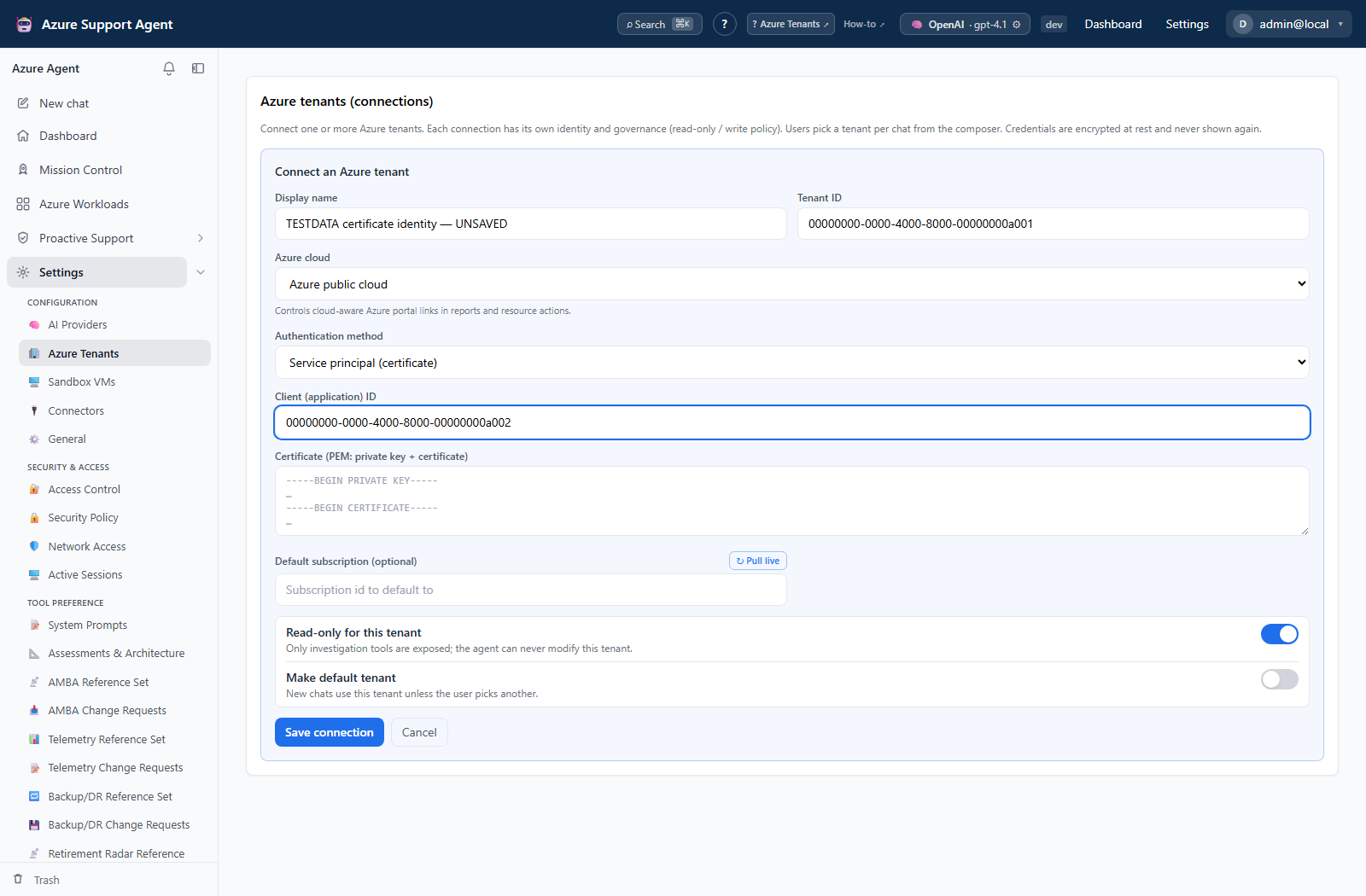
Keep Read only enabled. Save, then Test, Discover, and Validate EntraID if Graph access was granted.
The PEM is encrypted at rest and write-only. Leave the field blank on a later edit to keep the stored certificate.
Capabilities and limits
Identical to the client-secret method: full ARM, Resource Graph, and Log Analytics access, Microsoft Graph when consented, cross-tenant support, and unattended operation.
Rotation and revocation
Authentication fails the moment the certificate expires. Upload the replacement certificate to the app registration, paste the new combined PEM here, save, and test; then delete the superseded certificate in Entra. Deleting the connection does not revoke the credential — remove the certificate and role assignment in Azure.
Troubleshooting
| Symptom | Resolution |
|---|---|
| Authentication fails immediately | The PEM is missing the BEGIN PRIVATE KEY block. Concatenate the key and certificate as in step 5. |
AADSTS700027 or thumbprint mismatch | The uploaded certificate does not match the pasted private key. Re-upload the matching cert.pem. |
| Worked previously, now fails | The certificate expired. Issue and upload a replacement. |
| Test succeeds but Discover returns nothing | No role assignment. Assign Azure RBAC at the intended scope. |