Operate durable fleet and background batches
Fleet and other multi-workload actions are server-owned. This applies to Assessments, Change Explorer, Monitoring/Telemetry/Backup & DR Coverage, Backup Manager, Architectures, Mission Control, Deep Review, Inventory Cost, and the optional nightly workload refresh.
Prerequisites
- Sign in with permission to run the selected feature.
- Configure the Azure tenant connection used by each selected workload.
- Create at least one workload for workload-scoped batches.
Route
Open the feature’s Fleet view. Workload-group bulk actions are under /workloads/groups/<group-id>; Mission and Deep Review bulk actions are under /workloads.
How to launch and leave a durable batch safely
- Select the workloads or scope and start the action once.
- Confirm the blue batch bar reports
queuedorrunningand shows completed/total counts. - Continue working, navigate elsewhere, reload, or close the browser. The queued tail remains in SQL and the server continues it.
- Return to the feature. The latest batch and per-item status reattach automatically.
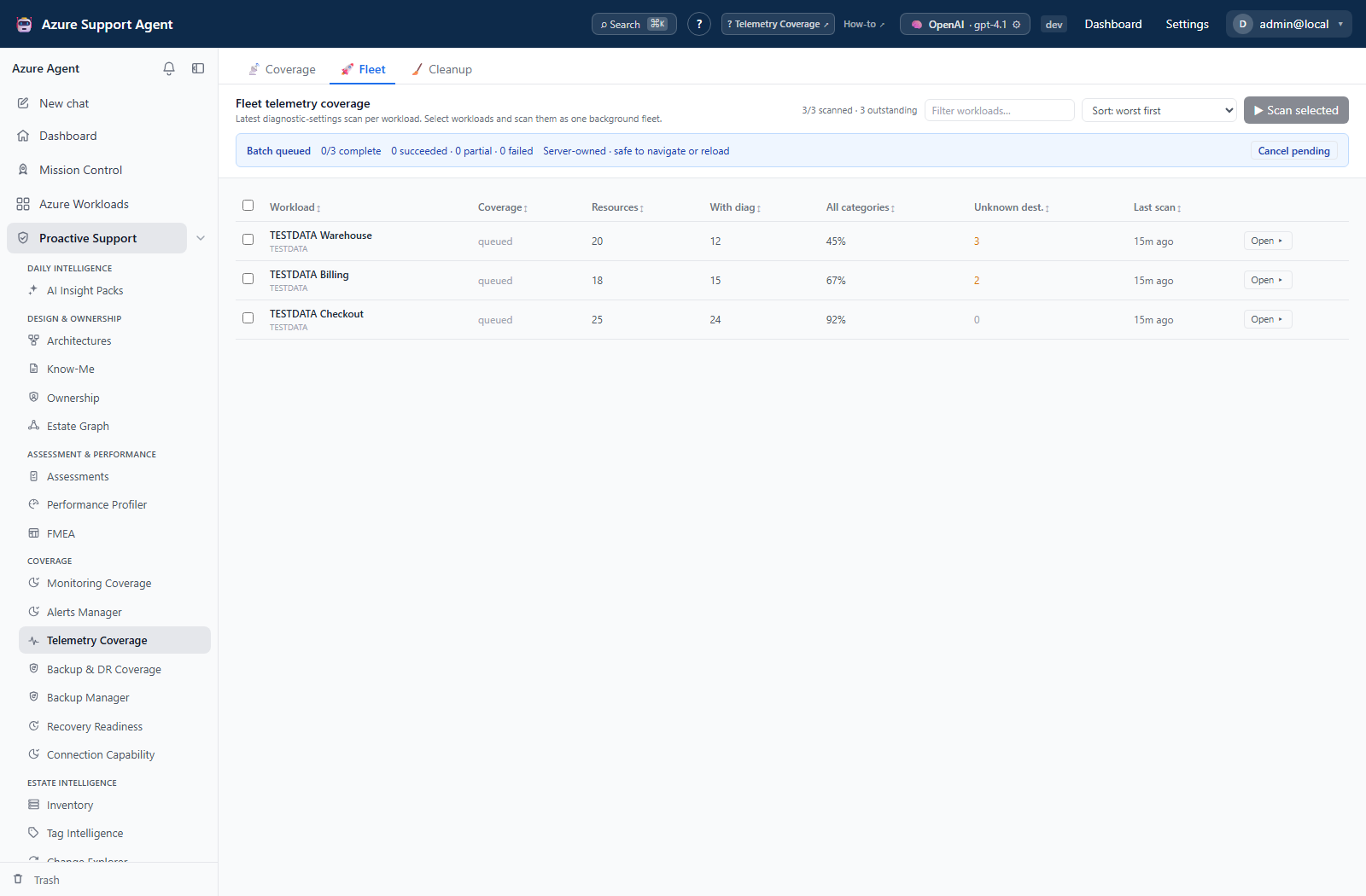
How to understand outcomes
- Succeeded means every item completed successfully.
- Partial means at least one item was partial, failed, or cancelled while another completed.
- Failed means every item failed.
- Cancelled means every item was cancelled before starting.
A failed newest attempt does not replace the feature’s last trusted successful snapshot.
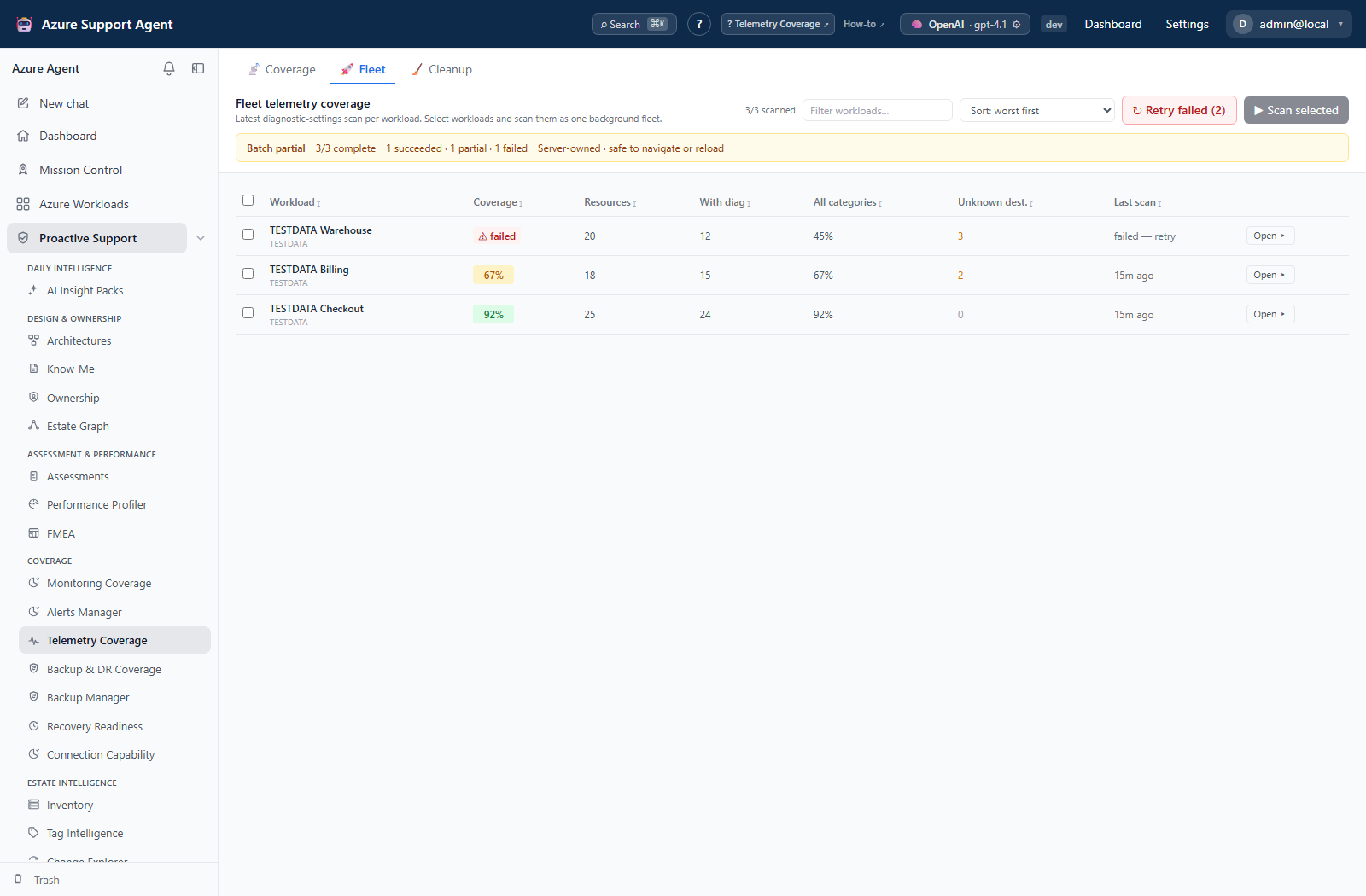
How to cancel or retry
- Select Cancel pending to stop items that have not started. The active item finishes at a safe checkpoint.
- After the batch becomes terminal, select Retry failed/partial.
- The retry is a new idempotent batch containing only failed, partial, and cancelled items.
Transient Azure throttling and service errors are retried automatically with bounded backoff before an item becomes terminal.
Verify restart recovery
If the application restarts during a batch, reopen the feature and confirm:
- completed items retain their original terminal state;
- the interrupted item is queued and its attempt count increases when it reruns;
- remaining items continue in their original order;
- no duplicate assessment, mission, architecture, chat, or change-analysis result is created.
Safety and rollback
The worker changes application control records and feature caches/history; coverage and analysis collectors remain read-only against Azure. Cancel pending prevents queued items from starting but allows the active item to finish safely. A failed attempt never overwrites the last trusted successful snapshot. To remove a completed control record, delete its terminal batch; native feature history remains available through that feature’s Cleanup or History view.
Troubleshooting
- Batch remains queued: another item is using the same tenant/connection lane. Wait for its slot or cancel the earlier batch.
- Item retries automatically: inspect its error. Azure 429, timeout, connection reset, and transient 5xx failures use bounded backoff.
- Batch is partial: open the failed item, correct its connection/permission/provider issue, then select Retry failed/partial.
- Browser shows stale progress: reload the feature. SQL is authoritative; the browser is only a poller.