Set up and run the first Entra collection
Prerequisites
- Product permission
entra.readto view any Entra screen, andentra.adminto re-check permissions or start a collection. - A connection holding service-principal credentials (tenant, client, and a client secret or certificate) that can obtain a Microsoft Graph application token for the tenant.
- A directory role in the Microsoft Entra admin center that can add API permissions and grant admin consent. This app cannot grant consent for you.
- Tier 1 consent for a usable tenant; tier 2 adds dormancy, MFA truth, consent posture and sign-in analysis; tier 3 adds PIM depth, Identity Protection risk, access reviews, entitlement management and lifecycle workflows.
- Entra ID P1 for Conditional Access/relevant sign-in data; appropriate P2 or ID Governance licensing for PIM, risk and governance. Lifecycle and workload-identity risk have separate licensing requirements; read the collector-specific result.
Route
/entra/setup for consent and coverage, then /entra for the posture score once the collection completes.
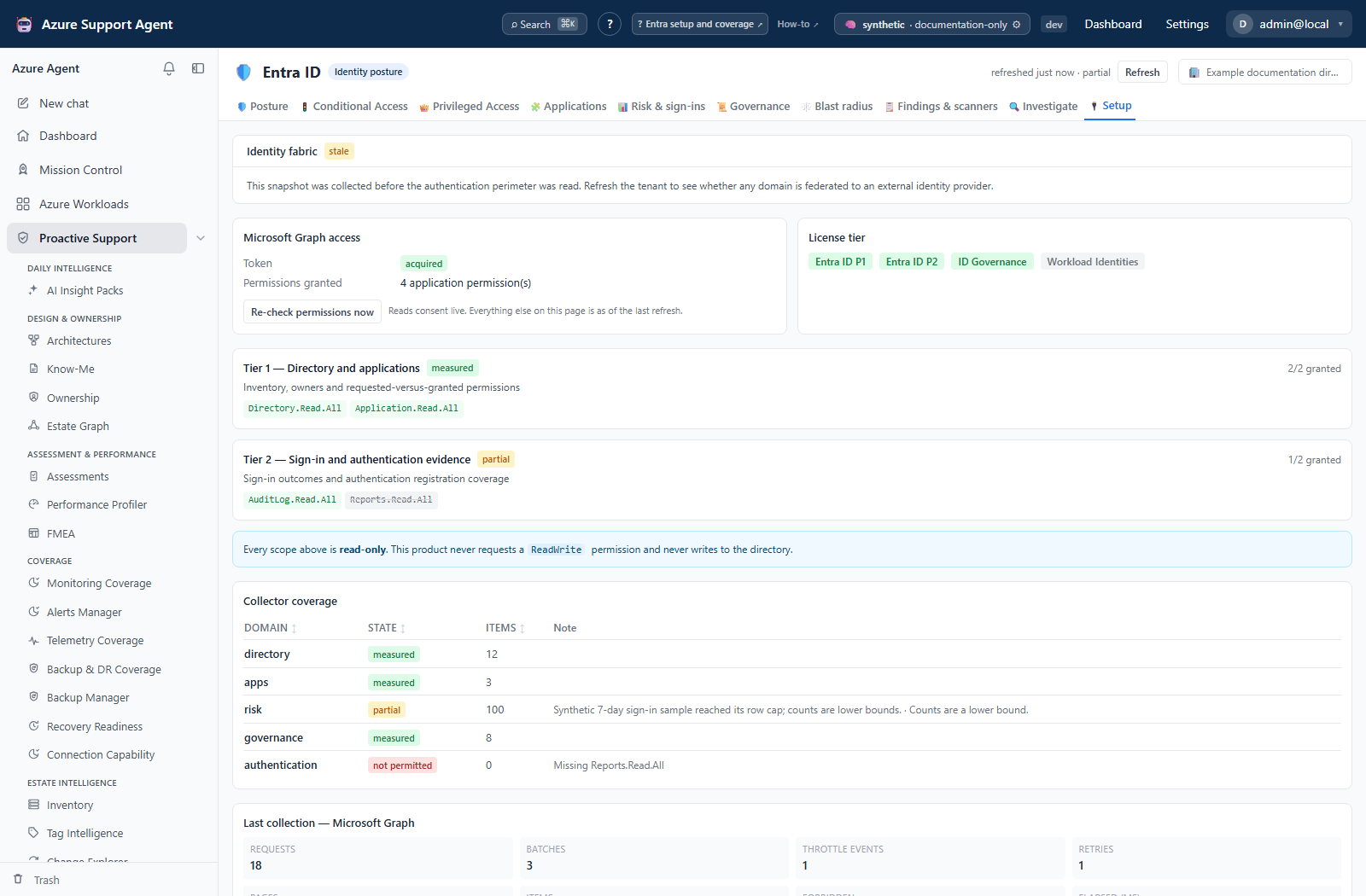
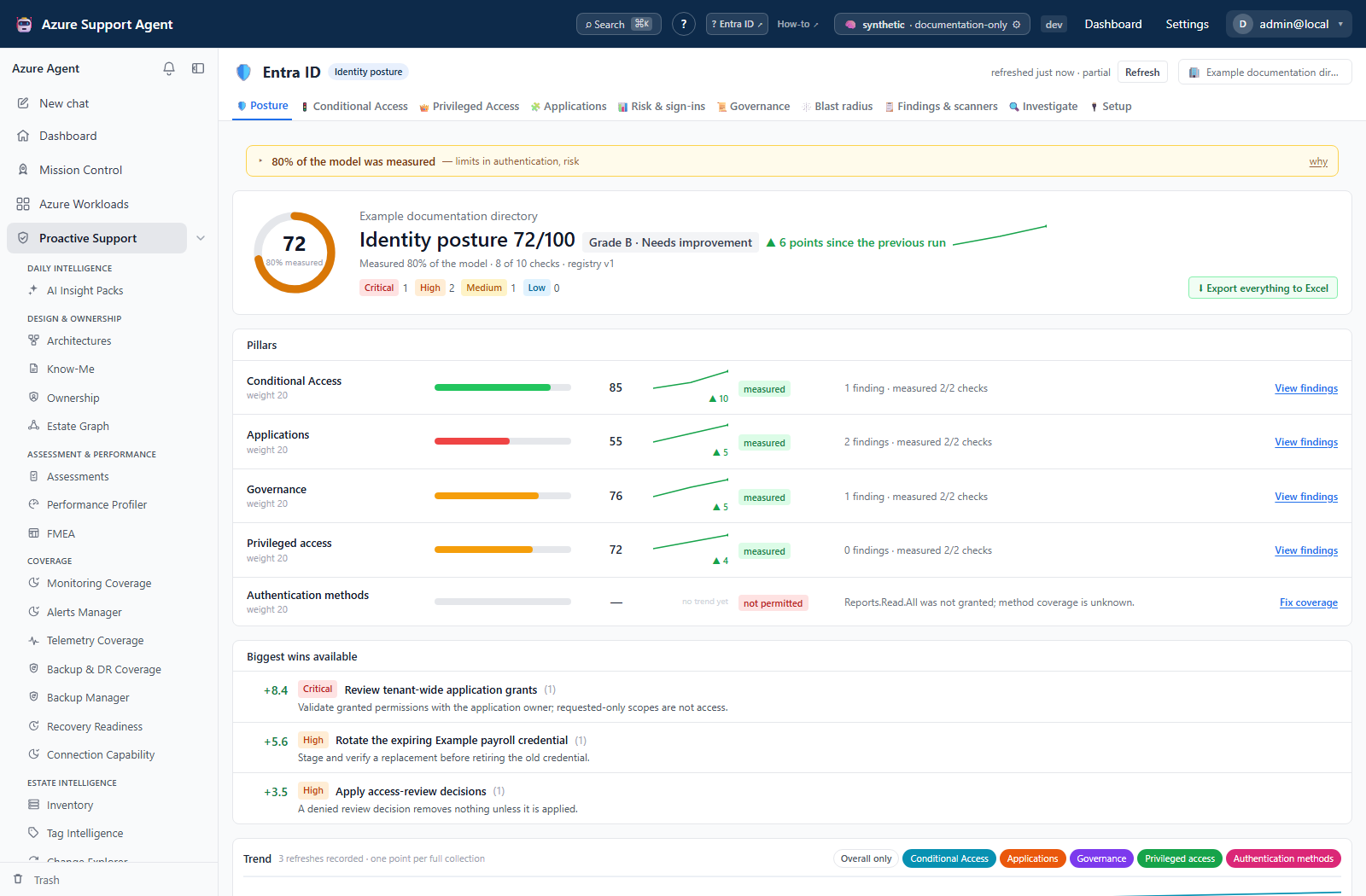
Screenshot notes: These synthetic browser fixtures illustrate how to read setup and posture; no consent, permission recheck, refresh or backend assessment was performed for them. Their shortened permission catalog and pillar model are examples, not the complete tiers, weights or default configuration documented in the linked references.
How to grant a consent tier
-
Open
/entra/setupand select the connection for the tenant you intend to analyze. - Read the Microsoft Graph access card. Confirm the token state and how many application permissions are currently known.
- Read the consent tier list. Each tier shows every scope with a granted or missing marker and a completeness state for the tier as a whole.
- Follow the link to the app registration’s API permissions blade for the client ID shown on the page. Grant every missing scope in the tier as an Application permission — a delegated grant never appears in an app-only token and will not work for background collection.
- Grant admin consent for the app registration after the permissions are added. Consent only grants what the manifest already requests, so consenting before adding a permission changes nothing.
- Start at tier 1. Do not grant tier 2 or tier 3 until the tenant has produced a first snapshot.
Expected result: The app registration requests the tier 1 scopes as application permissions and the tenant has admin-consented to them.
Verification: In the Microsoft Entra admin center, confirm each scope is listed as an application permission with consent granted for the organization.
How to confirm the grant reached the product
-
Return to
/entra/setupand select Re-check permissions now. This reads consent live from Microsoft; every other number on the page reflects the last collection. - Read the result: what is granted now, what was gained since the previous check, what was revoked, which domains remain blind, and which are blocked by license rather than consent.
- If the result still reports a scope as missing a minute after granting it, wait and re-check. Consent propagation is not instant, and re-granting is not the fix.
- Note that a re-check never marks a domain as measured. Holding a permission and having collected the data are different facts.
Expected result: The granted list matches what you consented to, and the gained list names the scopes you just added.
Verification: The page reports that a fresh collection is needed for the new scopes to change any data.
How to run the first collection
-
Check the freshness badge in the Entra header. Before any collection it reads
not loaded. - Select Refresh to start the full collection. Ordinary posture tabs read caches; permission recheck, application sign-in backfill, activation action detail and Investigate have separate live-read paths.
- Watch the progress strip that appears under the tab bar. It streams collector-level messages over server-sent events while the job runs.
- Expand log to read the full transcript, including any collector that failed or was throttled.
- Leave the page or reload it if you need to. The panel re-attaches to a job that is still running rather than starting a second one; a per-tenant lock prevents duplicate collections.
- Wait for the strip to report that collection finished. Duration scales with directory size and Graph throttling.
Expected result: One point-in-time snapshot exists for the tenant, and every tab — posture, Conditional Access, privileged access, applications, signals, governance and blast radius — reads from it.
Verification: The freshness badge changes from not loaded to a recent age, and /entra shows a posture score with its coverage percentage beside it.
How to read coverage and choose the next tier
-
Open
/entra/setupand read the Collector coverage table. Each collector domain carries a state, an item count, and a reason for anything short of measured. - Interpret the state before acting:
measuredneeds nothing;partialcollected some of the domain and names why the rest did not;blindmeans no alternative scope in the requirement group is held;unlicensedmeans the scope is consented but the tenant lacks the license;errorpoints at the diagnostics;stalemeans the data came from an earlier snapshot. - Grant a further tier only against
blinddomains you actually need. Consent cannot fixunlicensed, and an inconclusive probe is not evidence of a missing permission. - Repeat the grant, re-check, refresh sequence for the next tier.
- Treat the coverage banner on each tab as the honest caveat on that screen’s numbers: a score computed over part of the model is a statement about that part only.
Expected result: A documented decision about which tier to add next, based on which domains are blind rather than on the headline score.
Verification: After the next collection, the domains you targeted move from blind to measured and the coverage percentage on /entra rises.
How to interpret the posture score
- Open
/entra/postureonly after the freshness badge shows a completed collection. - Read the coverage percentage beside the score before comparing it with an earlier run; a score over a different measured set is not a like-for-like trend.
- Use each pillar’s View findings handoff, then find the relevant signal in the inbox. It opens the inbox without a pillar filter; API pillar detail is a separate read capability.
- Treat blind, partial, unlicensed, and stale domains as limitations, not passing controls.
- Validate any AI or derived explanation against the source policy, principal, credential, or finding evidence before using it in a decision.
Expected result: The posture score is interpreted together with snapshot age, measured coverage, and source findings.
Verification: Every quoted deduction resolves to a current finding and authoritative directory evidence; unexplored domains remain explicitly excluded from conclusions.
Safety and rollback
Every collector in this feature is read-only. No directory object, credential, Conditional Access policy or role assignment is modified, and no secret or certificate value is ever retrieved. The only writes are local to the product: finding workflow state, break-glass confirmations and saved simulations.
Granting consent changes the tenant and must be reversed there. Recheck and recollect after any approved removal. Native collection writes domains independently; a failed run can leave mixed generations, and token failure can replace requested domains with blind results. It is not an atomic last-known-good snapshot rollback. Inspect each domain’s timestamp/status rather than relying on the newest header age. A completed full-domain run can record score history even with partial collectors.
Troubleshooting
| Symptom | Resolution |
|---|---|
| Every domain is blind | The connection cannot obtain a Graph token. Verify tenant, client, and secret or certificate on the connection. |
| A tier reads granted but a domain is still blind | The snapshot predates the grant. Re-check permissions, then run a collection. |
| A scope granted minutes ago is still missing | Wait for consent propagation and re-check before re-granting. |
| A domain reports unlicensed | The tenant lacks Entra ID P1/P2 or Governance for that data; consent will not help. |
| Refresh returns a permission error | Refresh requires entra.admin; entra.read can only view. |
| The progress strip stops moving | Expand the log and look for throttling. Do not start a second collection. |