Export disabled accounts that still hold access
Disabling an account does not revoke a single role assignment. Azure keeps every one of them, on every plane, indefinitely. The access is not gone — it is dormant, and re-enabling the account is a single helpdesk action that needs no approval, triggers no access review and restores all of it at once.
Disabled Access is the only person-centric screen in IAM. Every other lens is one row per grant, which is the right shape for what is granted and the wrong shape for who should not still be here: a leaver holding Contributor on four subscriptions is one offboarding task, not four findings.
Prerequisites
- Product permission
iam.read. - A completed access collection including the directory layer. Account state is read there; without it the screen reports Not measured rather than an empty list.
- A connection that can read Microsoft Graph directory data. No additional consent beyond what principal-name resolution already requires.
Route
Open /iam/leavers and select Disabled Access.
Read the headline before the list
The first two lines are the whole report:
4 disabled identities still hold 6 grant(s), 4 of them privileged, across 1 subscription(s). Out of 50 principal(s) holding access: 18 checked, 30 could not be checked, 2 have no account state (groups).
The second line is the denominator and it is never omitted. A count of disabled identities means nothing without how many principals were checkable — anyone the directory could not resolve is absent from this report, not cleared by it.
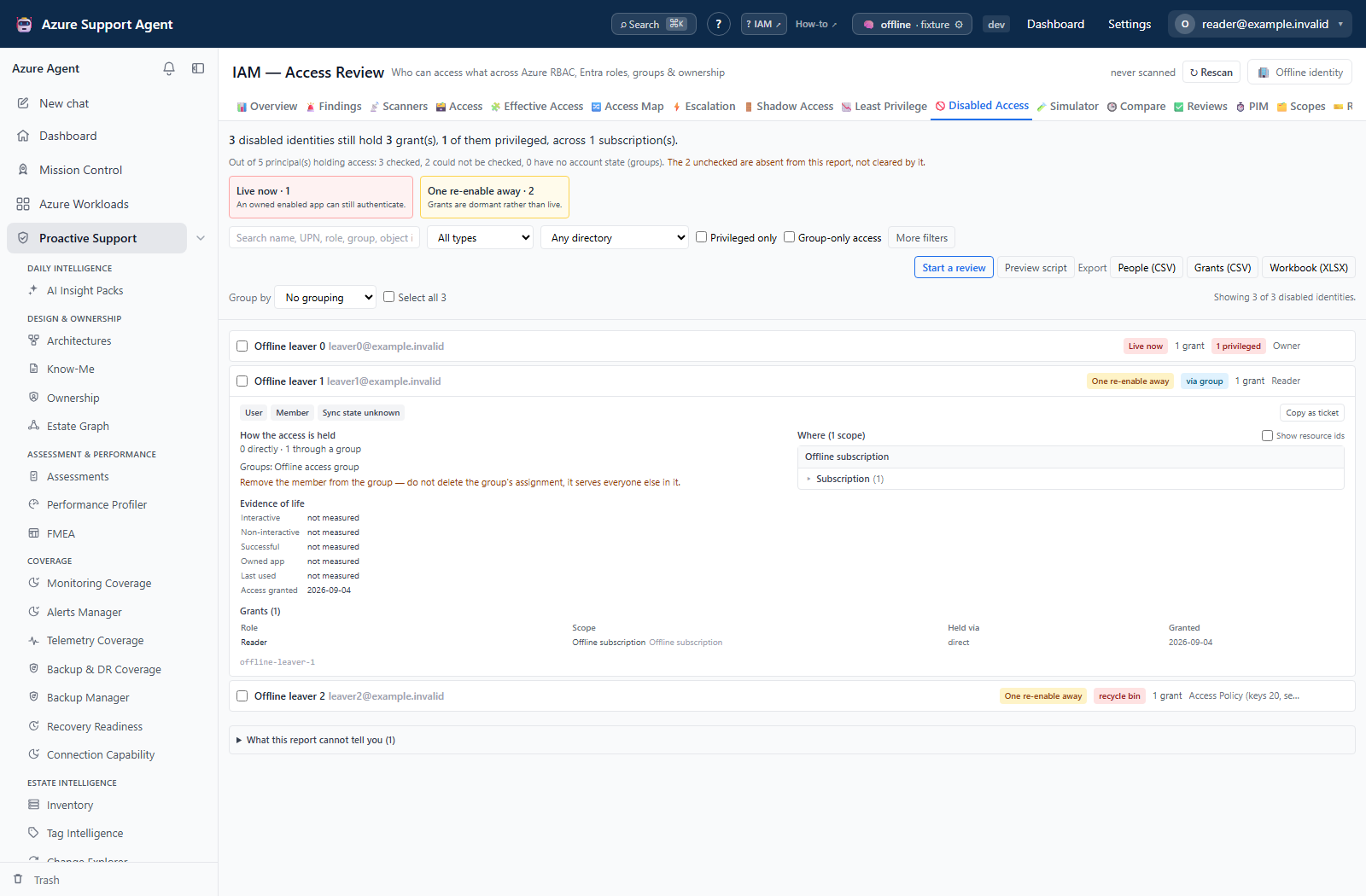
The screenshots below use a separate illustrative browser fixture, not the numbers in the sample sentence above. They are not a computed tenant assessment, live Graph evidence or proof that remediation ran.
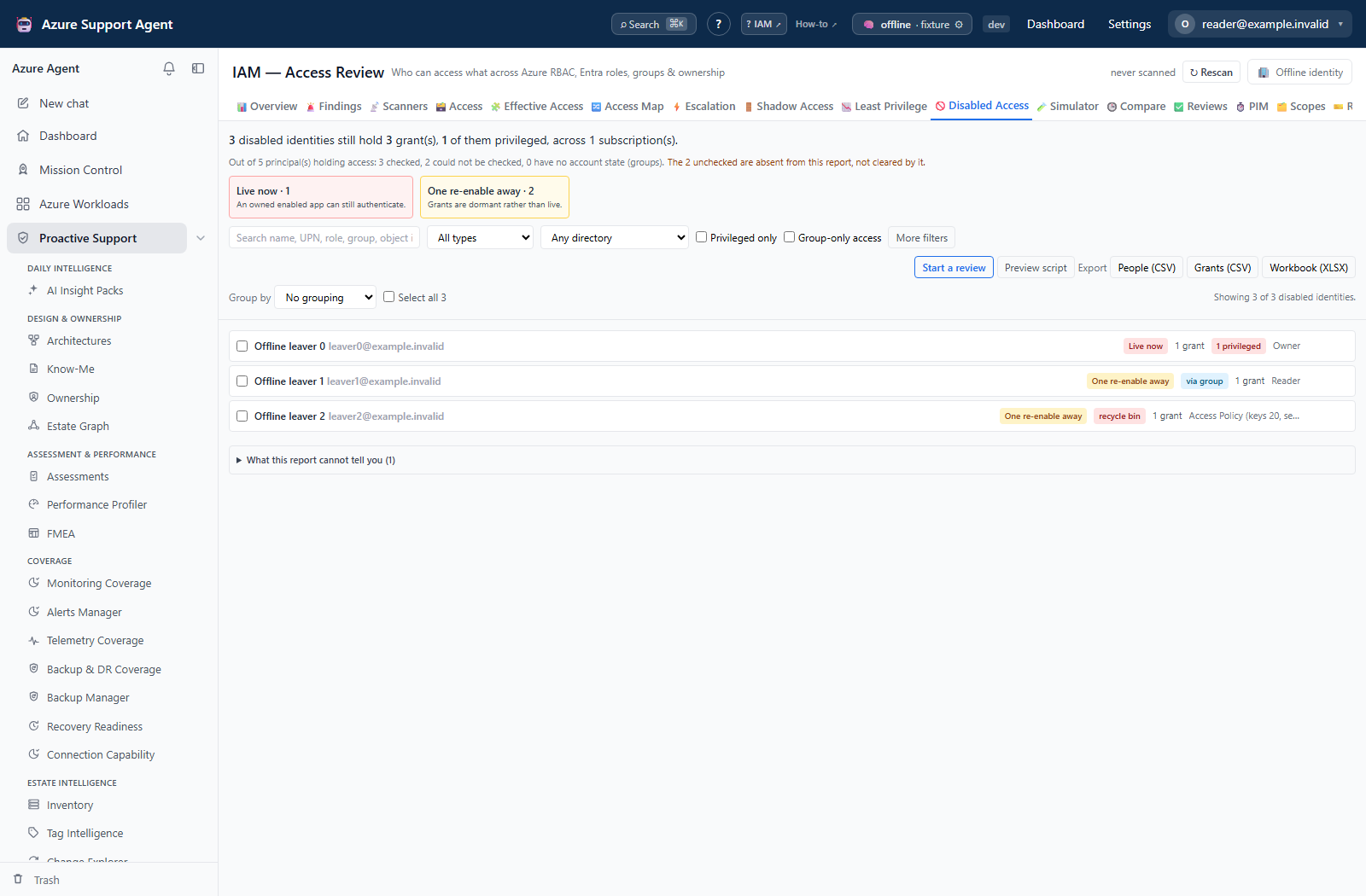
The two tiers, and why there is no third
| Tier | What is true of it |
|---|---|
| Live now | The account owns a service principal or application. That identity signs in with its own secret or certificate, which disabling the owner’s account does nothing to. This access is exercisable today. |
| One re-enable away | The account cannot obtain a token, so these grants are dormant rather than live — but nothing was revoked, and a single account re-enable restores all of it. |
There is deliberately no residual sessions tier. Tokens issued before a disable stay valid until they expire — up to about an hour for an access token, and longer for a refresh token unless the resource supports Continuous Access Evaluation. That is real, but Microsoft Graph publishes no “disabled at” timestamp, so the bucket could never be populated. An empty tier would read as we checked and there are none, so it is stated under What this report cannot tell you instead.
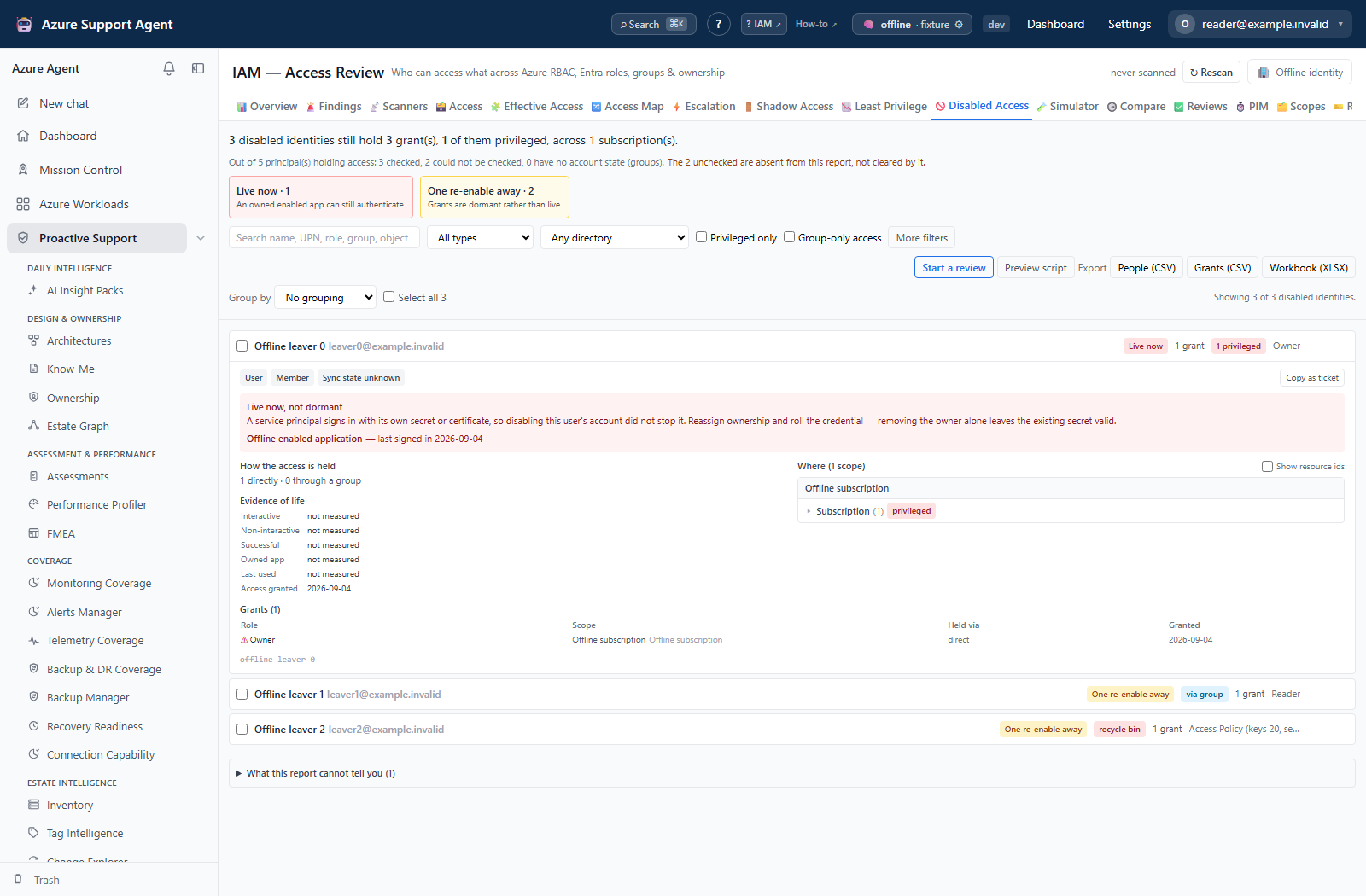
Two cases that need different handling
Access held only through a group. The row shows a via group chip. The assignment belongs to the group and serves every other member, so the fix is to remove the disabled member from the group — never to delete the group’s role assignment. This is the least visible case in the product: an assignment-centric view shows a perfectly healthy group holding a role and nobody opens it.
Accounts synced from on-premises AD. The row shows an on-prem chip. Remove the Azure access as normal, but any account-state change must be made in Active Directory or the next sync cycle reverts it.
Narrowing the list
Group by any of exposure, directory, dormancy, principal type, highest role, subscription, plane or granting group, with an optional second level. Sections start folded — on a real tenant the collapsed headers are the summary. Header counts come from the server over the whole filtered set, so they never disagree with the section beneath them.
More filters adds:
| Filter | Notes |
|---|---|
| Dormancy | Seen in the last 90 days / 90 days – 1 year / 1 – 2 years / Over 2 years / No sign-in ever recorded / Not measured |
| Sign-in kind | Which timestamp dormancy is measured from — interactive, non-interactive, successful, or the owned app’s |
| Directory | Cloud-only / synced from on-prem AD / sync state unknown |
| Subscription, role, plane, granting group | Drawn from the unfiltered population, so picking one never deletes the others from the list |
| In recycle bin, owns a service principal, PIM eligible | |
| Never used the access | Disabled until the Activity Log usage sweep has run |
Not measured and sync state unknown are deliberately their own options rather than being folded into never signed in and cloud-only. Both conflations point an operator at the wrong conclusion, and one of them points them at the wrong directory.
Saved views keep a whole filter set under a name, locally. One click for “on-prem leavers with privileged access, dormant over a year”.
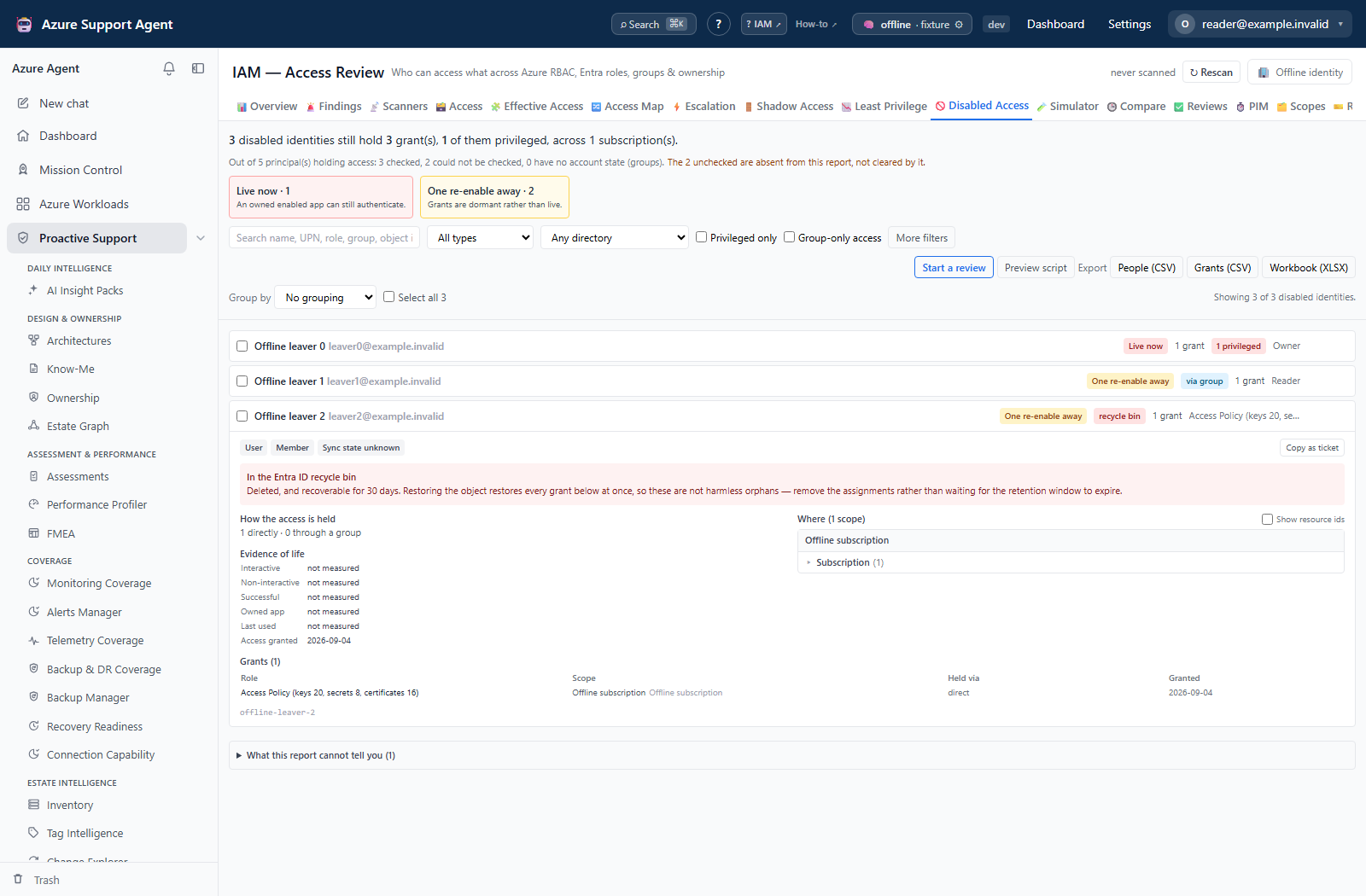
What the expanded row tells you
- Evidence of life — all four sign-in kinds, the last recorded Azure operation and its count, and when the access was first granted. “Granted 2019, last used 2021, disabled 2024” is a far stronger case for removal than any role name.
- Where — every scope, grouped subscription ▸ resource type ▸ resource, each level expandable, with the full ARM id and a copy button behind Show resource ids. Nothing is truncated behind dead text.
- Grants — the actual assignments: role, scope, how it is held, and when it was granted.
- Copy as ticket — the whole record as markdown, ready to paste into a change record. Also available for a multi-row selection.
A note on sign-in dates
A disabled account cannot sign in, so every timestamp here predates the disable. Read them as dormancy — how long this has been rotting — not as activity. Non-interactive sign-ins matter: an account can be dead interactively for months while a mail client quietly refreshes tokens.
Service-principal sign-in comes from a report that only covers a bounded recent window, so an owned application with no date shown was not seen in that window, which is not the same as never being used. The screen says so rather than showing a blank.
“Last used” and the “Never used the access” filter
The Last used row and the Never used the access filter come from an Activity Log sweep, not from Entra. Both are held to a higher bar than the rest of the screen, because “this access was never used” is the one line on the page that reads as permission to delete something.
The filter is greyed out unless a “never used” answer is actually available, and a row reads cannot be concluded from this window rather than no operations recorded whenever one of these holds:
- The sweep has not run. Nothing has been collected, so absence means nothing.
- The sweep was truncated. The Activity Log returns at most 6 MB per subscription. On one real tenant, eleven subscriptions tripped that cap in a single 90-day sweep — what came back was a prefix of the activity, and an operation missing from a prefix is not evidence the access went unused. Re-run the sweep over a shorter window to get a complete answer.
- The window closes before the account was alive. A disabled account cannot obtain a token, so it cannot appear in the Activity Log at all. “No operations in the last 90 days” is exactly what you would expect of somebody disabled two years ago — it is a fact about the window, not about the person. The verdict is only offered when the window actually covers a period the account was still signing in.
The practical effect is that this filter usually returns fewer people than you might expect, and sometimes none at all. That is the intended behavior: the screen would rather tell you it cannot answer than hand you a list that looks like a decision.
How to export the disabled-access list
Three downloads, all carrying the filters currently applied on screen:
| Button | Shape | Use it for |
|---|---|---|
| People (CSV) | one row per disabled identity | handing the identity team a to-do list |
| Grants (CSV) | one row per assignment, full schema | building the change record or a removal script |
| Workbook (XLSX) | seven sheets | attaching to an access review |
The workbook’s sheets are Summary, Identities, Grants, Via groups, Owns credentials, Resources and Not measured. Resources is one row per person-and-scope with the ARM structure intact — the sheet you filter and pivot when somebody holds access on forty resource groups. The last one is always written, even when nothing was withheld. A spreadsheet outlives the screen it came from — it gets forwarded, filtered and pasted into a ticket long after every caveat the UI rendered is gone — so the denominator, the collection date and the limits of the data travel inside the file rather than beside it.
The same lens is available on the main Access grid and its export as disabled_only, if you want the grants alongside everything else.
Expected result: The selected CSV or workbook contains the current filters, identity and grant evidence, collection time, and not-measured denominator.
Verification: Match the exported identity and grant counts to the on-screen filtered totals and confirm the Not measured sheet or denominator is present.
Findings raised
| Signal | Severity | About |
|---|---|---|
hyg.disabled_principal_access | warning, error when privileged | one finding per person |
hyg.disabled_privileged_access | error | dormant administrators |
hyg.disabled_via_group | warning, error when privileged | one finding per group, with the group-specific remediation |
hyg.disabled_owns_credential | error | the live-now tier |
hyg.disabled_pim_eligible | warning | eligibility that outlived offboarding |
hyg.deleted_principal_restorable | warning, error when privileged | recycle-bin accounts, whose access returns if the object is restored |
Every one of them reports not measured rather than a clean pass when account state was never collected. No disabled account holds access is the most reassuring sentence this feature can produce, and it is never produced by failing to ask.
How to start a review
Start a review creates a certification campaign over the current selection, using the existing Reviews workflow rather than a second one here. The selector is evaluated server-side and re-checked when the campaign is refreshed, so a campaign started today does not freeze a list that has since been fixed.
The campaign covers exactly what the screen was showing — every filter in the drawer, plus any rows you ticked. If the header says Showing 7 of 78, the campaign holds those 7. Check the campaign’s scope note after it opens; it records the filter it was cut from, so nobody has to reconstruct later what “the current selection” meant at the time.
Select all ticks every identity the current filter is showing, which is the quick way to work a group at a time: filter to the group, select all, then review or preview the script. The checkbox shows a dash rather than a tick when only some rows are selected, so a partial selection is never mistaken for an empty one.
A selection only counts while the rows are still on screen. Narrow the filter afterwards and the count drops to the overlap, because that is what the exports, the review and the script will actually cover — the alternative is a screen claiming five people while the file contains three.
One decision per access, not per group that grants it: a principal who reaches the same role at the same scope through two groups is one item, and the folded paths are kept on the item so the remediation does not miss one.
Expected result: A certification campaign contains exactly the identities and access paths represented by the current filters and selection.
Verification: Open the campaign scope note and compare its identity count, filter, and folded access paths with the source screen.
How to preview the revocation and rollback scripts
Preview script renders the ordered revocation for the current selection without creating a campaign first — useful when you want to see the size and shape of the change before committing anybody to a review.
It comes as two separate blocks, each with its own Copy button:
- Remove the access — the ordered revocation.
- Undo (rollback) — puts back exactly what step 1 took away, in reverse order.
They are separate because they are run at different times by different people. Take a copy of the rollback and attach it to the change record before you run the removal; whoever needs it will be looking for it in a hurry, and should not have to select the right half of a single long script by hand.
The script is read-only output. Nothing in it is executed by the product; you read it, then run it yourself. Group-derived access is revoked before direct assignments (revoking a direct grant while the same access is still inherited through a group looks successful and changes nothing), and every step carries a dry run. Both blocks repeat the generator version and the “not run by the product” warning, so either one is still auditable after it has been pasted somewhere on its own.
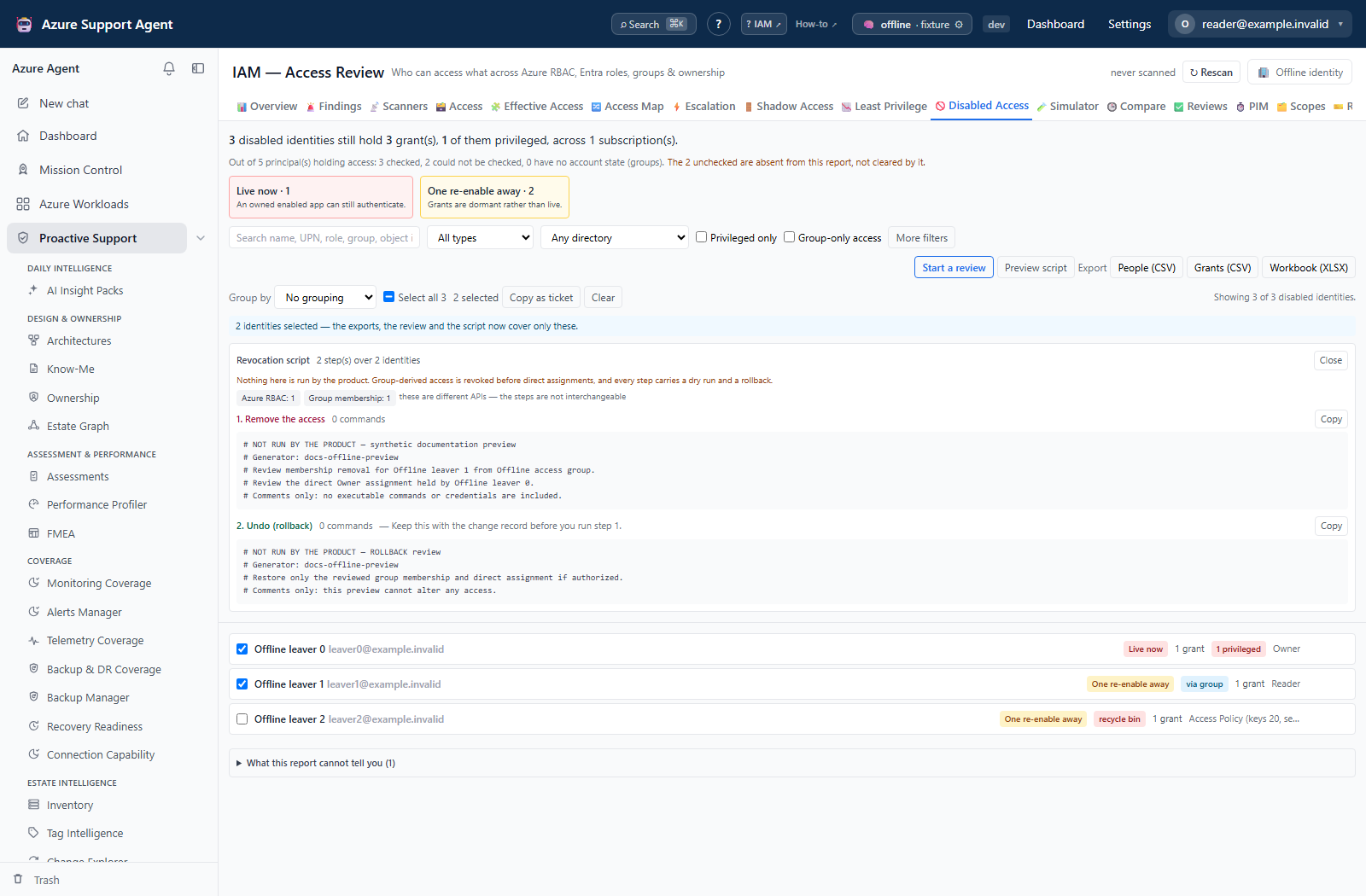
Each step targets the API that actually governs the access
This matters more than it sounds. az role assignment delete only removes an Azure RBAC assignment held directly by the principal you name. Pointed at anything else it either exits successfully having done nothing, or fails looking up a role that does not exist in ARM — and a clean exit is exactly what makes an operator tick the line off and move on.
So the generated steps are split by plane:
| The access is… | Removed by | Not by |
|---|---|---|
| An Azure RBAC assignment held directly | az role assignment delete | — |
| Inherited through a group | az ad group member remove — the membership | deleting the assignment, which belongs to the group and serves every other member |
| An Entra directory role (Global Reader, Reports Reader…) | Graph: DELETE /roleManagement/directory/roleAssignments/{id} | ARM — directory roles are not published as ARM role definitions |
| Ownership of a service principal | Graph: DELETE /servicePrincipals/{id}/owners/{owner}/$ref | ARM — and not az ad sp owner remove, which does not exist: the CLI only offers az ad sp owner list. Removing the owner also does not stop the app; roll its credential too |
| PIM eligible (not active) | a PUT of a roleEligibilityScheduleRequest with requestType: AdminRemove, naming the eligibility instance it removes | role assignment delete, which only sees active assignments |
| A Key Vault access policy | az keyvault delete-policy | ARM role APIs |
| Classic administrator, Lighthouse, or a deny assignment | nothing scriptable — the step is a commented-out manual instruction | any command at all |
Every ARM step names its subscription
Neither tool infers it. az keyvault … resolves the resource group inside whatever subscription happens to be active, and Az PowerShell cmdlets act on the current context — so a step can fail with “(ResourceGroupNotFound) Resource group ‘…’ could not be found” for a group that exists perfectly well, one subscription over. A single script routinely spans several.
So every ARM command carries --subscription (Azure CLI) or is preceded by Set-AzContext -Subscription … (PowerShell). Directory-scoped steps — Entra roles, group membership, service-principal ownership — carry neither, because there is no subscription involved.
The PIM request name is generated for you
Removing an eligibility means creating a roleEligibilityScheduleRequest, and the request needs a name that is a fresh GUID. The script used to leave <new-guid> for you to replace; sent to ARM verbatim it returns a 400 wrapped in an ASP.NET error page, which explains nothing. There is no GUID generator valid in both Bash and PowerShell, so the name is minted when the script is built. Re-running the same step is then a no-op rather than a second removal.
The request also names targetRoleEligibilityScheduleInstanceId, because a principal can hold more than one eligibility for the same role, and roleDefinitionId as the full ARM id rather than the bare GUID.
Key Vault permission lists are shortened in the step title
A vault access policy is stored as its real grant — Access Policy: keys(get,list,update,create,…) secrets(…) certificates(…) — which on a real vault is several hundred characters. Printed in the step title and again in its breaks if line it produced two unreadable lines, so the script shows counts instead: Access Policy (keys 15, secrets 7, certificates 16). The full list stays in the export, which has no width limit. Commands are built from object ids, never from this string.
Two consequences worth knowing:
- The step count is lower than the grant count. One group membership grants every role that group holds, so those grants fold into a single removal. The panel shows both numbers, and the folded step lists every grant it takes away.
- A membership removal has a bigger blast radius than one role. It removes everything the group grants, not just the row you were looking at. The
breaks ifline says so, and the dry run checks whether the person is a direct member or sits in a nested group.
Groups mastered in on-premises Active Directory
Entra refuses every membership change to a group synced from on-premises AD — the removal fails with “Unable to update the specified properties for on-premises mastered Directory Sync objects”. That is a property of the group, not of the member: a cloud-only account inside a synced group still cannot be removed in Entra.
The scan collects each group’s sync state, so the script handles this in two ways:
| What the scan knows | What the step looks like |
|---|---|
| The group is AD-mastered | No runnable command at all. The step is commented out and says to remove the member in Active Directory, then let Entra Connect sync it. The step title ends in IN ACTIVE DIRECTORY so it is visible in the preview before you run anything. |
| Sync state unknown (Graph omits the property for cloud-only objects, so this is usually a cloud group) | The removal runs, but the group id is resolved at run time. If the group turns out to be AD-mastered the lookup yields a sentinel instead of the id, so the command cannot touch it. |
The run-time guard uses $(…) rather than an if block because it has to work in both Bash and PowerShell — Cloud Shell offers each, and the same script gets pasted into both.
Nested groups: the membership is not always in the group that holds the assignment
A role assignment held by a group reaches everyone in its nesting tree, but a membership exists in exactly one group. az ad group member remove deletes a direct membership and nothing else, so aimed at the assignment-holding group it fails for anybody who is really a member of a child:
Resource '<group>' does not exist or one of its queried reference-property objects are not present.
That is a 404 on a $ref that was never there. The scan therefore keeps the nesting (Graph’s transitiveMembers returns nested groups; they used to be discarded) and works out which group each membership is actually in:
| Resolution | What the step does |
|---|---|
| direct | Targets the group that holds the assignment. |
| nested | Targets the child group. The step title reads Child (nested in Parent) so it is still findable by the group you were looking at, and the groupChain column shows Parent > Child. |
| ambiguous — the member sits directly in two or more sibling children | No command. Removing one of them leaves the access in place and exits successfully, so the step lists the candidates and asks you to choose. |
| unknown — part of the nesting could not be read | No command, for the same reason: any group named would be a guess. The step gives you the memberOf call that answers it. |
In the last two cases the step still tells you what not to do — deleting the group’s role assignment would strip every other member of it.
Groups the Azure CLI cannot write to at all
Two kinds of group refuse a membership change for reasons no permission grant fixes, so the script does not offer a command for either:
Role-assignable groups (isAssignableToRole) can be granted directory roles, so Entra requires the calling application to hold RoleManagement.ReadWrite.Directory before anyone may change their membership. The Azure CLI’s Graph token carries Group.ReadWrite.All and Directory.AccessAsUser.All but not that scope, and neither does Cloud Shell’s portal app. The result is:
403  Authorization_RequestDenied
Insufficient privileges to complete the operation.
— for a Global Administrator, with the role present in the token and the membership confirmed direct. It is a limit of the tool, not of your access, and activating a PIM role does not change it. The step says so explicitly, because the natural reading of that error is “I need more rights”, and hours disappear into that.
What works is Microsoft Graph PowerShell. The sign-in is emitted once, at the top of the script, rather than repeated on every affected step — on a real tenant there were twelve of them, and a six-line connect block twelve times buries the single line that differs between them. Two ways in:
#Option A — interactive, as yourself (delegated):
Connect-MgGraph -Scopes 'RoleManagement.ReadWrite.Directory','GroupMember.ReadWrite.All'

#Option B — unattended, as a service principal (app-only):
$secure = ConvertTo-SecureString $env:GRAPH_CLIENT_SECRET -AsPlainText -Force
$cred   = [System.Management.Automation.PSCredential]::new('<app-id>', $secure)
Connect-MgGraph -TenantId '<tenant-id>' -ClientSecretCredential $cred
The tenant id is filled in for you. Two things about Option B are worth reading twice:
-Scopesdoes not apply to app-only sign-in. A service principal carries application permissions, which an administrator grants and consents to on the app registration in advance —RoleManagement.ReadWrite.DirectoryandGroupMember.ReadWrite.All. Without that consent you land on the same 403 you started with, one layer deeper.- The secret is read from the environment, never written into the script. These artifacts are generated on demand and pasted into change records; one that carries a credential is a leak with a filename. Set
GRAPH_CLIENT_SECRETin the shell you run it in, or pull it from a vault.
If you asked for the PowerShell format, Option A is runnable and Option B is commented out — running both in one session would just replace the first context with the second, so choosing is deliberate. The portal works too.
Dynamic groups compute their membership from a rule, so there is no membership object to delete. The fix is the rule, and the step points at it.
Both properties are only returned by Graph when asked for by name, which is why an operator looking at a bare 403 has no way to discover either of them.
What this does not do
- It does not write to Azure. Use Reviews to run a certification campaign over these identities, or generate a remediation script from a campaign.
- It does not tell you when an account was disabled, or which accounts are still inside the residual-token window.
- Last sign-in dates come from the separate Entra identity scan, and “last used” from the separate Activity Log usage sweep. If either has not run, the column is blank rather than zero, and the report says so.
- It will not tell you that somebody never used their access unless the usage data can actually support that claim. See “Last used” and the “Never used the access” filter above.
Expected result: Script preview produces separate removal and rollback blocks, with manual-only comments for access that the selected tool cannot safely revoke.
Verification: Confirm every selected access path maps to the correct control plane, every ARM step names its subscription, group access removes membership rather than the group’s assignment, and the rollback is captured before execution outside the product.
Safety and rollback
This feature reads and exports access evidence; it does not execute the generated script. Treat exports as sensitive identity and authorization data. Review every command, preserve the separate rollback block in the approved change record, and run removal only through the organization’s change process. Group membership removal can revoke more than one role, while deleting a group assignment can affect every member; never substitute one operation for the other.
Troubleshooting
| Symptom | Cause and resolution |
|---|---|
| Disabled identities list is empty but the denominator says principals were not checked | Directory state was not collected. Refresh the directory layer and verify Microsoft Graph read access before concluding there is no residual access. |
| Never used the access is disabled | The Activity Log usage sweep is absent, truncated, or does not cover a period when the account could sign in. Run a shorter complete sweep and re-evaluate. |
| Group-member removal returns an on-premises sync error | The group is mastered in Active Directory. Remove the member at the source directory and allow Entra Connect to synchronize. |
Group-member removal returns 403 Authorization_RequestDenied | Role-assignable groups need RoleManagement.ReadWrite.Directory; use the reviewed Microsoft Graph PowerShell path with approved delegated or application permissions. |
| A nested-group removal returns a missing-reference error | The principal is not a direct member of the assignment-holding group. Use the resolved child group, or stop when membership is ambiguous or unknown. |
| Export counts differ from the review campaign | Filters or selected rows changed. Re-open the campaign scope note and recreate it from the intended stable selection. |