Network Access
Permissions: firewall.read to view, firewall.manage to change
App route: /admin/firewall
Purpose
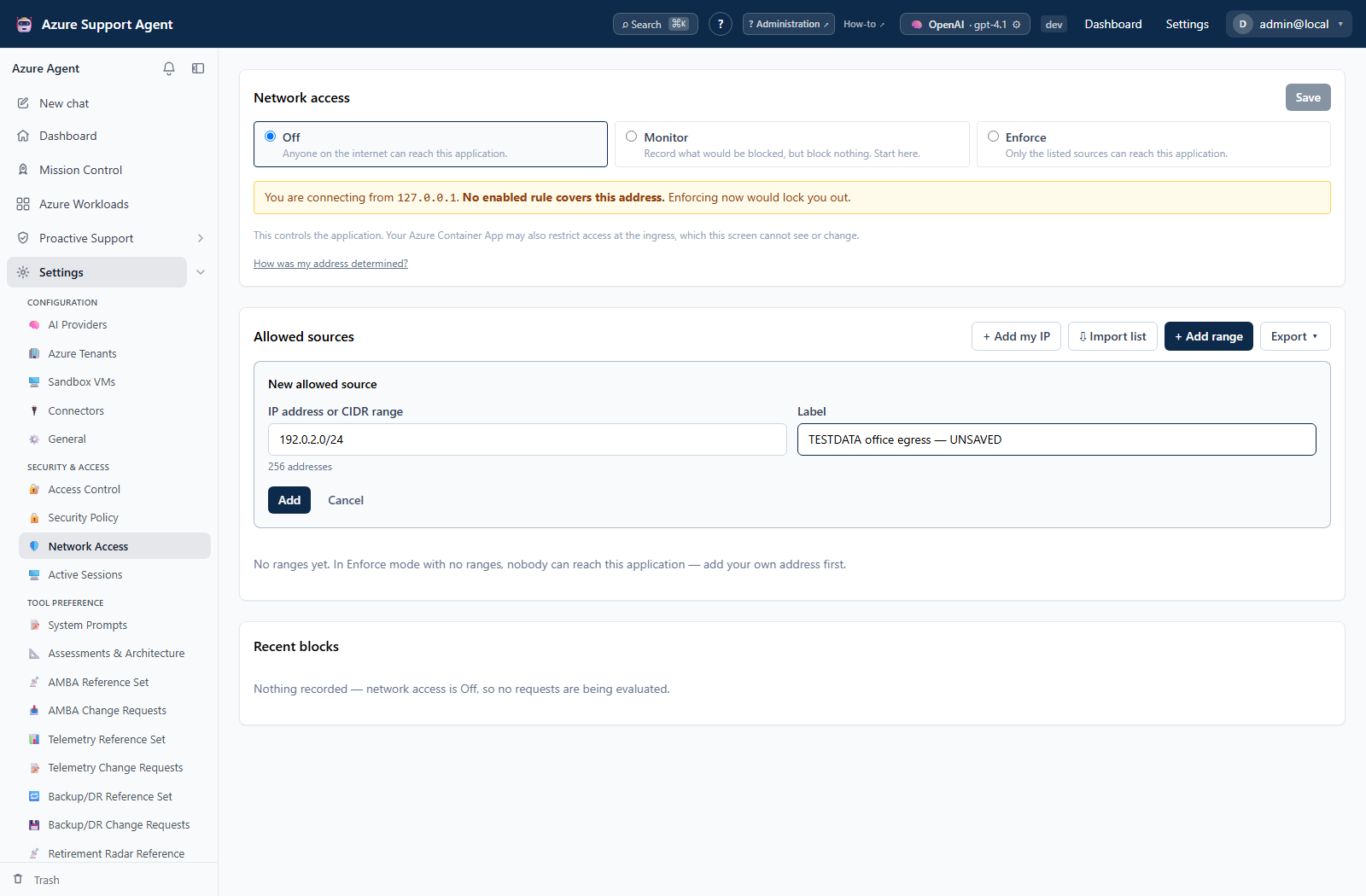
By default the application is reachable from anywhere on the internet, which means anyone can load the sign-in page and attempt credentials. Network Access restricts which source addresses may reach the application at all, so an unknown caller never gets as far as authentication.
This is distinct from the per-IP rate limiting on Security Policy, which is reactive — it responds after failed sign-ins. Network Access stops the attempt from arriving.
The two layers
Restricting access can be done in two places, and they are not alternatives.
| Layer | Enforced by | Effect |
|---|---|---|
| Container Apps ingress | Azure, before the container | A refused caller never completes a TLS handshake or reaches the application. This is the strongest control. |
| This screen | The application itself | Manageable without redeploying, with an audit trail and a monitor mode. The request still reaches the container before it is refused. |
This screen cannot see or change ingress-level restrictions. If you configure both, remember that “Off” here does not mean the application is unrestricted at the edge.
To configure the ingress layer, set allowedClientIpRanges at deployment time, or afterwards:
az containerapp ingress access-restriction set \
  --name <app> --resource-group <rg> \
  --rule-name office --ip-address 203.0.113.0/24 --action Allow
No public endpoint at all
If the application should not be reachable from the internet under any circumstances, deploy with ingressVisibility = Internal. That removes the public endpoint entirely rather than filtering it, so there is no public address to attack.
It requires privateNetworking = Yes, and you must provide your own way in — a VPN, a Bastion or jump host, a private endpoint, or a subnet router such as Tailscale deployed inside the VNet. Nothing in the template does that for you, and after deployment the one-click URL will not resolve for anyone on the internet, including the machine that ran the deployment.
Which address the server sees
The policy is evaluated against the address the server resolves, which is not always the one you expect:
| How you connect | Address seen |
|---|---|
| Directly over the internet | Your public (ISP) address |
| Over a VPN or Tailscale subnet router | The address of that tunnel, typically in 100.64.0.0/10 |
| Via a Tailscale exit node | The exit node’s public address |
Addresses in 100.64.0.0/10 (carrier-grade NAT space, which includes every Tailscale address) are treated as a real client, not as infrastructure, so a tailnet address can be allowlisted directly. Tailnet addresses are stable per device, which makes them a better allowlist entry than a dynamic home IP.
If the address shown is not what you expect, open How was my address determined? under the mode selector. It shows the raw X-Forwarded-For chain as received, the socket peer, how each entry was classified, which one was selected, and why.
When no entry in a trusted forwarded header can be attributed to a client, the caller is treated as unidentifiable and refused in Enforce mode, rather than being attributed to a proxy.
Modes
| Mode | Behavior |
|---|---|
| Off | No evaluation. Anyone can reach the application. This is the default. |
| Monitor | Records what would be blocked, but blocks nothing. |
| Enforce | Sources outside the allowed list receive a bare 403, including on the sign-in page. |
Start in Monitor. It costs nothing, and the Recent blocks list tells you what your rules would actually do before they can do it. Going straight to Enforce on a guessed range is the usual way people lose access to their own deployment.
Allowed sources
Each rule is a single IP address or a CIDR range, IPv4 or IPv6, with a required label. The Scope column translates the prefix into a plain count — 203.0.113.0/24 shows as 256 addresses — so an over-broad rule is visible before you save it.
- + Add my IP adds the address the server sees you connecting from. This is the address that matters; it is not necessarily what your machine believes it is.
- + Allow on a row in Recent blocks pre-fills a rule for that source.
- Rules can be disabled without deleting them.
- A rule permitting every address (
0.0.0.0/0or::/0) is rejected in Enforce mode, because it would silently turn enforcement into a no-op while the screen still read “Enforcing”.
Bulk import
Select Import list to paste a list or choose a UTF-8 .txt/.csv file. Import is always a two-step operation: Preview import validates and calculates the result, then Apply to draft changes only the browser draft. Nothing becomes active until the ordinary Save button is pressed, so the self-IP guard, typed ENFORCE confirmation, audit event and commit-confirm timer cannot be bypassed by bulk import.
TXT input contains one IPv4/IPv6 address or CIDR per line. Blank lines and lines beginning with # are ignored. A bare address is normalized to /32 or /128, and the default label is applied to every row.
# Corporate egress
20.118.190.135/32
156.20.174.0/24
2001:db8:100::/48
CSV uses the following round-trip format. label and enabled are optional; a blank label uses the default label and a blank enabled value means active.
cidr,label,enabled
20.118.190.135/32,Head office,true
156.20.174.0/24,Legacy VPN,false
The preview reports invalid lines with their line numbers, canonicalization, duplicates, existing ranges skipped during a merge, ranges added/retained/removed, overlaps and whether the result still covers the administrator’s current address. Invalid or duplicate input blocks Apply to draft; overlaps are warnings and both ranges are retained.
- Merge keeps every existing rule. When an imported CIDR already exists, the existing label and enabled state win and the imported row is reported as skipped.
- Replace makes the imported list authoritative and reports which existing rules will be removed. An empty replacement is rejected. Replace does not bypass the Enforce self-IP guard.
- Imports are limited to 1 MiB, 1,024 characters per physical line and 5,000 resulting rules. DNS names, wildcards and start/end range notation are not accepted.
Export
The Export menu always exports the saved server policy, not unsaved browser changes:
- Active ranges — TXT downloads one active canonical CIDR per line. Disabled rules and labels are omitted, making the file suitable for tools that accept a flattened allowlist.
- All rules — CSV downloads
cidr,labelandenabled, including disabled rules, and can be imported back into this screen. Labels are neutralized against spreadsheet formula execution.
Users with firewall.read can export because the file contains the same policy they can already view. Import preview and Save require firewall.manage.
Health probes are never blocked
/healthz, /readyz and /version are always reachable. Blocking the platform’s health probes would take the application down far more effectively than any attacker.
Every other path is subject to the allowlist, including the sign-in page — keeping unknown sources away from it is the point of the feature.
Safeguards against locking yourself out
This is the one screen in the product that can make itself unreachable, so it carries four guards:
- Monitor mode, so rules can be validated before they take effect.
- Self-IP guard — Enforce cannot be saved unless an enabled rule covers your current address. The address is shown on screen.
- Typed confirmation — switching to Enforce requires typing
ENFORCE. - Commit-confirm timer — enforcement is provisional for 15 minutes and reverts to Monitor automatically unless you press Keep enforcing. If a rule is wrong and you walk away, the application un-blocks itself.
Recovering from a lockout
Every recovery route uses the Azure control plane, so none of them depend on being able to reach the application. Holding Azure RBAC on the resource group is sufficient.
| Route | Notes |
|---|---|
| Connect from an allowed source | Usually the answer. |
az containerapp exec then edit /app/.data/network_access.json | Fastest. Takes effect within seconds; no restart needed. |
az containerapp update --set-env-vars IP_ALLOWLIST_DISABLED=true | Disables the feature entirely. Creates a new revision, so allow for a cold start. |
Edit network_access.json on the appdata file share | Works with the application completely down. |
For the ingress layer, remove the rule instead:
az containerapp ingress access-restriction remove \
  --name <app> --resource-group <rg> --rule-name office
Seeding at deployment
Set allowlistSeed (and optionally allowlistSeedMode) when deploying so a new environment comes up already protected rather than open until an administrator visits this screen. The seed applies only on first boot and never overwrites a policy saved later in the app.
Recent blocks
Records are aggregated per source address, not one row per request, so a scanner cannot flood the view. The badge distinguishes Blocked (actually refused) from Would block (Monitor mode) — these are opposite facts and are never conflated.
Rows keep the mode they were recorded under, so a “Would block” row can appear while enforcing. Those are historical entries from a Monitor period, not requests being allowed now.
Records are pruned after 30 days.
Audit and backup
Configuration changes are written to the Audit Log as firewall.update, firewall.confirmed, firewall.auto_reverted and firewall.blocks_cleared.
The policy is included in Backup & Restore. An imported policy that was set to Enforce is restored as Monitor: a backup carries the original deployment’s ranges, which may not include whoever is performing the restore. The rules are preserved so they can be reviewed and enforced deliberately.
Troubleshooting
| Symptom | Cause and resolution |
|---|---|
| Apply to draft stays disabled after preview | One or more import rows is invalid or duplicated after CIDR normalization, or Replace contains no valid range. Use the line-numbered diagnostics, correct every invalid row, and preview again. Overlap warnings alone do not block apply. |
| Preview warns that the current address is not covered | The calculated draft omits the address resolved by the server. You may inspect or apply the draft, but Enforce-mode Save remains blocked; add a covering enabled range or use + Add my IP, then preview/save again. |
A CSV row is rejected at enabled | Use true/false, yes/no, 1/0, or enabled/disabled. A blank value means enabled. |
| A downloaded export omits recent edits | Export reads the saved server policy, never the browser draft. Save the draft successfully, then export again. |
| Import reports more removals than expected | Replace makes the imported list authoritative. Switch to Merge, or add the missing saved ranges to the input before applying. |
| The allowed-source table appears empty after import | A search filter can hide every rule. Clear Search allowed sources; the count beside it reports filtered versus total rules. |