Connect with a pasted Azure CLI token
Paste an access token obtained from the Azure CLI on your own machine. Nothing is registered in Azure, so this is the fastest way to look at a tenant — and the most limited.
When to choose this
Choose it for a one-off inspection of a tenant you can already sign in to, or where creating an app registration is not possible yet. It is not suitable for scheduled work, background refreshes, or anything unattended: the token lasts about an hour and cannot be renewed, because the Azure CLI does not expose refresh tokens.
For an equally quick but durable option on the machine running the application, use host identity instead.
Step 1 — Sign in and get an ARM token
On your own computer:
az login --tenant <TENANT_ID>
az account get-access-token --resource https://management.azure.com --output json
Copy the entire JSON output. The tenant, subscription, and expiry are read from it automatically, which is why the Tenant ID field is not required for this method.
Step 2 — Optionally get a Microsoft Graph token
An ARM token cannot query Microsoft Graph, so principal, group, and service-principal names stay as GUIDs without a second token. To resolve names:
az account get-access-token --resource-type ms-graph --output json
Your account needs directory read access, such as Directory.Read.All, for this to return useful data. This token is also short-lived.
Step 3 — Fill the form
Open /admin/tenants and select Add connection.
| Field | Value |
|---|---|
| Display name | A non-sensitive label |
| Tenant ID | Optional — taken from the token |
| Azure cloud | The cloud the tenant lives in |
| Authentication method | Paste Azure CLI token (short-lived) |
Paste az account get-access-token JSON | The full JSON from step 1 |
| Paste Microsoft Graph token JSON | Optional, the full JSON from step 2 |
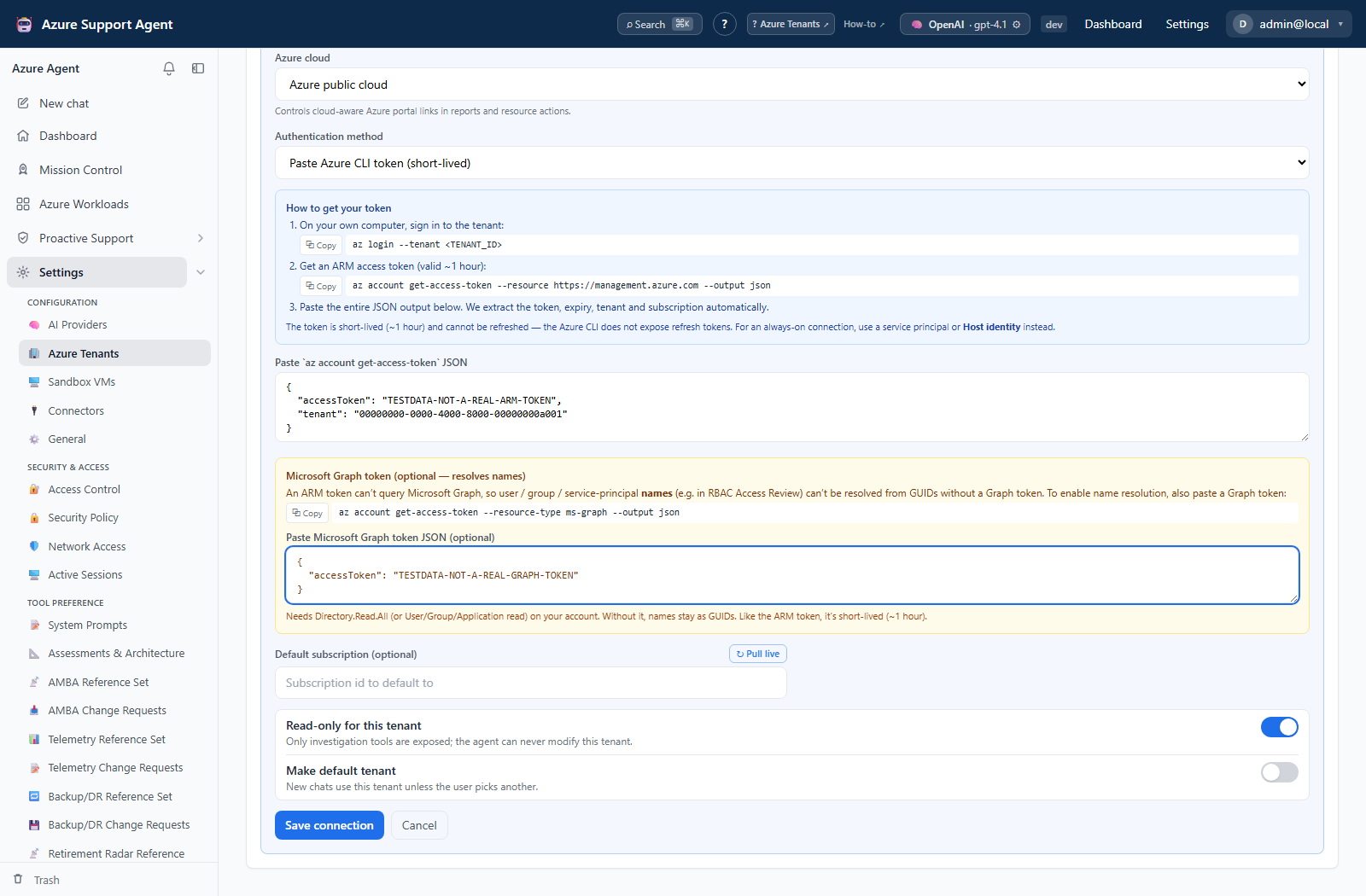
Save, then Test and Discover. Both tokens are encrypted at rest and write-only.
Capabilities and limits
Within its short lifetime the token supports ARM and Resource Graph. Three limits matter:
- It expires in about an hour and cannot refresh. The connection then fails until a new token is pasted. Anything scheduled will eventually fail.
- Log Analytics is not available. Log Analytics is a different token audience, and the request is refused with an explicit message rather than returning an empty result that would look like “no data”.
- Entra and Microsoft Graph application features are unavailable. Those require a service-principal identity. The optional Graph token above resolves names only; it does not enable Entra features.
Your own account’s Azure RBAC determines what the token can see. It inherits your access, so it may show more than a least-privilege service principal would — keep Read only enabled.
Rotation and revocation
Refreshing means repeating step 1 and pasting the new JSON. To revoke early, sign out of the CLI session or revoke your own sessions in Entra; deleting the connection here only discards the stored copy.
Troubleshooting
| Symptom | Resolution |
|---|---|
| Worked, then everything failed | The token expired. Repeat step 1 and paste a fresh token. |
| Log Analytics queries are refused | Expected. Use a service principal or host identity for Log Analytics. |
| Names show as GUIDs | Paste a Microsoft Graph token as in step 2. |
| Entra validation is unavailable | Expected. Add a service-principal connection for Microsoft Graph. |
| Paste is rejected | Paste the complete JSON object, not just the accessToken value. |