Review guest (B2B) access and clean up stale invitations
Prerequisites
- Product permission
entra.read. Nothing on this page writes anything, in the app or in Azure. - Tier 1 consent for the user inventory. Guests, their external state, creation time, and mail address come from it.
- Tier 2 consent and Entra ID P1 for sign-in activity. Without it, dormancy cannot be determined and every guest is reported as Not measured.
- A completed Entra collection for the tenant. This screen reads the cached snapshot and never calls Microsoft Graph.
- An approved change process for disabling or removing a guest, and for changing a cross-tenant access policy. This feature performs neither.
No extra consent is needed for the partner-tenant resolution or the cross-tenant partner list; both work with the scopes the product already holds.
Route
/entra/governance/guests — the Guests (B2B) sub-tab of /entra/governance.
How to size the external population before reviewing anything
-
Open
/entra/governance/guestsand read the coverage banner above the tiles. It states what the people domain could and could not measure for this snapshot. - Read the Not measured tile before the Dormant tile. Guests whose sign-in activity was not collected are excluded from the funnel and are not dormant — nobody looked.
- Read the Guest lifecycle funnel top to bottom: invited, accepted, used it, still active. The red figure beside each step is the loss at that step — never accepted, never used, now dormant.
- Read Where guests come from. Any count against Consumer email is external access with no partner organization behind it: when the engagement ends there is no admin to ask and no leaver process to inherit.
- Note the Partner domains tile. That is how many organizations you would have to contact to end every external relationship in the tenant.
Expected result: A sized picture of external access with the unmeasured portion stated separately, rather than a single guest count.
Verification: The funnel’s invited figure matches the Guests tile, and pending plus accepted equals it. If Not measured is large, fix collection before drawing conclusions — see the troubleshooting table below.
How to clear invitations that were never accepted
-
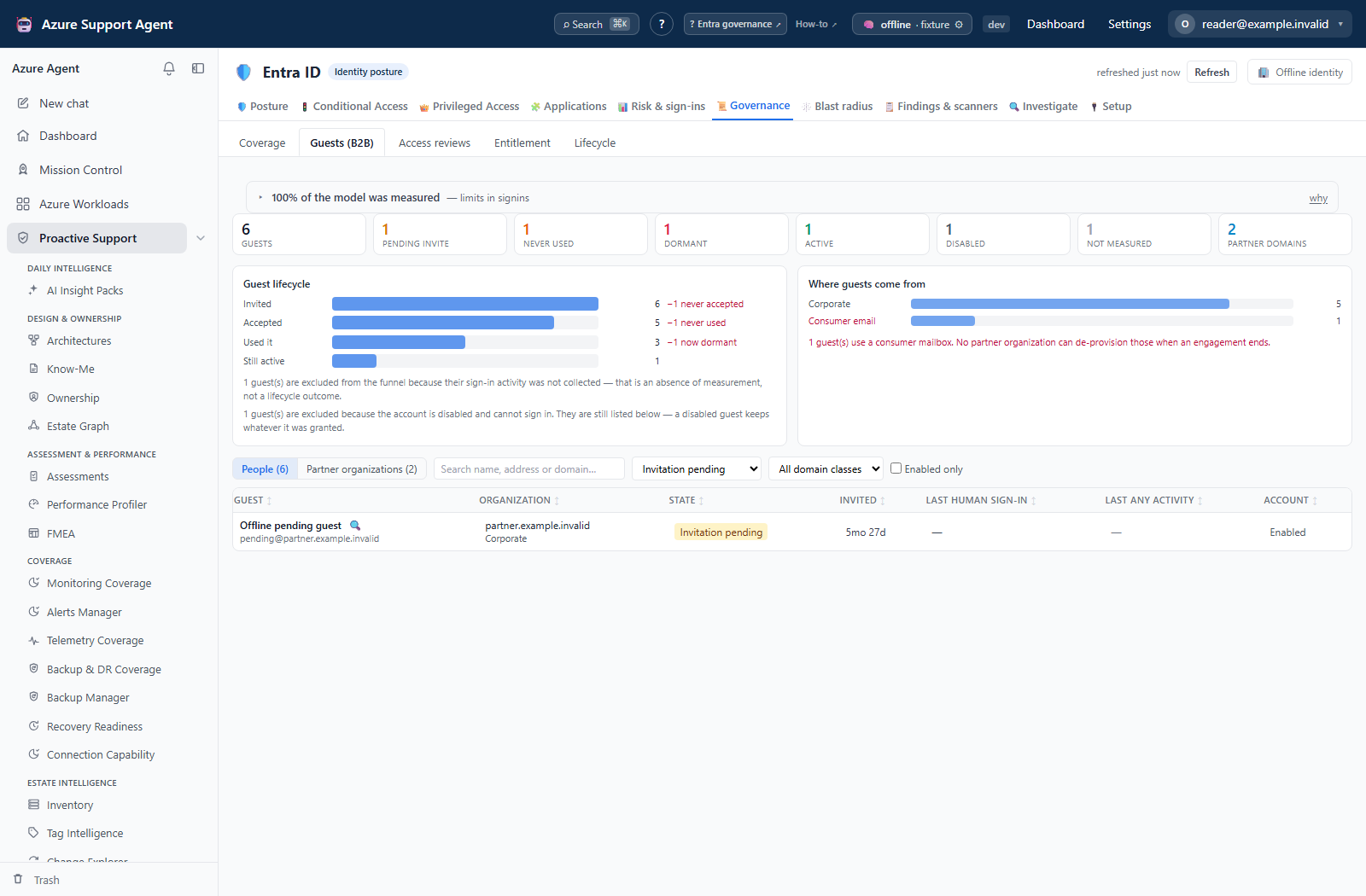
Set the Lifecycle filter to Invitation pending.
- Read the Invited column. These objects exist because an invitation was sent and never taken up; the age is the object’s creation time, which is the only field that survives acceptance.
- Sort by Invited descending to lead with the oldest. An invitation nobody accepted in a year will not be accepted now.
- Tick Enabled only if you want to exclude objects somebody has already disabled.
- Use the Organization column to spot a partner where the whole cohort is pending — that is usually a collaboration that never started, not a set of individuals to chase.
- Export the workbook and use the Guests sheet, filtered to the
pendinglifecycle, as the removal list.
Expected result: A dated list of unaccepted invitations, grouped by the organization they were sent to.
Verification: Confirm each candidate’s external user state and creation date on the user object in the Microsoft Entra admin center before removing it. The snapshot has an age; the portal is live.
The screenshots on this page use illustrative browser fixtures, not live directory reads or a computed guest-access assessment.
How to find access that was accepted and never used
-
Set the Lifecycle filter to Accepted, never used.
- Treat this as the clearest possible evidence that access was not needed. Somebody went to the trouble of accepting the invitation and then had no use for it, while the identity stayed live carrying whatever it was granted.
- Check the Account column. An enabled row is standing external access; a disabled row still carries group memberships and app assignments, which is why it is still listed.
- Cross-check the findings inbox for
ppl.guest_accepted_never_used, which raises the same population as individual findings with their invitation and acceptance evidence attached. - Where the access is still wanted, the cheaper answer is to remove it now and re-invite when it is actually needed.
Expected result: A list of live external identities that have never been used, each with the date the access was granted.
Verification: Confirm in the Microsoft Entra admin center that the account shows no sign-in activity. If sign-in was not collected in this snapshot the row would be Not measured, not Accepted, never used — so a row in this state has been measured.
How to separate a live token from a live person
-
Compare the two activity columns in the People grid. Last human sign-in is interactive only. Last any activity includes non-interactive token refresh.
- Look for rows where Last any activity is recent while Last human sign-in is old or reads
never. A refresh token keeps cycling long after the person stops using the access, so those rows pass every report that reads “last sign-in” without asking which kind. - Sort by Last human sign-in descending to bring the longest-idle humans to the top, then read the neighbouring column to see which of them still have a live session.
- Work the same population from the findings inbox with
ppl.guest_human_dormant, which carries both timestamps and both ages as evidence on each finding. - Treat a
—in either column as not measured, never as never used.
Expected result: A list of guests whose access is still technically live but has no human behind it.
Verification: Confirm the interactive and non-interactive sign-in timestamps on the user in the Microsoft Entra admin center. Revoking the sign-in sessions before disabling the account is what actually ends the live token; disabling alone leaves an issued token valid until it expires.
How to review by partner organization instead of one guest at a time
-
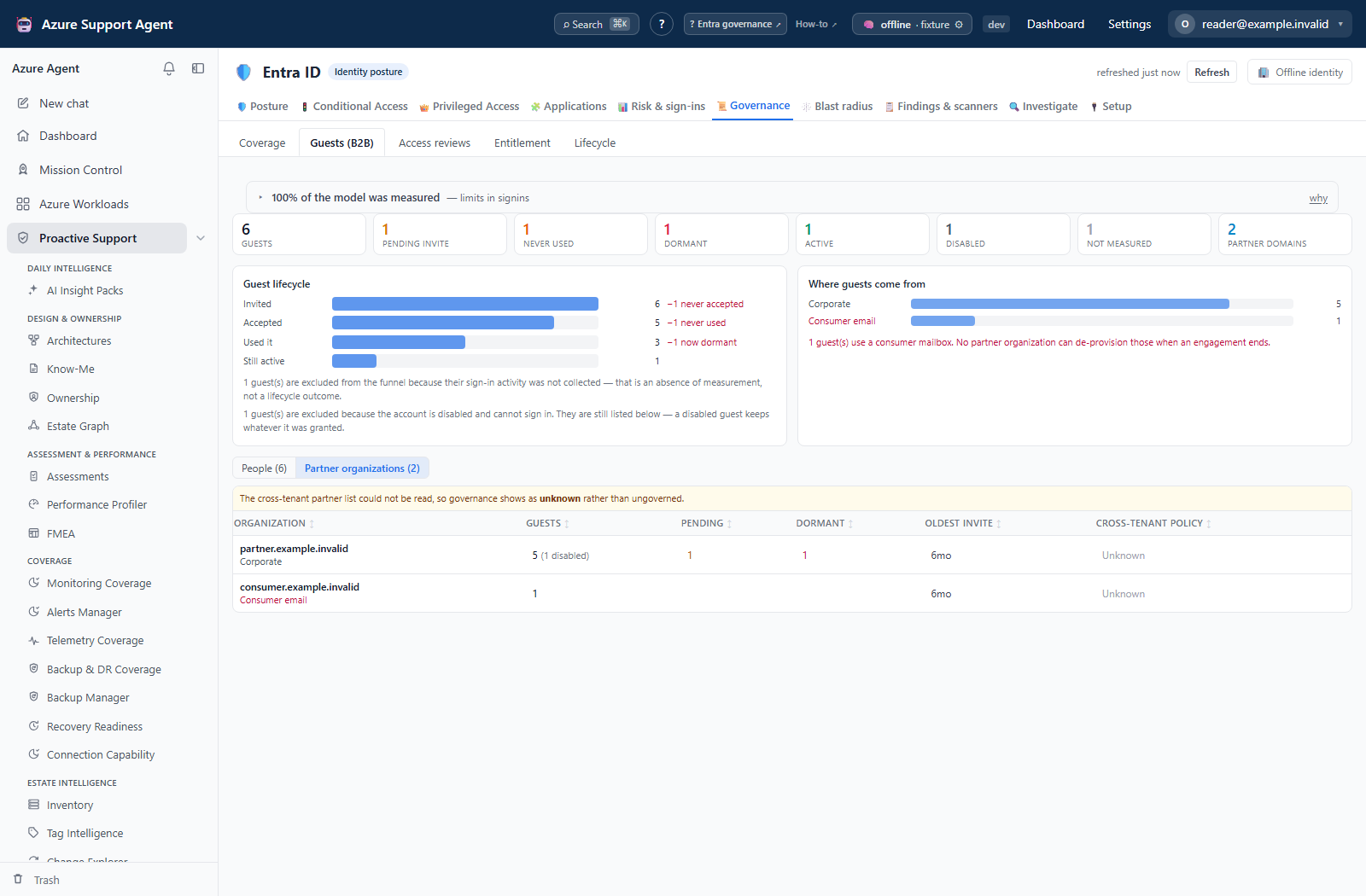
Switch the segmented control to Partner organizations. This is the unit a review is actually decided on — an engagement ends with a supplier, not with one identity at a time.
- The rows are sorted by guest count so the largest exposure leads. The organization name is the partner’s resolved display name where Microsoft could answer, with the domain beneath it.
- Read the Cross-tenant policy column. Named in policy means a cross-tenant access policy names that partner tenant. Default only means it inherits whatever your tenant default allows. Unknown means the verdict could not be determined — it does not mean ungoverned.
- Hover any verdict to read the reason for it. If a banner above the grid says the partner list could not be read, every row is
unknownfor that reason alone and the column carries no information this snapshot. - Prioritize Default only partners with a high guest count and an old Oldest invite. That is a long-standing relationship governed by nothing more specific than the tenant default.
- Select an organization to jump into the People grid filtered to it, and confirm the individual rows before proposing anything.
Expected result: A per-organization review list ordered by exposure, with the partners no cross-tenant policy names identified.
Verification: Confirm the cross-tenant access settings for that partner tenant in the Microsoft Entra admin center. The verdict is derived from the collected partner list, so a policy added after the last collection will not appear until you refresh.
How to export the campaign and work it offline
-
Apply the filters that define the campaign, then select ⬇ Export to Excel. The workbook contains every Entra sheet; the two that matter here are under the Governance section.
- Use the Guests sheet as the per-person working document. It carries the lifecycle, both activity timestamps with their ages, whether sign-in was measured at all, the sponsors, and the license count.
- Use the Guest partner orgs sheet as the per-organization summary, including the cross-tenant verdict and the reason for it.
- Note that the sheets are written in full and are not affected by the on-screen 1,000-row display cap.
- Keep the distinction between
neverandnot measuredintact when you filter or sort the sheet. They are written as different text on purpose; collapsing them revokes access nobody ever looked at. - Redact or remove partner names, sign-in addresses, and object identifiers before sharing outside the review.
Expected result: A dated campaign workbook that can be worked and signed off away from the application.
Verification: Open the Guests sheet and confirm the row count matches the unfiltered guest total, and that the generated time on the snapshot matches the review period.
How to tighten the dormancy bar for external access
-
Decide the window external access should be held to. It is separate from the member window precisely so partners can be held to a stricter standard than employees.
- Set
entra_guest_stale_daysin General settings. The default is 90 days and the accepted range is 1 to 730; values outside it are clamped on save. - Re-open
/entra/governance/guests. The Dormant tile, the funnel, the partner rollup, and the three guest signals all move together — they read the same setting, so the screen, the export, and the findings inbox cannot disagree about who is dormant. - Leave
entra_stale_daysalone unless you also intend to change the member dormancy bar; they are independent.
Expected result: A guest dormancy window that reflects your external-access policy, applied consistently to the screen, the export, and the signals.
Verification: The dormancy tooltip on the Dormant tile states the window in days. Confirm it matches the value you saved, and re-check a guest whose age sits either side of the new bar.
Safety and rollback
Every action on this page is read-only. The application does not send, resend, or withdraw an invitation, does not disable or delete a guest, does not revoke a session, and does not create or change a cross-tenant access policy. There is nothing to roll back in the app.
Removal happens in the Microsoft Entra admin center or through your approved change process, and it is not reversible by re-creating the object: a deleted guest returns as a new identity with new group memberships to rebuild. Plan it accordingly — disable first, wait out an agreed observation period, then remove. Where the access is still wanted, revoking sessions before disabling is what ends a live refresh token.
Never act on a guest whose lifecycle reads Not measured. That state means sign-in activity was not collected, not that the access is unused.
Exports and grids name real people and real partner organizations. Never paste tenant IDs, object IDs, sign-in addresses, or partner names into tickets, prompts, or shared examples.
Troubleshooting
| Symptom | Resolution |
|---|---|
| Every guest reads Not measured and the funnel is empty | The sign-in pass did not run. Grant tier 2 consent and confirm Entra ID P1, then collect again. The coverage banner names the reason. |
| Dormant is zero although the tenant clearly has stale guests | Same cause. Dormancy is never inferred without sign-in activity, so those guests are counted under Not measured instead. |
| A guest with recent activity turns out to have left the partner months ago | Read Last human sign-in, not Last any activity. The second column includes non-interactive token refresh, which keeps moving with no person involved. |
| Invitation ages look wrong for long-standing partners | Invited uses the object creation time because the external-state stamp is overwritten with the acceptance time. Confirm the creation date on the user object. |
| The partner rollup shows one row containing every guest | Not reachable from this screen — the organization is derived from the mail address, never the UPN suffix. If you see this, check whether the guests genuinely share one mail domain. |
| Every partner reads Unknown for cross-tenant policy | The partner list could not be read for this snapshot; a banner above the grid says so. The column carries no information until the next successful collection. Do not report those partners as ungoverned. |
| One organization reads Unknown while the rest resolve | That domain has no Entra tenant to resolve to — typically a consumer mailbox provider or an organization not on Entra ID. |
| The People grid stops at 1,000 rows | Display cap only. Narrow with the filters, or export; the workbook writes every row. |
| Disabled guests appear in the counts | Intended: a disabled guest still holds group memberships and app assignments. Tick Enabled only to exclude them. |
| Counts do not match the Microsoft Entra admin center | The snapshot has an age and the portal is live. Refresh from the Entra ID header, then compare. |
| A guest domain resolves to an unexpected company name | The display name is whatever Microsoft returns for that domain. Treat it as a convenience for the review conversation, not as an assertion about the legal entity. |