Review, scan, export, and investigate IAM
Prerequisites
- Product permission
iam.read;iam.writefor Scan usage,iam.reviewfor campaign decisions, andiam.simulatefor change modeling. - ARM Reader visibility at every intended management-group, subscription, resource-group, and resource scope.
- Approved Graph read access for names, groups, Entra roles, ownership, and transitive paths.
- An approved external process for access changes; this feature is read-only.
Route
/iam and /iam/:tab — including /iam/overview, /iam/effective, /iam/privileged, /iam/leastprivilege, /iam/scopes, /iam/roles, /iam/insights, and /iam/diagnostics. The former /rbac URLs redirect to their /iam equivalents, keeping the tab segment and query string.
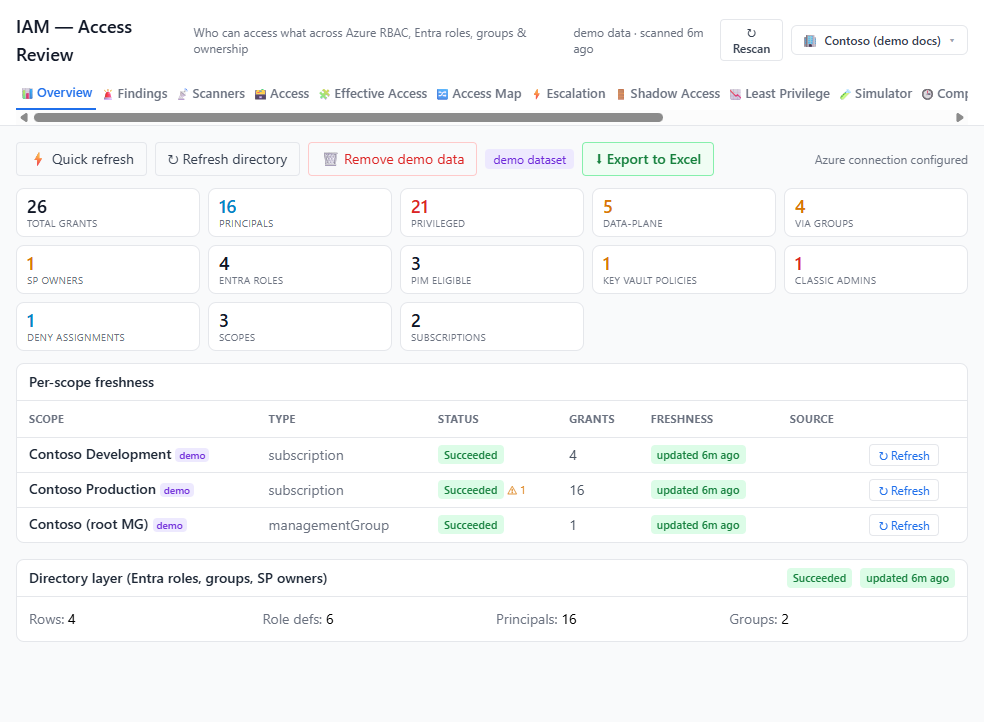
How to scan RBAC scopes and directory context
-
Open
/iam, select the connection, and read the freshness indicator in the page header. It reports the newest collection across every scope, and names how many scopes lag when they genuinely disagree. - Open
/iam/scopesto identify stale, failed, or unauthorized scope slices. - Refresh at the right granularity: one scope for a bounded Azure assignment update, ↻ Refresh directory on Overview for principal/group/Entra context, or ↻ Rescan in the page header for everything. Rescan is in the header, so it is reachable from whichever tab exposed the stale data.
- Follow background progress; the job can continue after navigation.
- Open
/iam/diagnosticsand resolve collector-specific errors.
Expected result: Current scope slices and directory context with explicit status per collector.
Verification: Generated times advance for the intended slices, the header indicator drops back to a recent age with no stale split, Diagnostics is understood, and a known assignment/principal resolves correctly.
How to review effective access
-
Open
/iam/effective. - Narrow workload/scope, surface, and principal type before entering search text.
- Inspect principal, effective principal, role, role definition, assignment scope, assignment type, and access path.
- Expand group/transitive or owner paths and note stale directory context.
- Confirm candidate access directly in Azure and Entra.
Expected result: A bounded list of known direct, group-derived, ownership, Azure, and Entra access paths.
Verification: Check assignment ID/scope, group chain, principal state, role actions/data actions, and inheritance. This is not a complete authorization-engine simulation.
How to trace access paths and PIM eligibility
- Open
/iam/accessmapand select the intended principal or resource scope. - Follow each rendered edge back to its assignment, group, ownership, or eligible-role source; do not infer a grant from the diagram label alone.
- Open
/iam/pimfor eligible and active assignment context, including schedule and activation state available in the cached scan. - Compare the path with
/iam/effectiveand the source assignment in Azure or Entra. - Refresh the affected scope and directory context after an external access change.
Expected result: The effective principal, source assignment, transitive path, and PIM state are distinguished rather than collapsed into one grant.
Verification: The source assignment and group or eligible-role chain agree across Access Map, Effective Access, and the authoritative portal.
How to investigate privileged and data-plane exposure
-
Open
/iam/privilegedand separate privileged classification from roles containing data actions. - Prioritize broad scopes, cross-scope principals, standing users, external/unresolved principals, and nested groups.
- Open
/iam/rolesto inspect role definitions and available principal records. - Use
/iam/insightsfor pivots by role, principal, scope, surface, principal type, group inheritance, ownership, Entra role, eligibility, cross-scope, and orphaned state. - Establish business owner and intended use before proposing least-privilege or PIM changes.
Expected result: A source-verified access-review candidate with impact and ownership.
Verification: Validate role permissions, scope, deny/conditional controls, service ACLs, and recent use through authoritative systems.
How to measure granted access against access actually used
-
Open
/iam/leastprivilege. If it reports that usage was not measured, treat that as “we have not looked”, not as “nothing is over-privileged”. - Open the window picker beside Scan usage and choose a preset — 7, 14, 30, 60, or 90 days — or enter a custom value between 1 and 90. The window is a lookback ending now; 90 days is the ceiling because that is what the Azure Activity Log retains.
- Run Scan usage. It reads the Activity Log per subscription, is slow, and is independent of every access refresh control.
- Read the window stated beside the figures, not the one in the picker. The picker sets what the next scan will read.
- Work the recommendations by confidence. Each states both numbers — actions used out of actions granted — and every narrower proposal names the residual risk it gives up.
Expected result: A confidence-ranked list of over-privileged assignments, each with a narrower proposal and the capability that proposal removes.
Verification: Confirm the principal’s recent activity against the Azure activity log for the subscription in question, and confirm the proposed role’s actions cover the operations the owner says are required. “Unused” is a statement about the measured window only.
How to export and hand off an RBAC investigation
-
Apply all intended filters in
/iam/effective. - Use CSV or JSON for all grid filters. Excel (all tabs) passes only scope/workload narrowing to access sheets and keeps analysis tenant-wide; search, surface and privileged-only are not workbook filters. Record scope and generated time.
- Open the file and confirm row and column completeness.
- Redact unnecessary object IDs, UPNs, group chains, and resource names before sharing.
- Create an approved case or ticket externally and attach only the minimum evidence.
- After remediation, refresh both the affected Azure scope and Directory when group or principal state changed.
Expected result: A reproducible review artifact and tracked investigation without an in-app access mutation.
Verification: The refreshed row disappears or changes as intended, while required emergency, deployment, and service-managed access remains intact.
How to record an access certification without changing Azure
- Open
/iam/reviews, choose a narrow selector, name the campaign and choose its reviewer strategy. Manager lookup is not populated; confirm owner/fallback routing or deliberately choose labeled self-attestation. - Confirm the total and returned items before activating. Creation caps at 2,000 deduplicated items, while detail shows at most 500 without UI paging; prefer a selector that fits the detail view.
- Activate, expand each item and record approve, revoke, reduce or needs-info. Supply a reason for re-presented items and preserve the business rationale for all material decisions.
- Generate the remediation/rollback proposal, review every scope and membership path, and execute only through the external change process. A revoke decision is a local decision—not cloud revocation.
- Refresh and verify in Azure/Entra, then complete and export evidence. Re-check compares existing keys and can clear earlier decisions; it is not a complete post-change verification mechanism.
Expected result: A local campaign with explicit decisions and a hashed evidence artifact, separate from any externally executed change.
Verification and safety: Compare visible items with stats.total and stats.truncated, retain any pinned baseline separately, and confirm every claimed removal in current authoritative records. Undecided items remain undecided after completion.
Safety and rollback
Scanning and analysis are read-only but can be expensive at scale. The app does not add or remove role assignments. Azure/Entra rollback must be prepared externally before revocation: restore the prior assignment or group membership using approved tooling. Never remove break-glass, deployment, inherited, or service-managed access without impact review.
Freshness and partial results
Page visits read disk-backed caches and never scan. Azure scopes and directory context age independently. Partial or unauthorized collectors remain visible in Diagnostics. Row/page caps, server-side filtering, Graph gaps, unsupported deny/conditional assignments, classic administrators, and service ACLs can make results incomplete.
Troubleshooting
| Symptom | Resolution |
|---|---|
| Overview is empty | Inspect Diagnostics and refresh the correct scope; page load is cache-only. |
The header reads scanned just now but the data looks old | The headline is the newest collection across all scopes. Check for the N of M scopes stale split, then read per-scope ages on Overview. |
| Least Privilege reports that usage was not measured | No usage scan has run for this connection. Pick a window and use Scan usage. |
| A usage window becomes 90 days | The custom picker clamps to 1–90 days; the API rejects out-of-range input. Check the selected value before scanning. |
| Scan usage returns a permission error | Usage refresh needs iam.write, unlike ordinary access refreshes under iam.read. |
| Principal/group path is stale | Refresh Directory and verify Graph consent. |
| Subscription is missing | Verify connection visibility and Reader at parent/subscription scope. |
| Search is slow | Filter scope, surface, and principal type before typing. |
| Export differs from UI | Confirm format, filters, paging/row caps, and snapshot time. |
| Expected access is absent | Check inheritance, nested groups, conditions, deny assignments, service ACLs, and collector errors. |