Restrict network access by IP
Prerequisites
- Product permissions
firewall.readandfirewall.manageto operate the editor. The route and policy/block reads usefirewall.read; save, confirm, and block-history clearing usefirewall.manage. - The public IP ranges your users actually egress from — confirmed with whoever runs the network, not assumed from a VPN client.
- Azure RBAC on the resource group hosting the container app, for recovery.
- An agreed maintenance window if the estate is large or egress is not yet confirmed.
Route
- Open
/admin/firewall. - Open
/admin/policiesfor the complementary per-IP lockout. - Open
/admin/auditto review configuration changes.
Before you start: which layer do you need?
| Requirement | Use |
|---|---|
| Stop unknown sources reaching the app at all, including the TLS handshake | Container Apps ingress restrictions (allowedClientIpRanges, or az containerapp ingress access-restriction) |
| No public endpoint whatsoever | Deploy with ingressVisibility = Internal (requires privateNetworking = Yes and your own route into the VNet) |
| Self-service control with an audit trail, monitor mode, and no redeploy | This screen |
| Both | Configure the ingress first, then this screen |
This screen cannot see ingress-level rules. “Off” here does not mean the application is unrestricted at the edge.
Check How was my address determined? before writing rules. If you reach the app over a VPN or a Tailscale subnet router, the server sees that tunnel’s address (typically 100.64.0.0/10), not your ISP address — and allowlisting the wrong one is how the first Enforce attempt fails.
How to introduce an allowlist safely
- Open
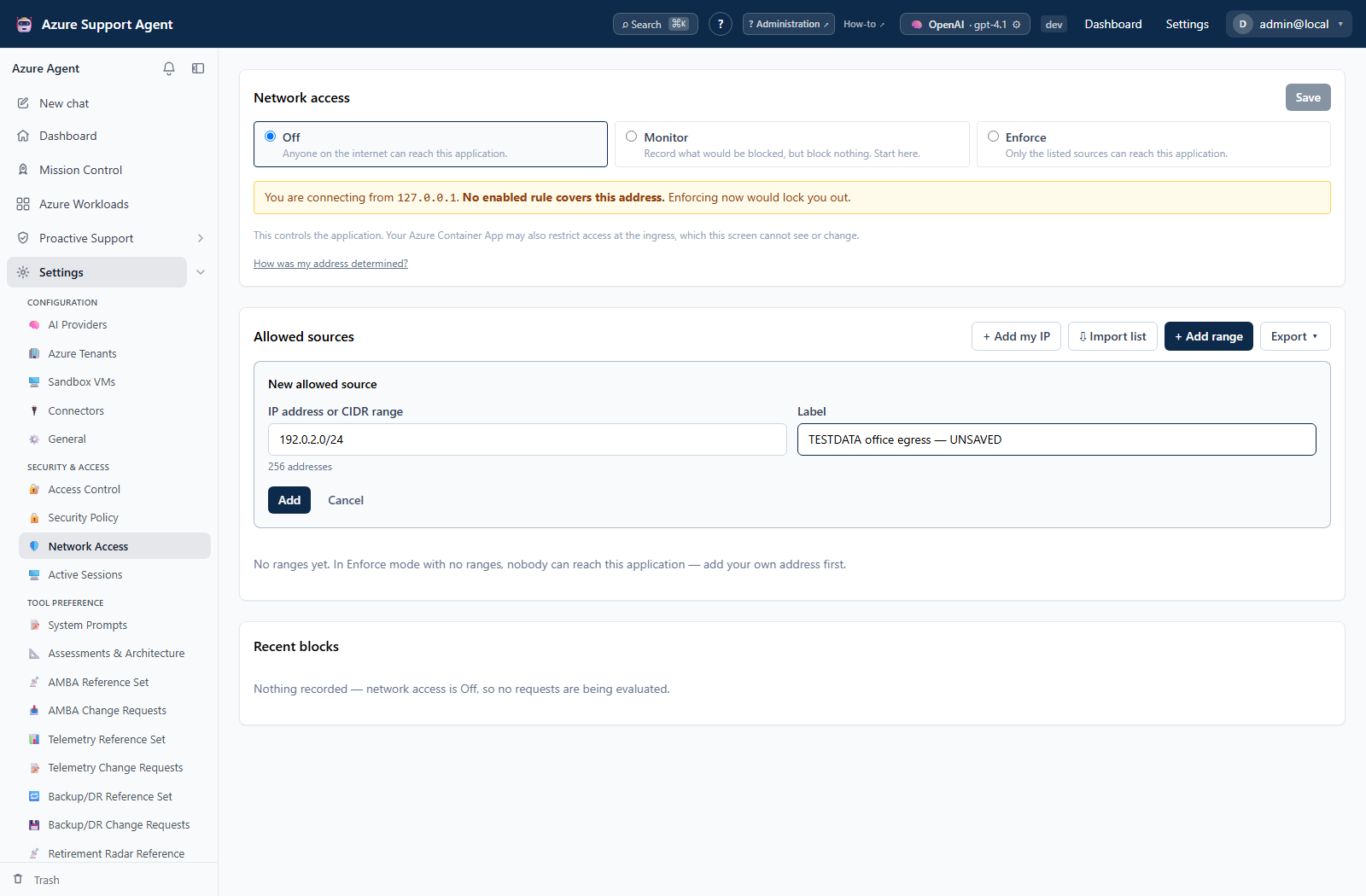
/admin/firewalland note the address shown in You are connecting from. This is the address the server resolves, which is the one the policy will be evaluated against. - Select + Add my IP so your own access is covered before anything else.
- Add each approved range with + Add range. Check the Scope column —
203.0.113.0/24reads as256 addresses. If that number surprises you, the prefix is wrong. - Set the mode to Monitor and save. Nothing is blocked yet.
- Leave it in Monitor long enough to cover a normal working period, including any overnight automation and remote or out-of-hours users.
- Review Recent blocks. Every entry is a request that would have been refused. For each legitimate source, use + Allow on the row to add it without retyping the address.
- When Recent blocks contains only traffic you are content to refuse, switch to Enforce, type
ENFORCEto confirm, and save. - Enforcement is provisional for 15 minutes. Confirm you can still use the application from a normal session, then press Keep enforcing.
Expected result: Requests from outside the listed ranges receive 403, including on the sign-in page. Listed sources are unaffected.
Verification: From an allowed network, sign in normally. From a non-listed network (or a mobile connection not on the corporate range), confirm the site returns 403 rather than a login form. Confirm firewall.update appears in /admin/audit.
How to import or export a list of ranges
Import TXT or CSV
- Select Import list under Allowed sources.
- Choose Paste list for one address/CIDR per line, or Upload file for a UTF-8
.txtor.csvfile. TXT accepts blank lines and#comment lines. CSV columns arecidr,label, andenabled; onlycidris required. - Enter the default label used by TXT rows and CSV rows whose label is blank.
- Choose Merge to preserve existing rules, or Replace to make the imported file the complete list. Replace reports every rule that will be removed and refuses an empty file.
- Select Preview import. Review invalid lines, normalization, duplicate/existing rows, overlap warnings, added/retained/removed totals, and the current-address coverage banner.
- Correct the input until Apply to draft becomes available, then select it.
- Review or search the resulting table. Imported values are still unsaved at this point.
- Select Save. If the policy is enforcing, the normal self-IP and confirmation safeguards still apply.
Use Monitor before enforcing a newly imported enterprise list. A syntactically valid list can still omit a real VPN, NAT gateway, automation runner or out-of-hours egress address.
Imports are limited to 1 MiB, 1,024 characters per physical line and 5,000 resulting rules. Only literal IPv4/IPv6 addresses and CIDRs are accepted; DNS names, wildcards and start/end ranges are rejected.
Export the saved policy
Open Export and choose:
- Active ranges — TXT for one active normalized CIDR per line, suitable for a flattened allowlist input.
- All rules — CSV for a round-trip file containing labels and disabled rules.
Export reads the saved server policy. If the table says Unsaved changes, save first or the download will intentionally contain the previous saved policy. A read-only auditor can export; import and Save require firewall.manage.
Verification: Re-import the CSV using Merge. Every row should be reported as existing and skipped, with zero additions. Re-import the active TXT into an empty draft to verify the expected active normalized ranges. Neither preview changes the policy until Apply to draft and Save.
How to seed the allowlist at deployment
Set allowlistSeed to a comma-separated list of IPs/CIDRs when deploying, so a new environment is protected from first boot rather than open until an administrator visits this screen. Set allowlistSeedMode to monitor if the ranges are not yet proven.
The seed applies only when no policy exists yet. It never overwrites a policy saved later in the application.
Expected result and verification
| Check | Expected |
|---|---|
/healthz, /readyz, /version | Always reachable; never blocked |
| Sign-in page from a non-listed source | 403, with no indication of what is hosted there |
| Recent blocks badge in Monitor | Amber, “would block” |
| Recent blocks badge in Enforce | Red, “blocked” |
| Audit Log | firewall.update on save, firewall.confirmed on confirm |
Safety and rollback
Enforcement cannot be saved while your own address is uncovered, and the 15-minute commit-confirm timer reverts to Monitor automatically if you do not confirm. If a rule is wrong and you walk away, the application un-blocks itself.
To roll back deliberately, set the mode to Off or Monitor and save.
If you lose access
Every route uses the Azure control plane, so none depend on reaching the application. Holding Azure RBAC on the resource group is sufficient.
- Reconnect from an allowed source — usually the answer.
-
Shell in and edit the policy directly. Takes effect within seconds, no restart:
az containerapp exec --name <app> --resource-group <rg> --command /bin/sh # then set "mode": "off" in /app/.data/network_access.json -
Disable the feature entirely with the break-glass variable (creates a new revision, so allow for a cold start):
az containerapp update --name <app> --resource-group <rg> \ --set-env-vars IP_ALLOWLIST_DISABLED=true - Edit
network_access.jsonon theappdatafile share — works with the app completely down.
For ingress-level restrictions, remove the rule instead:
az containerapp ingress access-restriction remove \
  --name <app> --resource-group <rg> --rule-name <name>
Troubleshooting
| Symptom | Resolution |
|---|---|
| The address shown differs from what you expect | Open How was my address determined? to see the raw forwarded chain and how each entry was classified. A VPN or Tailscale subnet router changes the address the server sees; an exit node substitutes its own public address. |
| The address is in 100.x.y.z | That is carrier-grade NAT space, which includes every Tailscale address. It is treated as a real client and can be allowlisted directly — and being stable per device, it is a better rule than a dynamic home IP. |
| Save is disabled with “Add a range covering your address” | Enforce would lock you out. Add a covering rule, or use + Add my IP. |
| A range is rejected as allowing every address | 0.0.0.0/0 and ::/0 disable enforcement while the screen still reads “Enforcing”. Remove it or use Off. |
| Users drop off intermittently | The egress range is larger or more dynamic than listed. Return to Monitor and re-observe before narrowing. |
| Enforcement reverted on its own | The commit-confirm window expired without confirmation. Re-enable and press Keep enforcing. |
| Nothing appears in Recent blocks | Mode is Off, so no requests are evaluated. Switch to Monitor. |
| “Would block” rows while enforcing | Rows keep the mode they were recorded under. Those are historical Monitor entries, not requests being allowed now. |
| Blocked entries show one address for many users | Users share an egress NAT. Allow the range, not individual addresses. |
| A restored backup is not enforcing | An imported enforce policy is restored as Monitor on purpose, because a backup carries the original deployment’s ranges. Review the rules, then enforce. |
| Apply to draft is unavailable | Correct every invalid or duplicate row named by the preview. Replace also requires at least one valid range. Overlap warnings do not block apply. |
| Import preview says your current address is uncovered | Add an enabled range covering the address shown by the server. Applying a draft is allowed, but Enforce-mode Save is blocked until the address is covered. |
| Export does not include the rows just imported | Apply to draft does not save. Press Save successfully, then export the saved policy. |
| Imported rules seem to have disappeared | Clear Search allowed sources and check the filtered/total rule count. |