Close a Conditional Access coverage gap
Prerequisites
- Product permission
entra.readfor the coverage matrix, policies, conflicts and break-glass views. - Product permission
entra.adminto run or save a Conditional Access simulation, and to confirm a break-glass account. - Tier 1 consent for the Conditional Access inventory and directory objects; tier 2 consent adds the group membership, device and MFA registration data that make cohort resolution and control coverage accurate.
- Entra ID P1 for Conditional Access itself. Without it the domain reports unlicensed and no consent will change that.
- A completed collection. The matrix is computed from the cached snapshot, not from a live Graph call.
Route
/entra/conditional-access, with URL-backed Coverage, Exposure, Policies, Conflicts, Break-glass and Simulate sub-tabs at /entra/conditional-access/:sub.
How to find the weakest cell and name who is exposed
-
Open
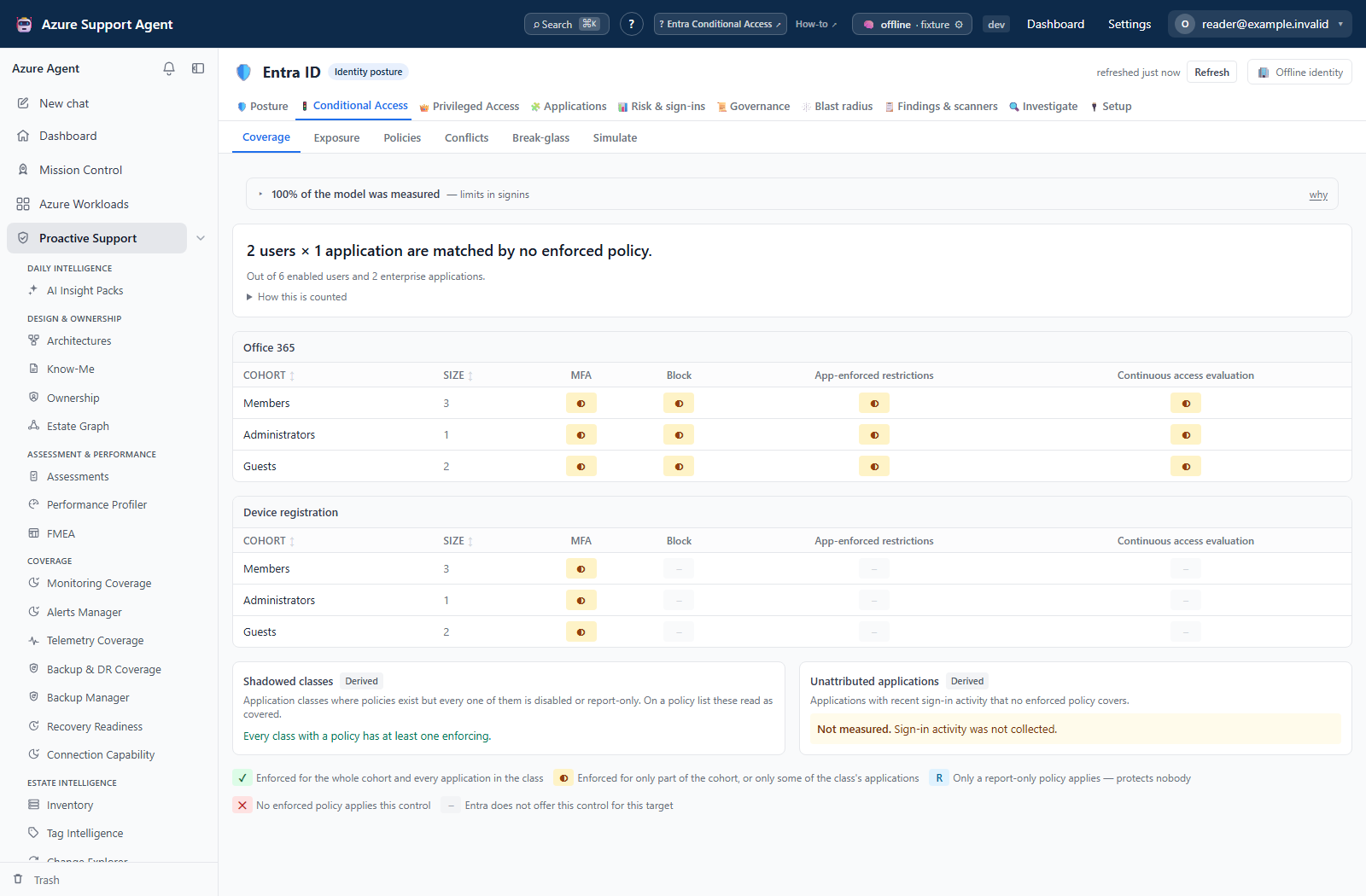
/entra/conditional-accesson the Coverage sub-tab and read the headline sentence: how many users and applications are matched by no enforced policy, and how many of those principals hold privileged roles. - Expand How this is counted and read the assumptions before you quote the number anywhere. The matrix states its own model rather than presenting a figure on trust.
- Read one matrix per application class. Rows are cohorts with their size; columns are the grant controls. A cell is enforced, partial, report-only or none — and report-only protects nobody, which is why it is a separate state from enforced.
- Pick the weakest cell that matters: prefer a
noneor report-only cell on a privileged or administrator cohort over a larger gap on a low-risk cohort. - Select the cell to open the coverage detail. Read how many of the cohort are covered, which policies produced that coverage, and the list of principals who are not covered. Users with no registered MFA method are marked.
- Note that the uncovered list is a bounded sample of a larger total where the drawer says so. Use it to characterise the gap, not as the authoritative remediation list.
Expected result: One cohort, one application class and one control identified as the gap, with named examples of who is exposed.
Verification: Open the policies named in the drawer on the Policies sub-tab and confirm their state and scope in the Microsoft Entra admin center before you plan a change.
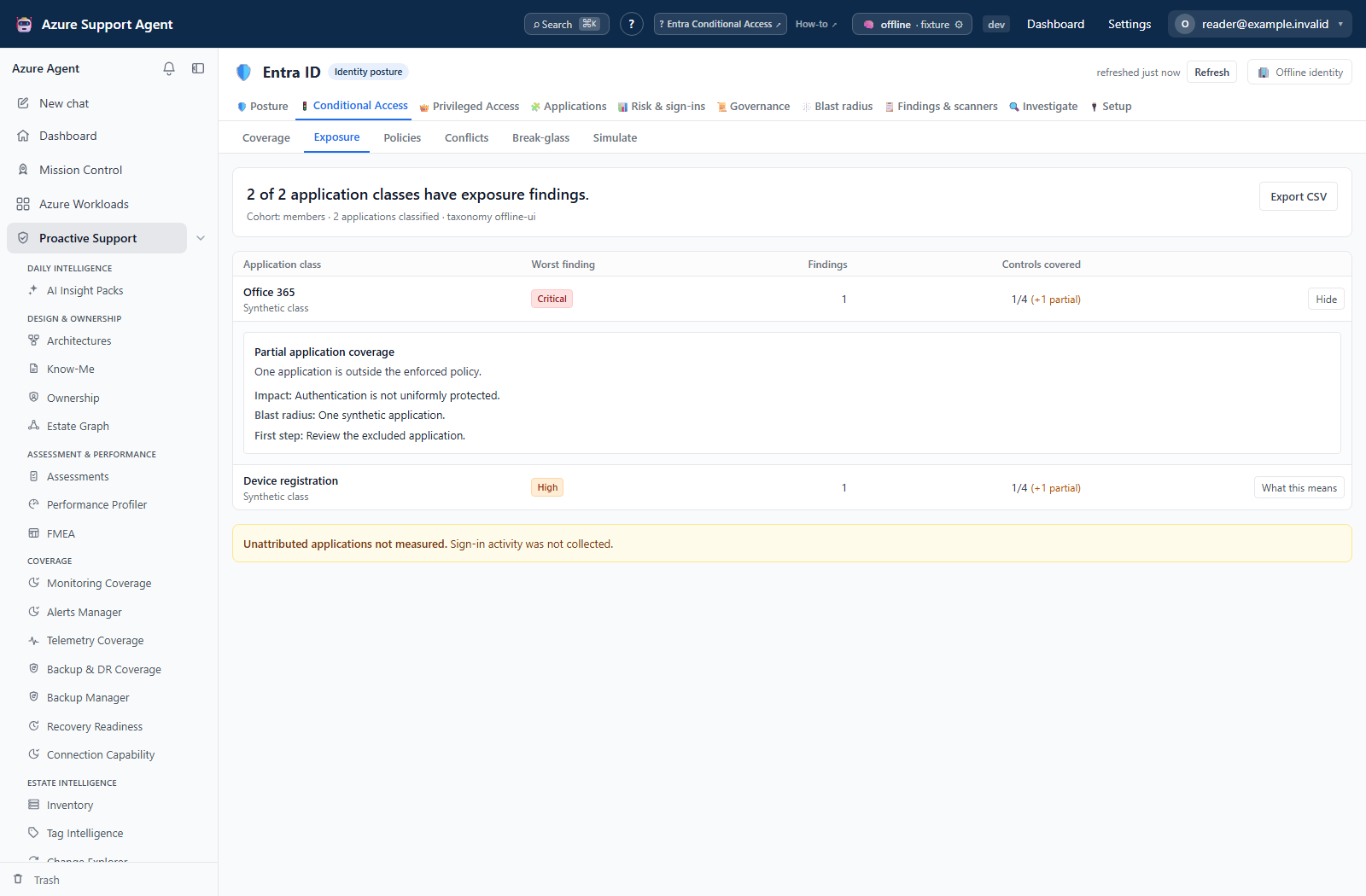
These screenshots use browser fixtures to illustrate the review steps. Their coverage and impact figures are not a computed tenant assessment or evidence of a successful policy change.
How to prioritize application-class exposure
- Open
/entra/conditional-access/exposureafter confirming the snapshot age. - Start with the first application class: rows rank the worst open severity first and use uncovered-control proportion only as a tie-break.
- Expand the row and read each finding’s exposure, blast radius, and reviewed first step.
- Export the exposure rows to CSV when a review artifact is required; retain the snapshot time with it.
- Return to
/entra/conditional-access/coverageand verify the corresponding cohort, application class, and control cells before proposing a change.
Expected result: A severity-ordered application class and its specific exposed controls are selected for review.
Verification: The expanded finding and Coverage cell identify the same application class and gap; verify the involved policies in Entra before acting.
How to check conflicts, exclusions and break-glass exposure
-
Open the Policies sub-tab and filter to the policies involved. Each policy shows whether it is enabled and enforced, report-only, or disabled.
- Open a policy and read its effective user count, excluded user count, grant controls, application scope and last modified time. A large exclusion set is the usual reason a cell reads partial rather than enforced.
- Read the conflicts listed on the policy, then open the Conflicts sub-tab for the tenant-wide view grouped by conflict kind. A control that is granted by one policy and undermined by another is a coverage problem the portal cannot show you, because it shows one policy at a time.
- Open the Break-glass sub-tab. Detection is heuristic on purpose, so confirm or reject each candidate yourself; the decision is stored locally and never written to Entra.
- Decide explicitly which exclusions must survive the change — emergency access accounts, service accounts with a compensating control — and which exist only because nobody removed them.
Expected result: A change proposal that names the policy to alter, the exclusions to keep, and the conflicts it must not make worse.
Verification: Every exclusion you intend to keep is either a confirmed break-glass account or has a documented owner and compensating control.
How to model the change before proposing it
-
Open the Simulate sub-tab. Choose the change kind — enable, disable, set to report-only, or delete — and select the policy. The candidate list is filtered to policies for which that change is meaningful.
- Narrow the sign-in contexts if you only care about a subset; by default the simulator runs every context it publishes.
- Select Simulate and read modeled changes, not guaranteed outcomes. Counts are principal/context cases, not unique people. Session restricted reports session-control changes separately; unknown MFA registration is assumed satisfiable, so real blocks may be higher.
- Read the break-glass impact first and never dismiss it. A change that locks out emergency access is the one failure mode that cannot be fixed from inside the tenant.
- Select Simulate & save to keep the run as evidence for the change review. Saved simulations are listed with their counts, break-glass impact and a marker when they are based on older data than the current snapshot.
- If a policy evidence artifact is needed, use
/api/entra/ca/export(JSON/Markdown) or Posture’s workbook. There is no CA policy-export button here, and the normalized JSON is not a directly re-applicable Graph policy payload.
Expected result: A saved, dated simulation and a policy export that together describe the current state and the predicted change.
Verification and safety: Preserve the initial result before Re-run, which overwrites the saved result/time. The list has no open-result control; the saved-detail API returns it. Check sample size, unknown MFA and sampling.case_budget_exhausted (20,000-case budget, at most 100 listed cases). The UI does not separately display that budget flag. Validate the policy in Microsoft’s tools before enforcement.
How to roll out and confirm
-
Make the change in the Microsoft Entra admin center through your approved change process. Nothing in this feature writes a policy.
- Deploy in report-only first and let it run long enough to cover a full working cycle, including out-of-hours and service account sign-ins.
- Review the report-only results in Microsoft’s own sign-in logs before enforcing. Confirm the affected population resembles the simulated newly challenged and newly blocked sets.
- Enforce the policy, keeping the exclusions you decided to preserve.
- Return to the app, select Refresh on the freshness badge, and wait for the collection to finish.
- Re-read Coverage and authoritative sign-in results. Re-run saved input only if it still represents a meaningful proposal: it overwrites the saved record and can conflict after deletion. Repeating an enable/delete input is not a universal post-deployment test.
Expected result: The target cell reports enforced coverage for the cohort, and the headline uncovered figures fall by roughly the population you modeled.
Verification: The uncovered list for that cell is empty or reduced to the exclusions you deliberately kept, and the Conditional Access pillar on /entra reflects the change in the next score.
Safety and rollback
Every Conditional Access read in this feature is read-only, and the simulator is pure computation over the cached snapshot — no policy is created, modified, enabled or deleted by this product. The local writes are the saved simulation and the break-glass confirmation, both stored per tenant, both recorded in the audit trail, and both discardable without touching Entra.
The real change and rollback happen in Entra. Preserve the original policy and an independently tested emergency-access procedure; decide whether rollback restores prior settings, disables the new policy or changes it to report-only. Report-only is a testing mode, not a guarantee of cost-free recovery or a backup. Exports contain policy structure and identifiers; protect them as governance evidence.
Troubleshooting
| Symptom | Resolution |
|---|---|
| The Conditional Access tab reports the domain is blind | Grant the missing tier from /entra/setup, re-check permissions, then collect. |
| The domain reports unlicensed | The tenant lacks Entra ID P1; consent will not help. |
| The simulator says there is nothing to simulate | The tenant has no Conditional Access policies collected. Start from the Coverage sub-tab. |
| Simulate returns a permission error | Simulation requires entra.admin because it enumerates cohort membership broadly. |
| A saved simulation no longer applies | It references a policy that has since been deleted or changed. Rebuild the change and simulate again. |
| A saved simulation is marked as based on older data | It predates the current snapshot. Re-run it before quoting the numbers. |
| A cell still reads partial after the change | Exclusions or a report-only policy remain. Open the cell detail and read the policies applying. |