Operate Backup Manager
Screenshot context: These native application examples use isolated synthetic demo data, not live Azure evidence. Demo Azure writes are disabled. The live procedures below have their own approval and verification requirements; no backup, hardening or failover operation was executed for these captures. Demo costs are estimates, not actual spend.
Prerequisites
- Product permission
backup_manager.read. Azure change proposals need the target action permission (protect_write,vault_write,ondemand, ordrill_write); the catalog also definespolicy_write. Local reference edits needreference_write.backup_manager.approvedecides, applies, and permanently purges. - An Azure connection that can read the Resource Graph
recoveryservicesresourcestable across the selected scope, plus Reader on the vaults themselves. Microsoft.CostManagement/query/actionon the in-scope subscriptions for invoiced spend. Without it the Cost tab still reports list-price estimates and states why actuals are missing.- A service-principal or managed-identity connection for Backup Reports; a pasted token cannot query Log Analytics.
Azure mutations require a writable connection and explicit managed approval/apply, even when chat permits autonomous writes. The current apply helper checks read_only, not auto_execute_writes=false. Prefer a gated connection and an independent reviewer, but do not claim either setting or requester/approver separation is additionally enforced by this API.
Route
Open /backup-manager. The view strip at the top selects Manager (the selected scope), Fleet (every workload), or Cleanup (what the module is storing).
How to analyze one scope
- In Manager, choose the connection and the workload or subscription.
- Click Analyze backups. Ordinary data tabs read the completed snapshot, not a new estate sweep. Scope discovery, alternative cost periods, retention modeling, and mutation preflights can independently read Azure.
- Watch the phase log: resolving scope, reading Resource Graph, checking for orphans, reading vault configuration, analyzing, pricing, saving. Each Resource Graph source reports the row count it returned.
- Navigate away if you want. The analysis runs on the server and the module reconnects to it when you return.
- When it completes, every tab is served from that one analysis.
Expected result: One analysis populates Overview, Protection flow, Protection, Job inbox, Policies, Vaults, Gaps, DR & drills, Cost & waste.
Verification and safety: Check the analyzed time, source warnings, and per-vault errors. If every Resource Graph source failed, the previous analysis is deliberately kept — repair the credential/access and analyze again. Workload collection uses its member subscriptions, not a per-datasource membership filter; check actual resource IDs before attributing or changing rows.
How to analyze a management group without planning writes
- Select the intended connection, choose Management group, and pick the group from that connection’s hierarchy.
- Select Analyze backups and inspect the resolved descendant-subscription count and batch progress.
- If the group is invisible, a hierarchy branch is unreadable, or no subscriptions resolve, correct that scope/access problem and retry. Do not substitute an all-visible scope.
- Review every tab and the workbook’s Scope subscriptions and Coverage & limitations sheets.
- For a change, narrow the UI to the intended workload or subscription and confirm each target and connection in Managed changes.
Expected result: A completed or explicitly partial read-only analysis of the resolved descendants.
Verification and safety: Resource Graph batches contain at most 100 subscriptions. Mixed-currency actuals remain separate. Scope-bearing write and retention-impact APIs reject management-group scope; ledger decisions/apply operate on change IDs, so the scope picker is not a substitute for reviewing targets.
How to sweep the whole fleet
- Open Fleet. Every workload is listed with the headline of its last analysis, served from cache; drawing the grid reads nothing from Azure.
- Sort worst-first (the default): never-analyzed workloads lead, then the most gaps, then the lowest protection percentage, then the most failing jobs.
- Select the workloads to measure and choose Analyze selected.
- Expect two Backup Manager batch items at a time. One server-owned durable batch stores the entire selection and queued tail; it does not depend on the browser remaining open.
- Leave the tab if needed — each row shows its phase,
queued, or a failed-style result. Check the batch bar for failed/partial/cancelled distinctions. Retry failed creates a retry batch containing those outcomes, not successful items. Cancel pending cancels queued items; it does not undo completed analyses or cancel an Azure operation. - Click a workload name to open it in the Manager view with its connection already selected.
Expected result: Successful items update their analysis and Fleet row; failed, partial, and cancelled items remain distinguishable in the batch result. The header counts analyzed and outstanding work.
Verification and safety: Compare Last analysis against the change being investigated. A Fleet row is only as fresh as its analysis, and Est. cost / mo is an estimate even when that run also collected actual spend.
Demo workloads are listed but cannot be launched — they are synthetic and composed on read.
How to verify a protected item’s recovery-point context
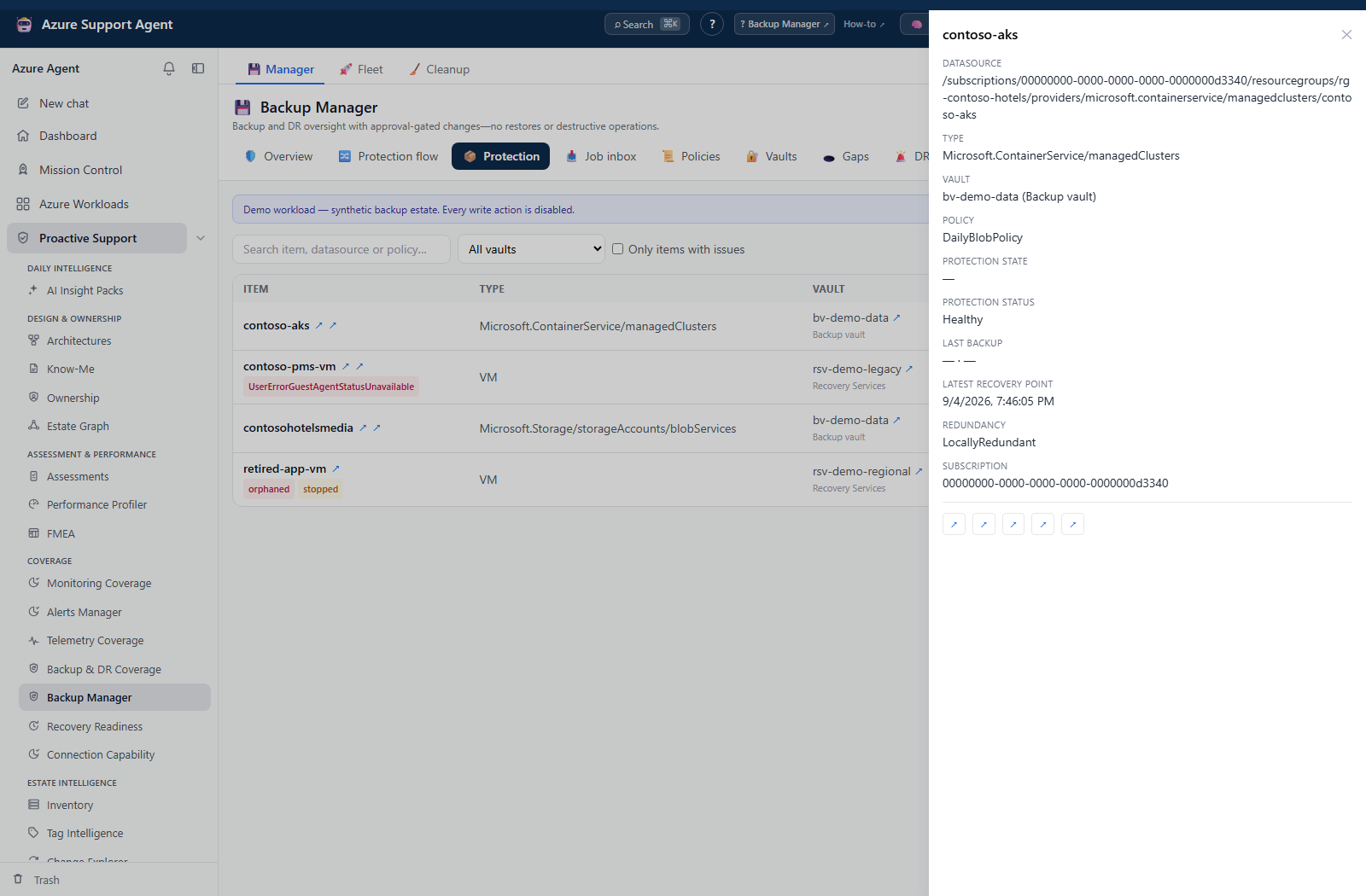
- Open Protection for the intended completed analysis and select the item.
- Match its source, vault and policy before reading the protection state and latest recovery point.
- Compare the recovery-point time with the expected policy interval, and inspect upstream collection warnings when a value is absent.
Expected result: A specific item is traced to the configuration and recovery-point context that produced its row.
Verification and safety: Unknown policy or recovery-point data is not zero retention or proof of no backup. Confirm important facts in Azure and use an independently performed restore exercise for recovery assurance; opening this detail performs no restore.
How to triage failing backups
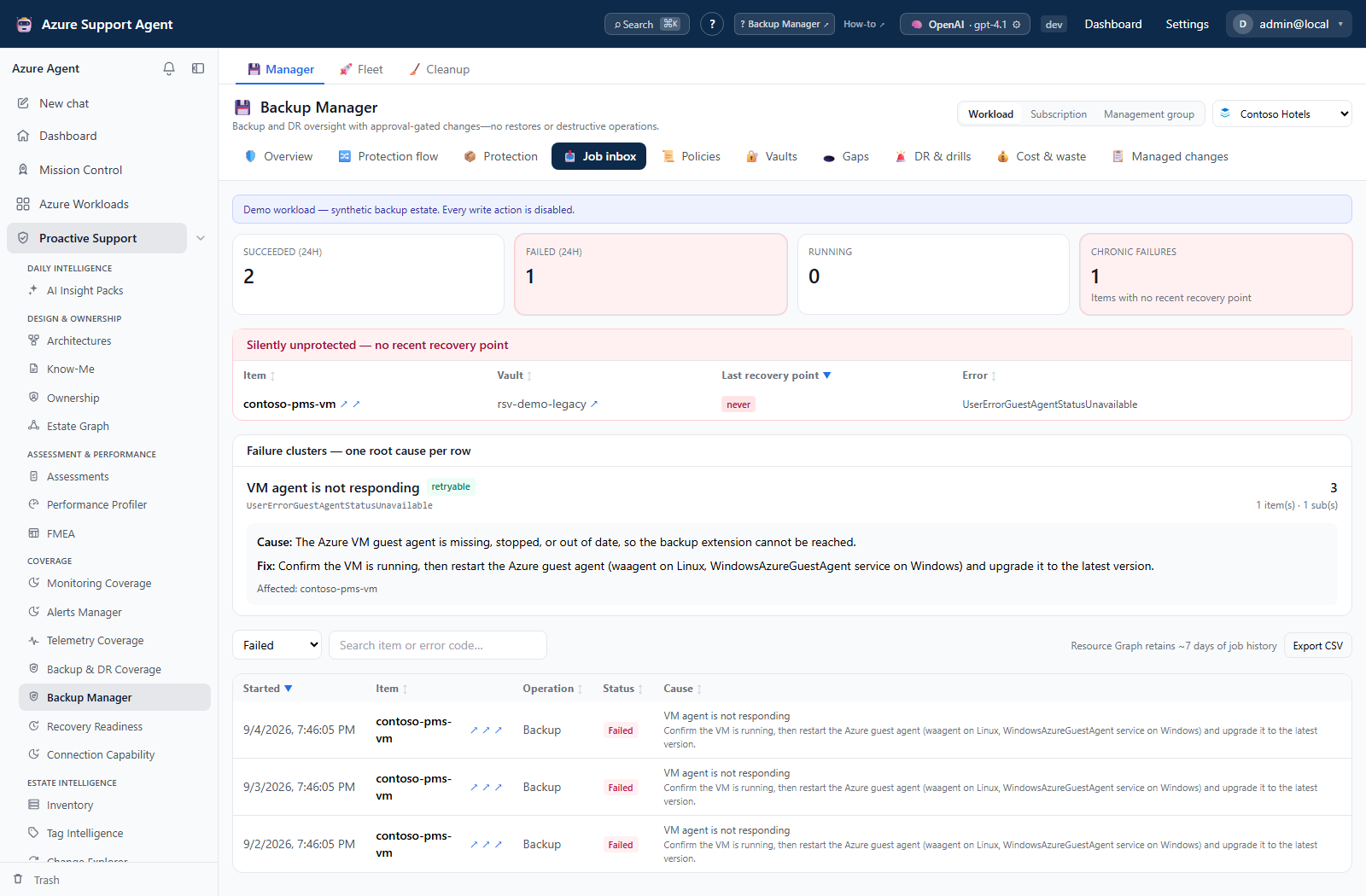
- Analyze the scope, then open Job inbox.
- Work the failure clusters, not individual jobs: each carries the Azure error code, its cause, and the documented remediation.
- Check chronic failures — an item with no recent recovery point is a protection outage even when today’s job succeeded.
- Draft an on-demand backup where a retry is appropriate. It enters the ledger as a change rather than running immediately.
Expected result: Failures are grouped by root cause with a documented remediation each.
Verification and safety: Resource Graph job history covers approximately seven days; the Overview counters use a 24-hour subset. Absence of a job is not proof it never ran. Back up now creates a pending request requiring backup_manager.ondemand; applying it triggers a real backup.
How to close a protection gap
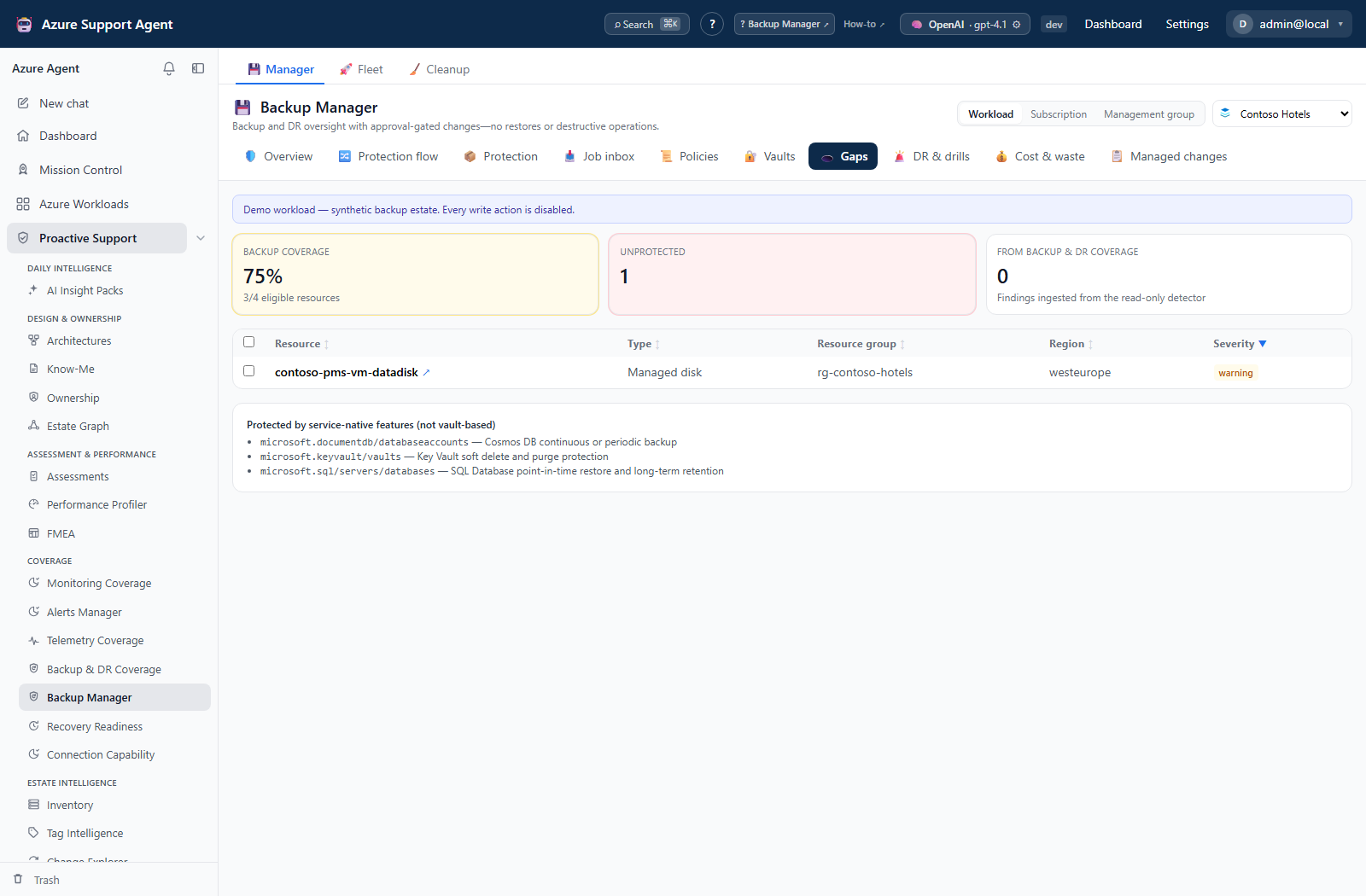
- Open Gaps. Live detection and findings ingested from Backup & DR Coverage are listed separately.
- Select the resources to protect, then choose a target vault and policy.
- Preview. Blocked items state why — most often that the vault must be in the resource’s own subscription.
- Submit. Each ready item becomes a pending change; nothing has reached Azure yet.
- Approve and apply from Managed changes.
Expected result: Protection is drafted as reviewable changes, never applied silently.
Verification and safety: Backup writes can remain applying while the server follows a private operation URL; that URL is not exposed in the public ledger. Analyze again to verify convergence. The preview is rebuilt on submission, so recheck ready/blocked counts rather than assuming every selected item was submitted.
How to model retention without changing a policy
- Open Policies, inspect the current retention and protected-item count, and choose Model retention change on the intended policy.
- Enter the proposed retention in days and select Model impact.
- Read the direction, removed-point count, exact/estimated counts, and per-item source. Exact mode considers at most 25 candidate Recovery Services items; Backup vault items and remaining rows are estimated.
- Close the dialog. It does not submit a backup-policy change; arrange any actual policy edit through a separately reviewed supported workflow.
Expected result: A read-only impact model, with at most 200 per-item detail rows.
Verification and safety: Verify unknown current retention in Azure before relying on the result. The API accepts 1–36,500 proposed days, but a modeled decrease can permanently prune points if later carried out; restoring a policy value cannot recover those points.
How to harden a vault and enable Backup Reports
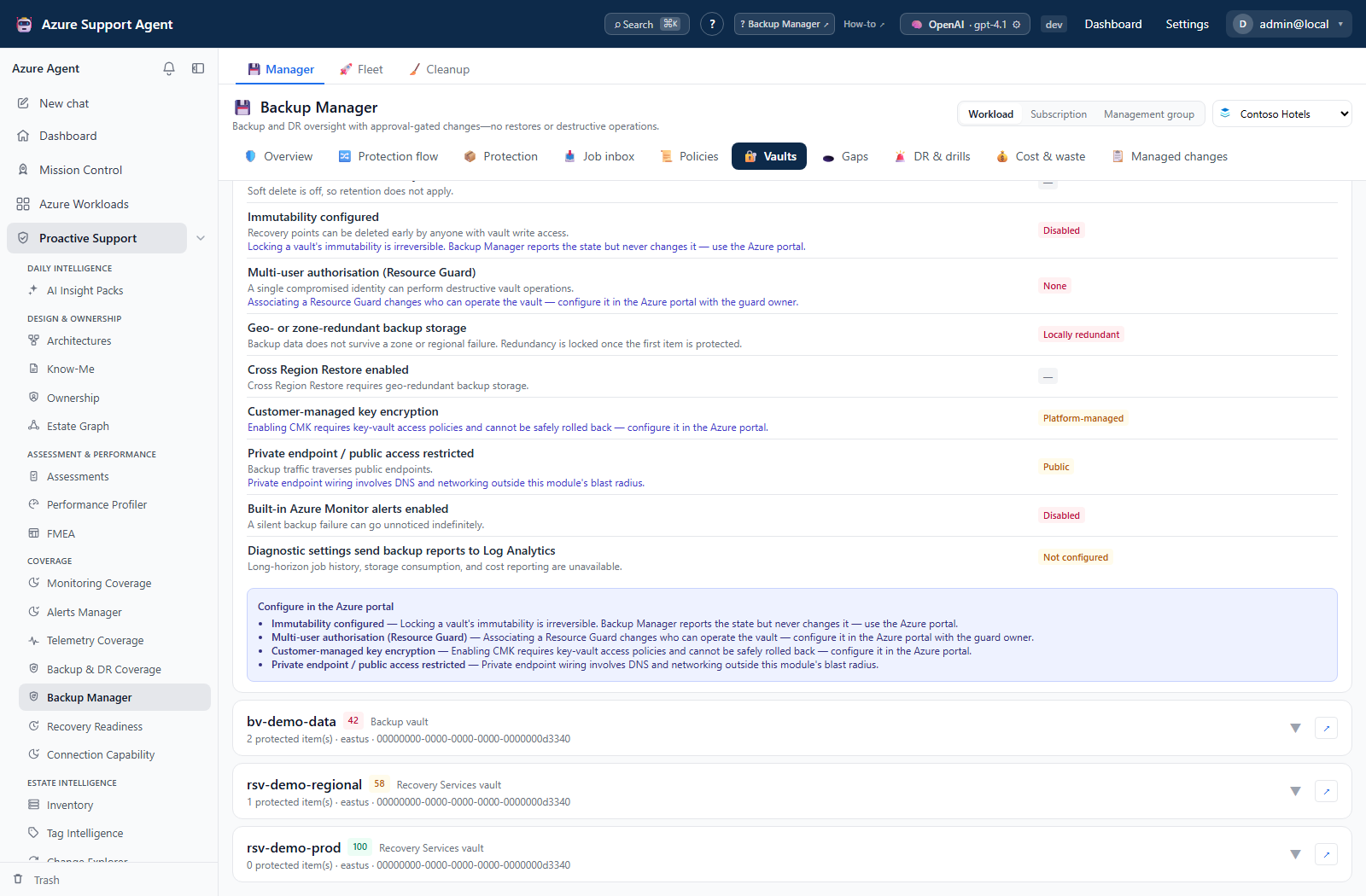
- Open Vaults, expand the target, and inspect failed/warning controls plus its enrichment errors.
- Select supported controls: soft delete, retention extension, Cross Region Restore, eligible redundancy changes, built-in alerts, or diagnostics.
- For diagnostics, supply the full Log Analytics workspace ARM ID. Reporting uses resource-specific Backup tables; an enabled diagnostic setting alone does not prove those tables contain data.
- Select Draft hardening changes, then review created and skipped controls in Managed changes.
- Approve and apply only the intended requests, then analyze again and confirm Azure configuration and reporting data.
Expected result: One pending request per actionable control; already-satisfied or unsupported controls are skipped or rejected.
Verification and safety: Redundancy changes require an empty Recovery Services vault; Backup vault redundancy is fixed at creation. Cross Region Restore requires geo-redundant storage. Immutability locking, Resource Guard, CMK, and private-endpoint configuration remain separate reviewed Azure operations.
How to run and clean up an isolated Site Recovery test
- Open DR & drills and confirm the replicated item is protected, healthy, not already testing, and not running from the recovery region.
- Select Run test failover. The UI drafts a NoNetwork test; it does not execute immediately.
- In Managed changes, obtain two distinct row-level approvals for the test-failover request, then select it and choose Apply to Azure.
- Check the Azure job and test resources, perform the agreed verification, and analyze again to refresh the test state.
- Select Clean up drill for the active test, then review, approve, and apply that separate cleanup request.
Expected result: A real isolated test environment is created and later removed through separately reviewed operations.
Verification and safety: Test resources incur charges until cleaned up. This is neither a production failover nor a data restore. Test cleanup is not automatic, and the test-failover target’s dual-approval flag does not make every high-risk target dual-approval.
How to record a manual recovery drill
- In DR & drills, enter a drill name and choose Schedule drill with
backup_manager.drill_write. - Confirm the scheduled register entry. The UI creates a restore-drill record with a default 180-day cadence; it does not schedule Azure execution.
- Perform the restore rehearsal outside Backup Manager under its own change control.
- Record Passed or Failed only after reviewing the actual result. The UI requests an Evidence Locker capture; the outcome API additionally accepts notes and measured RTO.
- Check the completed record and next recurring occurrence. Cancelled outcomes do not create that follow-up.
Expected result: An audited application record and, when requested, frozen drill evidence; no restore is executed by recording an outcome.
Verification and safety: Recording is an immediate material governance action, not a pending approval. Do not report an unperformed rehearsal as passed. The UI hides drill controls for read-only/demo/management-group selections; the register API’s local-record permissions are distinct from Azure write guards.
How to approve, cancel, apply, and recover a managed change
- Open Managed changes and review each selected target, connection, reason, operation, and risk; selection is not Alerts Manager’s cross-page prerequisite expansion.
- Approve pending ordinary rows with a reason. For rows requiring dual approval, use the row-level control with two different approvers.
- Reject unwanted pending rows. To cancel an approved-but-unapplied row, use an authorized review of the individual decision API: the current bulk Reject skips approved rows.
- Select approved rows and choose Apply to Azure. Watch the ledger, including All changes for applying and terminal rows.
- For a state-conflict failure (409), refresh live state and redraft; Backup Manager records this as failed, not a separate stale status.
- For
OperationTimeout, inspect the Azure job before retrying. The 120-minute/240-poll limit stops tracking; it does not cancel or reverse Azure’s operation. - Use Roll back only where offered, review the new pending inverse, and approve/apply it separately. Finally, analyze again.
Expected result: Decisions remain local until apply; execution status and errors remain visible, with supported inverses independently reviewed.
Verification and safety: On-demand backups, job cancellation, tests/cleanup, and new vault/diagnostic resources have no general rollback. Automatic Evidence capture on apply is not implemented; preserve evidence explicitly when required. Never treat a summary success as proof that every selected row executed.
How to compare cost and export the completed review pack
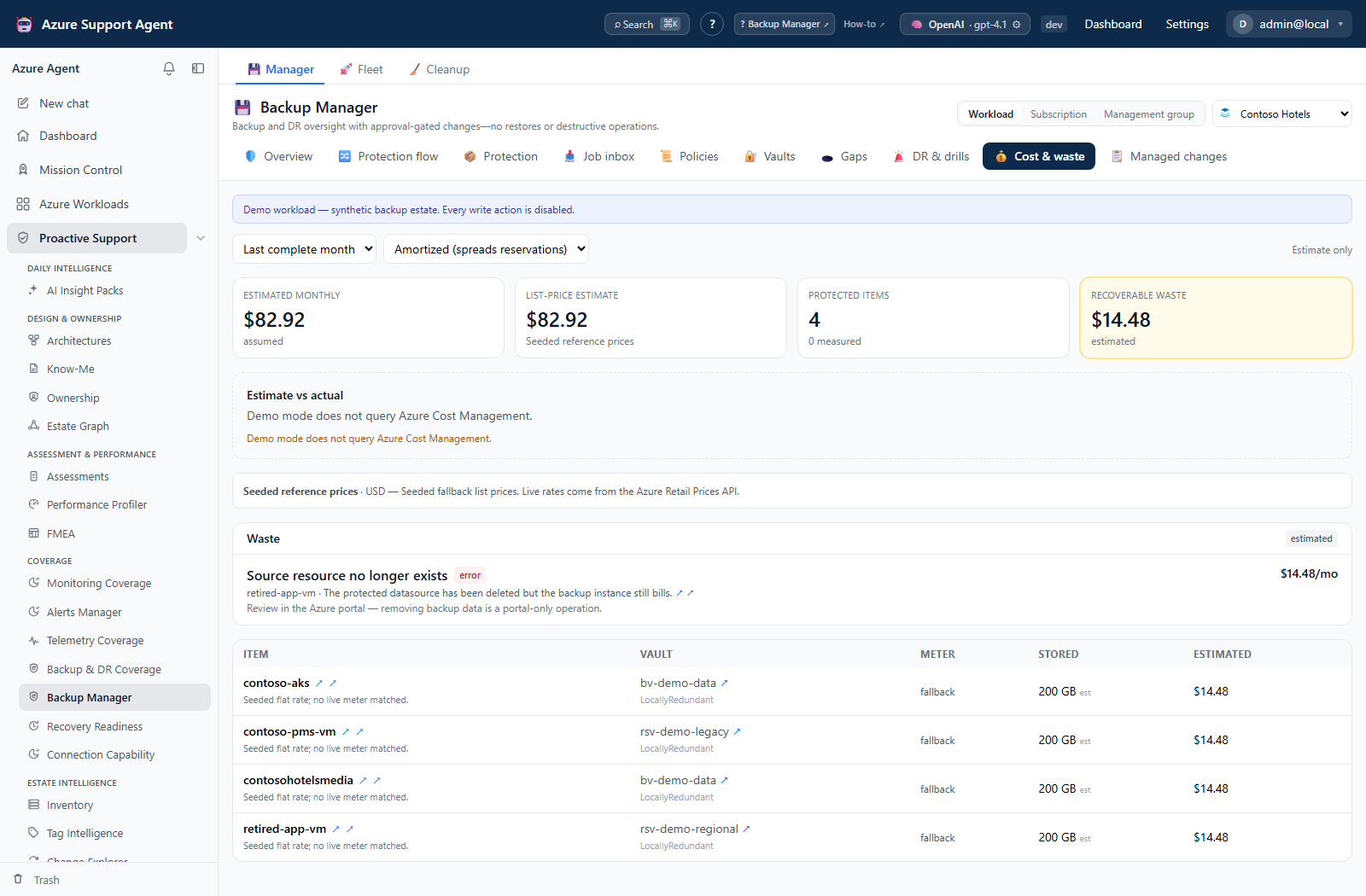
- Open Cost & waste and compare the default last-complete-month actuals with the current-footprint estimate, reading currency, price source, allocation basis, and limitations.
- Change the period or Actual/Amortized option only when a new cost read is intended. Inspect missing-actuals reasons, partial subscription coverage, and unpriced items.
- Open Overview and select Excel review pack. During another analysis it exports the prior completed snapshot, not unfinished results.
- Read Summary, Coverage & limitations, and the separate Live ledgers read timestamp. Managed changes and drills are connection-wide live ledgers.
- For smaller extracts, use Protection or Job inbox Export CSV. Other CSV kinds are API-supported, not buttons on every tab.
Expected result: A snapshot-based workbook or CSV without an export-triggered Azure collection.
Verification and safety: Compare source timestamp, currency, scope, and row limits; the workbook ledger keeps at most 10,000 changes and cost detail at most 200 items. A CSV is not the current browser search/selection. Actuals may be cached for six hours and prices for seven days. Downloads themselves are not audit-log events in these endpoints.
How to trace a protection flow safely
- Open Protection flow and choose Items or Cost weighting.
- Select columns, a preset, and outcome filters; click a bar/ribbon to inspect connected paths.
- Save a named view if needed. It is stored in this browser, not shared account configuration.
- Follow Open vault posture, Model this policy, or Protect these resources, then verify the target/selection in the destination tab before acting.
Expected result: A visual projection of the completed snapshot, with no Azure write from tracing a path.
Verification and safety: The policy link opens Policies rather than an already-selected model. The gap link preselects snapshot gaps, not necessarily only the searched ribbon. Flow’s 48-hour freshness threshold differs from Job inbox/DR thresholds, and cost uses allocated actuals where present, then bounded estimates; absent cost is not proof of zero billing.
How to reclaim storage
- Open Cleanup.
- In Stored analyses, select orphaned scopes — a deleted workload, a removed connection, or an older analysis shape — and purge them. This is the change that frees real space and stops useful scopes being evicted by the store’s scope cap.
- In the history list below, apply a visible retention preset: retain the last N per scope, older than 30 / 90 days, demo runs, or empty runs.
- Trash first if you are unsure; trashed entries can be restored. Purge is permanent.
Expected result: The stored-analysis count and total size fall, and the scopes you actually use survive the cap.
Verification and safety: A purged scope shows “No backup analysis yet” until it is analyzed again. Nothing in Azure changes and no backup data is touched. Trash/restore require read access; permanent history/snapshot purge requires backup_manager.approve. Purge is immediate local deletion, not a pending Azure approval request.
Safety and rollback
- Backup Manager never restores data and never performs destructive backup operations — deleting backup data, purging soft-deleted items, locking immutability, disabling soft delete, unregistering a container.
GET /api/backup-manager/refusalslists them and the capability flags stayfalse. Do not plan a recovery procedure around this module. - Only stop protection with data retained exists. Any other stop mode is refused by the apply path, not merely hidden.
- The Site Recovery test-failover target requires two distinct approvers and cannot be approved in bulk; this is not a universal rule for all high-risk labels.
- Purging a stored analysis or its history is irreversible, and requires
backup_manager.approve. It deletes cached reports only — never Azure state, audit records, or Evidence Locker snapshots. - A vault’s storage redundancy cannot be changed once it holds a protected item; the action is withdrawn rather than offered and failed.
Troubleshooting
| Symptom | Cause and resolution |
|---|---|
| Every Manager tab asks me to analyze | No completed snapshot exists for the selected scope. Click Analyze backups; ordinary tab navigation does not start that sweep. |
| Fleet says a workload was never analyzed but I analyzed it | The analysis was recorded against a different connection than the workload is registered with, or its stored analysis was purged. Analyze it from the Fleet row. |
| A fleet sweep seems slow | Two analyses run at a time by design. The header shows how many are outstanding; each row shows its current phase. |
| A fleet row sat on “analyzing” then went idle | It may have completed or been requeued after interruption. Reopen Fleet, check the durable batch result and Last analysis, then retry only the failed/partial work if required. |
| A tab went back to “No backup analysis yet” | The stored analysis was evicted by the scope cap or purged. Analyze again, and purge orphaned scopes so the cap protects the ones you use. |
| Cost shows an estimate but no actuals | The connection lacks Cost Management query rights on the in-scope subscriptions, or the period has no billed backup usage. The reported reason states which. |
| Per-item cost looks approximate | It is apportioned. Azure bills backup to the vault, not the item; the rows reconcile to the vault total and each states its basis. |
| A change is stuck in applying | Tracking stops at 120 minutes or 240 polls with failed/OperationTimeout. Check the Azure job first; it may still be running or have finished. Retry only after reconciling that state. |
| A change failed with a state-conflict message | An expected update hash differs from live state. Read Azure and redraft, rather than forcing the original payload; report repeat conflicts on unchanged targets as an application issue. |
| Cancel on a backup job is refused | Only running Recovery Services vault jobs are supported. Refresh the job’s actual state and vault kind; do not apply a stale cancellation request. |
| A retention model has unknown starting retention | Unknown is not zero. Verify the current Azure policy before interpreting an increase/decrease result or approving a real retention change. |
| Purge is disabled in Cleanup | Permanent deletion requires backup_manager.approve. Trash is available with read access and is restorable. |